1. 서론
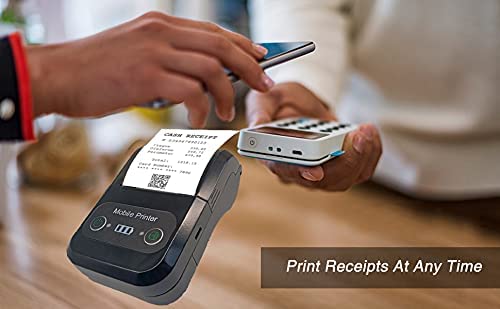
The Milestone MPT-II is a compact and portable 58mm thermal printer designed for various business applications, including retail, restaurants, and mobile logistics. It offers high-speed, clear printing and features Bluetooth connectivity for seamless integration with Android and iOS devices. Its lightweight design and long-lasting battery make it ideal for on-the-go printing needs.

2. 주요 특징
- 블루투스 인쇄: Supports Android and iOS devices for wireless printing.
- 휴대성: Light and compact design allows for printing anywhere, anytime.
- Low Operating Cost: Direct thermal printing eliminates the need for ink ribbons or cartridges, requiring only thermal paper.
- 긴 배터리 수명: Built-in 7.4V/2500mAh rechargeable lithium battery provides up to 4 hours of continuous printing.
- Versatile Interface: Equipped with both USB and Bluetooth connectivity.
- ESC/POS Compatible: Supports standard ESC/POS print commands for broad software compatibility.

3. 초기 설정
3.1 언박싱 및 내용
Carefully unpack the printer and verify all components are present:
- 1 x Milestone MPT-II Thermal Printer
- 1 x USB 케이블
- USB 어댑터 1개
- 1 x 종이 롤
- 1 x 사용자 매뉴얼(이 문서)
3.2 프린터 충전
- Connect the USB cable to the printer's charging port.
- USB 어댑터를 일반 전원 콘센트에 꽂으세요.
- The charging indicator light will illuminate. Charge the printer fully before first use (approximately 2.5-3 hours for continuous printing).
3.3 감열지 넣기
- Open the paper compartment cover by gently pushing the latch.
- Insert the thermal paper roll with the printing side facing outwards (as shown in Figure 2). Ensure the roll is seated correctly.
- 절단면보다 약간 더 길게 종이를 당겨 빼내세요.
- 용지 보관함 덮개를 딸깍 소리가 날 때까지 단단히 닫습니다.
4. 사용 설명서
4.1 전원 켜기/끄기
- 전원을 켜려면 표시등이 켜질 때까지 전원 버튼을 길게 누르십시오.
- 전원을 끄려면 표시등이 꺼질 때까지 전원 버튼을 길게 누르십시오.
4.2 블루투스 연결
The MPT-II printer supports Bluetooth connectivity for mobile devices.
- 프린터의 전원이 켜져 있고 모바일 기기의 범위 내에 있는지 확인하세요.
- On your mobile device (Android/iOS), go to Bluetooth settings and turn Bluetooth on.
- 검색 available devices. The printer will appear as "MPT-II".
- Select "MPT-II" to pair. If prompted for a password, enter 1234 or 0000.
- Once paired, the printer is ready for use with compatible applications.
4.3 응용 프로그램과 함께 사용하기
For mobile printing, you will need a compatible application. Milestone recommends downloading RAWBT Printer App or MYXPrint App from the Google Play Store. For iOS, search for compatible thermal printer apps in the App Store.
- Open your chosen printing application.
- Navigate to the printer settings within the app.
- Select the "MPT-II" printer from the list of available Bluetooth devices.
- You can now send print commands from the application.

4.4 USB 연결 (PC용)
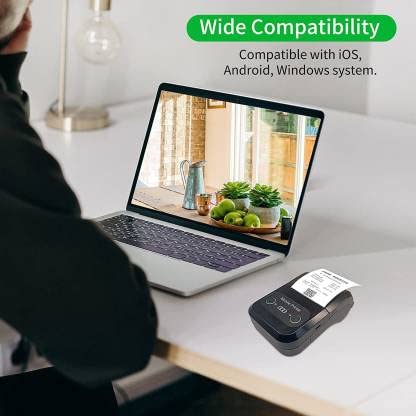
The printer can also be connected to a PC via USB. You may need to install a printer driver, which is typically available from the manufacturer's website or included on a CD with the product (if applicable).
5. 유지관리
5.1 프린터 청소
To ensure optimal performance and print quality, regularly clean the printer:
- 프린트 헤드: 면봉을 이용하여 가볍게 닦아주세요.amp이소프로필 알코올을 사용하여 열전사 프린트 헤드를 부드럽게 닦아주세요. 완전히 건조시킨 후 사용하십시오.
- 종이 경로: 부드럽고 마른 천이나 작은 브러시를 사용하여 용지 경로에 있는 종이 먼지나 이물질을 제거하십시오.
- 외부: 프린터 외부를 부드러운 천으로 닦으세요.amp 옷감. 가혹한 화학 물질이나 연마성 세제를 사용하지 마십시오.
5.2 배터리 관리
- 처음 사용하기 전에 배터리를 완전히 충전하십시오.
- 배터리를 자주 완전히 방전시키지 마세요.
- If storing the printer for an extended period, charge it to about 50% and recharge every few months to prevent battery degradation.
6. 문제 해결
| 문제 | 가능한 원인 | 해결책 |
|---|---|---|
| 프린터의 전원이 켜지지 않습니다. | 배터리가 부족하거나 방전되었습니다. | Charge the printer using the provided USB cable and adaptor. |
| Bluetooth를 통해 연결할 수 없습니다. | Bluetooth is off on device; incorrect pairing password; printer not discoverable. | Ensure Bluetooth is enabled on your device. Re-attempt pairing with password 1234 or 0000. Restart both printer and device. |
| No print output or blank paper. | Paper loaded incorrectly; out of paper; print head dirty. | Check paper orientation (printing side out). Replace paper roll if empty. Clean the thermal print head (refer to Maintenance section). |
| 인쇄 품질이 좋지 않음 (흐릿하고 줄무늬가 있음). | Print head dirty; low battery; poor quality thermal paper. | Clean the print head. Charge the printer fully. Use high-quality thermal paper. |
| Printer beeps continuously. | Paper alarm (out of paper or paper jam); low battery reminder. | Check and replace paper roll or clear jam. Charge the printer. |
7. 기술 사양
| 특징 | 사양 |
|---|---|
| 인쇄 방법 | 열전사 라인 인쇄 |
| 인쇄 폭 | Paper width 58mm, effective width 58mm |
| 인쇄 밀도 | 576 도트/라인 |
| 해결 | 8 dots/mm, 203 DPI |
| 인쇄 속도 | 70mm/s (Max Print speed Monochrome: 50 ppm) |
| Printer Core Life | 50KM (25% print density or less than 100 million pulses) |
| Printable Content | English, numbers, symbols, characters, pictures, 1D/2D barcode, multi-languages |
| 데이터 통신 인터페이스 | USB / 블루투스 |
| 전원 공급 장치 | Machine charging 9V-1.5A |
| 배터리 | Built-in rechargeable 2600mAh lithium-ion battery (7.4V/2500mAh) |
| 연속 인쇄 시간 | 2.5-3시간 |
| 명령어 세트 | ESC / POS 호환 |
| 종이 자르기 | Manually tear |
| 운영 체제 호환성 | 안드로이드, iOS, 윈도우 |
| 제품 치수 | 15D x 12W x 6H 센티미터 |
| 품목 무게 | 310그램 |
| 포함된 구성 요소 | 1 x Thermal Printer, 1 x USB Cable, 1 x USB Adaptor, 1 x Paper Roll, 1 x User Manual |
8. 보증 및 지원
This product comes with a 10-day warranty as per the purchase terms. For any technical assistance, troubleshooting beyond this manual, or warranty claims, please contact your retailer or the manufacturer's customer support. Refer to your purchase documentation for specific contact details.
제조업체: 중요한 단계
수입자: SB RETAILS, SECTOR 28, PRADHIKARAN, PUNE-44, +918888881631


