1. 서론
This manual provides comprehensive instructions for the installation, operation, and maintenance of your Intel Core i7-12700K Gaming Desktop Processor. The Intel Core i7-12700K is a high-performance processor designed for gaming, content creation, and demanding multitasking, featuring Intel's performance hybrid architecture with 12 cores (8 Performance-cores + 4 Efficient-cores) and integrated Intel UHD 770 Graphics.
It is compatible with Intel 600 series and 700 series chipset-based motherboards and offers up to 5.0 GHz unlocked clock speed for enhanced performance.
패키지 내용:
- 인텔 코어 i7-12700K 프로세서
- 문서(이 매뉴얼, 보증 정보)
- Note: A CPU cooler is not included and must be purchased separately.

Figure 1.1: The retail packaging for the Intel Core i7-12700K processor, showcasing the product branding and model information.
2. 안전 정보
Please read and understand all safety precautions before installing or operating the processor. Failure to do so may result in personal injury or damage to your system components.
- 정전기 방전(ESD) 방지: Always handle the processor by its edges. Wear an anti-static wrist strap and work on an anti-static mat to prevent ESD damage.
- 전원 차단: Ensure your computer system is completely powered off and unplugged from the wall outlet before beginning any installation.
- 구성 요소 호환성: Verify that your motherboard, RAM, and power supply are compatible with the Intel Core i7-12700K processor. Refer to your motherboard's manual for specific compatibility lists.
- 열 관리: An adequate CPU cooler is essential for proper operation and longevity. Ensure the cooler is correctly installed and thermal paste is applied.
- 통풍: Ensure your computer case has sufficient airflow to dissipate heat generated by the processor and other components.
3. 설정 및 설치
This section guides you through the physical installation of the Intel Core i7-12700K processor into your motherboard.
3.1. 마더보드 준비하기
- Unpack Motherboard: Carefully remove your motherboard from its packaging and place it on an anti-static surface.
- Locate CPU Socket: Identify the LGA1700 CPU socket on your motherboard.
- 소켓 레버 열기: Gently push down and away on the small metal lever next to the CPU socket to release it. Lift the load plate.
- 보호 커버 제거: The socket will have a plastic protective cover. Do not touch the pins inside the socket.
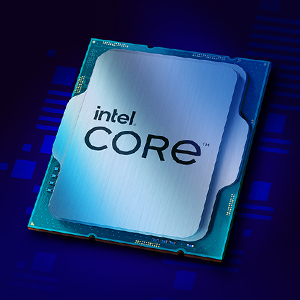
그림 3.1: 클로즈업 view of the Intel Core i7 processor chip, showing its metallic surface and integrated components.
3.2. 프로세서 설치
- Handle Processor: Remove the Intel Core i7-12700K processor from its packaging, holding it only by the edges. Avoid touching the gold contacts on the underside or the top surface.
- 정렬 프로세서: Align the two notches on the sides of the processor with the corresponding keys on the CPU socket. Ensure the small golden triangle on one corner of the processor aligns with the triangle on the socket.
- Gently Place: Carefully lower the processor straight down into the socket. Do not force it. It should sit flush without resistance.
- 소켓 닫기: Lower the load plate back down over the processor. Push the metal lever back into its locked position. This will secure the processor firmly in place.
3.3. CPU 쿨러 설치
A CPU cooler is critical for dissipating heat from the processor. Follow the instructions provided with your specific CPU cooler for installation. General steps include:
- 열 페이스트 적용: If your cooler does not have pre-applied thermal paste, apply a small amount (pea-sized dot) to the center of the processor's integrated heat spreader (IHS).
- 마운트 쿨러: Carefully place the cooler onto the CPU, aligning it with the mounting holes or brackets on the motherboard.
- 안전한 쿨러: Fasten the cooler securely according to its manufacturer's instructions. Ensure even pressure is applied to prevent uneven thermal paste spread.
- 팬 연결: CPU 쿨러의 팬 케이블을 마더보드의 "CPU_FAN" 헤더에 연결하십시오.
4. 시스템 운영
Once the processor and cooler are installed, you can proceed with assembling the rest of your computer system and powering it on.
- 첫 번째 부팅: PC 조립 후 모니터, 키보드, 마우스를 연결하고 전원을 켜세요.
- BIOS/UEFI 구성: Access your motherboard's BIOS/UEFI settings (usually by pressing DEL or F2 during boot). Verify that the processor is recognized correctly. You may need to enable XMP/DOCP for your RAM.
- 운영 체제 설치: Install your preferred operating system (e.g., Windows 10/11, Linux).
- 드라이버 설치: Install the latest chipset drivers from your motherboard manufacturer's website and the latest graphics drivers for the integrated Intel UHD 770 Graphics from Intel's official web대지.
- 성과 모니터링: Utilize software tools (e.g., Intel Extreme Tuning Utility, HWMonitor) to monitor CPU temperatures and clock speeds to ensure optimal performance and stability.

그림 4.1: example of a multi-monitor setup, illustrating the capabilities of the Intel Core i7-12700K processor for gaming, streaming, and multitasking.
5. 유지관리
Proper maintenance ensures the longevity and stable performance of your Intel Core i7-12700K processor.
- 먼지 제거: Regularly clean dust from your CPU cooler and case fans using compressed air. Dust buildup can impede airflow and lead to higher temperatures.
- 써멀 페이스트 교체: Consider replacing thermal paste every 2-3 years, or if you remove and re-install your CPU cooler, to maintain optimal thermal conductivity.
- 소프트웨어 업데이트: Keep your operating system, motherboard BIOS/UEFI, and Intel drivers updated to benefit from performance improvements, security patches, and bug fixes.
- 시스템 모니터링: Periodically check CPU temperatures and usage patterns. Unusual spikes or consistently high temperatures may indicate a cooling issue.
6. 문제 해결
This section addresses common issues you might encounter with your processor.
| 문제 | 가능한 원인 | 해결책 |
|---|---|---|
| 시스템 부팅이 안 됨 / 화면이 안 나옴 | CPU not seated correctly, power cables loose, incompatible RAM/motherboard. | Re-seat CPU, check all power connections (24-pin ATX, 8-pin CPU), verify RAM and motherboard compatibility. |
| CPU 온도가 높습니다 | 쿨러 설치 불량, 써멀 페이스트 부족, 케이스 내부 공기 흐름 불량. | Ensure cooler is securely mounted, re-apply thermal paste, improve case ventilation. |
| 시스템 충돌 또는 멈춤 | Overheating, unstable overclock, outdated drivers, faulty RAM. | Monitor temperatures, reset BIOS to default, update drivers, test RAM with diagnostic tools. |
| Poor performance in applications/games | Outdated drivers, background processes, power settings, thermal throttling. | Update drivers, close unnecessary background apps, set Windows power plan to "High Performance", check temperatures. |
7. 사양
Detailed technical specifications for the Intel Core i7-12700K processor:
- 프로세서 기본 주파수: 3.6GHz
- 최대 터보 주파수: 최대 5.0GHz
- 총 코어: 12개 (성능 코어 8개, 효율 코어 4개)
- Total Threads: 20
- 프로세서 그래픽: 인텔 UHD 그래픽 770
- Graphics Base Frequency: 300MHz
- Graphics Max Dynamic Frequency: 1.45GHz
- 은닉처: 25MB 인텔 스마트 캐시
- 열 전력 소비량: 125W (Processor Base Power)
- Max Turbo Power: 190와트
- 소켓: LGA1700
- 메모리 유형: Up to DDR5 4800 MT/s, DDR4 3200 MT/s
- Max Memory Size: 128GB (XNUMX기가바이트)
- PCI Express Revision: 5.0과 4.0
- PCI 익스프레스 구성: Up to 1x16+4, 2x8+4
- 인텔 옵테인 메모리 지원: 예
- Intel Thermal Velocity Boost: 아니요
- 인텔 터보 부스트 맥스 기술 3.0: 예
- Intel 하이퍼스레딩 기술: 예
- Intel 가상화 기술(VT-x): 예
- Intel VT-d for Directed I/O (VT-d): 예
- 인텔 AES 새로운 지침: 예
- 제품 크기: 4.57 x 1.73 x 3.98 인치
- 품목 무게: 2.82 온스
8. 보증 및 지원
Intel provides a limited warranty for its processors. For detailed warranty terms and conditions, please refer to the official Intel web사이트에 접속하거나 제품에 포함된 보증 카드를 확인하세요.
- 보증 기간: Typically 3 years from the date of purchase for boxed processors.
- 보증 청구: Contact Intel Customer Support or your point of purchase for warranty service.
- 기술 지원: For technical assistance, driver downloads, and troubleshooting guides, visit the official Intel Support web대지: www.intel.com/support
- Product Compatibility Tool: To find compatible motherboards and other related information, use the Intel Product Compatibility Tool: 인텔 제품 호환성 도구


