1. 서론
This manual provides instructions for the Monoprice Dark Matter 27-inch 165Hz Gaming Monitor. This monitor features an IPS panel, a 165Hz refresh rate, and a 1920x1080p Full HD resolution. It includes Adaptive Sync technology for smooth visuals and offers multiple connectivity options, including HDMI and DisplayPort inputs.
2. 안전 정보
- 모니터를 작동하기 전에 모든 지침을 읽으십시오.
- 모니터를 물이나 먼지로부터 멀리하십시오.amp 환경.
- 환기구를 막지 마십시오.
- 제조업체에서 제공한 전원 어댑터만 사용하세요.
- 불안정한 표면에 모니터를 두지 마십시오.
- 번개 폭풍우가 칠 때나 장기간 사용하지 않을 때는 전원 케이블을 분리하세요.
- 모든 서비스는 자격을 갖춘 담당자에게 맡기세요.
3. 패키지 내용
패키지에 다음 품목이 포함되어 있는지 확인하십시오.
- Monoprice Dark Matter 27-inch Gaming Monitor
- 모니터 스탠드(베이스 및 넥)
- 전원 어댑터 및 전원 케이블
- HDMI 케이블
- 사용 설명서 (본 문서)
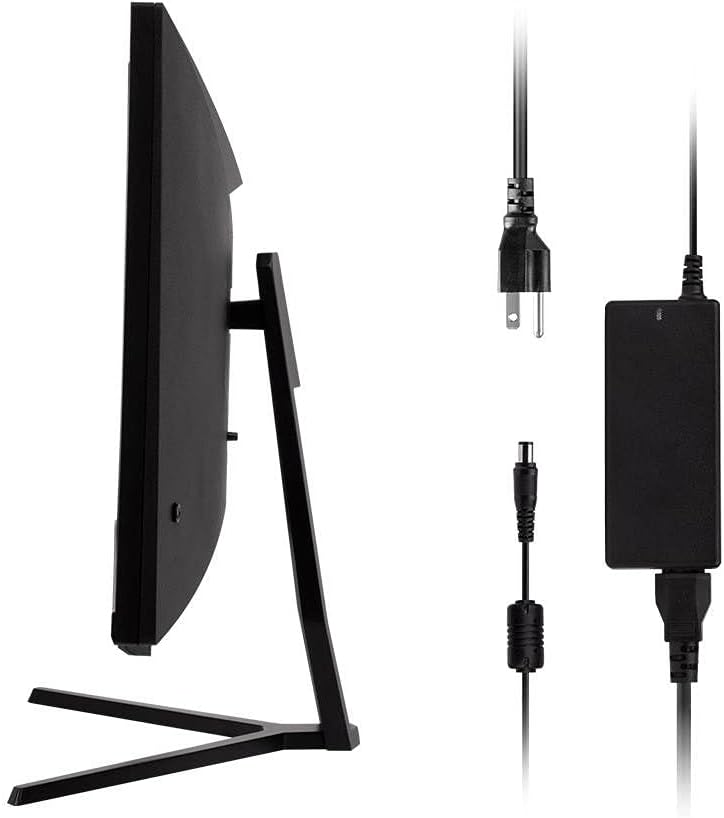
Image: Monitor side view with included power adapter and cable.
4. 모니터 오버view
앞쪽 View
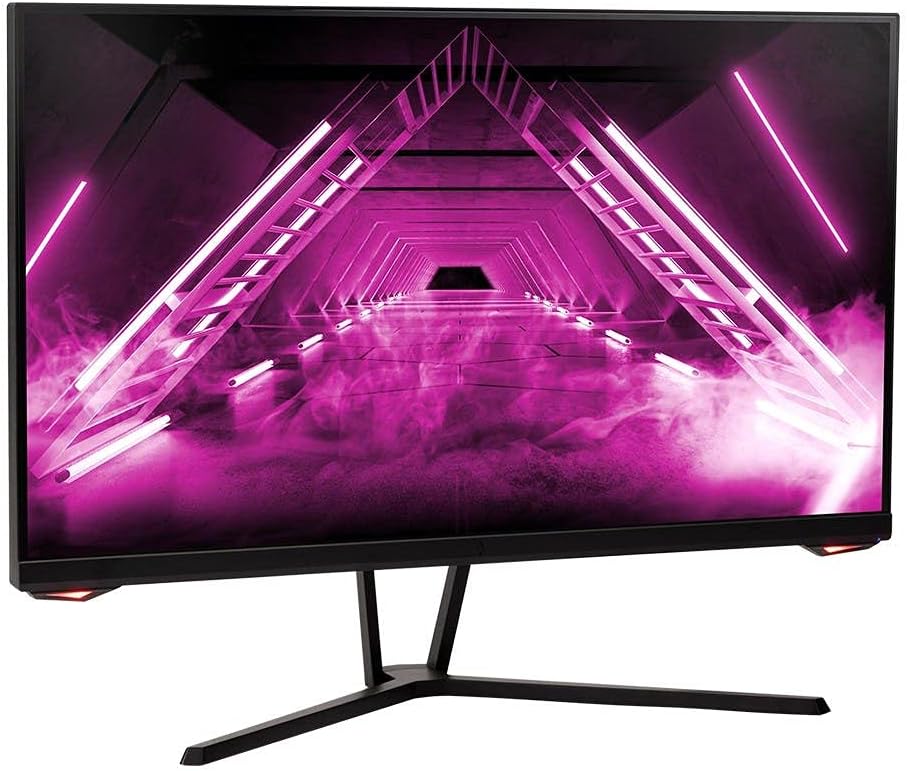
이미지: 앞면 view 모니터의.
뒤쪽 View 및 포트
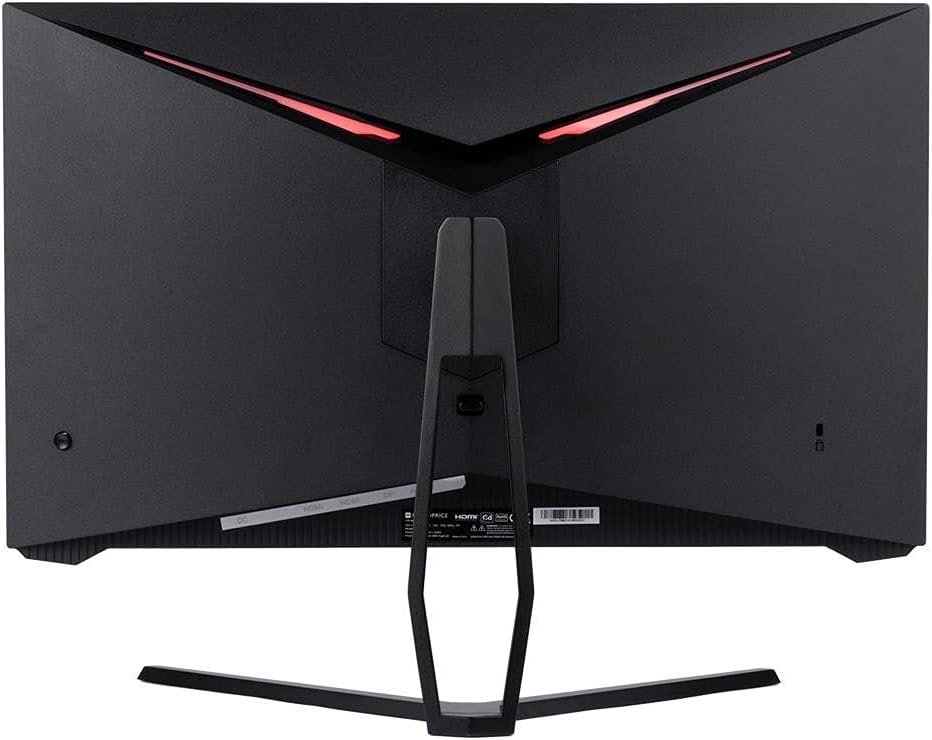
이미지: 후면 view of the monitor, highlighting the VESA mount and stand attachment.

Image: Close-up of the monitor's input ports.
5. 설정
5.1 스탠드 조립
- 모니터를 포장에서 조심스럽게 꺼내어 부드러운 표면에 놓고 보호하십시오.
- Attach the stand neck to the monitor's rear panel by aligning the tabs and securing any screws if present.
- 스탠드 받침대를 스탠드 목 부분에 부착하고 단단히 고정하십시오.
- 조립된 모니터를 안정적이고 평평한 표면에 놓으세요.
5.2 VESA 마운팅
The monitor supports a 75x75mm VESA mount pattern. To use a wall or desk mount:
- Remove the pre-attached stand by unscrewing it from the monitor's rear panel.
- Attach your VESA-compatible mount to the monitor using the appropriate screws (not included).
- Ensure the mount is securely fastened before releasin모니터를 켜세요.
5.3 컴퓨터에 연결하기
다음 방법 중 하나를 사용하여 모니터를 컴퓨터에 연결합니다.
- 디스플레이포트: Connect one end of a DisplayPort cable to the DisplayPort output on your computer's graphics card and the other end to the DisplayPort input on the monitor.
- HDMI : Connect one end of an HDMI cable to an HDMI output on your computer's graphics card and the other end to one of the HDMI inputs on the monitor.
After connecting the video cable, connect the power adapter to the monitor's DC input and then plug the power cable into a wall outlet.
6. 모니터 작동하기
6.1 전원 켜기/끄기
Press the power button, typically located on the rear or bottom of the monitor, to turn the monitor on or off. The power indicator light will illuminate when the monitor is on.
6.2 온스크린 디스플레이(OSD) 메뉴
The OSD menu allows you to adjust various monitor settings. Access the OSD menu by pressing the menu button (often a joystick or a series of buttons) on the monitor. Navigate through the options using the directional controls and confirm selections.
일반적인 OSD 설정은 다음과 같습니다.
- 사진 설정: 밝기, 대비, 선명도, 색온도.
- 입력 선택: DisplayPort 또는 HDMI 입력 중에서 선택하십시오.
- 오디오: 오디오 출력 볼륨 조절 기능.
- 게임 기능: Overdrive, FreeSync/Adaptive Sync settings.
6.3 주요 특징
- 165Hz 재생률: This monitor supports a 165Hz refresh rate, providing smoother motion and reduced input lag compared to standard 60Hz monitors. Ensure your graphics card and system settings are configured to utilize this refresh rate.
- 적응 동기화: This technology synchronizes the monitor's refresh rate with your graphics card's frame rate, eliminating screen tearing and stuttering for a smoother gaming experience. Enable Adaptive Sync in your graphics card's control panel and the monitor's OSD menu.
- Full HD Resolution (1920x1080p): The monitor displays content at 1920x1080 pixels, offering clear and detailed visuals.
7. 유지관리
To maintain your monitor and ensure its longevity:
- 화면 청소: 부드럽고 보풀 없는 천으로 화면을 살살 닦아주세요. 잘 지워지지 않는 얼룩은 모니터 전용 세척액을 천에 묻혀 사용하세요. 화면에 직접 묻히지 마세요.
- C 청소asing: 부드럽고 마른 천을 사용하여 모니터를 닦으세요.asing. 연마성 세척제는 피하세요.
- 통풍: 모니터의 통풍구가 먼지나 이물질로 막히지 않도록 하여 과열을 방지하십시오.
- 전원 끄기 : 장기간 사용하지 않을 때는 모니터를 꺼 두십시오.
8. 문제 해결
모니터에 문제가 발생하면 다음 문제 해결 가이드를 참조하십시오.
| 문제 | 가능한 원인 | 해결책 |
|---|---|---|
| 화면에 아무것도 표시되지 않음 / 전원 LED 꺼짐 | Monitor not powered on; Power cable loose; Power outlet faulty. | Press the power button; Check power cable connections; Try a different power outlet. |
| 이미지 없음 / "신호 없음" 메시지 | Video cable loose; Incorrect input selected; Computer not outputting signal. | Check video cable connections; Select the correct input via OSD; Ensure computer is on and outputting video. |
| Screen flickers or goes black intermittently | Loose video cable; Graphics driver issue; Monitor overheating; Faulty cable. | Ensure video cable is secure; Update graphics drivers; Ensure adequate ventilation around the monitor; Try a different video cable. |
| 과열 / 연기 | Blocked ventilation; Internal component issue. | Immediately unplug the monitor. Ensure ventilation is clear. Do not use the monitor if smoke is present. Contact support. |
| Red line or other display artifacts | Faulty panel; Graphics card issue. | Test with a different video cable and computer. If the issue persists, contact support. |
| Backlight turns off, requires power cycle | Power management settings; Internal fault. | Check computer's power saving settings. If issue persists, contact support. |
9. 사양
| 특징 | 사양 |
|---|---|
| 모델 번호 | 142771 |
| 화면 크기 | 27 인치 |
| 패널 유형 | IPS |
| 해결 | 1920 x 1080(FHD 1080p) |
| 새로 고침 빈도 | 165Hz |
| 종횡비 | 16시 9분 |
| 비디오 입력 | HDMI 1.4 2개, DisplayPort 1.2a 1개 |
| VESA 마운트 | 75x75mm |
| 치수(길이x너비x높이) | 28.8 x 7.1 x 19.3 인치 |
| 품목 무게 | 15.77파운드 |
10. 보증 및 지원
10.1 보증 정보
This Monoprice monitor is backed by a 1 Year PixelPerfect Guarantee. This warranty covers defects in materials and workmanship under normal use for one year from the date of purchase. Please refer to Monoprice's official web전체 보증 이용 약관을 보려면 사이트를 방문하세요.
10.2 고객 지원
For technical assistance, warranty claims, or further information, please contact Monoprice Customer Support. Contact details can typically be found on the official Monoprice web사이트 또는 구매 문서.
11. 비디오 자료
해당 모델에 대한 판매업체의 공식 제품 영상은 찾을 수 없었습니다.


