StarTech.com 2 Port Dual Monitor HDMI KVM Switch
Model: SV231DHU34K6
1. 서론
This instruction manual provides detailed information on the installation, operation, and maintenance of your StarTech.com 2 Port Dual Monitor HDMI KVM Switch. This device allows you to control two computers from a single set of peripherals, including two HDMI monitors, a keyboard, a mouse, and other USB devices, supporting resolutions up to 4K at 60Hz.
2. 안전 정보
본 제품을 사용하기 전에 모든 지침을 읽고 이해하십시오. 지침을 따르지 않을 경우 감전, 화재 또는 심각한 부상을 입을 수 있습니다.
- 전기적 위험: Do not use damaged or frayed cables. Exposed wires can lead to electric shocks. Ensure all cables are properly connected and secured to prevent accidental disconnection.
- 열 축적: Overloaded or tightly bundled cables can overheat and pose a fire hazard. Ensure adequate ventilation and avoid bundling power cables.
- 손상: 어댑터를 뽑을 때는 항상 플러그 부분을 잡고 뽑으십시오. 케이블을 잡아당기면 전선이 노출되어 감전이나 화상을 입을 수 있습니다.
3. 제품 오버view
The StarTech.com SV231DHU34K6 KVM switch is designed to streamline your workspace by enabling control of two computers with dual 4K HDMI displays and shared USB peripherals. Its robust steel housing ensures durability.
3.1. 주요 특징
- Supports dual 4K (3840 x 2160) resolution at 60Hz per monitor.
- HDMI 2.0, HDCP 2.2, and HDR10 support.
- Integrated 2-port USB 3.0 Hub (5Gbps) for sharing peripherals.
- Four USB 2.0 HID ports for keyboard and mouse.
- Hotkey and front-panel push-button switching.
- EDID and HDCP signal emulation for fast, seamless switching.
- Supports stereo analog and 7.1 digital audio.
- OS Independent compatibility (Windows, Mac, Linux).
3.2. 전면 패널

그림 1: 전면 패널 레이아웃
- HID USB Port: For connecting a keyboard or mouse.
- 5G USB Port: 고속 USB 3.0 장치 연결용.
- Computer Selection Buttons (1, 2): Press to switch to the corresponding computer.
- 선택 버튼: Used for various functions, including auto-scan activation.
3.3. 후면 패널
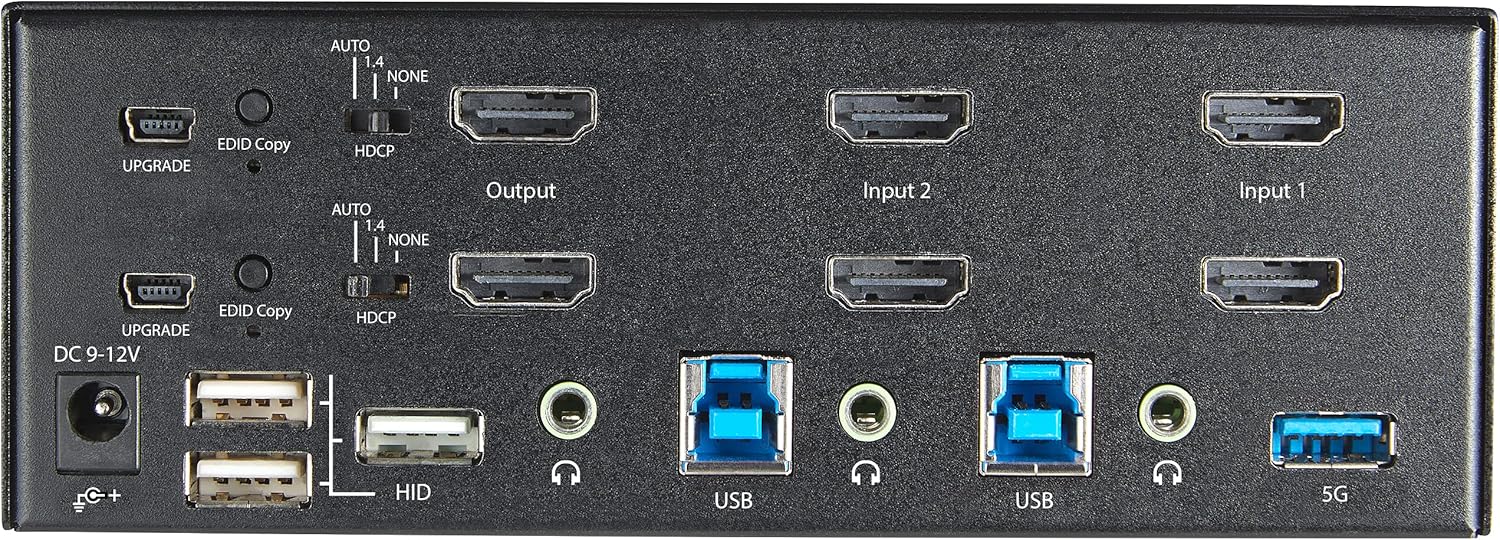
그림 2: 후면 패널 레이아웃
- DC 9-12V 전원 입력: 포함된 전원 어댑터를 연결합니다.
- UPGRADE Port: 펌웨어 업데이트용.
- EDID Copy Button/Switch: Manages Extended Display Identification Data.
- HDCP 스위치: Manages High-bandwidth Digital Content Protection.
- Output (HDMI): Connect to your monitors.
- Input 1/Input 2 (HDMI): Connect to the HDMI outputs of your computers.
- USB(B형): Connect to the USB 3.0 ports of your computers.
- HID USB Ports (Type-A): For additional keyboard/mouse connections or other low-power USB devices.
- Audio Jacks (3.5mm): For connecting speakers/headphones and microphones.
- 5G USB Port (Type-A): 고속 USB 3.0 장치 연결용.
4. 설정
4.1. 상자 안에 무엇이 들어있나요?
- 1 x KVM Switch (SV231DHU34K6)
- 1 x 범용 전원 어댑터 (NA / JP, EU, UK, ANZ)
- 4 x 고무 발
- 1 x 빠른 시작 안내서
Note: HDMI cables, USB 3.0 Type-A to Type-B cables, and audio cables are not included and must be purchased separately.
4.2. 연결 지침
KVM 스위치를 연결하려면 다음 단계를 따르십시오.
- 모니터 연결: Connect your two HDMI monitors to the 'Output' HDMI ports on the rear panel of the KVM switch.
- Connect Computers (HDMI): Connect the HDMI outputs from Computer 1 to the 'Input 1' HDMI ports on the KVM switch. Repeat for Computer 2 and 'Input 2'. Ensure both HDMI outputs from each computer are connected for dual monitor support.
- Connect Computers (USB): Connect the USB 3.0 Type-B ports on the KVM switch to the USB 3.0 Type-A ports on Computer 1 and Computer 2 using appropriate USB 3.0 cables. These connections enable keyboard, mouse, and USB hub functionality.
- 주변기기 연결:
- Connect your keyboard and mouse to the 'HID' USB ports on the front or rear panel.
- Connect other USB devices (e.g., printer, scanner, webcam) to the '5G' USB 3.0 ports on the front or rear panel.
- 오디오 연결(선택 사항): If desired, connect your speakers/headphones and microphone to the 3.5mm audio jacks on the rear panel.
- 전원 연결: Connect the included universal power adapter to the 'DC 9-12V' power input on the rear panel, then plug it into a power outlet. The KVM switch will power on automatically.

Figure 3: KVM Switch with Ports for Connection
5. KVM 스위치 작동 방법
5.1. 컴퓨터 간 전환
You can switch between connected computers using either the front-panel push buttons or hotkey commands.
- Front-Panel Buttons: Press the '1' or '2' button on the front panel to directly switch to Computer 1 or Computer 2, respectively.
- 단축키 전환: Use keyboard hotkey combinations to switch computers. The default hotkey sequence is typically Scroll Lock, Scroll Lock, [1 or 2]. Refer to the Quick-Start Guide for a complete list of hotkey commands and customization options. A buzzer sound confirms the switch.
5.2. EDID and HDCP Emulation
The KVM switch includes EDID (Extended Display Identification Data) and HDCP (High-bandwidth Digital Content Protection) signal emulation. This feature ensures that your monitors remain synced and desktop settings are maintained when switching between computers, preventing display resolution changes or window rearrangement.
5.3. USB 허브 기능
The integrated USB 3.0 hub allows you to share two USB 3.0 peripherals (connected to the 5G ports) and four USB 2.0 HID peripherals (connected to the HID ports) between the connected computers. Devices connected to these ports will function as if directly connected to the currently selected host computer.
5.4. 오디오 지원
The KVM switch supports both digital audio (via HDMI, 7.1 Channel Audio) and separate 3.5mm stereo analog audio (2 Channel Audio). Ensure your displays and sources support the desired audio format for full compatibility.
6. 유지관리
KVM 스위치의 수명과 최적의 성능을 보장하려면 다음 유지 관리 지침을 따르세요.
- 청소: 부드럽고 마른 천을 사용하여 기기 외부를 닦으세요. 액체나 에어로졸 세척제는 사용하지 마세요.
- 통풍: Ensure the KVM switch is placed in a well-ventilated area. Do not block any ventilation openings.
- 케이블 관리 : Keep cables organized and untangled to prevent damage and ensure proper airflow. Avoid excessive bending or crimping of cables.
- 저장: 장시간 사용하지 않을 경우, 직사광선과 극한의 온도를 피해 시원하고 건조한 곳에 보관하세요.
7. 문제 해결
KVM 스위치에 문제가 발생하면 다음의 일반적인 문제와 해결 방법을 참조하세요.
- 화면이 표시되지 않거나 해상도가 잘못되었습니다:
- Ensure all HDMI cables are securely connected to both the KVM switch and your computers/monitors.
- Verify that your HDMI cables are rated for 4K 60Hz if you are using 4K displays. Longer cables (e.g., over 3m/10ft) may require higher quality or active cables.
- Check the display settings on your computers to ensure they are configured for the correct resolution and refresh rate.
- Try power cycling the KVM switch and monitors.
- 키보드/마우스가 응답하지 않음:
- Ensure the USB Type-B cables are securely connected from the KVM switch to your computers.
- Verify that your keyboard and mouse are connected to the designated HID USB ports.
- 키보드와 마우스를 컴퓨터에 직접 연결하여 정상 작동하는지 확인해 보세요.
- Some specialized keyboards/mice with advanced features may require direct connection or specific drivers.
- USB 장치가 감지되지 않았습니다:
- Ensure the USB Type-B cables are connected from the KVM switch to your computers.
- Verify that the USB device is connected to the appropriate 5G USB 3.0 port.
- Some high-power USB devices may require an external power source or a powered USB hub connected to the KVM's 5G port.
- 오디오 문제:
- 3.5mm 오디오 케이블 연결 상태를 모두 확인하십시오.
- Verify audio output settings on your computers.
- Ensure your monitors or audio devices support the HDMI audio format being sent.
- Slow Switching Time:
- The KVM switch is designed for fast switching. If experiencing delays, ensure EDID and HDCP emulation are functioning correctly.
- Ensure all cables are of good quality and properly seated.
If the problem persists after attempting these solutions, please contact StarTech.com technical support.
8. 사양
| 범주 | 사양 |
|---|---|
| 모델 번호 | SV231DHU34K6 |
| KVM 포트 | 2 |
| Monitors Supported | 2 |
| 비디오 유형 | HDMI 2.0 |
| 지원되는 해상도 | 최대 3840 x 2160 @ 60Hz |
| HDCP 지원 | 한국어: HDCP 2.2 |
| HDR 지원 | HDR10 |
| USB 허브 | 2포트 USB 3.0(5Gbps) |
| USB HID 포트 | 4x USB 2.0 |
| 오디오 지원 | HDMI (7.1 Channel), Analog Stereo (3.5mm) |
| 포트 선택 | Push Button, Hotkeys |
| 재료 | 강철 |
| 색상 | 검은색 |
| 제품 크기(L x W x H) | 6.3 x 3.9 x 2.3인치(16.0 x 10.0 x 5.8cm) |
| 제품 무게 | 1.8파운드(0.8kg) |
| 전원 | AC 어댑터 (포함) |
| 입력 Voltage | 100 - 240 AC |
| 전력 소비 | 36와트 |
| 작동 온도 | 0℃ ~ 40℃(32℉ ~ 104℉) |
| 보관 온도 | -10℃ ~ 60℃(14°F ~ 140°F) |
| 습기 | 0% ~ 80% RH (비응축) |
9. 보증 및 지원
This StarTech.com KVM Switch (Model: SV231DHU34K6) is backed by a 2년 보증StarTech.com은 또한 다음을 제공합니다. 평생 무료 기술 지원기술 지원이나 보증 청구 관련 문의는 StarTech.com 공식 웹사이트를 방문해 주십시오. web사이트 또는 고객 지원 팀에 문의하십시오.
자세한 내용은 다음을 방문하세요. www.스타텍.com


