소개
Thank you for choosing the Tera Pro Series L0013B-OG 1D Wireless Barcode Scanner. This manual provides detailed instructions for setting up, operating, and maintaining your device. Please read this manual thoroughly before use to ensure optimal performance and longevity of your scanner.
설정
1. 연결 옵션
The Tera L0013B-OG scanner offers two primary connection methods: Bluetooth and Wired USB.
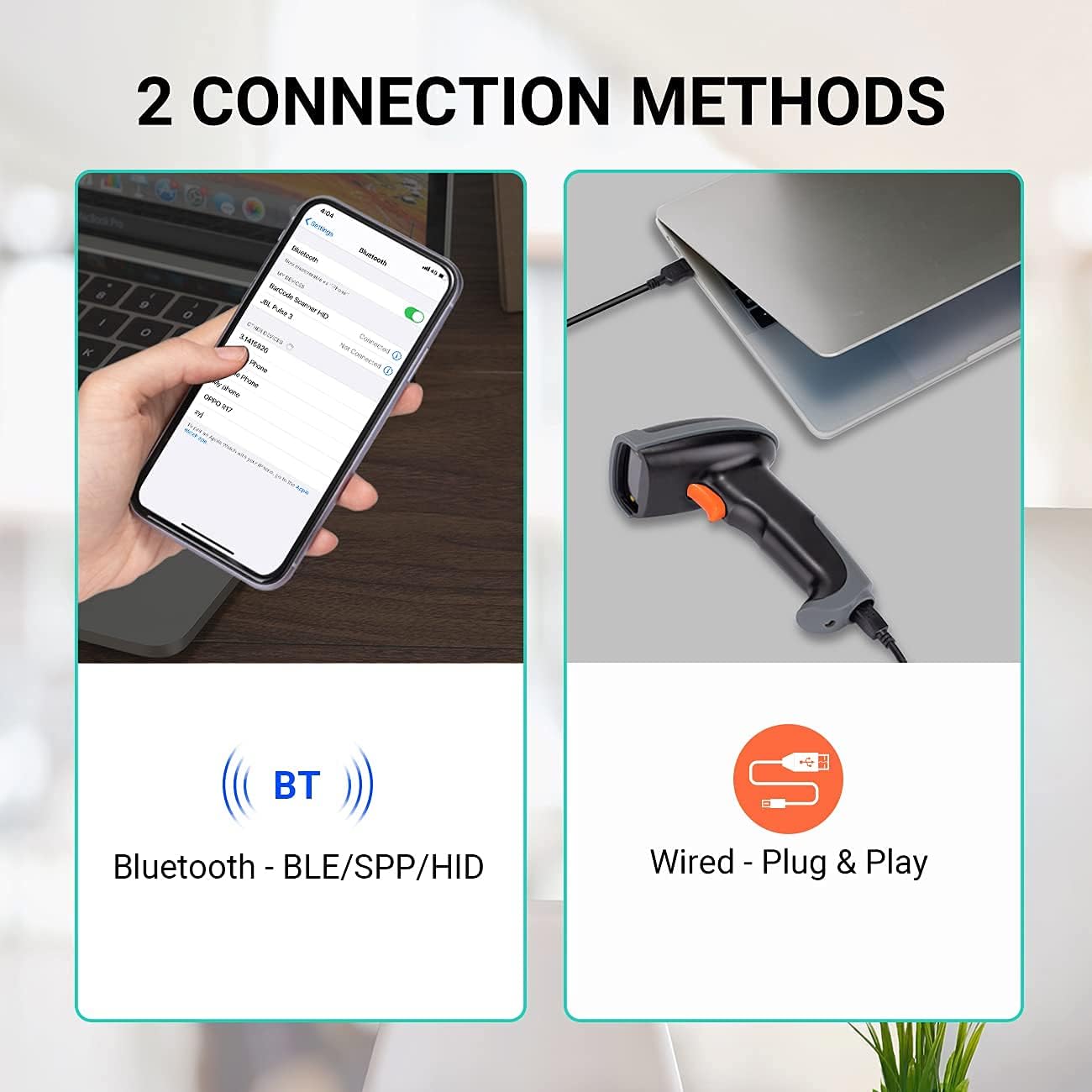
This image illustrates the two connection methods: Bluetooth for wireless pairing with devices like smartphones, and wired USB for direct connection to computers. The scanner supports both for versatile use.
블루투스 연결 :
- 스캐너가 충전되어 있는지 확인하십시오.
- 스캐너를 켭니다.
- Scan the Bluetooth pairing barcode (refer to the quick start guide or the scanner's internal settings for this barcode).
- On your host device (e.g., smartphone, tablet, laptop), enable Bluetooth and search for available devices.
- Select "Tera L0013B" or a similar device name from the list to pair.
- The scanner will indicate successful pairing (e.g., a beep or LED change).
- Bluetooth transmission range is up to 50 meters in an accessible environment.
유선 USB 연결:
- Connect the USB cable to the scanner and to an available USB port on your computer.
- The scanner is plug-and-play; no driver installation is required.
- 스캐너는 키보드 입력 장치로 인식됩니다.
2. Scan Modes
The scanner supports three operational scan modes:
- 연속 스캔 모드: The scanner continuously emits a laser beam, scanning barcodes automatically as they are presented.
- 수동 트리거 모드: The scanner only scans when the trigger button is pressed.
- Sensor Scan Mode: The scanner activates the laser beam and scans when it detects a barcode in its field of view.

This image illustrates the scanner in operation, emphasizing the availability of three distinct scan modes: Continuous, Manual Trigger, and Sensor Scan Mode, allowing users to choose the most suitable method for their workflow.
3. 데이터 업로드 모드
스캐너는 두 가지 데이터 업로드 모드를 제공합니다.
- Real-Time Upload Mode: Barcodes are transmitted to the host device immediately after scanning.
- Memory (Storage) Upload Mode: Scanned barcodes are saved in the scanner's internal memory. Data can be uploaded to the host device later when connectivity is established or restored. This mode is useful when the scanner is out of Bluetooth range.

This image demonstrates the two data upload modes: Real Time Mode, where data is uploaded instantly, and Storage Mode, where barcodes are saved internally for later upload, particularly useful when out of range.
4. 키보드 언어 지원
The scanner supports multiple keyboard languages to ensure compatibility with various regional setups. You can configure the scanner to match your system's keyboard layout (e.g., English, Spanish, German, Japanese, French, Italian).

This image highlights the scanner's support for multiple keyboard languages, including English, Spanish, German, Japanese, French, and Italian, ensuring broad compatibility with international systems.
5. 장치 및 시스템 호환성
The Tera L0013B-OG barcode scanner is designed for wide compatibility with various devices and operating systems.
- 호환 장치: Computers, Laptops, Mobile Phones, Tablets.
- 호환되는 운영 체제: iOS, Android, Windows, Mac OS, POS, Linux, Raspberry Pi.

This image illustrates the broad compatibility of the scanner with various devices such as PCs, laptops, iPads, and iPhones, and operating systems including Windows, iOS, Linux, Android, and Mac OS.
작동 지침
바코드 스캔
The Tera L0013B-OG scanner provides superior 1D decoding capabilities, handling various barcode conditions efficiently.
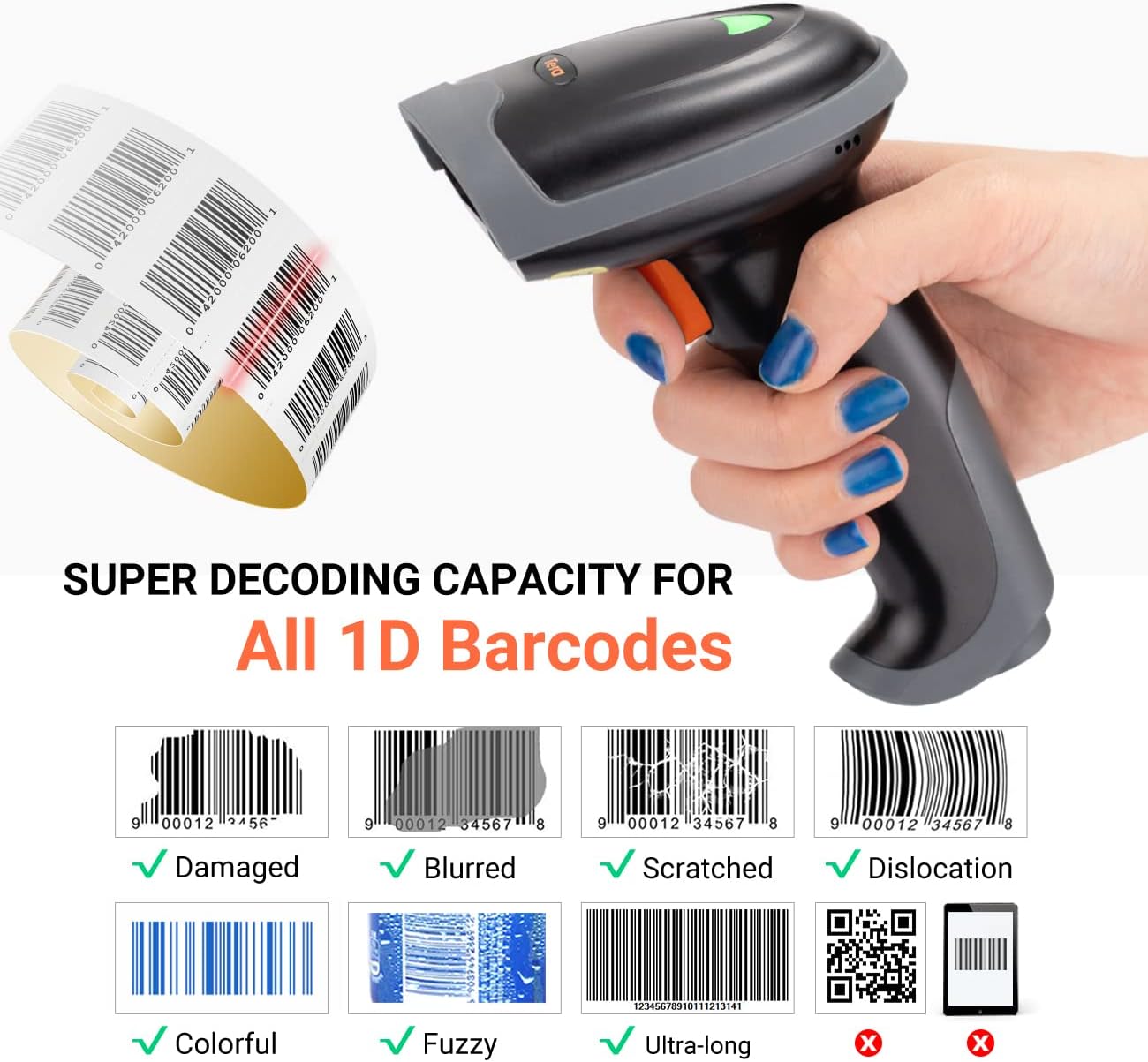
This image demonstrates the scanner's advanced 1D decoding capability, showing its ability to read damaged, blurred, scratched, dislocated, colorful, fuzzy, and ultra-long 1D barcodes. Please note that 2D/QR codes are not supported by this model.
- Ensure the scanner is powered on and connected to your host device via Bluetooth or USB.
- 스캐너의 광선을 스캔하려는 바코드에 비추세요.
- Depending on your selected scan mode (Continuous, Manual Trigger, or Sensor), either wait for the automatic scan or press the trigger button.
- A successful scan will typically be indicated by a beep and/or an LED indicator change.
- The scanned data will appear in the active application on your host device (e.g., a text editor, spreadsheet, or POS system).
지원되는 1D 바코드 유형:
The scanner supports most common 1D barcodes, including:
- CODE39, CODE39 Full ASCII, CODE128, CODE 32, CODEBAR, CODE93, EAN13, CODE11, EAN-128, EAN-8, EAN-13, UPC-A, UPC-E, MSI, ISBN, ISBN 13, Industrial 2/5, ITF14, Interleaved 2/5, Standard 2/5, Matrix 2/5, GS1.
NOTE: This scanner does NOT support 2D or QR codes.
유지
적절한 유지관리는 바코드 스캐너의 수명과 최적의 성능을 보장합니다.
- 청소: 부드럽고 마른 천을 사용하여 스캐너 외부를 청소하세요. 스캔 창의 경우 보풀이 없는 천을 가볍게 두드리세요.amp순하고 연마성이 없는 세척제로 세척하세요. 강한 화학 물질이나 연마재는 피하세요.
- 저장: 스캐너는 직사광선과 극한의 온도를 피해 시원하고 건조한 곳에 보관하세요.
- 배터리 관리 : 충전식 배터리가 장착된 모델의 경우, 배터리를 자주 완전히 방전시키지 마십시오. 배터리 수명 유지를 위해 자주 사용하지 않더라도 정기적으로 기기를 충전하십시오.
- 케이블 관리: Inspect USB cables for any signs of wear or damage. Replace damaged cables immediately to prevent connectivity issues.
문제 해결
If you encounter issues with your Tera L0013B-OG scanner, refer to the following common troubleshooting steps:
스캐너가 응답하지 않음:
- 전원 확인: 스캐너가 충전되어 있고 전원이 켜져 있는지 확인하십시오.
- 연결 확인:
- USB: USB 케이블이 스캐너와 컴퓨터에 제대로 연결되어 있는지 확인하십시오. 다른 USB 포트나 케이블을 사용해 보십시오.
- 블루투스: Ensure Bluetooth is enabled on your host device and the scanner is paired. If already paired, try unpairing and re-pairing the device. Make sure the scanner is within the 50-meter Bluetooth range.
- Reset Scanner: Refer to the quick start guide for instructions on how to perform a factory reset, if available.
바코드를 스캔할 수 없습니다.
- 바코드 유형: Confirm that you are scanning a 1D barcode. This scanner does not support 2D or QR codes.
- 바코드 상태: Ensure the barcode is not severely damaged, blurred, or too small/large for the scanner's read range.
- 조명: Adjust ambient lighting if necessary. Avoid direct glare on the barcode.
- 스캔 모드: Verify the scanner is in the correct scan mode (e.g., Manual Trigger requires pressing the button).
Scanned Data Appears Incorrectly:
- 키보드 언어: Ensure the scanner's configured keyboard language matches your host device's keyboard layout. Refer to the quick start guide for instructions on changing the keyboard language.
- 응용 분야: Make sure the target application (e.g., text editor) is active and has focus to receive input.
명세서
| 특징 | 세부 사항 |
|---|---|
| 상표 | 테라 |
| 모델 번호 | L0013B |
| 색상 | 주황색 |
| 연결 기술 | Bluetooth, USB (Wired) |
| 호환 장치 | Laptop, Tablet, Desktop Computer, Mobile Phones |
| 호환되는 운영 체제 | iOS, Android, Windows, Mac OS, POS, Linux, Raspberry Pi |
| 스캔 속도 | 초당 100프레임 |
| 전원 | 케이블 전기 |
| 디코딩 기능 | 1D Barcodes (CODE39, CODE128, EAN13, UPC-A, etc.) |
| 2D/QR Code Support | 아니요 |
| 블루투스 전송 범위 | Up to 50 meters (accessible environment) |
| 데이터 업로드 모드 | Real-Time, Memory (Storage) |
| 원산지 | 중국 |
| 예비 부품 가용성 | 정보가 없습니다 |
| 소프트웨어 업데이트 보장 | 정보가 없습니다 |
보증 및 지원
For warranty information, please refer to the documentation included with your purchase or contact your retailer. For technical support or further assistance, please reach out to Tera customer service.

This image depicts customer service representatives ready to assist with any inquiries or support needs regarding the product.
While specific details on spare parts availability and guaranteed software updates are not provided, Tera is committed to providing quality products and support.


