소개
This instruction manual provides comprehensive guidance for the 8Bitdo Media Remote (White Short Edition), designed for seamless media control on your Xbox One, Xbox Series X, and Xbox Series S consoles. This remote offers dedicated media playback buttons, Xbox system navigation, and motion-activated backlighting for enhanced usability.
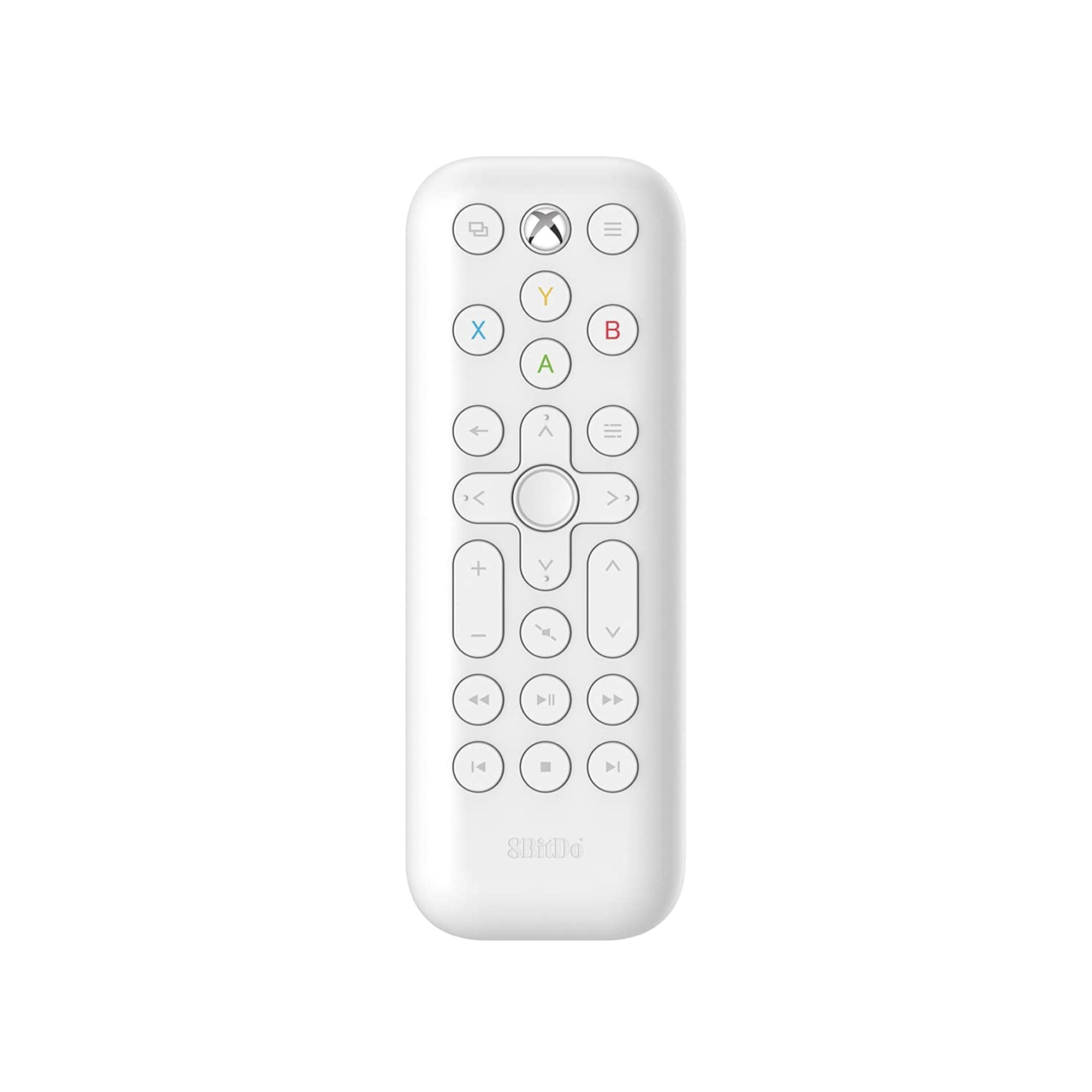
Image: The 8Bitdo Media Remote in White, Short Edition, showcasin컴팩트한 디자인과 버튼 배치가 특징입니다.
설정
1. 배터리 설치
The 8Bitdo Media Remote requires two AAA batteries for operation. These are typically included with your purchase.
- 리모컨 뒷면에서 배터리 덮개를 찾으세요.
- 덮개를 아래로 밀어 수납공간을 엽니다.
- AAA 배터리 두 개를 올바른 극성(+ 및 -)에 맞춰 삽입합니다.
- 배터리 덮개를 제자리에 밀어 넣어 딸깍 소리가 날 때까지 밀어 넣습니다.

Image: A hand demonstrating how to open the battery compartment and insert AAA batteries into the remote.
2. 초기 연결
The 8Bitdo Media Remote uses infrared (IR) technology. No manual pairing is required. Simply ensure a clear line of sight between the remote's IR emitter (located at the top) and your Xbox console's IR receiver.

Image: A user holding the 8Bitdo Media Remote, pointing it towards an Xbox Series S console, illustrating the line-of-sight requirement for infrared communication.
작동 지침
1. Powering On/Off and Navigation
- Dedicated Home Button: Press the Xbox Home button (located at the top center) to instantly wake your Xbox console.
- 방향 패드(D-패드): Use the circular D-Pad for navigating menus and selecting items.
- A/B/X/Y 버튼: These colored buttons correspond to standard Xbox controller functions for menu selection and interaction.

Image: The 8Bitdo Media Remote being used to wake an Xbox console, highlighting the dedicated Home button functionality.
2. 미디어 재생 컨트롤
The remote features a full suite of media playback buttons:
- 재생/일시 중지: 미디어 재생을 시작하거나 일시 정지합니다.
- 빨리 감기/되감기: Skip forward or backward through content.
- 볼륨 높이기/낮추기: Adjust the volume of your media.
- 무음: 오디오를 음소거하거나 음소거 해제합니다.
3. 동작 감지 백라이트
The buttons on the remote are motion-activated and will illuminate when the remote is picked up or moved, making it easy to use in low-light conditions.
4. OneGuide Button Customization
The OneGuide button (three horizontal lines icon) can be customized to launch a specific application on your Xbox. To configure this:
- On your Xbox, go to 설정.
- 로 이동 Devices & connections, 그런 다음 선택하세요 미디어 리모컨.
- Choose the desired action or app to launch when the OneGuide button is pressed.
5. TV Volume Control (HDMI-CEC)
Your Xbox can control your TV's volume if your TV supports HDMI-CEC (Consumer Electronics Control). To enable this:
- Press the Xbox button on your controller to open the guide.
- 이동하다 설정 > 일반적인 > TV & display options.
- 선택하다 장치 제어 > HDMI-CEC and enable all options.
- Consult your TV manufacturer's manual for specific HDMI-CEC settings.
유지
1. 배터리 교체
Replace the AAA batteries when the remote's performance diminishes or the backlight becomes dim. Refer to the 'Battery Installation' steps in the Setup section.
2. 청소
Wipe the remote with a soft, dry cloth. Avoid using harsh chemicals or abrasive materials that could damage the finish or buttons.
문제 해결
- 리모컨이 응답하지 않음:
- 새 배터리가 올바르게 설치되었는지 확인하십시오.
- Verify a clear line of sight between the remote and your Xbox console. Obstructions can block the infrared signal.
- Confirm your Xbox console is powered on and not in a deep sleep mode that disables IR reception.
- Backlight constantly active:
- The backlight is motion-activated. Any movement will trigger it. This is normal operation.
- If battery life is a concern due to frequent backlighting, consider using rechargeable AAA batteries.
- TV volume control not working:
- Ensure your TV supports HDMI-CEC and that it is enabled in your TV's settings.
- Verify HDMI-CEC settings are correctly configured on your Xbox console (Settings > General > TV & display options > Device control > HDMI-CEC).
명세서
| 모델 | 6922621501848 (White Short Edition) |
| 상표 | 8 비트도 |
| 연결성 | 적외선 (IR) |
| 호환성 | Xbox 시리즈 X, Xbox 시리즈 S, Xbox One |
| 전원 | AAA 배터리 2개(포함) |
| Dimensions (Short Edition) | 134.25 x 48 x 18.8mm |
| 품목 무게 | 2.88 온스 |

Image: A visual comparison of the 8Bitdo Media Remote in both short and long editions, detailing their respective dimensions.

Image: An illustration showing the 8Bitdo Media Remote's compatibility with Xbox One, Xbox Series X, and Xbox Series S consoles.
보증 및 지원
8Bitdo is committed to producing high-quality gaming hardware. For specific warranty information, product support, or to access the latest firmware updates, please visit the official 8Bitdo web사이트를 방문하거나 고객 서비스에 직접 문의하세요. 보증 청구를 위해 구매 증빙 자료를 보관하세요.
추가 리소스 및 제품 정보는 다음을 방문하세요. 8Bitdo Store on Amazon.
제품 끝view 동영상
영상: 공식 발표view of the 8Bitdo Media Remote for Xbox One and Xbox Series X|S, demonstrating its features and functionality.


