1. 서론
This manual provides detailed instructions for the setup, operation, maintenance, and troubleshooting of your A4Tech FSTYLER FG30S Wireless Mouse. Please read this guide thoroughly before using the device to ensure optimal performance and longevity.

Image 1.1: The A4Tech FSTYLER FG30S Wireless Mouse with its accompanying USB receiver.
2. 패키지 내용
- A4Tech FSTYLER FG30S Wireless Mouse
- USB 2.4GHz 수신기
- 사용 설명서 (본 문서)
Note: Batteries are not included and must be purchased separately. The mouse requires one AA battery.
3. 설정
3.1 배터리 설치
- 마우스 밑면에서 배터리 칸을 찾으세요.
- 배터리 덮개를 엽니다.
- AA 배터리 1개를 올바른 극성(+/-)에 맞춰 삽입하세요.
- 배터리 덮개를 단단히 닫으세요.
3.2 2.4GHz 무선을 통한 연결
- Remove the USB 2.4GHz receiver from its storage slot, usually located within the battery compartment.
- USB 수신기를 컴퓨터의 사용 가능한 USB 포트에 연결합니다.
- 마우스 아랫면에 있는 전원 스위치를 사용하여 마우스를 켜십시오.
- 컴퓨터가 필요한 드라이버를 자동으로 감지하고 설치합니다. 그러면 마우스를 사용할 수 있습니다.
3.3 블루투스를 통한 연결
- 마우스 아랫면의 전원 스위치를 사용하여 마우스를 켜세요.
- Press and hold the Bluetooth pairing button (refer to the mouse diagram for location, typically near the On/Off switch) until the indicator light begins to flash, signifying pairing mode.
- 컴퓨터에서 블루투스 설정으로 이동하세요.
- 검색 new devices and select "A4Tech FG30S" or a similar identifier from the list.
- Follow any on-screen prompts to complete the pairing process. The indicator light on the mouse will become solid when successfully connected.
4. 사용 설명서

이미지 4.1: 상단 view of the mouse, highlighting primary buttons and scroll wheel.
4.1 기본 사용법
- 좌 클릭: 1차 선택 및 활성화.
- 마우스 오른쪽 버튼으로 클릭: 상황에 맞는 메뉴에 접근합니다.
- 스크롤 휠: 콘텐츠를 세로로 스크롤합니다. 가운데 클릭 기능을 위해 클릭할 수도 있습니다.
- 측면 버튼: 일반적으로 '앞으로'와 '뒤로' 기능을 합니다. web 브라우저 및 file 탐험가.
4.2 DPI 조정
The A4Tech FG30S mouse features 3 adjustable DPI (Dots Per Inch) levels: 1000, 1600, and 2000 DPI. DPI controls the sensitivity of the mouse cursor. To change the DPI setting:
- Locate the DPI switch button, usually positioned behind the scroll wheel.
- Press the DPI button to cycle through the available sensitivity levels. The mouse may have an indicator light that changes color or flashes to show the current DPI setting.
4.3 전원 관리
- 켜기/끄기 스위치: A physical switch on the underside of the mouse allows you to conserve battery power when the mouse is not in use.
- Auto-Sleep Power Saving: The mouse is designed with an adjustable 4-level power-saving mode. It will automatically enter a sleep state after 0.2 seconds of inactivity to extend battery life. Move the mouse or click a button to wake it up.
5. 고급 기능
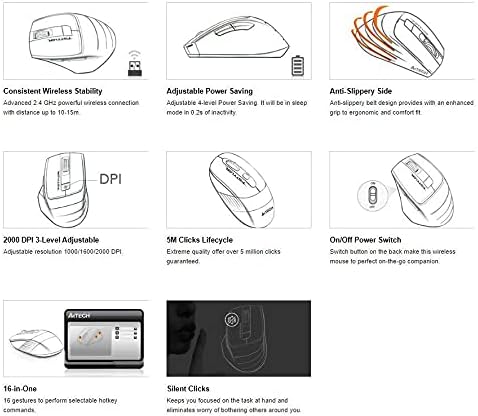
이미지 5.1: 기능 표시view of the A4Tech FSTYLER FG30S mouse.
5.1 Consistent Wireless Stability
The mouse utilizes advanced 2.4 GHz wireless technology, providing a stable and reliable connection with a range of up to 10-15 meters, minimizing interference and lag.
5.2 무음 클릭
The A4Tech FG30S features silent click technology, reducing click noise by up to 90%. This allows for a quieter working environment, minimizing distractions for both the user and those nearby.
5.3 Anti-Slippery Side Design
The mouse incorporates an anti-slippery side design, enhancing grip and providing a more ergonomic and comfortable experience during extended use.
5.4 16-in-One Gestures
The mouse supports 16 customizable gestures, allowing users to perform various hotkey commands for increased productivity. Specific software may be required for full customization, typically available from the manufacturer's web대지.
5.5 5 Million Clicks Lifecycle
The mouse buttons are engineered for durability, guaranteeing over 5 million clicks throughout the product's lifespan.
6. 유지관리
6.1 청소
- 청소하기 전에 마우스가 꺼져 있는지 확인하세요.
- 부드럽고 건조하며 보푸라기가 없는 천을 사용하여 마우스 표면을 닦으세요.
- 잘 지워지지 않는 더러움에는 가볍게 damp천에 물이나 순한 세척액을 묻혀 닦아주세요. 과도한 습기는 피하세요.
- 강한 화학 물질, 연마 세척제 또는 용제를 사용하지 마십시오.
- 면봉이나 압축 공기를 사용하여 스크롤 휠과 광학 센서 주변을 청소하십시오.
6.2 배터리 교체
When the mouse performance degrades or the indicator light signals low battery, replace the AA battery by following the steps outlined in Section 3.1.
7. 문제 해결
- 마우스가 응답하지 않습니다.
- 마우스가 켜져 있는지 확인하세요.
- 배터리 잔량을 확인하고 필요한 경우 교체하십시오.
- For 2.4GHz connection, ensure the USB receiver is securely plugged into a working USB port. Try a different port.
- For Bluetooth connection, ensure Bluetooth is enabled on your computer and the mouse is properly paired. Try re-pairing the device.
- Move the mouse closer to the receiver/computer to rule out range issues.
- 커서 움직임이 불규칙하거나 갑작스럽습니다.
- 마우스 밑면의 광학 센서를 청소하세요.
- 마우스를 적절한 표면에서 사용하고 있는지 확인하세요. 반사율이 높거나 투명한 표면은 피하세요.
- DPI 설정이 변경되지 않음:
- 올바른 DPI 버튼을 누르고 있는지 확인하십시오.
- 배터리 잔량을 확인하십시오.
8. 사양
| 특징 | 사양 |
|---|---|
| 모델 번호 | FG30S |
| 상표 | 에이4테크 |
| 연결성 | Bluetooth & 2.4GHz Wireless |
| DPI 레벨 | 1000 / 1600 / 2000 (3-level adjustable) |
| 움직임 감지 | 광학 |
| 손의 방향 | 양손잡이 |
| 운영 체제 호환성 | Linux, Windows XP (and newer OS versions) |
| 배터리 유형 | 1x AA(포함되지 않음) |
| 품목 무게 | 150g |
| 패키지 크기 | 17.5 x 12 x 7.3cm |
| 클릭주기 | 5천만 건 이상의 클릭 |
9. 보증 및 지원
보증 정보 및 기술 지원에 대해서는 A4Tech 공식 웹사이트를 참조하십시오. web해당 웹사이트를 방문하거나 가까운 판매점에 문의하십시오. 보증 청구를 위해 구매 영수증을 구매 증빙 자료로 보관하십시오.
온라인 리소스:
- A4Tech Official Web대지: www.a4tech.com


