1. 서론
This manual provides instructions for the installation, operation, and troubleshooting of your ARRIS Touchstone TM804G DOCSIS 3.0 Telephone Modem. The TM804G is designed to provide high-speed data access and up to four lines of Voice over IP (VoIP) telephone service over your cable network. It features DOCSIS 3.0 technology for enhanced internet speeds and reliability.
2. 주요 특징
- DOCSIS 3.0 compliant for high-speed internet.
- Four (4) dedicated VoIP telephone ports.
- Supports download speeds up to 343 Mbps.
- Two independent 96MHz RF tuners.
- Ethernet connectivity for network devices.
3. 패키지 내용
패키지에 다음 품목이 포함되어 있는지 확인하십시오.
- ARRIS Touchstone TM804G Telephone Modem
- 전원 어댑터
- 이더넷 케이블
- 문서(빠른 시작 가이드, 안전 정보)
Note: A backup battery is sold separately and is not included in the standard package.
4. 신체적 특징
4.1 전면 패널 표시등
The front panel of the TM804G modem features several LED indicators that provide status information.

그림 1: 앞쪽 view of the ARRIS Touchstone TM804G Telephone Modem. This image shows the modem's black casing with ventilation holes on top and a row of green LED indicator lights on the right side of the front panel.
| 지시자 | 상태 | 설명 |
|---|---|---|
| 힘 | 솔리드 그린 | 모뎀의 전원이 켜져 있습니다. |
| DS(다운스트림) | 솔리드 그린 | 다운스트림 채널이 연결되었습니다. |
| 미국(업스트림) | 솔리드 그린 | 상위 채널이 연결되었습니다. |
| 온라인 | 솔리드 그린 | The modem is registered and online. |
| 링크 | 솔리드 그린 | An Ethernet device is connected. |
| 전화1-4 | 솔리드 그린 | Telephone line is active. |
4.2 후면 패널 포트
The rear panel provides all necessary connection ports for the modem.
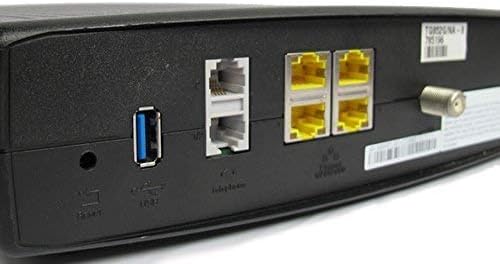
그림 2: 뒤쪽 view of the ARRIS Touchstone TM804G Telephone Modem. This image displays the back of the modem, featuring a coaxial cable connector, four yellow Ethernet ports, two grey telephone ports (RJ-11), a USB port, a reset button, and the power input.
- 같은 축의: 벽면 케이블 콘센트에 연결됩니다.
- 이더넷(LAN): Four (4) RJ-45 ports for connecting to a computer or router.
- TEL1-4 (RJ-11): Four (4) telephone ports for connecting to telephones or a home telephone wiring system.
- USB: (Functionality may vary or be disabled by your service provider).
- RESET : Recessed button to reset the modem to factory defaults (use with caution).
- 힘: 전원 어댑터에 연결합니다.
5. 설정 및 설치
Follow these steps to install your ARRIS Touchstone TM804G modem.
- 동축 케이블 연결: Connect one end of a coaxial cable to the COAXIAL port on the modem and the other end to a cable wall outlet. Ensure the connection is finger-tight.
- 이더넷 케이블 연결: Connect one end of the Ethernet cable to one of the ETHERNET ports on the modem and the other end to your computer's network port or your wireless router's WAN/Internet port.
- Connect Telephone Lines: If using telephone service, connect your telephone(s) or home telephone wiring to the TEL1, TEL2, TEL3, or TEL4 ports on the modem using standard RJ-11 telephone cables.
- 전원 어댑터 연결: 전원 어댑터를 모뎀의 POWER 포트에 연결한 다음 어댑터를 전기 콘센트에 꽂으십시오.
- 전원 켜기: The modem will automatically power on. Observe the front panel indicator lights. The POWER, DS, US, and ONLINE lights should eventually turn solid green, indicating a successful connection to the cable network and internet. The TEL lights will illuminate when telephone lines are active.
- 서비스 활성화: Contact your Internet Service Provider (ISP) to activate the modem. You will need to provide them with the MAC address and serial number, typically found on a label on the bottom or back of the modem.
Important: Do not connect the modem to a power outlet until all other connections are made.
6. 사용 설명서
Once the modem is successfully installed and activated, it operates automatically.
- 인터넷 액세스: Any device connected via Ethernet to the modem (or through a connected router) should have internet access once the ONLINE light is solid green.
- 전화 서비스: If your service plan includes VoIP, connected telephones will have dial tone and function once the corresponding TEL lights are solid green.
- 모니터링 상태: Refer to the front panel LED indicators (Section 4.1) to monitor the modem's operational status.
7. 유지관리
- 청소: 모뎀을 깨끗하게 유지하고 먼지가 쌓이지 않도록 하십시오. 부드럽고 마른 천으로 외부를 닦아주세요. 액체 세척제나 스프레이형 세척제는 사용하지 마십시오.
- 통풍: 모뎀이 과열되지 않도록 통풍이 잘 되는 곳에 설치하십시오. 통풍구를 막지 마십시오.
- 펌웨어 업데이트: Firmware updates are typically managed automatically by your Internet Service Provider. Do not attempt to manually update the firmware unless instructed by your ISP.
- Restarting the Modem: If you experience connectivity issues, try restarting the modem by unplugging the power adapter for 10-15 seconds and then plugging it back in.
- 공장 초기화 : The recessed RESET button on the rear panel can be used to restore factory default settings. This should only be done if instructed by your ISP, as it will erase all custom configurations. To perform a factory reset, use a paperclip to press and hold the RESET button for at least 10 seconds.
8. 문제 해결
If you encounter problems with your modem, refer to the following common issues and solutions.
| 문제 | 가능한 원인 | 해결책 |
|---|---|---|
| 전원이 없습니다 | 전원 어댑터가 연결되지 않았거나 콘센트에 결함이 있습니다. | Ensure power adapter is securely connected to the modem and a working electrical outlet. Check the POWER LED. |
| 인터넷 접속 불가 | Coaxial cable loose, modem not activated, or ISP outage. |
|
| 전화에 발신음이 들리지 않습니다 | Telephone cable loose, TEL light off, or service issue. |
|
| 느린 인터넷 속도 | Network congestion, old router, or ISP issue. |
|
For further assistance, contact your Internet Service Provider's technical support.
9. 사양
| 모델 번호 | TM804G |
| DOCSIS 표준 | DOCSIS 3.0 |
| Internet Download Speed | 최대 343Mbps(ISP에 따라 다름) |
| VoIP 포트 | 4(RJ-11) |
| 이더넷 포트 | 4(RJ-45) |
| 연결 기술 | 이더넷 |
| 치수(길이 x 너비 x 높이) | 약 11.81 x 9.13 x 2.56인치 |
| 무게 | 약 2.16파운드 |
| 호환 가능한 ISP | Optimum, Mediacom (and others, check with your provider) |
10. 보증 및 지원
This product is offered as an Amazon Renewed item. Amazon Renewed products are professionally inspected and tested to work and look like new. They are eligible for replacement or refund under the Amazon Renewed Guarantee if you are not satisfied with your purchase.
For technical support, troubleshooting, or service-related inquiries, please contact your Internet Service Provider (ISP) directly. Your ISP is responsible for the activation, configuration, and ongoing support of the modem on their network.


