1. 서론
Thank you for choosing the REXING PRD615 Smart Home Projector. This device is designed to transform your living space into an immersive entertainment hub, offering high-definition visuals, robust audio, and smart connectivity features. This manual provides essential information for setting up, operating, and maintaining your projector to ensure optimal performance and longevity.

Image: The REXING PRD615 Smart Home Projector, a sleek, rectangular device with a lens on the front and ventilation grilles on the sides.
2. 안전 정보
- 전원 공급 장치: 제공된 전원 어댑터만 사용하세요. 볼륨을 확인하세요.tage는 프로젝터의 요구 사항을 충족합니다.
- 통풍: 환기구를 막지 마십시오. 프로젝터 주변의 공기 흐름이 원활하여 과열을 방지하십시오.
- 액체 노출: Keep the projector away from water or other liquids. Do not operate in damp 환경.
- 청소: 청소하기 전에 전원을 차단하세요. 부드럽고 마른 천을 사용하세요. 연마성 세제는 사용하지 마세요.
- 렌즈 관리: Do not touch the projector lens directly. Use a lens cleaning cloth if necessary.
- 눈 안전: l을 사용할 때 프로젝터 렌즈를 직접 쳐다보지 마십시오.amp 밝은 빛은 눈의 피로나 손상을 유발할 수 있으므로 켜져 있어야 합니다.
- 분해 : 프로젝터를 직접 분해하거나 수리하려고 하지 마십시오. 모든 서비스는 자격을 갖춘 전문가에게 맡기십시오.
3. 패키지 내용
다음 항목에 대한 상자를 체크해 주세요.
- REXING PRD615 Smart Home Projector
- 전원 어댑터
- 원격 제어
- 사용자 설명서
- HDMI 케이블 (패키지에 따라 포함될 수 있음)
4. 제품 오버view 및 기능
The REXING PRD615 is equipped with advanced features for a superior home entertainment experience:
- Theatre Experience: Projects stunning ultra-bright 750 ANSI DLP HD video (1280x800 resolution) with a throw ratio of 1.2:1, supporting projection sizes from 40 to 150 inches.
- Incredible Audio: Features dual built-in 3W stereo speakers for clear, lag-free audio. Supports external audio via 3.5mm headphone jack or Bluetooth.
- 자동 초점 : Automatically calculates the distance to the projection surface for crystal-clear imaging without manual adjustment.
- 3D 기능: Supports 3D movies and games for an immersive viewing experience (3D glasses not included).
- 멀티미디어 연결성: Access thousands of apps via the Google Play Store (Android TV 9.0). Connect devices via HDMI, USB, SD card, or wirelessly via Wi-Fi and Miracast.

Image: The REXING PRD615 projector displaying its smart interface with icons for Airplay, Miracast, HDMI, App Store, YouTube, Netflix, and other apps, along with various multimedia ports on the rear.
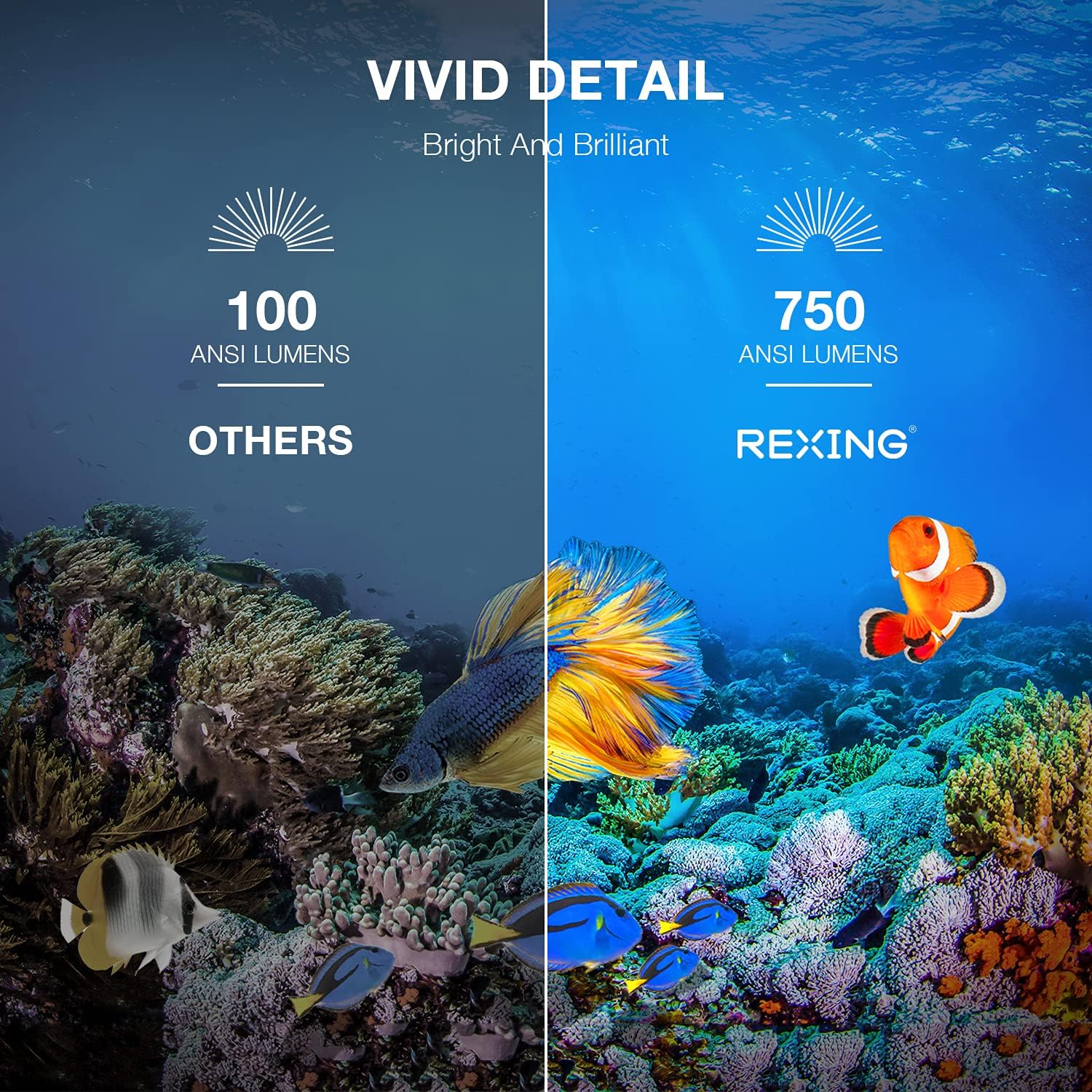
Image: A visual comparison showing the vivid detail of 750 ANSI Lumens (REXING) versus 100 ANSI Lumens (Others) in an underwater scene with colorful fish.

Image: A split screen comparison of a cityscape, demonstrating the clarity of 1080P resolution (REXING) compared to 720P (Other Projectors).
5. 설정
5.1 배치
프로젝터를 안정적이고 평평한 표면에 놓으십시오. 최적의 결과를 얻으려면 viewing, ensure the projection surface (wall or screen) is clean and smooth. The projector can create an image size from 40 to 150 inches diagonally, depending on the distance from the screen.
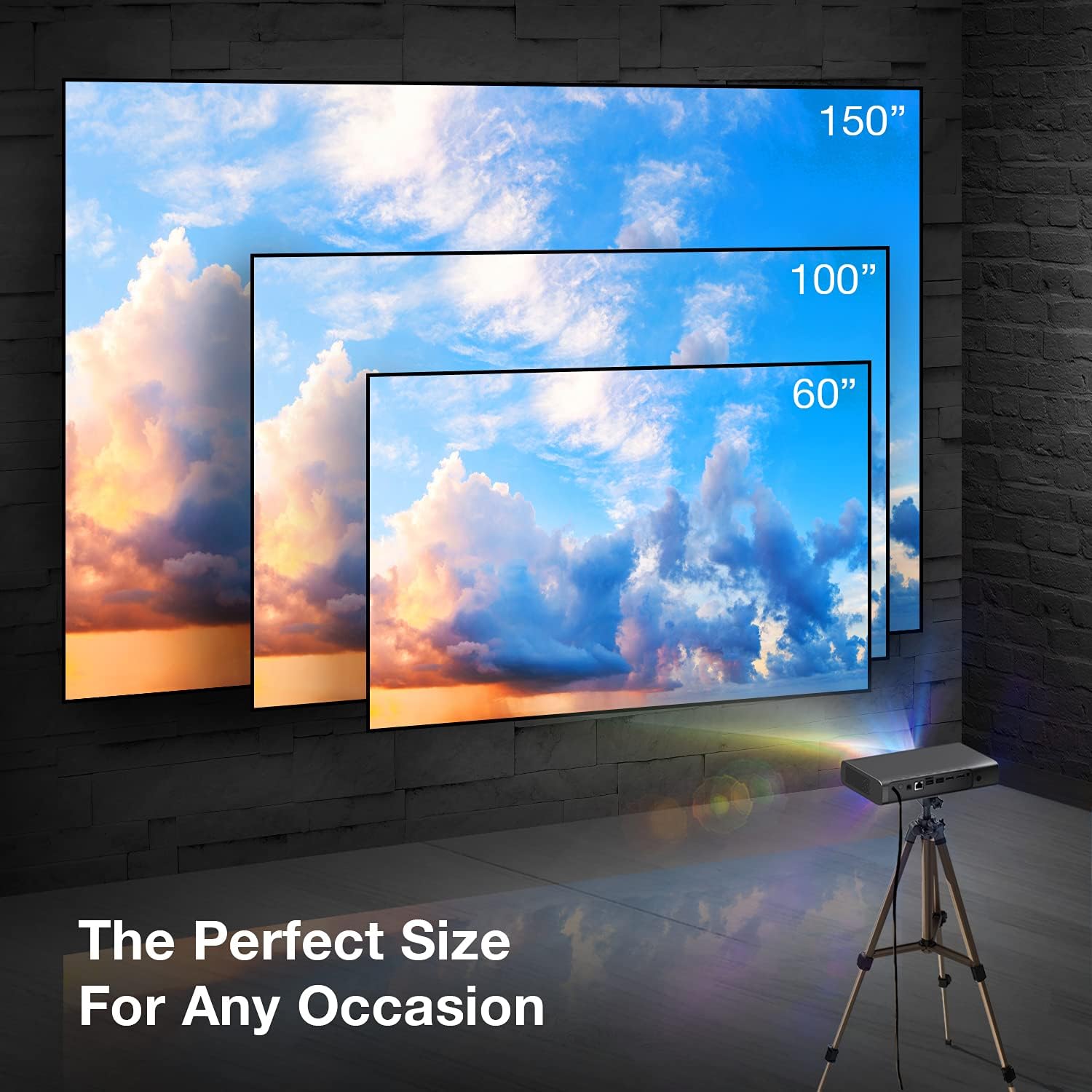
Image: A visual representation showing different projection sizes (60", 100", 150") achievable with the REXING PRD615 projector, illustrating its versatility for various room sizes.
5.2 전원 연결
- 프로젝터의 DC IN 포트에 전원 어댑터를 연결하십시오.
- 전원 어댑터를 벽면 콘센트에 꽂으세요.
- 프로젝터나 리모컨의 전원 버튼을 눌러 장치를 켜세요.
5.3 Initial Configuration (Autofocus & Auto Keystone)
Upon startup, the PRD615 will automatically adjust the focus and keystone correction. This feature ensures a clear, rectangular image even if the projector is not perfectly aligned with the screen.

이미지: 항공 사진 view showing the REXING PRD615 projector on a table, projecting an image onto a wall, with an overlay illustrating the automatic focus and keystone correction capabilities.
5.4 네트워크 연결
To access smart features and online content, connect the projector to your Wi-Fi network:
- 프로젝터 인터페이스에서 '설정' 메뉴로 이동하세요.
- Select 'Network' or 'Wi-Fi'.
- 목록에서 원하는 Wi-Fi 네트워크를 선택하고, 메시지가 나타나면 비밀번호를 입력하세요.
6. 사용 설명서
6.1 외부 장치 연결
- HDMI : Connect Blu-ray players, gaming consoles, laptops, or other HDMI-enabled devices to the HDMI 1 or HDMI 2 ports.
- USB: Insert USB flash drives into the USB 2.0 ports to play media file직접적으로.
- 블루투스: Pair Bluetooth speakers or headphones for enhanced audio.
- TF 카드: Insert a TF (microSD) card into the designated slot to access media.
6.2 Using Smart Features (Android TV, Apps, Miracast)
The REXING PRD615 runs on Android TV 9.0, providing access to a wide range of applications:
- App Store/Google Play: Download and install your favorite streaming apps like Netflix, YouTube, Chrome, and more.
- Miracast : Wirelessly mirror content from compatible smartphones, tablets, or computers to the projector screen.
- 3D 재생: For 3D content, ensure your media is in a compatible 3D format and use active shutter 3D glasses (sold separately).

Image: Two individuals playing a racing video game projected onto a large screen by the REXING PRD615, demonstrating the ability to cast content from a phone to the projector.
7. 유지관리
- 렌즈 청소: Use a professional lens cleaning cloth or air blower to gently remove dust. Do not use liquid cleaners directly on the lens.
- C 청소asing: 프로젝터 외부를 부드럽고 마른 천으로 닦으십시오. 잘 지워지지 않는 얼룩은 약간 거친 천으로 닦아내십시오.amp 천을 사용한 후 마른 천을 사용할 수 있습니다.
- 저장: 장기간 사용하지 않을 경우 프로젝터를 서늘하고 건조한 곳에 보관하고 먼지와 극한 온도 변화를 피하십시오.
8. 문제 해결
| 문제 | 가능한 원인 | 해결책 |
|---|---|---|
| 이미지가 투영되지 않았습니다 | Power off; input source incorrect; cable loose | Check power connection; select correct input source; ensure cables are securely connected. |
| 이미지가 흐릿함 | Out of focus; projector too close/far | Allow autofocus to adjust; reposition projector within recommended throw distance. |
| 소리가 나지 않습니다 | Volume too low; audio output incorrect; external device muted | Increase projector volume; check audio settings; unmute external device. |
| 리모컨이 작동하지 않습니다 | Batteries low/dead; obstruction; not pointed at IR receiver | Replace batteries; remove obstructions; point remote directly at the projector's IR receiver. |
| Wi-Fi 연결 문제 | Incorrect password; router too far; network interference | Verify password; move projector closer to router; restart router. |
9. 사양
| 특징 | 세부 사항 |
|---|---|
| 상표 | 렉싱 |
| 모델 | PRD615 |
| 디스플레이 기술 | 디엘피(DLP) |
| 명도 | 750 ANSI 루멘스 |
| 네이티브 해상도 | 1280 x 800 (HD) |
| 최대 디스플레이 해상도 | 1280 x 800 |
| 투사 크기 | 40-150 인치 |
| 투사율 | 1.2시 1분 |
| 스피커 유형 | Dual 3W Stereo, Built-In |
| 연결 기술 | Bluetooth, USB, HDMI, Wi-Fi |
| 특별 기능 | Wireless, Portable, Built-In Wi-Fi, Autofocus, Auto Keystone Correction |
| 운영 체제 | 안드로이드 TV 9.0 |
| 품목 무게 | 4.8파운드 |
| 패키지 크기 | 11.2 x 8 x 4.6 인치 |
| 첫 번째 이용 가능 날짜 | 4년 2021월 XNUMX일 |
10. 보증 및 지원
REXING stands behind its products. The PRD615 Smart Home Projector comes with an 18개월 보증 구매일로부터 적용됩니다. 이 보증은 제조상의 결함을 보장하며 제품이 의도된 대로 작동하도록 합니다.
For any questions, technical assistance, or warranty claims, please contact our US-Based Customer Support team. Our dedicated team is ready to assist you.
- 이메일: 제품 포장 또는 REXING 공식 설명서를 참조하십시오. web연락처 이메일 사이트입니다.
- 핸드폰: 제품 포장 또는 REXING 공식 설명서를 참조하십시오. web고객 지원 전화번호 안내 사이트입니다.

Image: A customer support representative with a headset, indicating the availability of US-based customer support for the REXING PRD615 projector.


