소개
This manual provides essential information for setting up, operating, maintaining, and troubleshooting your Apple TV 4K (2nd Generation) 32GB. Please read these instructions carefully to ensure optimal performance and a seamless user experience.
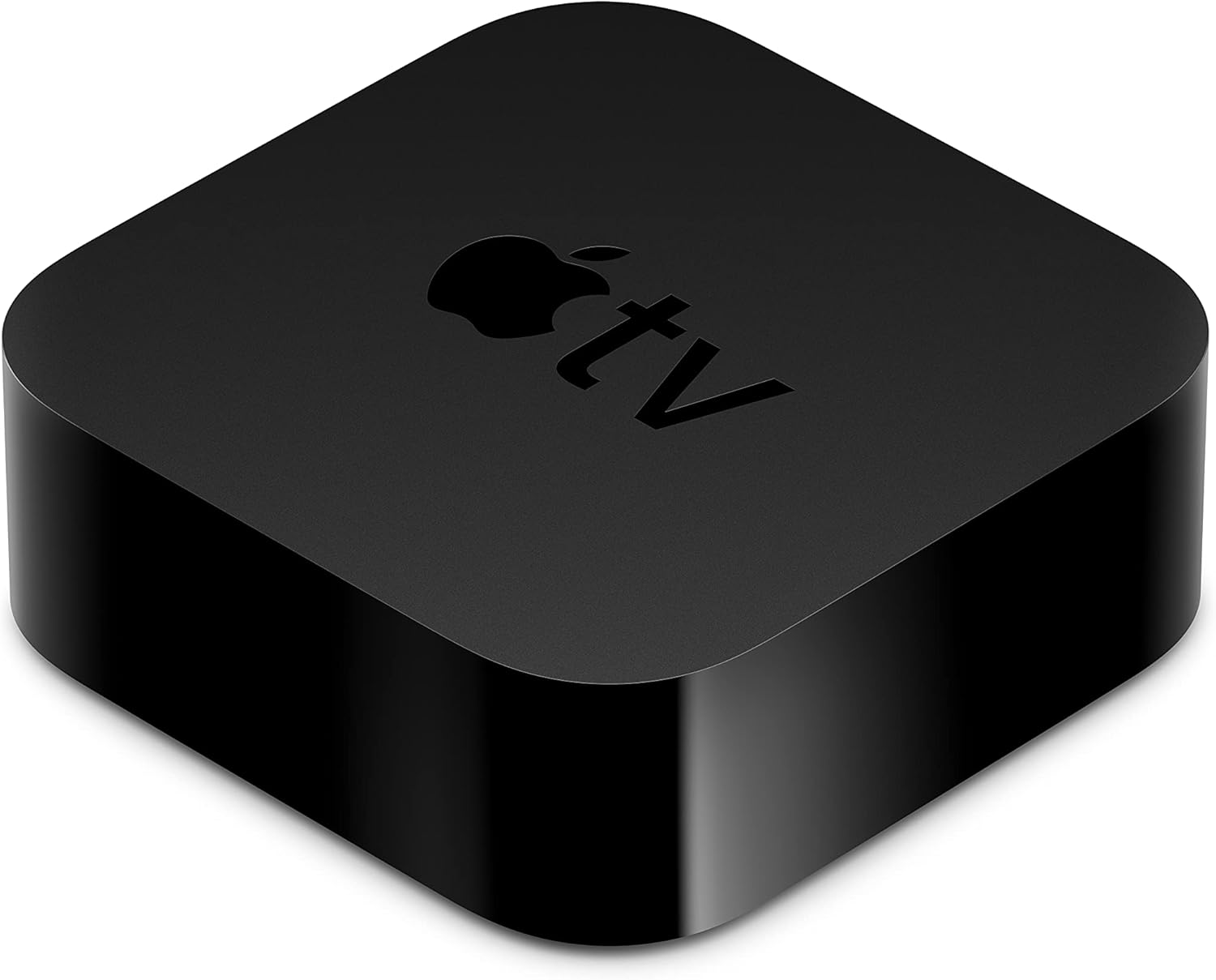
The Apple TV 4K (2nd Generation) device.
상자 안에 무엇이 들어있나요?
패키지에 모든 품목이 들어 있는지 확인하세요.
- Apple TV 4K (2nd Generation)
- Siri Remote (2nd generation)
- 전원 코드
- Lightning to USB 케이블
- 선적 서류 비치
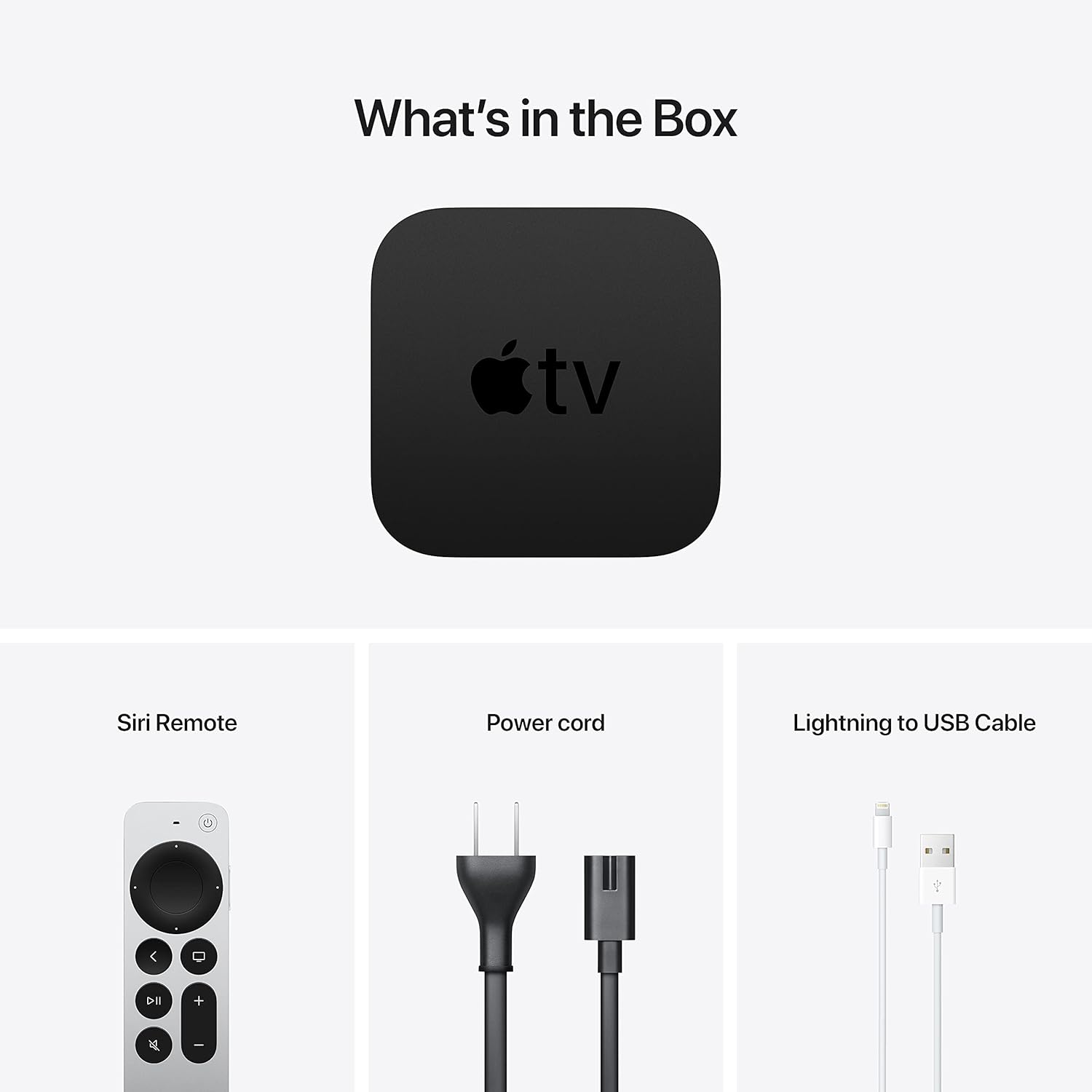
Included components: Apple TV 4K, Siri Remote, power cord, and Lightning to USB cable.
설정
1. Connect to Power and TV
Place your Apple TV 4K near your television. Connect one end of an HDMI cable (not included) to the HDMI port on your Apple TV and the other end to an available HDMI input on your television. Then, connect the included power cord to the power port on your Apple TV and plug it into a wall outlet.

Rear ports of the Apple TV 4K: Power, HDMI, and Ethernet.
2. 네트워크에 연결
You can connect your Apple TV 4K to the internet via Wi-Fi or Ethernet.
- 와이파이: During the initial setup process, you will be prompted to select your Wi-Fi network and enter the password.
- 이더넷: For a wired connection, connect an Ethernet cable (not included) from your router to the Ethernet port on the back of your Apple TV.
3. 초기 구성
Turn on your TV and select the correct HDMI input. Follow the on-screen instructions to complete the setup. This includes pairing the Siri Remote, connecting to Wi-Fi (if not using Ethernet), signing in with your Apple ID, and enabling desired settings.
작동 지침
Using the Siri Remote

The Siri Remote (2nd generation) for navigation and control.
The Siri Remote features a touch-enabled clickpad for intuitive navigation. You can swipe to move, click to select, and use the outer ring of the clickpad for jogging through content. Other buttons include:
- 전원 버튼: Turns Apple TV and your TV on or off.
- TV/Control Center Button: Press once to go to the Home Screen or switch to the TV app. Press and hold to open Control Center.
- 뒤로가기 버튼: 이전 화면으로 돌아갑니다.
- 재생/일시 정지 버튼: 미디어 재생을 제어합니다.
- 볼륨 버튼: Controls the volume of your TV or receiver.
- 음소거 버튼: 오디오를 음소거합니다.
- 시리 버튼: Press and hold to activate Siri for voice commands and search.
Navigation and Content Streaming
From the Home Screen, use the clickpad to navigate through apps. Select an app to open it and browse content. The Apple TV 4K supports various streaming services including Apple TV+, Disney+, Amazon Prime Video, HBO Max, and Netflix.
에어플레이
Use AirPlay to wirelessly share photos, videos, presentations, and more from your iPhone, iPad, or Mac directly to your TV through Apple TV 4K. Ensure both devices are on the same Wi-Fi network.
오디오 기능
The Apple TV 4K supports Dolby Atmos for immersive, room-filling sound. You can also enjoy private listening by connecting up to two sets of AirPods to your Apple TV.
HomeKit Integration
If you have HomeKit-enabled smart home accessories, you can use your Apple TV 4K as a home hub. This allows you to control accessories remotely, automate actions, and get a live view of your HomeKit-enabled cameras.
유지
청소
To clean your Apple TV 4K and Siri Remote, unplug the device from power. Use a soft, lint-free cloth. Avoid using abrasive materials, aerosols, or cleaning sprays directly on the device.
소프트웨어 업데이트
Ensure your Apple TV software (tvOS) is always up to date for the best performance and latest features. Go to Settings > System > Software Updates 업데이트를 확인하고 설치합니다.
Siri Remote Battery
The Siri Remote has a built-in rechargeable battery. To charge, connect the remote to a USB power adapter or a computer's USB port using the included Lightning to USB cable.
문제 해결
- 전원 없음: Ensure the power cord is securely connected to both the Apple TV and a working power outlet. Try a different outlet.
- 비디오/오디오 없음:
- Verify the HDMI cable is securely connected to both the Apple TV and your TV.
- TV가 올바른 HDMI 입력으로 설정되어 있는지 확인하세요.
- Check your TV's volume and mute settings.
- Restart your Apple TV by going to 설정 > 시스템 > 다시 시작.
- Siri Remote Not Responding:
- Charge the remote using the Lightning to USB cable.
- If the remote is charged but still unresponsive, try re-pairing it. Point the remote at the Apple TV and press and hold the Back button and Volume Up button for 5 seconds.
- 네트워크 문제:
- Wi-Fi 라우터와 인터넷 연결을 확인하세요.
- 이동하다 설정 > 네트워크 to verify connection status.
- If using Wi-Fi, try restarting your router. If using Ethernet, ensure the cable is properly connected.
- 앱 문제: If an app is not working correctly, try force-quitting it (double-press the TV button, swipe up on the app) and reopening. If the issue persists, delete and reinstall the app.
명세서
| 모델명 | Apple TV 4K (2nd Generation) |
| 모델 번호 | MXGY2LL/A |
| 저장 | 32GB |
| 프로세서 | A12 바이오닉 칩 |
| 비디오 출력 | HDMI 2.1 |
| 해결 | 4K High Frame Rate HDR with Dolby Vision |
| 오디오 지원 | 돌비 애트모스 |
| 연결성 | Gigabit Ethernet, 802.11ax Wi-Fi 6 with MIMO, Bluetooth 5.0 |
| 포트 | HDMI 2.1, Gigabit Ethernet, IR receiver |
| 치수(높이 x 너비 x 깊이) | 1.4인치(35mm) x 3.9인치(98mm) x 3.9인치(98mm) |
| 무게 | 15 온스(425g) |
| Siri Remote Battery | 충전식 리튬 이온 |
보증 및 지원
Your Apple TV 4K is covered by Apple's limited warranty. For detailed warranty information, please refer to the documentation included with your product or visit the official Apple support website. For technical assistance, troubleshooting, or service, please visit 지원.apple.com/apple-tv.


