소개
구매해주셔서 감사합니다asing the MageGee V620 Wireless Keyboard and Mouse Combo. This manual provides detailed instructions on how to set up, operate, maintain, and troubleshoot your new wireless peripheral set. Please read this manual carefully before use to ensure optimal performance and longevity of your product.

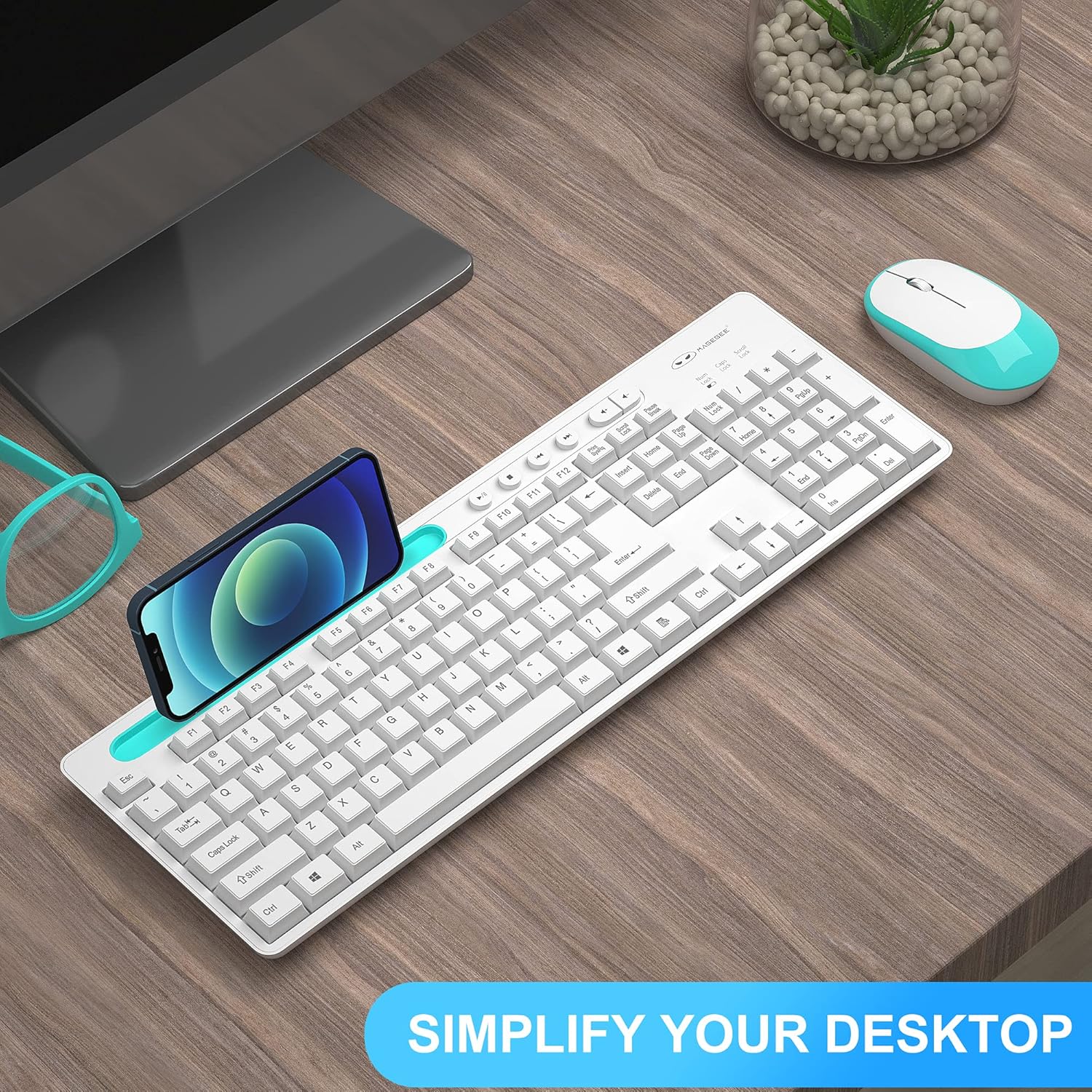
Image: The MageGee V620 wireless keyboard and mouse combo, featuring a full-size keyboard with an integrated phone holder and a compact, ergonomic mouse. A smartphone is shown placed in the keyboard's holder.
패키지 내용
- MageGee V620 Wireless Keyboard
- MageGee Wireless Mouse
- USB 수신기 (마우스 배터리 칸에 보관됨)
- 사용 설명서 (본 문서)
- AA Battery (for mouse, pre-installed or included)
설정
Follow these steps to set up your MageGee V620 Wireless Keyboard and Mouse Combo:
- 배터리 설치:
- 생쥐: Open the battery compartment cover on the bottom of the mouse. Insert the provided AA battery, ensuring correct polarity (+/-). Close the cover.
- 건반: The keyboard typically uses AAA batteries (not explicitly mentioned in JSON, but common for wireless keyboards). Open the battery compartment on the bottom of the keyboard and insert the required batteries (usually 2x AAA, not included based on JSON).
- USB 수신기 찾기: The USB receiver for both the keyboard and mouse is usually stored inside the mouse's battery compartment for safekeeping during transport. Carefully remove it.
- USB 수신기 연결: USB 수신기를 컴퓨터(데스크톱, 노트북, PC)의 사용 가능한 USB 포트에 꽂으세요.
- 전원 켜기:
- 생쥐: 마우스 바닥에 있는 전원 스위치를 켭니다.
- 건반: Ensure the keyboard is powered on (some keyboards have a power switch, others activate upon key press).
- 자동 연결: The keyboard and mouse should automatically connect to your computer within a few seconds. No additional drivers are typically required for Windows, macOS, or Linux systems.

Image: Illustration demonstrating the 2.4GHz wireless connection of the MageGee V620 combo. A USB receiver is shown plugged into a laptop, wirelessly connecting to both the keyboard and mouse, indicating a range of 33 feet.
작동 지침
키보드 기능
- 전체 크기 레이아웃: 효율적인 데이터 입력을 위한 숫자 키패드가 포함되어 있습니다.
- Quiet Crater-Switch Keys: Designed for responsive and quiet typing, reducing noise during use.
- 통합형 전화 홀더: A convenient slot at the top of the keyboard allows you to prop up your smartphone or tablet for easy view주고받음.
- 미디어 바로가기 키: Access common functions quickly with dedicated media keys (e.g., volume control, play/pause).
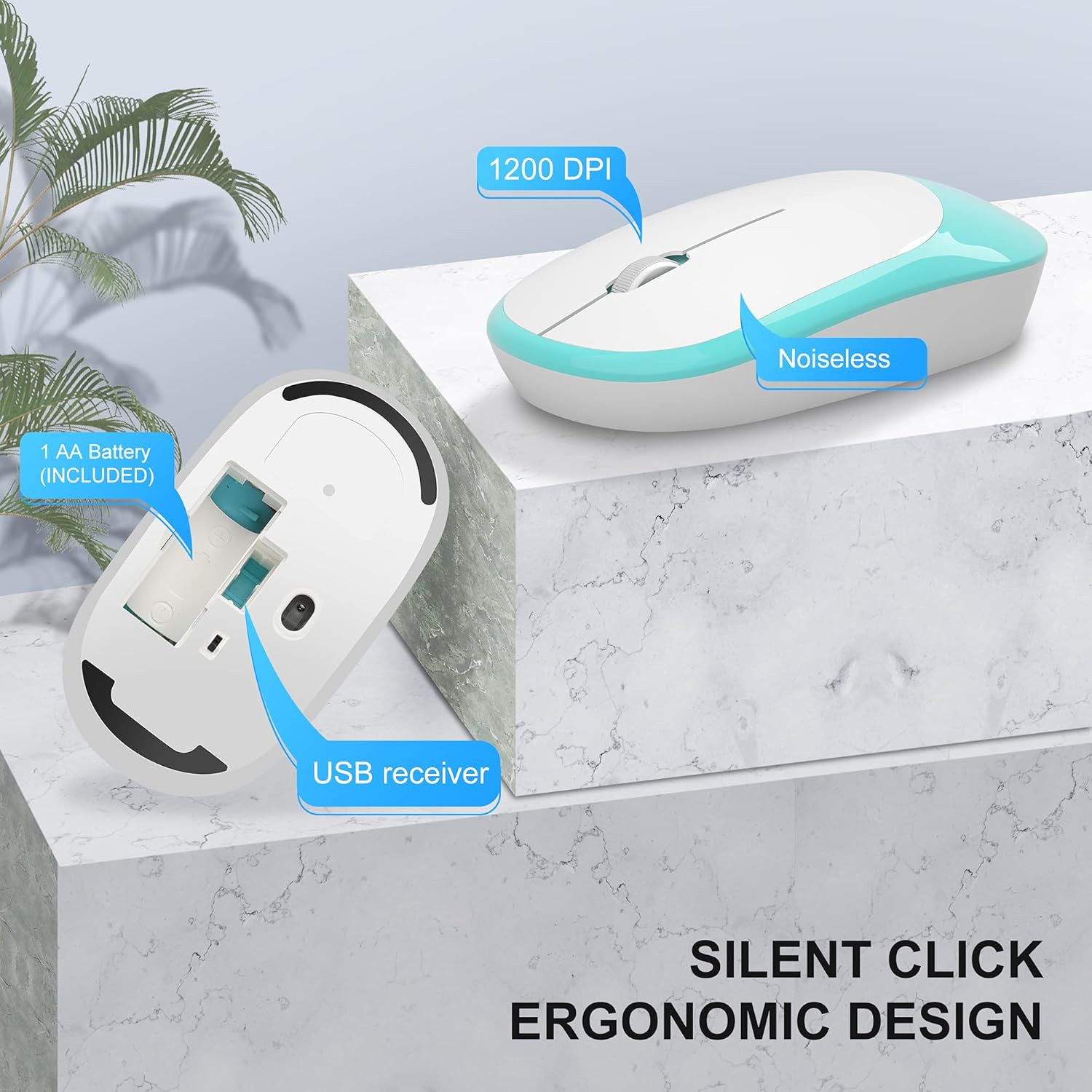
Image: The MageGee V620 wireless keyboard, with highlighted sections indicating the integrated phone holder and the location of 6 media shortcut keys.

이미지: 클로즈업 view of the MageGee V620 keyboard keys, emphasizing the responsive and quiet crater-switch design. Icons below indicate anti-scratch, comfortable touch, soft click, and crater switch features.
마우스 기능
- 인체공학적 디자인: Shaped for comfortable use over extended periods.
- 조용한 클릭: Reduces click noise, ideal for quiet environments.
- 1200DPI: Provides precise and smooth cursor control.
- USB 수신기 보관: The USB receiver can be conveniently stored inside the mouse when not in use, preventing loss.
이미지: 자세한 view of the MageGee V620 wireless mouse, pointing out its silent click feature, ergonomic design, 1200 DPI sensitivity, and the location of the AA battery compartment and USB receiver storage.
유지
- 청소: 부드럽고 마른 천으로 키보드와 마우스를 닦으세요. 잘 지워지지 않는 얼룩은 약간 거친 천으로 닦아내세요.amp 순한 비누를 묻힌 천을 사용하여 닦되, 기기 내부로 액체가 들어가지 않도록 주의하십시오. 독한 화학 약품이나 연마성 세척제는 사용하지 마십시오.
- 배터리 교체:
- When the keyboard or mouse becomes unresponsive or experiences lag, it may be time to replace the batteries.
- Refer to the "Setup" section for instructions on opening battery compartments and inserting new batteries.
- 현지 규정에 따라 오래된 배터리를 책임감 있게 폐기하십시오.
- 저장: When not in use for extended periods, turn off the mouse to conserve battery life. Store the USB receiver inside the mouse's compartment to prevent loss.
문제 해결
If you encounter issues with your MageGee V620 combo, try the following solutions:
- 연결 안 됨 / 응답 없음:
- USB 수신기가 컴퓨터의 작동하는 USB 포트에 단단히 꽂혀 있는지 확인하세요.
- Check if the mouse and keyboard are powered on.
- 키보드와 마우스의 배터리를 모두 교체하세요.
- USB 수신기를 다른 USB 포트에 연결해 보십시오.
- USB 수신기에 키보드와 마우스를 더 가까이 옮겨서 수신 범위 문제를 배제해 보세요.
- 컴퓨터를 다시 시작하세요.
- 연결 지연 또는 간헐적 연결:
- Ensure there are no large metal objects or other electronic devices (like Wi-Fi routers, other wireless devices) between the keyboard/mouse and the receiver that might cause interference.
- Try using a USB extension cable to position the receiver closer to the keyboard and mouse, away from potential interference sources.
- 배터리 수준을 확인하세요.
- Keys Not Working / Mouse Cursor Not Moving:
- Clean any debris from around the affected keys or the mouse sensor.
- Ensure the Num Lock or Caps Lock indicators are functioning correctly (for keyboard).
- Re-establish connection by unplugging and re-plugging the USB receiver.
명세서
| 특징 | 세부 사항 |
|---|---|
| 상표 | 메이지 |
| 모델 | V620 |
| 연결 기술 | 2.4GHz 무선(USB 수신기) |
| 호환 장치 | Gaming Console, Laptop, Personal Computer (Windows, PC) |
| 특징 | Ergonomic Design, Quiet Keys, Phone Holder |
| 마우스 DPI | 1200DPI |
| 키보드 설명 | 숫자 패드가 있는 풀사이즈 |
| 품목 무게 | 1.44파운드(약 0.65kg) |
| 패키지 크기 | 17.48 x 8.62 x 1.5인치(약 44.4 x 21.9 x 3.8cm) |

Image: Technical drawing showing the dimensions of the MageGee V620 wireless keyboard: approximately 440mm (length), 145mm (width), and 27mm (height).

Image: Technical drawing showing the dimensions of the MageGee V620 wireless mouse: approximately 108mm (length), 60mm (width), and 26mm (height).
보증 및 지원
MageGee products are designed for reliability and performance. For warranty information or technical support, please refer to the contact details provided with your purchase or visit the official MageGee web사이트. 보증 청구를 위해 구매 증빙 자료로 구매 영수증을 보관하세요.
For further assistance, you may contact MageGee customer service through their official channels. You can often find support information on the MageGee Store on Amazon.


