1. 제품 오버view
The Yealink WH66 Wireless DECT Headset is a Teams-certified, single-ear (mono) headset designed for office use, offering versatile connectivity and advanced audio features. It connects to PCs, desk VoIP phones via USB, and smartphones via Bluetooth. Key features include a 4.0-inch touch screen, a full-duplex speakerphone, and a noise-canceling dual microphone with Acoustic Shield Technology for clear communication.

Image: The Yealink WH66 Wireless DECT Headset with its workstation base, featuring a touch screen and a mono headset.
주요 특징:
- 인증된 팀: Seamless integration with Microsoft Teams for call control, muting, and answering calls directly from the headset, base touch screen, or computer.
- 3방향 연결: Connects to PC, desk VoIP phones (via USB), and smartphones (via Bluetooth) for flexible call management.
- Crystal Speakerphone: Integrated full-duplex speakerphone on the base for hands-free communication, ideal for home office environments.
- Comfortable & Extended Range: Lightweight design (80g) with an adjustable headband and soft ear cushion for all-day comfort. Offers a roaming range of up to 525 ft.
- 소음 제거 마이크: Dual-mic setup with Acoustic Shield Technology effectively blocks background noise, ensuring clear voice transmission.
2. 패키지 내용
패키지에 모든 품목이 들어 있는지 확인하세요.
- Yealink WH66 Wireless DECT Headset (Mono)
- Headset Base with 4.0-inch Touch Screen
- USB 케이블
- 사용자 설명서
3. 설정 가이드
3.1 PC에 연결하기
To connect your Yealink WH66 headset base to a PC:
- Locate the USB port on the headset base labeled "PC".
- Connect one end of the provided USB cable to the "PC" port on the base.
- USB 케이블의 다른 쪽 끝을 컴퓨터의 사용 가능한 USB 포트에 연결합니다.
- The PC button LED on the base will illuminate, indicating a successful connection.
- Ensure the headset is set as the default audio device in your computer's sound settings and your preferred softphone application (e.g., Microsoft Teams).

Image: The Yealink WH66 headset base connected to a laptop via USB cable.
3.2 유선 전화 연결하기
To connect your Yealink WH66 headset base to a desk VoIP phone:
- Locate the USB port on the headset base labeled with a phone icon.
- Connect one end of the provided USB cable to this phone port on the base.
- Connect the other end of the USB cable to an available USB port on your desk phone.
- Alternatively, for certain Yealink desk phones (e.g., T3 series), an EHS35 adapter may be required for remote call control. Connect the EHS35 adapter to the headset port on the desk phone and then to the base.
- The Phone button LED on the base will illuminate, indicating a successful connection.
- Ensure the desk phone's settings are configured to use the headset for ringing and audio.
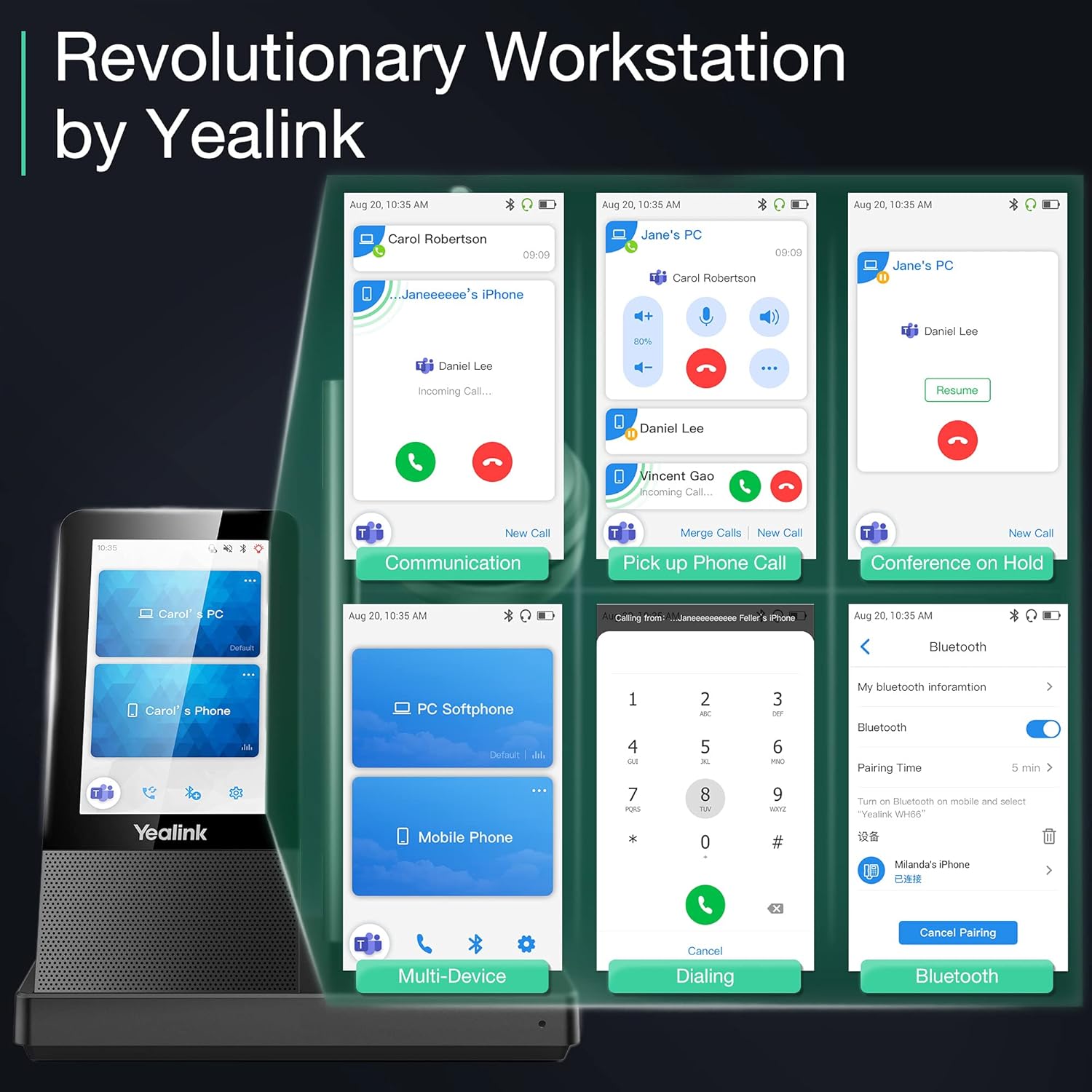
Image: The Yealink WH66 headset base connected to a desk phone.
3.3 모바일 기기와의 페어링
The headset base supports Bluetooth connectivity for mobile devices:
- On the headset base's touch screen, navigate to the Bluetooth settings.
- Ensure Bluetooth is enabled on the headset base. You may also modify the device name for easy identification.
- 모바일 기기에서 블루투스를 활성화하고 사용 가능한 기기를 검색하세요.
- Select the Yealink WH66 from the list of available devices to pair.
- Once paired, a mobile phone card will appear on the headset base's touch screen, indicating successful connection.

Image: The Yealink WH66 headset base with a mobile phone placed on an optional wireless charger.
3.4 착용 스타일
The WH66 headset is designed for comfort and can be adjusted to fit your preference:
- Adjust the headband to ensure a snug yet comfortable fit over your head.
- Position the microphone boom arm so that it points towards your mouth, approximately 0.5 inches away, for optimal voice pickup.
- The microphone boom is bendable, allowing you to fine-tune its position.

Image: A woman wearing the Yealink WH66 headset, demonstrating proper microphone positioning.
4. 사용 설명서
4.1 통화 관리
The WH66 offers multiple ways to manage your calls:
- 전화 받기/거부: You can answer or reject incoming calls directly from the headset's button, the base's touch screen, or your connected PC/desk phone interface.
- 음소거: Flip the microphone boom up to automatically mute, or use the dedicated mute button on the headset or the touch screen.
- Multi-way Calls: Manage multiple calls simultaneously, including answering new calls while holding current ones, or merging calls for conferencing.
- 재다이얼: Quickly redial the last number from the touch screen or headset.
4.2 터치스크린 조작
The 4.0-inch touch screen on the base provides intuitive control over your headset and calls:
- 다이얼 패드: Use the on-screen dial pad to make calls directly.
- 통화 제어: Answer, end, hold, mute, and switch calls with a tap.
- 설정: Access basic and advanced settings to customize your headset experience, including wireless range, voice announcements, and auto-answer features.
- 장치 관리: View connected devices (PC, mobile, desk phone) and switch between them.

이미지: 클로즈업 view of the Yealink WH66 headset base's touch screen interface.
4.3 LED 표시등
The headset and base feature LED indicators to communicate status:
- 울리는: LED가 빨간색으로 깜박입니다.
- 통화 중: Busylight (if connected) glows red.
- 배터리 상태: Red flashing LED for low battery (0-19%), green flashing for charging (20-100%), solid green for fully charged.
- Teams Connection: LED glows purple when connected to Teams. Flashes purple for missed calls/voice messages.
- 범위를 벗어남 : LED가 주황색으로 깜박입니다.
5. 유지관리
5.1 이어쿠션 교체
To maintain hygiene and comfort, ear cushions can be replaced:
- Gently pull off the old ear cushion from the headset.
- Align the new ear cushion with the headset and press firmly to secure it.
5.2 펌웨어 업데이트
Keep your headset updated for optimal performance and new features:
- Download the Yealink USB Connect client from the official Yealink support web대지.
- Connect your headset base to your PC via USB.
- Launch the Yealink USB Connect client. It will detect your device and show its current firmware version.
- You can check for updates automatically or manually upload firmware files downloaded from the Yealink support site.
- The headset will automatically update firmware when docked in the base. The LED will flash red and green alternatively during the update process.
6. 문제 해결
Yealink WH66 헤드셋에 문제가 발생하면 다음 일반적인 문제 해결 단계를 고려해 보세요.
- No Audio/Microphone Issues: Ensure the headset is selected as the default audio device in your computer's sound settings and softphone application. Check all cable connections.
- 블루투스 페어링 문제: Ensure Bluetooth is enabled on both the headset base and your mobile device. Try unpairing and re-pairing the device.
- 제한된 범위: Ensure there are no major obstructions (e.g., thick walls, metal objects) between the headset and the base. Avoid interference from other wireless devices.
- Call Control Not Working: Verify that the headset is properly integrated with your softphone (e.g., Teams certified). Check for firmware updates.
- 헤드셋이 충전되지 않음: Ensure the headset is correctly docked in the base and the base is powered. Check the charging contacts.
For more detailed troubleshooting guides and FAQs, please visit the official Yealink support web대지.
7. 제품 사양
| 특징 | 사양 |
|---|---|
| 모델명 | 예링크 WH66 모노 팀 |
| 연결 기술 | DECT Wireless & Bluetooth |
| 무선 통신 기술 | 블루투스 |
| 헤드폰 잭 | USB |
| 품목 무게 | 1.05파운드(478그램) |
| 제품 치수 | 5.91 x 7.09 x 3.94 인치 |
| 배터리 수명 | 8 Hours (Talktime: 13H) |
| 이동 범위 | 최대 525피트 |
| 소음 제어 | 능동 소음 제거 |
| 제어 방법 | 만지다 |
| 특징 | 가벼움 |
8. 보증 및 지원
Your Yealink WH66 Wireless DECT Headset comes with a manufacturer's warranty. For warranty claims, technical support, or to find answers to frequently asked questions, please refer to the official Yealink support resources.
- 온라인 지원: 방문하세요 예링크 지원 Web대지 for knowledge base articles, FAQs, and troubleshooting guides.
- 펌웨어 업데이트: Regularly check the support web최적의 성능과 새로운 기능 이용을 보장하기 위해 최신 펌웨어 업데이트를 제공하는 사이트입니다.
Video: Frequently Asked Questions on Yealink WH series headsets, provided by Yealink Direct Store.


