1. 서론
This manual provides detailed instructions for the Waveshare 2.13-inch E-Paper E-Ink Display Module (Model: Pico-ePaper-2.13). This module is designed for use with the Raspberry Pi Pico, offering a low-power, partial refresh display solution. E-paper displays are known for their paper-like effect and ability to retain content without continuous power.

Figure 1: Waveshare 2.13-inch E-Paper Display Module displaying examp콘텐츠.
2. 주요 특징
- 백라이트 없음: The display retains its content indefinitely without power, making it highly energy-efficient.
- 초저전력 소모: Power is primarily required only during content refresh cycles.
- SPI 인터페이스: Utilizes a Serial Peripheral Interface, requiring minimal I/O pins for communication.
- 개발 리소스: Includes comprehensive development resources and a manual with Raspberry Pi Pico C/C++ and MicroPython examp레.
- Direct Raspberry Pi Pico Attachment: Features an onboard female pin header for direct connection to a Raspberry Pi Pico.

그림 2: 이상view of the 2.13-inch E-Paper Module's features and specifications.
3. 기술 사양
| 특징 | 값 |
|---|---|
| 운영 볼륨tage | 3.3V |
| 회색조 | 2 |
| 인터페이스 | 3선 SPI, 4선 SPI |
| 부분 새로 고침 시간 | 0.3초 |
| 개요 치수 | 65.00 년 × 30.50mm |
| 전체 새로 고침 시간 | 2s |
| 디스플레이 크기 | 48.55 년 × 23.70mm |
| 새로 고침 전원 | 26.4mW(일반) |
| 도트 피치 | 0.194 년 × 0.194mm |
| 대기 전류 | <0.01uA (거의 없음) |
| 해결 | 250×122픽셀 |
| View잉 각도 | >170° |
| 디스플레이 색상 | 검은색, 흰색 |

Figure 3: Detailed technical specifications of the E-Paper module.

Figure 4: Outline dimensions of the 2.13-inch E-Paper module in millimeters.
4. 설정 및 연결
The Waveshare Pico-ePaper-2.13 module is designed for direct attachment to a Raspberry Pi Pico. Follow these steps for proper setup:
- Prepare Raspberry Pi Pico: Ensure your Raspberry Pi Pico is ready for use, with necessary firmware or operating system installed if required for your project.
- 정렬 및 연결: Carefully align the female pin header on the E-Paper module with the male pins on your Raspberry Pi Pico. Gently press them together until fully seated. Ensure correct orientation to prevent damage.
- 전원 공급 장치: Once connected, power the Raspberry Pi Pico via its USB port or other designated power input. The E-Paper module draws power directly from the Pico.
- 소프트웨어 설정: Refer to the provided development resources for specific C/C++ or MicroPython examples to initialize and control the display. This typically involves configuring the SPI interface on the Pico.

Figure 5: Raspberry Pi Pico securely connected to the E-Paper module. Note: Raspberry Pi Pico is not included with the display module.
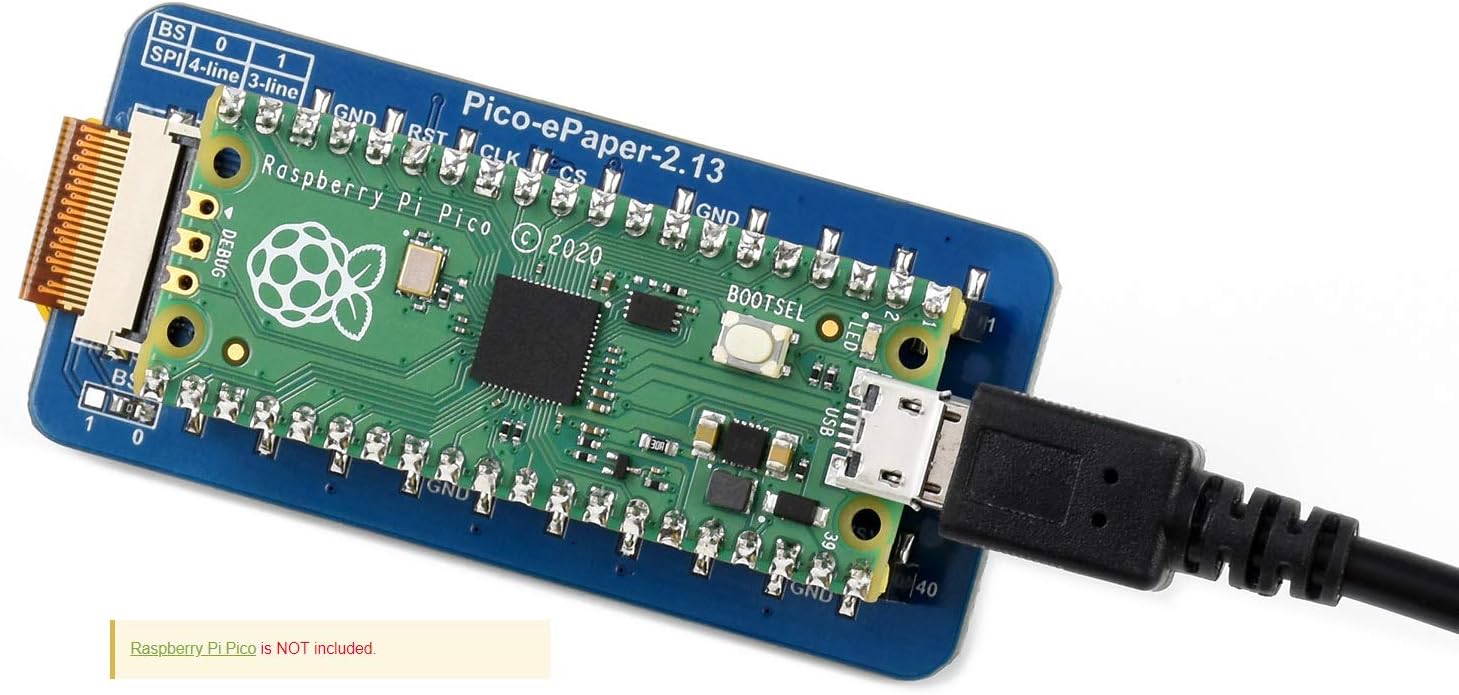
Figure 6: Raspberry Pi Pico with E-Paper module connected and powered via USB. Note: Raspberry Pi Pico is not included with the display module.
4.1 핀 배치 정의
Understanding the pinout is crucial for advanced configurations or troubleshooting. The module uses an SPI interface.
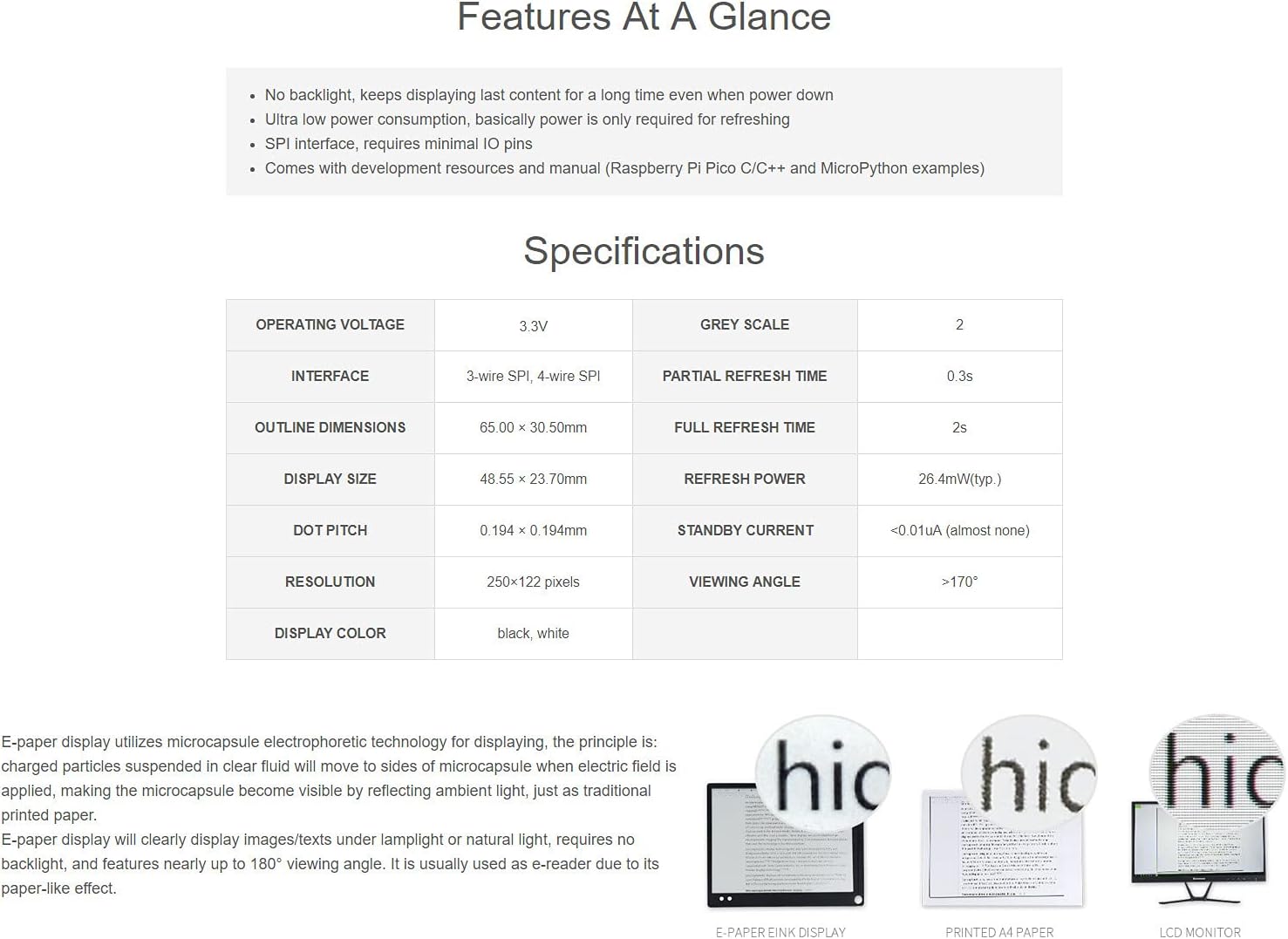
Figure 7: Pinout definition for the Waveshare Pico-ePaper-2.13 module, showing connections for SPI, power, and control pins.
| 핀 이름 | 설명 |
|---|---|
| VSYS | 전원 입력 |
| 접지 | 지면 |
| e-Paper_DC | 데이터/명령 제어 핀(데이터의 경우 높음, 명령의 경우 낮음) |
| e-Paper_CS | SPI chip select (low active) |
| e-Paper_CLK | SPI SCK 핀 |
| e-Paper_DIN | SPI MOSI 핀 |
| e-Paper_RST | External reset (low active) |
| e-Paper_BUSY | Busy status output |
5. 운영 가이드
Operating the Waveshare 2.13-inch E-Paper module involves programming your Raspberry Pi Pico to send display data via the SPI interface. Waveshare provides example code and libraries to facilitate this process.
5.1 Programming the Display
- Access Development Resources: Visit the official Waveshare product page or documentation portal for the Pico-ePaper-2.13 module. Here you will find example code in C/C++ and MicroPython.
- 라이브러리 설치: Download and install any necessary libraries or drivers for your chosen programming language (e.g., MicroPython libraries for e-paper displays).
- Ex 로드amp르 코드: Upload the provided example code to your Raspberry Pi Pico. These examples typically demonstrate basic functions like displaying text, images, or performing partial/full refreshes.
- 콘텐츠 사용자 정의: Modify the example code to display your desired content. Pay attention to the display resolution (250x122 pixels) and color depth (black/white, 2 grey scales).
- Refresh Cycles: Understand the difference between full refresh (approx. 2 seconds) and partial refresh (approx. 0.3 seconds). Partial refresh is faster and consumes less power but may leave ghosting artifacts over time, requiring an occasional full refresh.
5.2 응용 예amp레
The E-Paper module is versatile and suitable for various applications due to its low power consumption and persistent display capabilities.

그림 8: 예amples of potential applications for the E-Paper module, such as price tags, shelf labels, and information displays in various environments.
6. 관리 및 유지 보수
To ensure the longevity and optimal performance of your Waveshare E-Paper display module, follow these maintenance guidelines:
- 조심스럽게 다루십시오: E-paper displays are delicate. Avoid applying excessive pressure or bending the module, especially the flexible FPC cable.
- 청소: Use a soft, dry, lint-free cloth to gently wipe the display surface. Do not use liquid cleaners, solvents, or abrasive materials, as these can damage the screen.
- 환경 조건: Operate and store the module within its specified temperature and humidity ranges. Avoid extreme temperatures, direct sunlight for prolonged periods, and high humidity.
- 전원 관리 : While the display retains content without power, ensure proper power-down sequences for the Raspberry Pi Pico to prevent data corruption or unexpected behavior.
- 정전기 : Take precautions against electrostatic discharge (ESD) when handling the module, as electronic components can be sensitive to static.
7. 문제 해결
If you encounter issues with your E-Paper display module, consider the following troubleshooting steps:
- Display Not Refreshing/Blank:
- Check all connections between the E-Paper module and the Raspberry Pi Pico. Ensure they are secure and correctly oriented.
- Verify the power supply to the Raspberry Pi Pico.
- Review your code for display initialization and refresh commands. Ensure the SPI interface is correctly configured.
- Confirm that the correct libraries for the Pico-ePaper-2.13 are installed and imported in your code.
- 고스팅 또는 이미지 유지:
- Ghosting is common with partial refreshes. Perform a full refresh periodically to clear the display completely.
- Ensure your refresh cycles are correctly implemented in your code.
- 화면 방향이 잘못되었습니다:
- The display typically operates in portrait mode by default. If you require landscape orientation, check if your chosen library or example code supports rotation and how to implement it.
- Module Not Detected by Pico:
- Double-check the pin connections against the pinout diagram (Figure 7).
- Ensure the Raspberry Pi Pico is functioning correctly independently.
For further assistance, refer to the official Waveshare documentation and community forums.
8. 지원 및 보증
For technical support, additional resources, and the latest documentation, please visit the official Waveshare website. You can typically find detailed product wikis, example code, and community forums there.
제조업체: 웨이브셰어
Web대지: www.waveshare.com
Information regarding product warranty is typically available on the Waveshare web사이트 또는 구매 서류에 포함되어 있습니다. 보증 청구를 위해 구매 증빙 자료를 보관하십시오.


