1. 서론
This manual provides essential information for the safe and efficient operation of your iProda 2 in 1 Laptop, Model M1169YM. Please read this manual thoroughly before using the device and retain it for future reference. This convertible laptop features an 11.6-inch touchscreen, powered by an Intel N4100 processor, and runs on Windows 10 Pro.

Image: The iProda 2 in 1 Laptop can be used in multiple configurations, including traditional laptop, tent, stand, and tablet modes, showcasin다재다능함.
2. 안전 정보
기기 손상이나 부상을 방지하기 위해 다음 안전 수칙을 준수하십시오.
- 기기를 극한의 온도, 직사광선 또는 높은 습도에 노출시키지 마세요.
- 기기를 떨어뜨리거나 심한 충격을 주지 마십시오.
- Use only the provided or approved power adapter for charging.
- 장치를 물과 기타 액체에서 멀리하세요.
- 직접 기기를 분해하거나 수리하지 마십시오. 자격을 갖춘 서비스 담당자에게 문의하십시오.
3. 패키지 내용
패키지에 모든 품목이 들어 있는지 확인하세요.
- iProda 2 in 1 Laptop (Model M1169YM)
- 전원 어댑터
- 사용 설명서 (본 문서)
4. 제품 오버view
The iProda 2 in 1 Laptop is designed for versatility, offering multiple usage modes and essential connectivity options.
4.1. 주요 특징
- 11.6인치 IPS 터치스크린: A responsive 10-point precision touchscreen with 1920x1080 resolution for interactive use.
- 컨버터블 디자인: 360-degree hinge allows seamless transition between laptop, tablet, tent, and stand modes.
- 인텔 N4100 프로세서: Provides efficient performance for daily tasks.
- 윈도우 10 프로: Pre-installed operating system for productivity and security.
- 확장 가능한 스토리지: Supports M.2 2242 SSD for additional storage capacity.

Image: Key features of the iProda laptop, including its touchscreen, operating system, display specifications, and camera resolution.

Image: The laptop's 360-degree hinge allows it to convert into a tablet, enabling direct interaction via its precision touchscreen.
4.2. 포트 및 버튼
Familiarize yourself with the various ports and buttons on your laptop:
- C 형 포트 : Used for power supply and data transfer.
- 마이크로 HDMI: 외부 디스플레이에 연결합니다.
- 마이크로 USB: USB 장치를 연결하는 데 사용됩니다.
- TF 카드 슬롯 : For expanding storage with a TF (MicroSD) card.
- 전원 버튼: 기기를 켜거나 끄거나 절전 모드로 전환합니다.
- 볼륨 버튼: 오디오 출력을 조정하려면.
- 이어폰 잭: 헤드폰이나 외부 스피커를 연결하는 데 사용합니다.

이미지: 자세한 view of the laptop's side panels, indicating the location and function of each port and button for easy identification.
5. 설정
5.1. 배터리 충전
Before first use, fully charge the laptop's battery. Connect the provided power adapter to the Type-C port on the laptop and plug it into a power outlet. The charging indicator light will illuminate.
5.2. 첫 부팅 및 Windows 설정
- 화면이 켜질 때까지 전원 버튼을 길게 누르세요.
- 화면의 지시에 따라 언어 선택, 네트워크 연결, 사용자 계정 생성을 포함한 Windows 10 Pro 초기 설정을 완료합니다.
6. 노트북 작동
6.1. 터치스크린 사용
The 10-point precision touchscreen allows for intuitive interaction with Windows 10 Pro. Use gestures such as tapping, swiping, pinching, and stretching to navigate, zoom, and interact with applications.
6.2. 키보드 및 터치패드
The integrated keyboard and touchpad provide traditional input methods. The touchpad supports multi-touch gestures for scrolling, zooming, and switching applications.

Image: The laptop's full-size American keyboard and responsive touchpad, designed for comfortable typing and navigation.
6.3. 변환 모드
The 360-degree hinge allows you to switch between various modes:
- 노트북 모드: 타이핑과 생산성을 위한 표준 구성입니다.
- 태블릿 모드: Fold the screen back completely for a tablet experience, ideal for browsing or drawing.
- 텐트 모드: Position the laptop like a tent for media consumption or presentations.
- 스탠드 모드: Flip the keyboard face down to use the screen as a display, suitable for watching videos.

Image: The laptop configured in tent mode, demonstrating its flexibility for viewing content without the keyboard in the way.
7. 스토리지 확장
The laptop comes with 64GB eMMC storage. You can expand the storage capacity by installing an M.2 2242 SSD (128GB/256GB/512GB, not included).
7.1. Installing an M.2 2242 SSD
To install an M.2 2242 SSD:
- Power off the laptop and disconnect the power adapter.
- Carefully open the back cover of the laptop.
- M.2 슬롯을 찾으십시오.
- Insert the M.2 2242 SSD into the slot and secure it with the appropriate screw (if provided).
- 뒷면 덮개를 교체하십시오.
- Upon booting, you may need to initialize and format the new SSD through Windows Disk Management.
Note: If you are unsure about this procedure, it is recommended to seek professional assistance.

Image: Visual representation of the M.2 SSD slot, illustrating how additional storage can be integrated into the laptop.
8. 연결성
8.1. Wi-Fi 연결
The laptop supports dual-frequency 2.4GHz/5GHz Wi-Fi. To connect to a wireless network:
- 시스템 트레이에 있는 Wi-Fi 아이콘을 클릭하세요.
- 목록에서 원하는 네트워크를 선택하세요.
- 메시지가 나타나면 네트워크 비밀번호를 입력하고 '연결'을 클릭하세요.
8.2. External Display (Micro HDMI)
Connect an external monitor or TV using a Micro HDMI to HDMI cable. Once connected, you can configure display settings (duplicate, extend, second screen only) through Windows display settings.
8.3. USB 장치
Use the Micro USB port or the Type-C port (with an appropriate adapter) to connect peripherals such as a mouse, keyboard, or external storage devices.
9. 유지관리
9.1. 청소
To clean the laptop, power it off and disconnect the power adapter. Use a soft, lint-free cloth slightly dampened with water or a screen cleaner for the display. Avoid harsh chemicals or abrasive materials.
9.2. 배터리 관리
배터리 수명을 연장하려면:
- 배터리를 자주 완전히 방전시키지 마세요.
- 노트북을 고온에 노출시키지 마세요.
- 노트북을 장기간 보관할 경우 배터리 잔량을 50~70% 정도로 충전해 두십시오.
10. 문제 해결
일반적으로 발생할 수 있는 문제에 대한 해결책은 다음과 같습니다.
| 문제 | 해결책 |
|---|---|
| 노트북의 전원이 켜지지 않습니다. | 배터리가 충전되어 있는지 확인하세요. 전원 어댑터를 연결하고 다시 시도해 보세요. 그래도 반응이 없으면 전원 버튼을 10~15초 동안 눌러 하드 리셋을 수행하세요. |
| 화면이 비어 있거나 깜빡입니다. | Restart the laptop. Check if an external display is connected and interfering. Update display drivers if possible. |
| Wi-Fi 연결 문제. | Wi-Fi가 활성화되어 있는지 확인하세요. 라우터와 노트북을 다시 시작하세요. Windows에서 네트워크 설정을 확인하세요. |
| 터치스크린이 반응하지 않습니다. | Restart the laptop. Ensure the screen is clean. Check for any pending Windows updates or driver updates for the touchscreen. |
11. 사양
Technical specifications for the iProda 2 in 1 Laptop (Model M1169YM):
| 특징 | 세부 사항 |
|---|---|
| 상표 | 아이프로다 |
| 모델 번호 | M1169YM |
| 운영 체제 | 윈도우 10 프로 |
| 화면 크기 | 11.6 인치 |
| 화면 해상도 | 1920x1080픽셀(1080p) |
| 프로세서 | Intel N4100 (up to 2.4 GHz Burst Frequency) |
| 숫양 | 4GB DDR4 |
| 하드 드라이브 | 64GB 메모리 |
| 그래픽 카드 | Integrated (UHD 600 Graphics) |
| 무선형 | 2.4 GHz / 5 GHz Dual-frequency Wi-Fi |
| 평균 배터리 수명 | 8 Hours (3500mAh, 27Wh) |
| 품목 무게 | 3.63파운드 |
| 제품 치수 | 11.99 x 11.6 x 0.5 인치 |
| 연결 기술 | HDMI, USB Type-C, Micro USB |
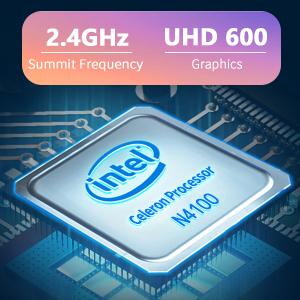
Image: The Intel Celeron N4100 processor, central to the laptop's performance, highlighting its clock speed and integrated graphics capabilities.

Image: The laptop's battery specifications, indicating its power capacity for extended use.
12. 보증 및 지원
For warranty information and technical support, please refer to the documentation included with your purchase or visit the official iProda website. Contact information for customer service can typically be found on the manufacturer's support page.


