1. 서론
Thank you for choosing the Comsol CMMP09 USB-C to HDMI Adapter. This device is designed to expand the connectivity of your USB-C enabled computer, allowing you to connect to multiple displays, network, USB peripherals, and memory cards, all while providing power pass-through charging.
This manual provides detailed instructions for the setup, operation, and maintenance of your CMMP09 adapter to ensure optimal performance and longevity.
2. 제품 오버view
The Comsol CMMP09 adapter features a comprehensive array of ports to enhance your productivity. Below is a visual representation and description of the adapter's components.
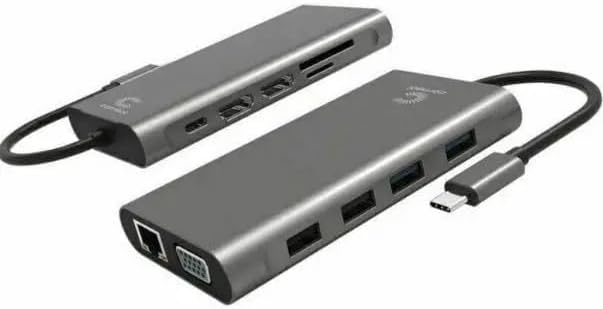
그림 2.1: 일반적인 view of the Comsol CMMP09 USB-C to HDMI Adapter, showcasin컴팩트한 디자인과 다양한 포트를 갖추고 있습니다.

그림 2.2: 상세한 view of the Comsol CMMP09 adapter with all ports clearly labeled for easy identification.
포트 설명:
- 1 x USB-C Male Connector: 컴퓨터의 USB-C 포트에 연결됩니다.
- 2 x HDMI Female Connectors: Supports 4K Ultra HD 2160p (3840 x 2160) at 30Hz for a single monitor.
- 1 x VGA Female Connector: Supports 1920 x 1080 at 60Hz.
- 2 x USB 3.0 Type-A Female Connectors: 최대 5Gbps의 데이터 전송 속도를 지원합니다.
- 2 x USB 2.0 Type-A Female Connectors: 최대 480Mbps의 데이터 전송 속도를 지원합니다.
- 1 x RJ45 Female Connector: For Gigabit Ethernet LAN connection.
- 1 x SD Card Reader Female Port: For data transfer, supports SD/SDHC/SDXC V3.0 UHS-I cards up to 2TB.
- 1 x Micro SD Card Reader Female Port: For data transfer, supports Micro SD/SDHC/SDXC V3.0 UHS-I cards up to 2TB.
- 1 x USB-C Female Connector (Power Pass-Through): Supports 100W (20V 5A) power delivery to charge your host device.
3. 설정 지침
Follow these steps to set up your Comsol CMMP09 adapter:
- 호스트 장치에 연결: Plug the male USB-C connector of the CMMP09 adapter into an available USB-C port on your computer. Ensure the USB-C port on your computer supports video output (DisplayPort Alternate Mode) and power delivery if you intend to use these features.
- 디스플레이 연결:
- For HDMI displays, connect HDMI cables from your monitors to the HDMI ports on the adapter.
- For VGA displays, connect a VGA cable from your monitor to the VGA port on the adapter.
- Your computer should automatically detect the connected displays. You may need to adjust display settings in your operating system (e.g., Windows Display Settings) to configure mirror or extend modes.
- USB 주변 장치 연결: Plug your USB devices (e.g., keyboard, mouse, external hard drive, USB flash drive) into the USB 3.0 or USB 2.0 Type-A ports on the adapter.
- 네트워크에 연결: For a wired internet connection, connect an Ethernet cable from your router or modem to the RJ45 port on the adapter.
- 메모리 카드 삽입: Insert your SD or Micro SD cards into the corresponding card reader slots for data access.
- 전원 연결(선택 사항): If your computer supports USB-C Power Delivery and you wish to charge it through the adapter, connect your computer's original USB-C power adapter to the USB-C female port on the CMMP09 adapter. This port supports up to 100W power pass-through.
4. 사용 설명서
Once the adapter is set up, you can utilize its various functions:
- 디스플레이 출력:
- The adapter supports mirror or extend mode for Windows operating systems. Access your display settings (e.g., right-click on desktop > Display settings) to configure your preferred display arrangement.
- Ensure your monitors are set to the correct input source (HDMI or VGA).
- USB 데이터 전송:
- Connect USB 3.0 devices to the blue USB-A ports for maximum data transfer speeds (up to 5Gbps).
- Connect USB 2.0 devices to the black USB-A ports for standard data transfer speeds (up to 480Mbps).
- 네트워크 연결 :
- Once connected via the RJ45 port, your computer should automatically detect the wired network connection. Verify network status in your operating system's network settings.
- 카드 리더기 기능:
- Insert SD or Micro SD cards into their respective slots. The cards will appear as removable drives in your computer's file explorer, allowing you to transfer files.
- 전력 공급 :
- If a power adapter is connected to the USB-C power pass-through port, your host computer will begin charging. The adapter itself does not require external power to function, but it is necessary for charging the host device.
5. 유지관리 및 관리
To ensure the longevity and proper functioning of your Comsol CMMP09 adapter, please observe the following care guidelines:
- Keep the adapter dry. Avoid exposure to moisture, rain, or liquids.
- 어댑터를 극한 온도(뜨겁거나 차가움)에 노출시키지 마세요.
- 어댑터를 부드럽고 마른 천으로 닦으십시오. 독한 화학 약품이나 연마성 세척제를 사용하지 마십시오.
- 어댑터를 떨어뜨리거나 강한 충격을 주지 마십시오.
- Do not attempt to disassemble or modify the adapter. This will void the warranty.
- Store the adapter in a clean, dust-free environment when not in use.
6. 문제 해결
If you encounter issues with your CMMP09 adapter, please refer to the following common problems and solutions:
- 디스플레이 출력 없음:
- USB-C 커넥터가 컴퓨터 포트에 완전히 삽입되었는지 확인하십시오.
- Verify that your computer's USB-C port supports DisplayPort Alternate Mode (video output).
- Check that the HDMI/VGA cables are securely connected to both the adapter and the monitor.
- Confirm that your monitor is set to the correct input source (HDMI/VGA).
- Adjust display settings in your operating system (e.g., extend, duplicate).
- USB 장치가 인식되지 않음:
- Ensure the USB device is properly connected to the adapter's USB-A port.
- Try connecting the USB device to a different USB port on the adapter or directly to your computer to rule out device issues.
- If using a high-power USB device, ensure the adapter is connected to external power via its USB-C PD port.
- No Network Connection via RJ45:
- Check that the Ethernet cable is securely connected to both the adapter and your router/modem.
- 컴퓨터의 네트워크 설정을 확인하세요.
- 라우터/모뎀이 올바르게 작동하는지 확인하세요.
- SD/Micro SD 카드가 감지되지 않습니다:
- 카드가 올바른 슬롯에 완전히 삽입되었는지 확인하십시오.
- Check if the card is damaged or corrupted by trying it in another device.
- Host Device Not Charging (Power Pass-Through):
- Ensure your computer's original USB-C power adapter is connected to the adapter's USB-C PD port.
- Verify that your computer's USB-C port supports Power Delivery.
- 전원 어댑터와 케이블에 손상이 있는지 확인하세요.
7. 사양
| 특징 | 세부 사항 |
|---|---|
| 모델 | CMMP09 |
| 상표 | 콤솔 |
| 치수 | 115 x 63 x 16mm |
| 재료 | 플라스틱 |
| 입력 | 1 x USB-C Male Connector |
| HDMI 출력 | 2 x HDMI Female, supports 4K Ultra HD 2160p (3840 x 2160) @30Hz (single monitor) |
| VGA 출력 | 1 x VGA Female, supports 1920 x 1080 @60Hz |
| USB 3.0 포트 | 2 x USB 3.0 Type-A Female, up to 5Gbps data transfer |
| USB 2.0 포트 | 2 x USB 2.0 Type-A Female, up to 480Mbps data transfer |
| 이더넷 | 1 x RJ45 Female, Gigabit LAN |
| 카드 리더기 | 1 x SD, 1 x Micro SD, supports SD/SDHC/SDXC V3.0 UHS-I up to 2TB |
| 전력 공급 | 1 x USB-C Female, 100W (20V 5A) pass-through charging |
| 호환성 | Windows (supports mirror or extend mode) |
8. 보증 및 지원
Comsol products are designed and manufactured to the highest quality standards. For information regarding warranty terms and conditions, or for technical support, please refer to the warranty card included with your purchase or visit the official Comsol web대지.
보증 청구를 위해 구매 증명서를 보관하십시오.