1. 서론
This manual provides detailed instructions for the setup, operation, maintenance, and troubleshooting of your Tascam US-2x2HR USB Audio Interface. The US-2x2HR is a versatile 2-in/2-out high-resolution audio/MIDI interface designed for recording, streaming, podcasting, and music creation.
2. 주요 특징
- 2-in/2-out USB Audio Interface: Connect two inputs and two outputs for flexible recording and playback.
- 고해상도 오디오: Supports audio formats up to 24-bit/192 kHz for pristine sound quality.
- Ultra-HDDA Mic Preamps: Equipped with two combo (XLR) inputs featuring Ultra-HDDA mic preamps and +48V phantom power for condenser microphones.
- 다양한 입력: Two combo (TRS) line inputs with guitar input support for direct instrument connection.
- Low-Latency Driver: Improved TASCAM driver with selectable buffer size (from 4 samples on Windows) for stable, low-latency performance.
- Zero-Latency Direct Monitoring: Allows real-time monitoring of input signals before they reach the computer, eliminating latency during recording.
- MIDI 입력/출력: Integrated MIDI input and output for connecting MIDI keyboards, drum machines, and other controllers.
- Stereo/Mono Selectable Loopback Function: Enables internal routing of audio for streaming and podcasting applications.
- USB Type-C 연결: Modern and reliable connectivity to your computer or compatible iOS device.
- 견고한 금속 Casing: Durable metal construction with aluminum side panels ensures stability and longevity.
- 소프트웨어 번들: Includes Cubase LE, Sample Tank 4 SE, and a 3-month Auto-Tune Unlimited subscription.
3. 설정 가이드
3.1 포장 풀기 및 초기 검사
Carefully remove the US-2x2HR from its packaging. Verify that all components are present and undamaged. Retain the packaging for future transport or storage.
3.2 드라이버 설치
Before connecting the US-2x2HR to your computer, download and install the latest drivers from the official Tascam website. This ensures optimal performance and compatibility with your operating system (Windows/macOS). For Windows users, the TASCAM native driver offers selectable buffer sizes for low-latency operation.
3.3 컴퓨터에 연결하기
Connect the US-2x2HR to your computer using the supplied USB Type-C cable. The interface is bus-powered, meaning it draws power directly from the USB connection. For iOS devices (iPad/iPhone), an optional battery pack or AC adapter may be required for power.

Figure 3.3.1: Connecting the USB Type-C cable to the interface.
3.4 마이크 및 악기 연결
The US-2x2HR features two combo inputs (IN1 and IN2) on the front panel, which accept both XLR and 1/4-inch TRS/TS connectors.
- XLR 입력: Use XLR cables for microphones. If using condenser microphones, activate the +48V phantom power switch located on the front panel.
- 1/4-inch TRS/TS Inputs: Use 1/4-inch cables for line-level instruments (keyboards, drum machines) or guitars. Use the MIC/LINE/INST switch to select the appropriate input type. Set to 'INST' for guitars and basses.
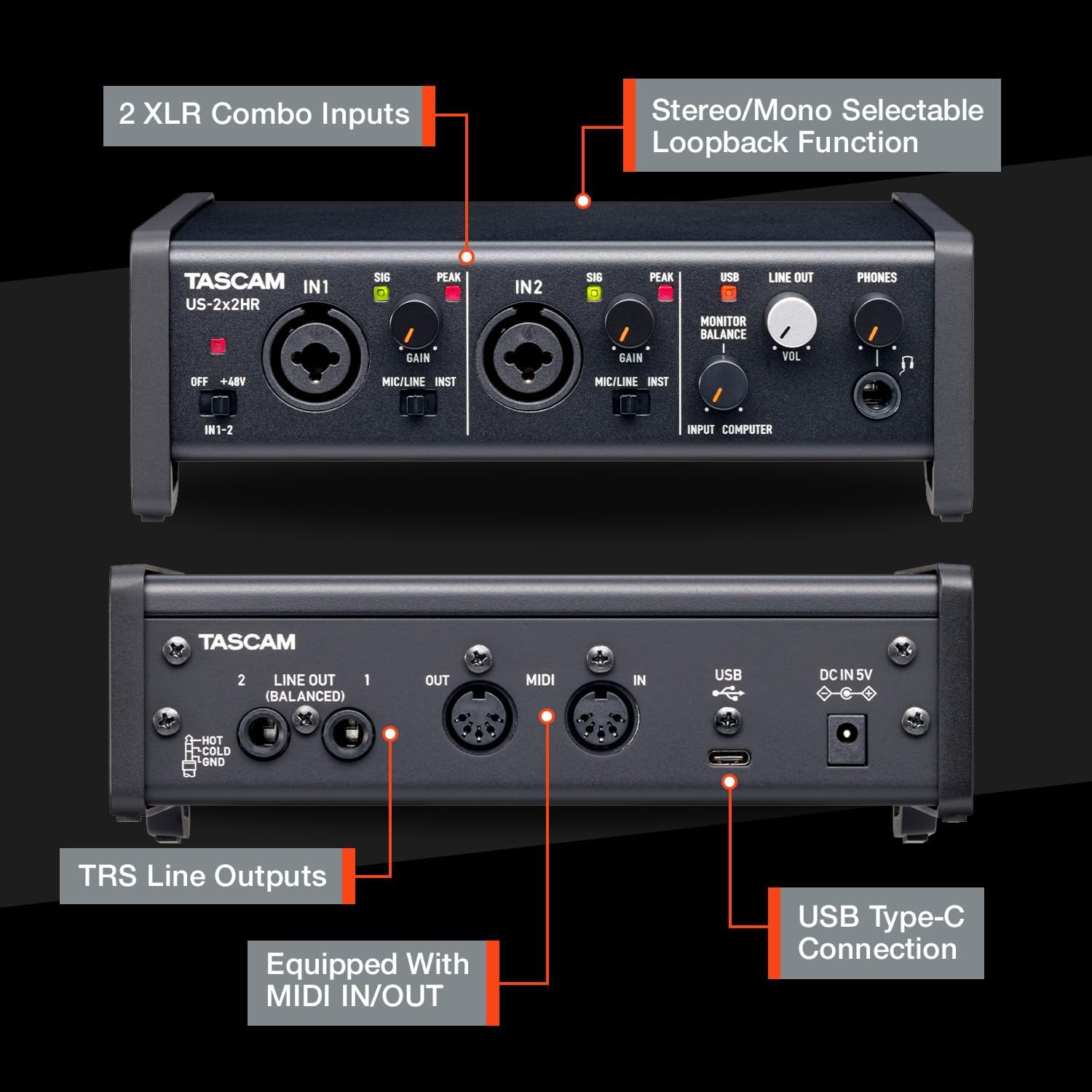
Figure 3.4.1: Front and rear panel connections and controls.
3.5 헤드폰과 모니터 연결
- 헤드폰: Plug your headphones into the 1/4-inch PHONES jack on the front panel. Adjust the headphone volume using the VOL knob.
- 스튜디오 모니터: Connect your active studio monitors to the LINE OUT (BALANCED) TRS jacks on the rear panel.

Figure 3.5.1: Rear panel connections including balanced line outputs and MIDI ports.
3.6 MIDI 연결
The US-2x2HR includes MIDI IN and OUT ports on the rear panel. Use standard 5-pin DIN MIDI cables to connect external MIDI devices such as keyboards, synthesizers, or drum machines. This allows for synchronization and control of your MIDI equipment.

Figure 3.6.1: MIDI IN/OUT ports for connecting external MIDI devices.
4. 사용 설명서
4.1 입력 게인 조정
Use the GAIN knobs for IN1 and IN2 to adjust the input level of your microphones or instruments. The SIG (Signal) indicator will light up when an input signal is detected, and the PEAK indicator will light up if the signal is too high, indicating potential clipping. Adjust the gain to achieve a strong signal without peaking.
4.2 팬텀 전원(+48V)
The +48V switch activates phantom power for condenser microphones connected to the XLR inputs. Ensure this is only enabled when using microphones that require phantom power. Turn off phantom power when connecting dynamic microphones or line-level devices.
4.3 직접 모니터링
The US-2x2HR features a direct monitoring function to eliminate latency during recording. This allows you to hear your input signal directly through the interface without going through your computer's software. Use the MONITOR BALANCE knob to blend between the input signal (INPUT) and the computer playback (COMPUTER) in your headphones or monitors.

Figure 4.3.1: Comparison of normal and zero-latency direct monitoring routes.
4.4 루프백 함수
The loopback function allows you to record or stream the audio output from your computer along with your live input signals. This is particularly useful for podcasts, live streams, and online collaborations. The loopback function can be set to stereo or mono via the Tascam driver settings panel.

Figure 4.4.1: Tascam driver settings panel for configuring buffer size and loopback.
4.5 소프트웨어 사용
The US-2x2HR comes bundled with professional software including Cubase LE, Sample Tank 4 SE, and a 3-month Auto-Tune Unlimited subscription. Install these applications on your computer to begin recording, mixing, and processing your audio. Refer to the individual software manuals for detailed usage instructions.

Figure 4.5.1: Bundled software for recording and production.
5. 유지관리
To ensure the longevity and optimal performance of your Tascam US-2x2HR, follow these maintenance guidelines:
- 청소: Use a soft, dry cloth to clean the exterior of the unit. Avoid abrasive cleaners, solvents, or waxes. Do not allow liquids to enter the unit.
- 저장: 사용하지 않을 때는 인터페이스를 직사광선과 극한의 온도를 피해 시원하고 건조한 곳에 보관하세요.
- 케이블 관리 : Avoid excessive bending or pulling of cables. Ensure connections are secure but not overly tight.
- 펌웨어 업데이트: Periodically check the Tascam website for any available firmware updates for your device. Follow the instructions provided by Tascam for safe updating.
6. 문제 해결
If you encounter issues with your US-2x2HR, refer to the following common troubleshooting steps:
- No Power/No Connection:
- USB 케이블이 인터페이스와 컴퓨터에 제대로 연결되어 있는지 확인하십시오.
- 컴퓨터의 다른 USB 포트를 사용해 보십시오.
- USB 허브를 사용하는 경우 컴퓨터에 직접 연결해보세요.
- Verify that the correct drivers are installed and recognized by your operating system.
- 소리 입력 없음:
- Check that the input source (microphone, instrument) is properly connected and powered on.
- Adjust the GAIN knob for the corresponding input.
- Ensure the MIC/LINE/INST switch is set correctly for your input source.
- If using a condenser microphone, verify that +48V phantom power is enabled.
- Check your Digital Audio Workstation (DAW) or recording software settings to ensure the US-2x2HR is selected as the input device and the correct input channel is armed.
- 사운드 출력 없음:
- 헤드폰과 모니터 연결 상태를 확인하세요.
- Adjust the PHONES VOL knob and the MONITOR BALANCE knob.
- Ensure your computer's sound output is directed to the US-2x2HR.
- Verify that your DAW or playback software is routing audio to the US-2x2HR outputs.
- 높은 지연 시간:
- Ensure the latest Tascam drivers are installed.
- Adjust the buffer size in the Tascam driver settings panel (lower buffer size reduces latency but requires more CPU power).
- Utilize the direct monitoring function to bypass software latency for input signals.
- Unexpected Phantom Power Behavior:
- Some users have reported that phantom power may be active on startup even if the switch is in the OFF position. If you experience this, toggle the +48V switch ON and then OFF again to ensure it is disengaged, especially when using sensitive equipment like ribbon microphones.
7. 사양
| 품목 무게 | 1파운드 |
| 제품 치수 | 8 x 8 x 4 인치 |
| 품목 모델 번호 | US2X2HR |
| 색상 이름 | 검은색 |
| 호환 장치 | Personal Computer, iOS Devices (with optional power) |
| 하드웨어 인터페이스 | USB |
| 지원 소프트웨어 | TASCAM, Cubase LE, Sample Tank 4 SE, Auto-Tune Unlimited |
| 믹서 채널 수량 | 2 |
| 운영 체제 | 윈도우, 맥OS, iOS |
| 연결 기술 | USB |
| 채널 수 | 2 |
| 오디오 해상도 | 최대 24비트/192kHz |
8. 보증 정보
The Tascam US-2x2HR is covered by a manufacturer's warranty. Please refer to the warranty card included with your product or visit the official Tascam web보증 범위, 기간 및 서비스 절차에 대한 자세한 약관은 해당 사이트에서 확인하세요.
9. 지원
For technical assistance, driver downloads, firmware updates, or further inquiries, please visit the official Tascam support web사이트에서 FAQ와 고객 서비스 연락처 정보를 확인하실 수 있습니다.
타스캠 공식 웹사이트 Web대지: tascam.com