1. 제품 오버view
The Keychron K3 Version 2 is an ultra-slim 75% layout wireless mechanical keyboard designed for productivity and a tactile typing experience. It features low-profile Gateron mechanical switches and white LED backlighting. The keyboard supports both Bluetooth 5.1 wireless and USB wired connectivity, making it versatile for various devices and operating systems, including Mac and Windows.

이미지: 위에서 아래로 view of the Keychron K3 Version 2 mechanical keyboard, showcasing its compact 75% layout and dark grey keycaps with an orange Esc key.
2. 상자 안에 무엇이 들어있나요?
- 1 x Keychron K3 Version 2 Mechanical Keyboard
- 1 x USB-A to USB Type-C Cable
- 1 x 키캡 풀러
- 1 x 사용자 매뉴얼(이 문서)
- Windows 및 Mac 운영 체제용 추가 키캡
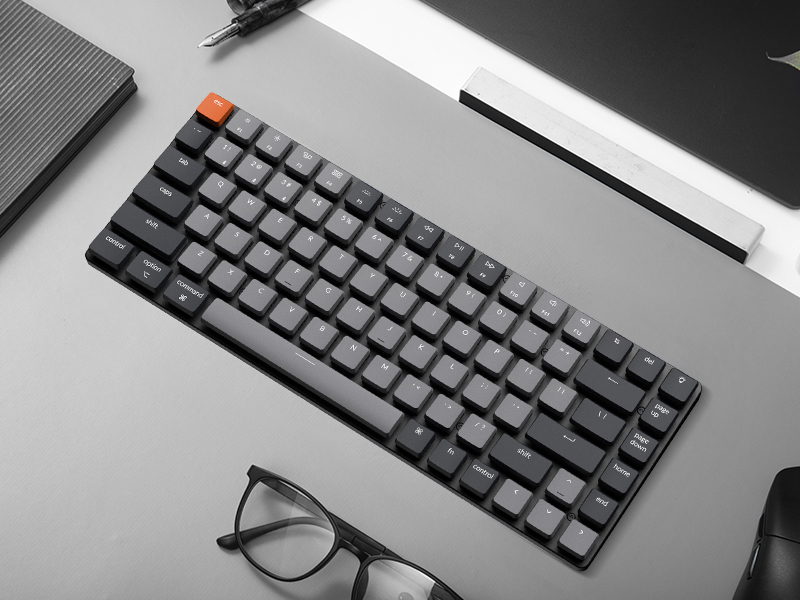
Image: Illustration showing the keyboard, USB-C cable, keycap puller, and additional keycaps included in the product packaging.
3. 설정
3.1 초기 설정
Before first use, ensure the keyboard is fully charged. Connect the provided USB-A to USB Type-C cable to the keyboard and a power source (e.g., computer USB port, USB wall adapter). The LED indicator will show charging status.
3.2 블루투스를 통한 연결
- Locate the mode switch on the side of the keyboard. Slide it to the "BT" (Bluetooth) position.
- Press and hold the "Fn" + "1" (or "2" or "3") keys for 4 seconds until the LED indicator under the "1" key (or "2" or "3") flashes rapidly. This indicates the keyboard is in pairing mode.
- 기기(컴퓨터, 태블릿, 스마트폰)에서 Bluetooth를 활성화하고 새로운 기기를 검색하세요.
- Select "Keychron K3" from the list of available devices.
- Follow any on-screen prompts to complete the pairing process. The LED indicator will stop flashing and remain solid when successfully connected.
- To switch between paired devices, simply press "Fn" + "1", "Fn" + "2", or "Fn" + "3".

Image: Diagram illustrating the Bluetooth connectivity options (BT1, BT2, BT3) and USB wired connection for the Keychron K3 keyboard.
3.3 USB 유선 연결
To use the keyboard in wired mode, slide the mode switch on the side of the keyboard to the "Cable" position. Connect the USB-A to USB Type-C cable from the keyboard to your computer's USB port. The keyboard will be recognized automatically.
3.4 운영 체제 레이아웃 전환
The Keychron K3 is compatible with both Mac and Windows operating systems. Use the OS switch located on the side of the keyboard to select the appropriate layout for your system (Mac/iOS or Win/Android). This ensures correct key mapping for modifier keys like Command/Alt and Option/Windows key.

Image: Visual representation of the Keychron K3 keyboard highlighting its compatibility with both Mac OS and Windows, showing the respective keycap legends.
4. 사용 설명서
4.1 주요 기능 및 멀티미디어 키
The K3 features a 75% layout with dedicated function keys (F1-F12) that double as multimedia keys. To access the multimedia functions, press the 'Fn' key along with the desired function key. For example, 'Fn + F7' typically controls play/pause.
- Fn + F1/F2: Decrease/Increase screen brightness (Mac only)
- Fn+F3: Mission Control (Mac only)
- Fn+F4: Launchpad (Mac only)
- Fn + F7/F8/F9: Previous/Play-Pause/Next track
- Fn + F10/F11/F12: Mute/Volume Down/Volume Up
- Fn + L/R Arrow: Adjust backlight color (if applicable)
- Fn + 위/아래 화살표: 백라이트 밝기 조정
4.2 백라이트 제어
The Keychron K3 features white LED backlighting. You can adjust the brightness and change lighting effects using the dedicated keys or Fn combinations.
- 전구 모양표(오른쪽 상단): 다양한 백라이트 효과를 순환합니다.
- Fn + 위쪽 화살표: 백라이트 밝기를 높입니다.
- Fn + 아래쪽 화살표: 백라이트 밝기를 낮추세요.

이미지: 클로즈업 view of the Keychron K3 keyboard showing the white LED backlighting illuminating the keycaps.
4.3 키보드 충전
When the battery is low, the LED indicator will flash red. Connect the USB Type-C cable to the keyboard and a USB power source. The LED will turn solid red while charging and turn off when fully charged. The keyboard can be used while charging in wired mode.
5. 유지관리
5.1 키보드 청소
To clean your Keychron K3, first disconnect it from all power sources and turn off the keyboard. Use a soft, lint-free cloth slightly dampened with water or a mild cleaning solution. Avoid spraying liquids directly onto the keyboard. For dust and debris between keycaps, use compressed air or a small brush.
5.2 키캡 제거 및 교체
The Keychron K3 comes with a keycap puller for easy removal and replacement of keycaps. To remove a keycap, gently place the puller over the keycap and pull upwards. To replace, align the keycap with the switch stem and press down firmly until it clicks into place. Be gentle to avoid damaging the switch.
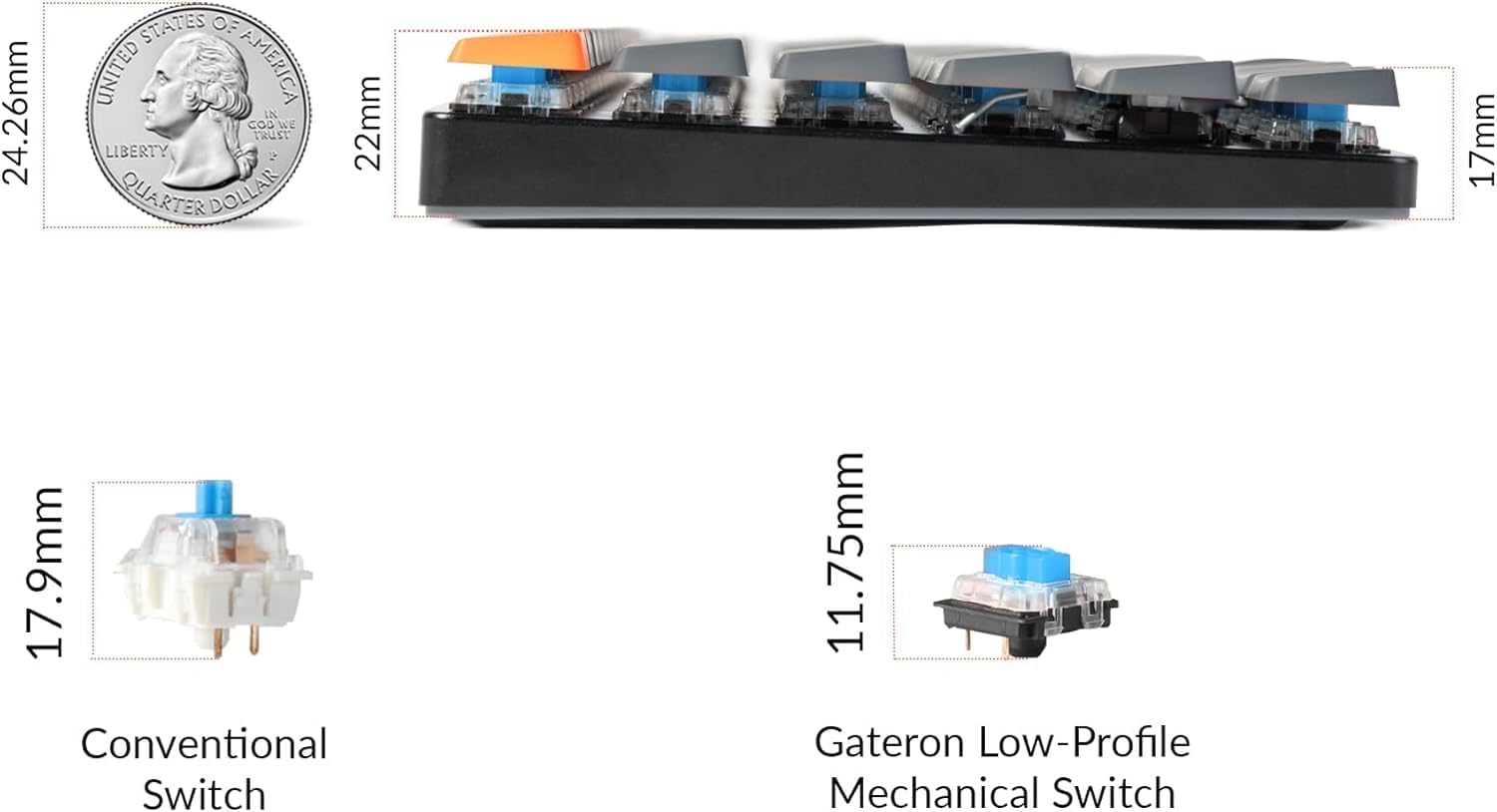
이미지: 클로즈업 view of a low-profile Gateron mechanical blue switch, showing its internal mechanism. This type of switch is used in the Keychron K3 keyboard.
6. 문제 해결
- 키보드가 Bluetooth를 통해 연결되지 않음:
- Ensure the keyboard is in "BT" mode and pairing mode (Fn + 1/2/3 for 4 seconds).
- 기기에서 블루투스가 활성화되어 있는지 확인하세요.
- Remove "Keychron K3" from your device's Bluetooth list and try pairing again.
- 키보드가 충전되어 있는지 확인하세요.
- Try connecting to a different Bluetooth slot (1, 2, or 3).
- 키가 응답하지 않음:
- Switch to wired mode to check if the issue persists.
- 키보드가 충전되어 있는지 확인하세요.
- If specific keys are not responding, try removing and re-seating their keycaps.
- 백라이트가 작동하지 않습니다:
- 키보드가 켜져 있는지 확인합니다.
- Press the Light Bulb key or Fn + Up Arrow to increase brightness.
- 배터리 잔량을 확인하십시오. 배터리가 부족하면 백라이트가 꺼질 수 있습니다.
- 키보드 연결이 무작위로 끊깁니다:
- Ensure the keyboard is within reasonable range of your device.
- Minimize signal interference from other wireless devices.
- 키보드가 완전히 충전되었는지 확인하세요.
- Consider updating the keyboard's firmware if available from the manufacturer's web대지.
더 자세한 문제 해결 방법은 공식을 참조하세요. 문제 해결 가이드(PDF).
7. 사양
| 특징 | 세부 사항 |
|---|---|
| 모델 번호 | K3A2 |
| 공들여 나열한 것 | 75% (84개 키) |
| 연결성 | 블루투스 5.1, USB 타입 C 유선 |
| 스위치 | 로우프로file Gateron Mechanical (Blue, Brown, Red options) |
| 백라이트 | 백색 LED |
| 치수(길이 x 너비 x 높이) | 11.81 x 4.57 x 0.79인치(306 x 116 x 20mm) |
| 무게 | 13.7 온스(388g) |
| 배터리 | 1개의 리튬 폴리머 배터리(포함) |
| 호환 OS | Mac, Windows, Android, iOS |

Image: Diagram showing the dimensions of the Keychron K3 keyboard (306mm / 12.05 inches length, 116mm / 4.57 inches width) compared to a full-size keyboard.

이미지: 측면 view of the Keychron K3 illustrating its ultra-slim profile (0.79 inches) compared to a US quarter, and a comparison of conventional switches versus low-profile Gateron mechanical switches.
8. 보증 및 지원
Keychron products typically come with a manufacturer's warranty. For specific warranty terms and conditions, please refer to the official Keychron web사이트 또는 구매 시 포함된 보증 정보를 참조하세요.
For further assistance, technical support, or to download the latest firmware and drivers, please visit the official Keychron support page. You can also refer to the comprehensive PDF documents provided:


