1. 서론
Thank you for choosing the MageGee TS92 Wireless 60% Gaming Keyboard. This compact, rechargeable keyboard offers a stable 2.4G wireless connection, vibrant RGB backlighting, and a durable, water-resistant design. This manual provides detailed instructions for setup, operation, and maintenance to ensure optimal performance.

Image: MageGee TS92 wireless keyboard on a wooden table next to a speaker and a book, showcasing its use in a home environment. This image provides a general view 사용 중인 제품의.
2. 패키지 내용
- MageGee TS92 Wireless 60% Gaming Keyboard
- USB Nano Receiver (stored in the keyboard's bottom compartment)
- Detachable USB Type-C Charging Cable
- 사용 설명서 (본 문서)
3. 설정
3.1 초기 충전
Before first use, fully charge the keyboard using the provided USB Type-C cable. Connect the Type-C end to the keyboard's charging port and the USB-A end to a power source (e.g., computer USB port, USB wall adapter). The charging indicator will show the charging status.

Image: MageGee TS92 keyboard connected via USB-C cable with 2.4G wireless dongle inserted into a laptop. This image illustrates the charging connection and the wireless receiver.
3.2 무선 연결
- Locate the USB Nano Receiver in the compartment on the bottom of the keyboard.
- USB 나노 수신기를 컴퓨터 또는 노트북의 사용 가능한 USB 포트에 꽂으세요.
- Turn on the keyboard using the power switch located on the bottom of the keyboard.
- The keyboard should automatically connect to your device. No additional software or drivers are required.
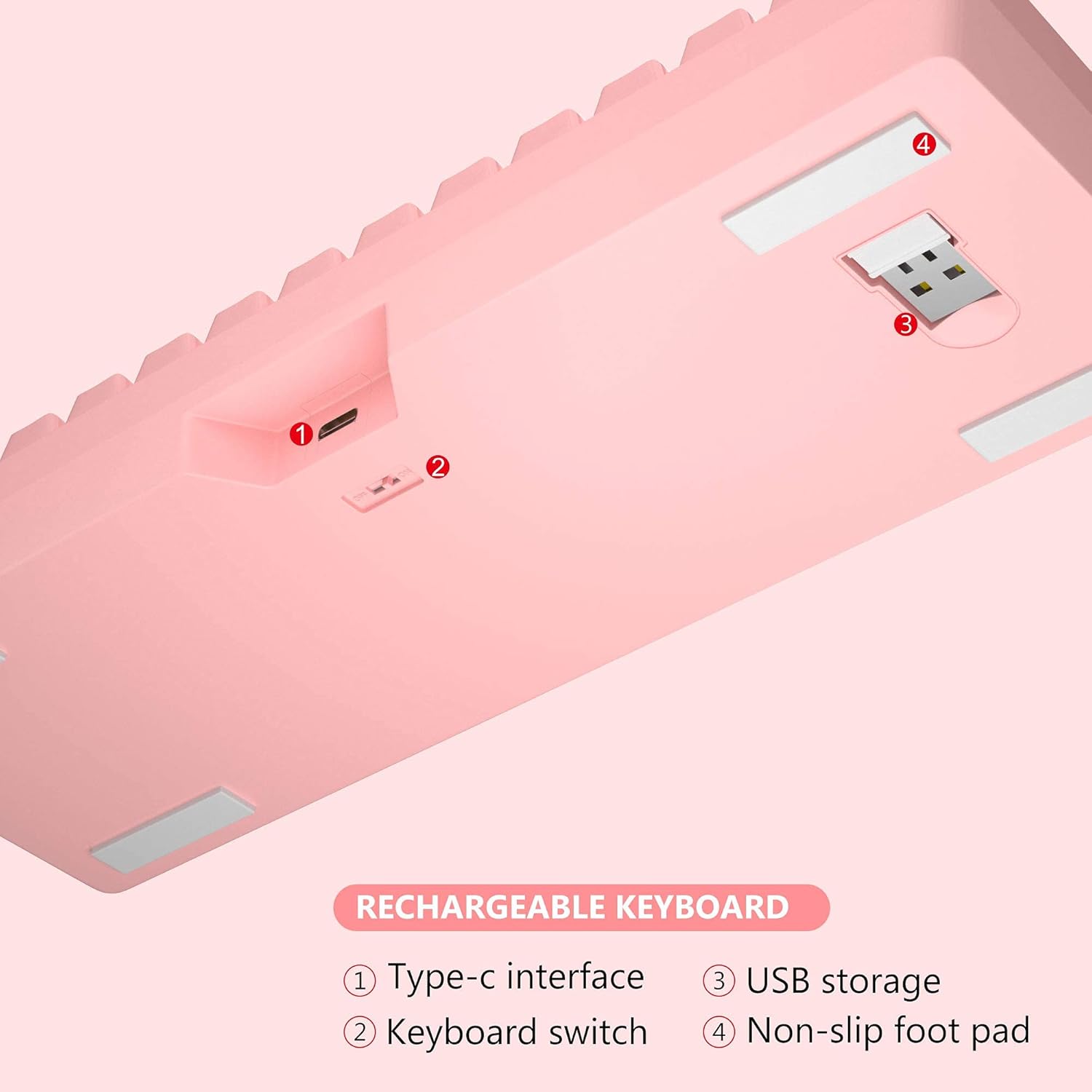
이미지: 하단 view of MageGee TS92 keyboard showing the USB receiver storage compartment, power switch, and Type-C interface. This image highlights the location of the wireless dongle and power switch.
4. 사용 설명서
4.1 RGB 백라이트 제어
The MageGee TS92 keyboard features vibrant RGB backlighting with 7 color options (red, green, purple, yellow, blue, white, cyan) and various lighting effects.
- FN + K: Switch between different backlight modes (e.g., Ripples, Waves, Breathing, Aurora).
- FN + 엘: 백라이트 밝기를 조절합니다(5단계).
- FN + 나: 백라이트를 켜거나 끕니다.
- FN + U: 백라이트 속도를 높입니다.
- FN + J: 백라이트 속도를 낮추세요.

Image: MageGee TS92 keyboard displaying colorful RGB backlighting. This image showcases the keyboard's illuminated keys.
Video: Demonstration of MageGee TS92 Wireless 61 Keys RGB Keyboard features, including various RGB lighting modes and key functions. This video provides a visual guide to the keyboard's dynamic lighting effects.
4.2 멀티미디어 및 기능 키
The 61-key layout includes essential multimedia and function keys accessible via the FN key combinations.
| 콤비네이션 | 기능 |
|---|---|
| FN + R | 볼륨 낮추기 |
| FN + T | 볼륨을 높이다 |
| FN + 와이 | 무음 |
| FN + 케이 | 백라이트 모드 전환 |
| 에프엔 + 엘 | 백라이트 밝기 조정 |
| FN + 나 | 백라이트 켜기 / 끄기 |
| FN + 유 | Speed up backlight speed |
| FN + J | 백라이트 속도를 늦추세요 |

Image: Diagram showing FN key combinations for multimedia and lighting control on MageGee TS92 keyboard. This image provides a visual reference for special key functions.
4.3 전원 관리
The keyboard is equipped with a 2000mAh rechargeable battery. It offers up to 24 hours of wireless usage and 480 hours of standby time on a single charge.
- The keyboard will automatically enter sleep mode after 1 minute of inactivity to conserve power.
- Click any key to wake it up.
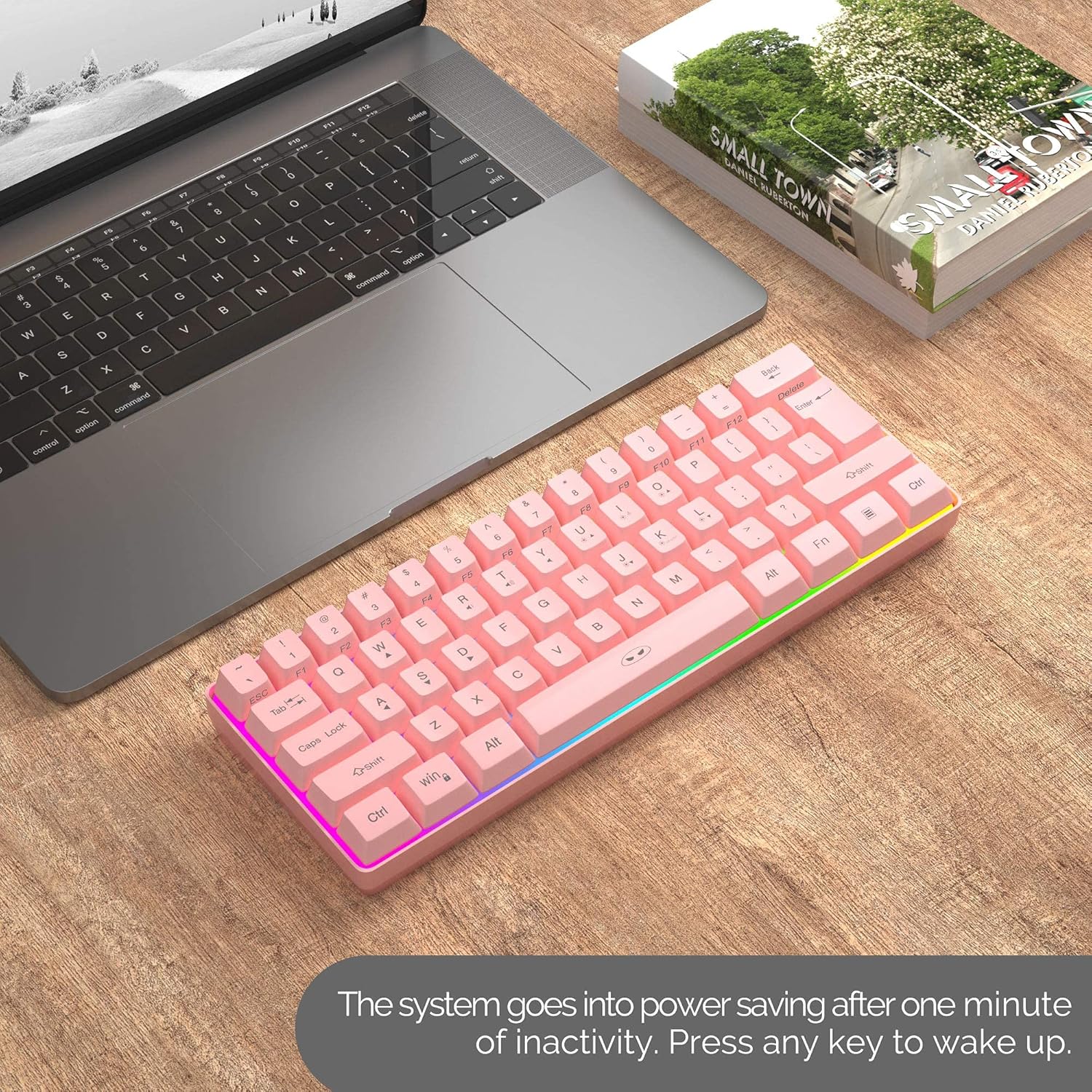
Image: MageGee TS92 keyboard on a desk next to a laptop, illustrating the automatic sleep mode feature. This image shows the keyboard in a typical usage scenario.
4.4 호환성
The MageGee TS92 keyboard is compatible with a wide range of operating systems, including:
- Windows (Win2000, Win XP, Win ME, Vista, Win 7, Win 8, Win 10)
- 맥 OS
- 리눅스
- Other devices with USB ports
5. 유지관리
5.1 방수성
The keyboard is designed to be water-resistant, protecting against damage from spilled drinks or coffee. However, it is important to note:
- 하지 마세요 soak the keyboard in water.
- 하지 마세요 rinse it under tap water.
- In case of spills, gently wipe the keyboard dry with a soft cloth.
5.2 청소
To clean the keyboard, use a soft, slightly damp cloth. Avoid using harsh chemicals or abrasive materials that could damage the surface or keycaps.
6. 문제 해결
- 키보드가 응답하지 않습니다:
- 키보드의 전원이 켜져 있는지 확인하세요.
- Check if the USB Nano Receiver is securely plugged into a working USB port on your device.
- Verify the keyboard battery is charged. Connect the Type-C cable to charge if needed.
- USB 나노 수신기를 다른 USB 포트에 꽂아보세요.
- 컴퓨터를 다시 시작하세요.
- RGB 조명이 작동하지 않거나 멈춰있는 경우:
- 누르다 FN + 나 백라이트가 켜져 있는지 확인하십시오.
- 누르다 FN + 케이 다양한 조명 모드를 순환하며 전환합니다.
- 누르다 에프엔 + 엘 밝기를 조정합니다.
- 키보드 배터리가 충분히 충전되었는지 확인하세요.
- 간헐적 연결:
- Ensure the keyboard is within the 10-meter operating range of the USB receiver.
- 키보드를 강한 전자기 간섭 발생원 근처에 두지 마십시오.
- 키보드가 완전히 충전되었는지 확인하세요.
7. 사양
| 특징 | 세부 사항 |
|---|---|
| 모델 | TS92 |
| 연결 모드 | 2.4G 무선 |
| 키의 개수 | 61 |
| 배터리 용량 | 2000mAh |
| 충전 포트 | USB 타입-C |
| 작동 거리 | 최대 10미터 |
| 호환성 | 윈도우, 맥, 리눅스 |
| 특별 기능 | RGB Backlit, Rechargeable, Water Resistant |
| 키보드 치수 | 292 x 102 x 40mm(약 11.5 x 4.0 x 1.6인치) |
| 품목 무게 | 1.12파운드(약 508g) |
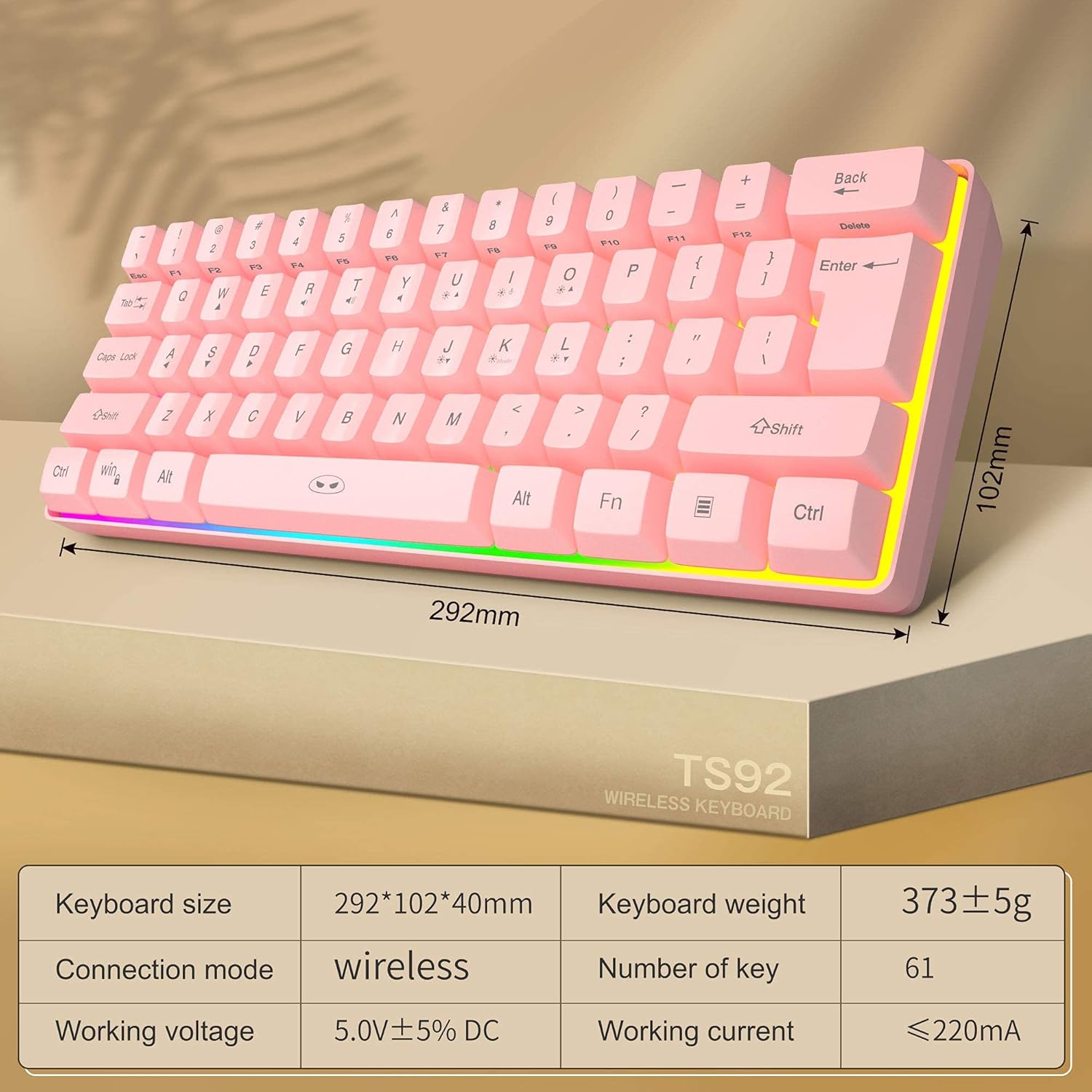
Image: Diagram showing the dimensions and key specifications of the MageGee TS92 wireless keyboard. This image provides a visual overview of the keyboard's physical attributes and technical details.
8. 보증 및 지원
MageGee products are designed for reliability and performance. For warranty information or technical support, please refer to the contact details provided with your purchase or visit the official MageGee web대지. 보증 청구를 위해 구매 영수증을 보관하십시오.