소개
This manual provides comprehensive instructions for the setup, operation, maintenance, and troubleshooting of your Macally Wireless Bluetooth Keyboard (Model: ACEBTKEYSG). Designed for multi-device compatibility, this keyboard offers a seamless typing experience across various operating systems including Mac, PC, iOS, and Android devices. Please read this manual thoroughly to ensure optimal performance and longevity of your device.
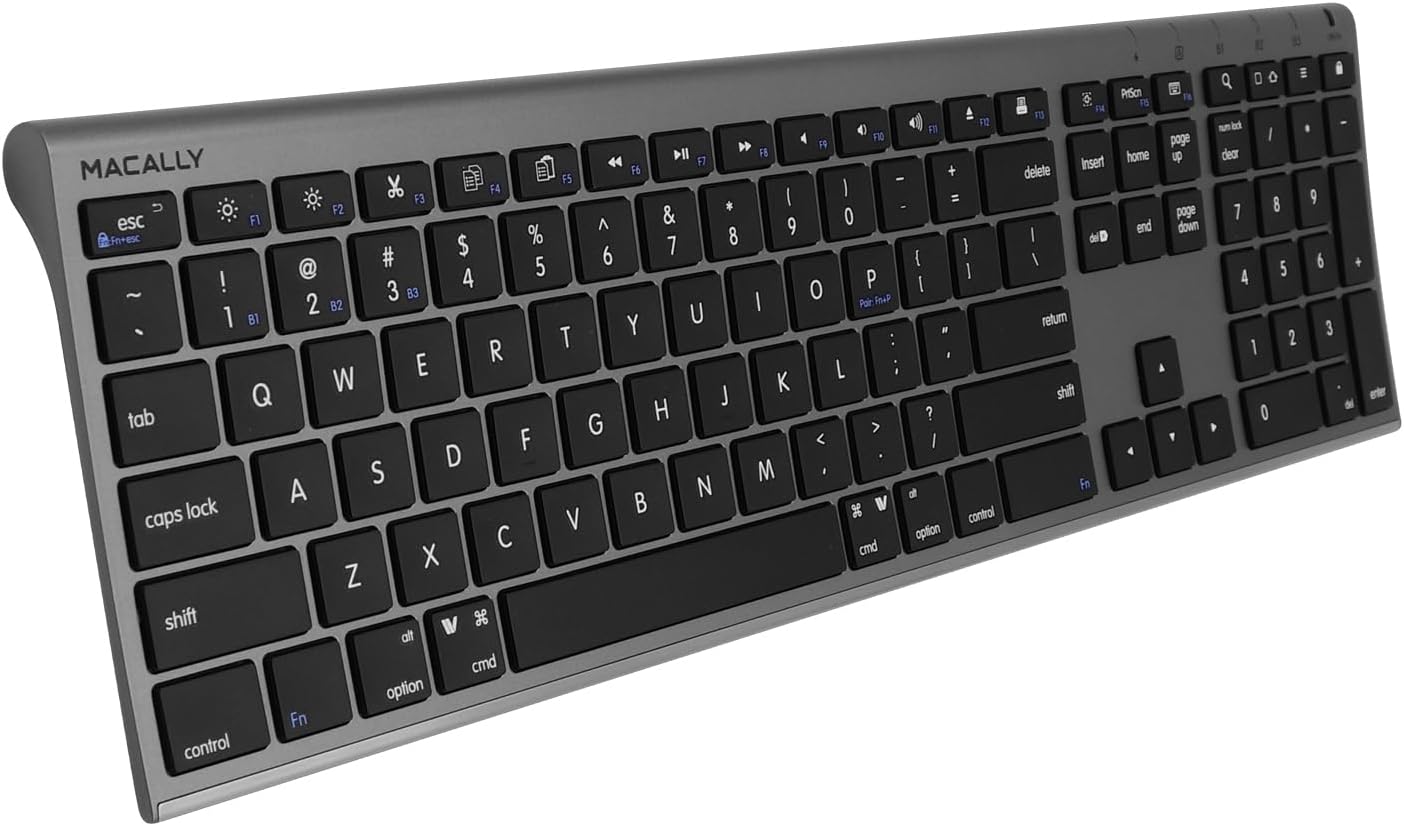
이미지: 위에서 아래로 view of the Macally Wireless Bluetooth Keyboard, highlighting its full layout with numeric keypad and function keys.
설정
1. 키보드 충전
Before initial use, fully charge the keyboard. The keyboard features a built-in rechargeable battery that provides approximately 3 months of use on a single charge with average daily usage of 3 hours. A full charge typically takes about 1 hour.
- Connect the included USB charging cable to the micro USB port on the keyboard (located on the right side).
- 케이블의 다른 쪽 끝을 USB 전원(예: 컴퓨터 USB 포트, USB 벽면 어댑터)에 연결합니다.
- The charging LED indicator will illuminate during charging and change color (or turn off) when fully charged.
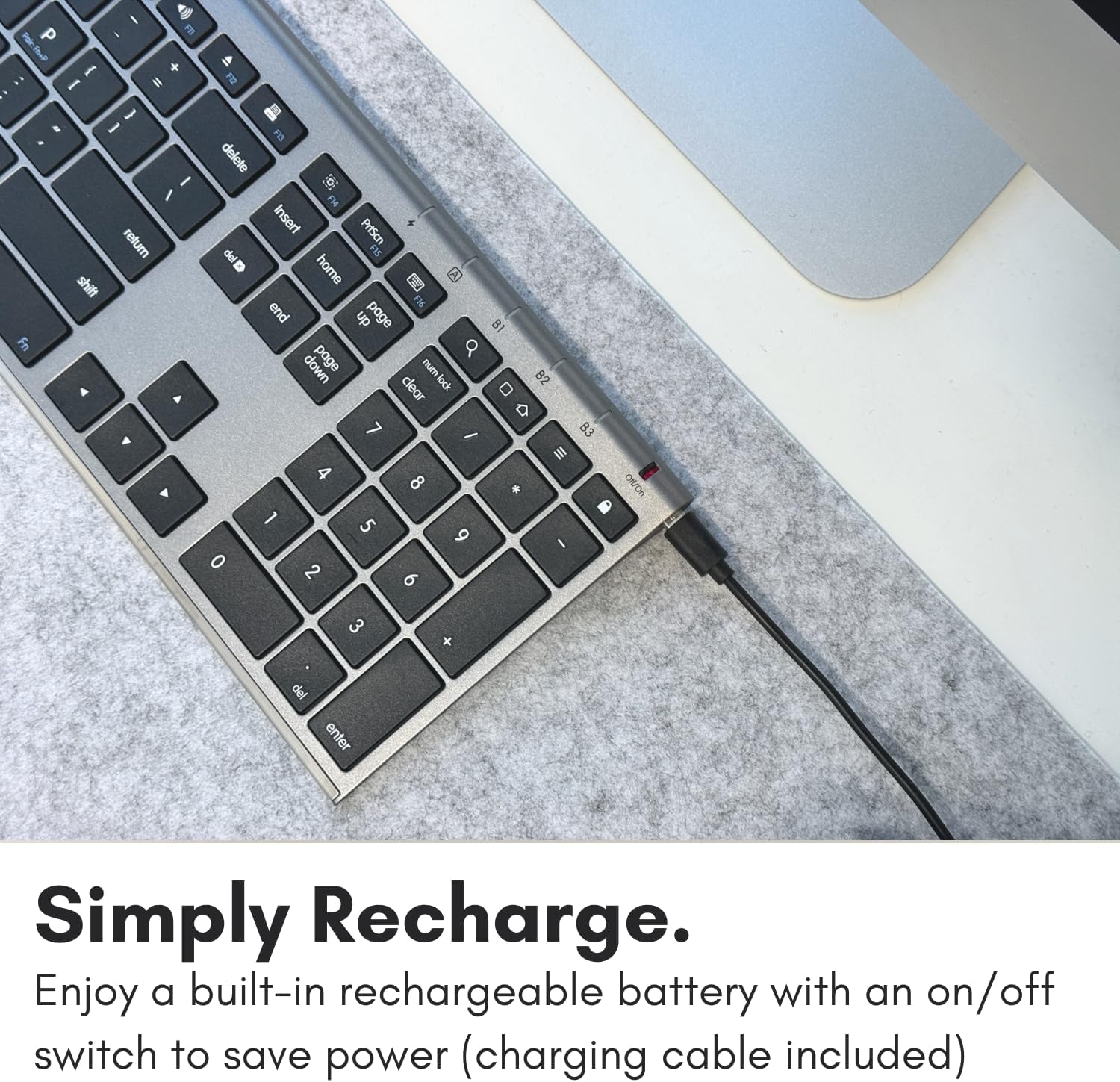
이미지: 클로즈업 view of the Macally Wireless Bluetooth Keyboard showing the micro USB charging port on the right side, with a charging cable connected.
2. 블루투스 페어링
The Macally Wireless Bluetooth Keyboard supports pairing with up to three devices simultaneously, allowing for quick switching between them.
- Ensure the keyboard is charged and the power switch (located near the charging port) is in the ON position.
- 키보드에서 를 길게 누르세요 Fn key and one of the Bluetooth device keys (B1, B2, 또는 B3) for 3-5 seconds until the corresponding Bluetooth LED indicator above the key starts blinking rapidly. This indicates the keyboard is in pairing mode.
- On your device (Mac, PC, iOS, Android), navigate to the Bluetooth settings.
- 검색 available Bluetooth devices. The keyboard should appear as "Macally Keyboard" or similar.
- Select the keyboard from the list to initiate pairing. Follow any on-screen prompts, such as entering a pairing code.
- Once successfully paired, the Bluetooth LED indicator on the keyboard will stop blinking and remain solid for a few seconds before turning off, indicating a successful connection.
- Repeat steps 2-5 for additional devices, using a different Bluetooth device key (B1, B2, or B3) for each.
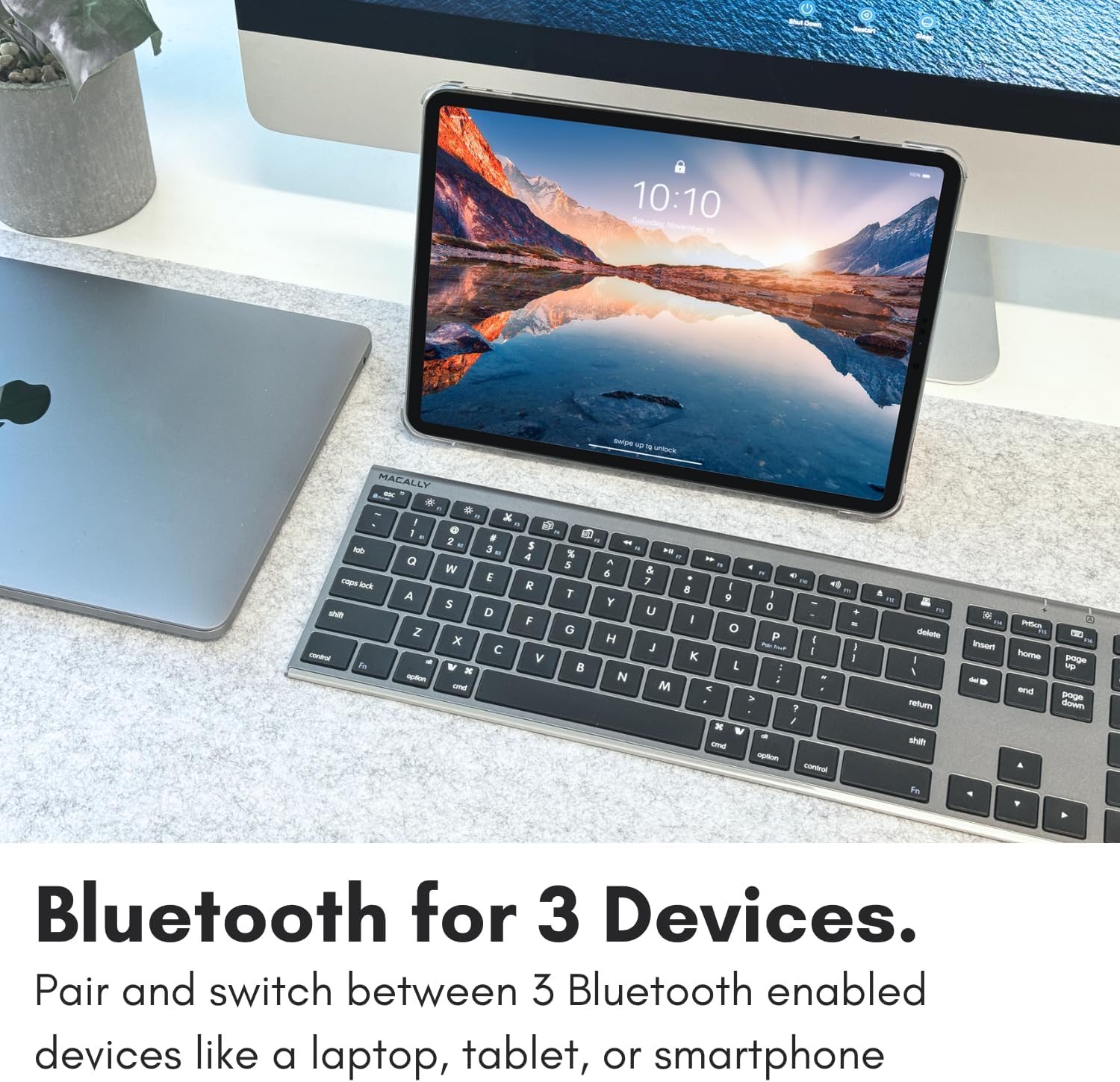
Image: The Macally Wireless Bluetooth Keyboard positioned between a MacBook and an iPad, illustrating its multi-device pairing capability.
키보드 작동
1. 장치 간 전환
To switch between paired devices, simply press and hold the Fn key and the corresponding Bluetooth device key (B1, B2, 또는 B3) for the desired device. The switch is quick, taking approximately half a second.
2. 주요 기능 및 단축키
The keyboard features 110 scissor-flex keys designed for quiet and smooth keystrokes, along with a full numeric keypad. It includes 20 MacOSX shortcuts for enhanced productivity. These shortcuts are typically activated by pressing the Fn key in combination with the relevant function key (F1-F12) or other designated keys.
- F1-F12 키: These keys often have dual functions. The primary function (e.g., brightness, volume) is typically activated directly, while the secondary function (e.g., F1 for undo) requires pressing Fn + F-key. Refer to your operating system's settings for specific shortcut configurations.
- 숫자 키패드: Provides a dedicated section for numerical input, essential for data entry and calculations.
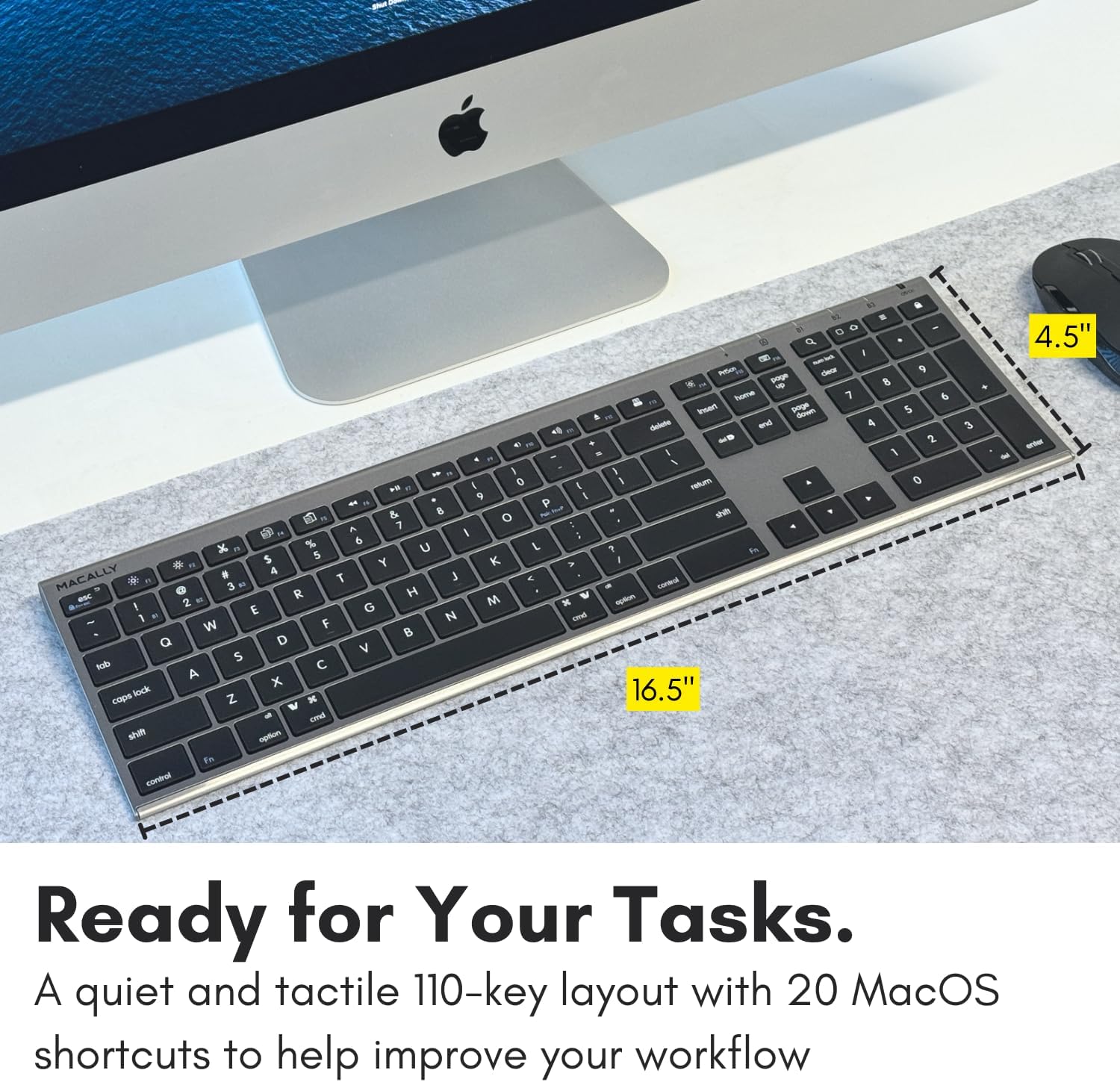
Image: The Macally Wireless Bluetooth Keyboard highlighting its full 110-key layout, including the numeric keypad and dedicated MacOS shortcuts.
3. 호환성
This keyboard is designed for broad compatibility, working seamlessly with:
- 맥(macOS)
- PC(윈도우)
- iOS 기기(아이폰, 아이패드)
- 안드로이드 기기
- Smart TVs with Bluetooth keyboard support
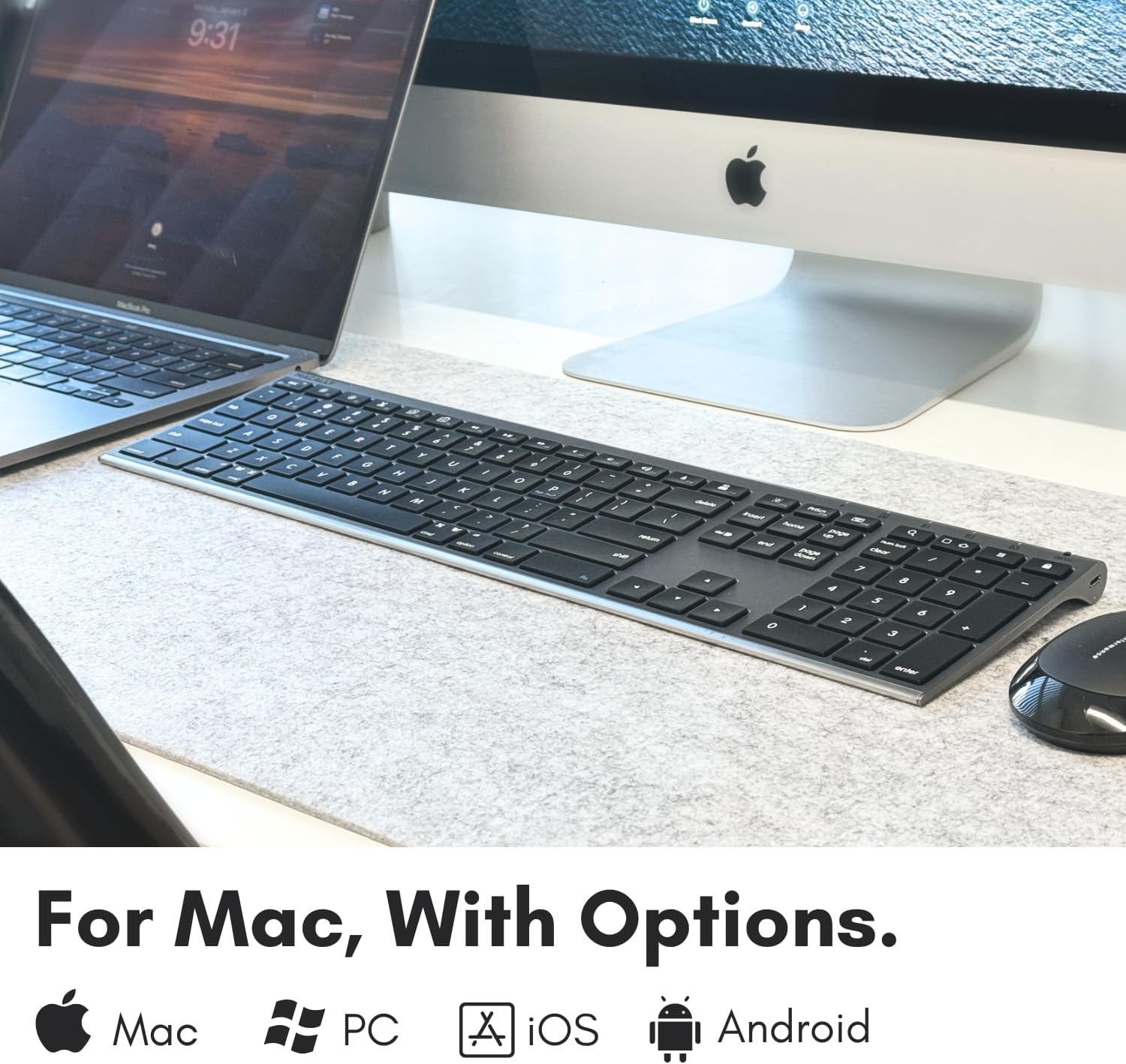
Image: Graphic illustrating the Macally Wireless Bluetooth Keyboard's compatibility with Mac, PC, iOS, and Android operating systems.
유지
적절한 유지관리는 키보드의 수명과 최적의 성능을 보장합니다.
- 청소: 부드럽고 털이 없는 천을 살짝 사용하세요.amp물이나 순한 세척액으로 키보드 표면을 닦으십시오. 과도한 습기를 피하십시오. 세척제를 키보드에 직접 분사하지 마십시오.
- 먼지 제거: 압축 공기를 사용하여 키 사이의 먼지와 이물질을 제거합니다.
- 배터리 관리 : To maximize battery life, avoid fully discharging the keyboard frequently. Recharge the keyboard when the battery indicator suggests low power. If storing the keyboard for an extended period, ensure it is partially charged (around 50%) and turn off the power switch.
- 저장: 키보드는 직사광선과 극한의 온도를 피해 시원하고 건조한 곳에 보관하세요.
문제 해결
If you encounter issues with your Macally Wireless Bluetooth Keyboard, refer to the following common solutions:
Keyboard Not Responding or Lagging
- 배터리 확인: Ensure the keyboard is sufficiently charged. Connect it to a power source and allow it to charge for at least 15 minutes before attempting to use it again.
- 연결 재설정:
- 전원 스위치를 사용하여 키보드를 끕니다.
- On your device, remove or "forget" the keyboard from your Bluetooth device list.
- Turn the keyboard back on and put it into pairing mode (Fn + B1/B2/B3).
- Re-pair the keyboard with your device as described in the "Bluetooth Pairing" section.
- 간섭: Move the keyboard closer to your device. Ensure there are no large metal objects or other wireless devices causing interference between the keyboard and your computer/device.
Function (Fn) Key Lock Issue
If your function keys are not behaving as expected (e.g., F1-F12 acting as standard function keys instead of media controls or vice-versa), the Fn lock might be engaged.

Image: Text graphic detailing the solution for the Fn lock issue: "On the top right there should be a lock symbol with an FN in the lock. See if there is a Blue LED light on the panel which is on the top right. If there is a Blue LED light on, then press and hold Fn and press ESC to shut off the Fn lock."
To toggle the Fn lock: On the top right of the keyboard, locate the lock symbol with "FN" inside. If a blue LED light is on near this symbol, press and hold the Fn 키를 누른 다음 누르세요 에스케이프 key to disable the Fn lock. This will switch the behavior of the function keys.
Unexpected Mouse Pointer Movement or Input
If your keyboard seems to be controlling the mouse pointer or producing unexpected input, check your system's accessibility settings.

Image: Text graphic detailing the solution for unexpected mouse movement: "Go to System Preferences, then click on accessibilities. After that scroll to pointer controls and disable enable mouse keys."
On Mac: Go to 시스템 환경 설정 > 접근성 > 포인터 제어. Ensure "Enable Mouse Keys" is disabled.
명세서
| 특징 | 세부 사항 |
|---|---|
| 모델 번호 | ACEBTKEYSG |
| 제품 치수 | 18.11 x 6.3 x 0.91 인치 |
| 품목 무게 | 14.9 온스 |
| 배터리 | 1개의 리튬 이온 배터리(포함) |
| 키의 개수 | 110 |
| 연결 기술 | 블루투스 |
| 호환 장치 | MacOS, Windows PC, iOS, Android |
| 키보드 설명 | 무선 전화 |
| 색상 | 스페이스 그레이 |
| 스타일 | Multi Device Keyboard, Compatible Apple Keyboard Wireless, Bluetooth Keyboard Mac |
보증 및 지원
Macally products are designed for quality and reliability. For information regarding product warranty, please refer to the warranty card included with your purchase or visit the official Macally website. For technical support or further assistance, please contact Macally customer service through their official channels.
지원 자료, FAQ 및 연락처 정보는 다음에서 자주 찾아볼 수 있습니다. 아마존에서 Macally 스토어를 만나보세요 또는 공식 회사 web대지.


