1. 서론
This manual provides instructions for the setup, operation, maintenance, and troubleshooting of your ROCCAT Vulcan TKL Mechanical PC Gaming Keyboard. The Vulcan TKL is a tenkeyless mechanical keyboard designed for PC gaming, featuring Linear Titan Switches, per-key AIMO RGB lighting, an anodized aluminum top plate, and a detachable USB-C cable.
주요 특징은 다음과 같습니다.
- Tenkeyless form factor for increased desk space and mouse movement.
- Titan Switch Mechanical with linear actuation for responsive keystrokes.
- Durable construction with a 50 million keystroke lifecycle.
- 초저급 프로file design to reduce wrist strain.
- Key stabilizer technology for solid and sturdy keys.
- AIMO intelligent lighting engine for customizable RGB effects.
- Mixer-style volume dial and dedicated media controls.
2. 상자 안에 무엇이 들어있나요?
모든 구성품이 포장에 들어 있는지 확인하세요.
- ROCCAT Vulcan TKL Mechanical PC Gaming Keyboard
- 탈착식 USB-C 케이블
- 빠른 시작 가이드(이 설명서에는 포함되지 않음)
3. 설정
Follow these steps to set up your ROCCAT Vulcan TKL keyboard:
- USB-C 케이블을 연결합니다. Locate the USB-C port on the back of the keyboard. Connect the smaller end of the provided USB-C cable to this port.
- PC에 연결: 케이블의 표준 USB-A 끝을 컴퓨터의 사용 가능한 USB 포트에 꽂습니다.

Image 3.1: Connecting the detachable USB-C cable to the keyboard.

Image 3.2: Close-up of the USB-C port on the keyboard.
- 드라이버 설치: 운영 체제가 자동으로 필요한 드라이버를 감지하고 설치해야 합니다.
- ROCCAT Swarm 소프트웨어를 설치하세요: For full customization of lighting, key assignments, and macros, download and install the ROCCAT Swarm software from the official ROCCAT website. This software allows you to configure advanced features and update firmware.
4. 사용 설명서
The ROCCAT Vulcan TKL keyboard offers a range of functions for gaming and general use.
4.1 키 레이아웃 및 기능
The keyboard features a UK layout with standard alphanumeric keys, function keys (F1-F12), and dedicated media controls.

이미지 4.1: 이상view of the ROCCAT Vulcan TKL keyboard layout.
- 기능 키(F1-F12): These keys can have secondary functions when pressed in combination with the FN key. Refer to the keycaps for specific secondary functions (e.g., media playback, volume, lighting adjustments).
- 볼륨 다이얼: Located in the upper right corner, this dial allows for quick adjustment of system volume. Rotate clockwise to increase volume, counter-clockwise to decrease.

Image 4.2: The mixer-style volume dial for audio control.
4.2 AIMO RGB Lighting
The keyboard features per-key AIMO intelligent RGB lighting. This lighting system can be customized extensively using the ROCCAT Swarm software. AIMO reacts to your input and other compatible ROCCAT devices to create dynamic lighting effects.
- 사용자 정의: Use the ROCCAT Swarm software to select from various lighting effects, adjust brightness, and create custom lighting profiles.
- 온보드 스토리지: The keyboard supports on-board profile storage, allowing you to save your preferred settings directly to the keyboard for use on different systems without the Swarm software.
4.3 Titan Switch Mechanical
The Vulcan TKL utilizes ROCCAT's Titan Switch Mechanical with linear actuation. This design provides a smooth and consistent keystroke, optimized for speed and responsiveness in gaming scenarios.

이미지 4.3: 상세 view of the Titan Switch Mechanical.
4.4 인체공학적 디자인
The keyboard features an ultra-low profile design, which helps to reduce wrist strain during extended use by allowing a more natural hand position.
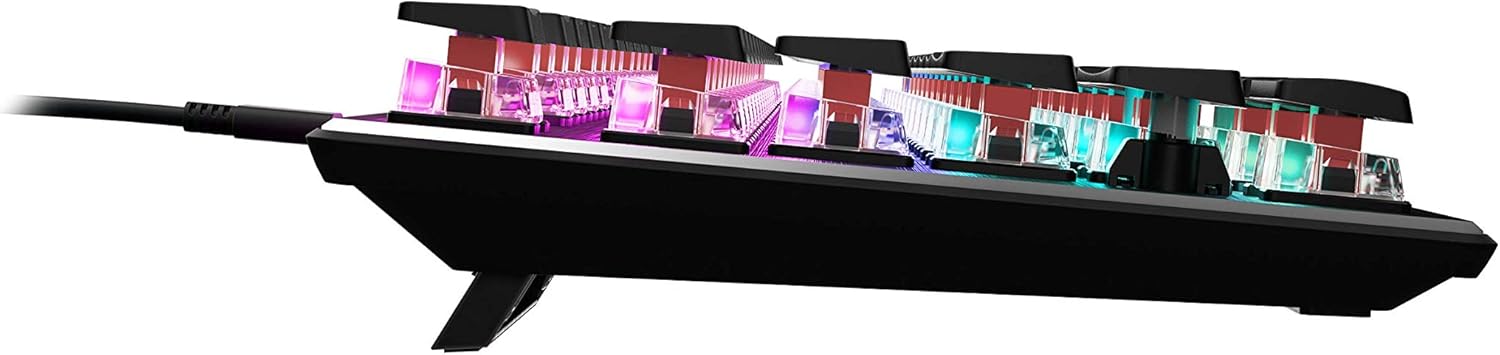
이미지 4.4: 사이드 프로file of the keyboard demonstrating its low-profile 설계.
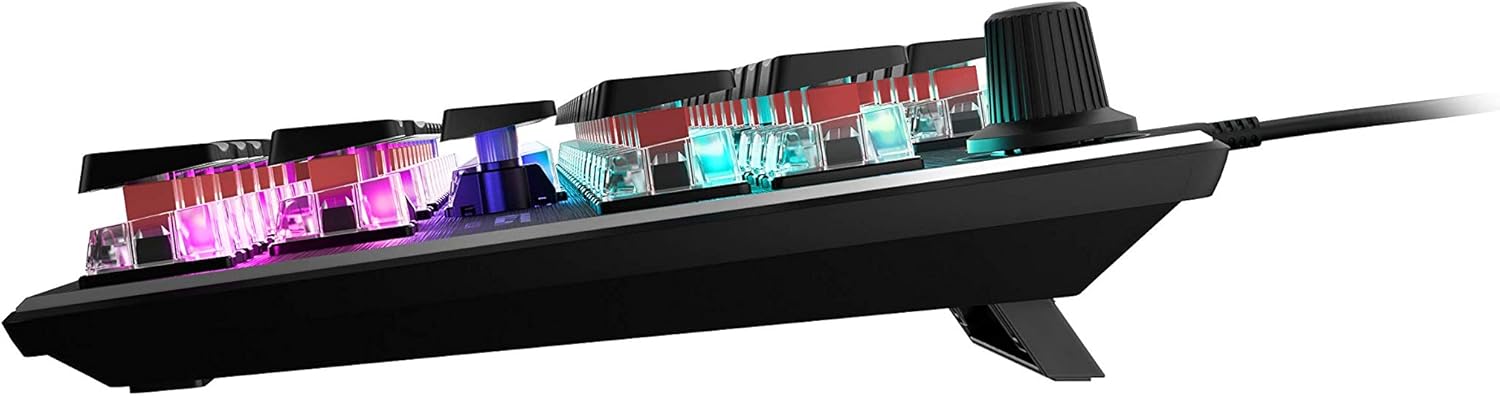
이미지 4.5: 측면 view showing the keyboard's adjustable feet for ergonomic tilt.
5. 유지관리
적절한 유지관리는 키보드의 수명과 최적의 성능을 보장합니다.
- 키보드 청소: Regularly clean the keyboard surface and between keycaps to prevent dust and debris buildup. Use a soft, lint-free cloth, slightly dampened with water or a mild cleaning solution. For deeper cleaning, you may carefully remove keycaps (refer to online guides for safe keycap removal for your specific switch type) and use compressed air to clear debris. Ensure the keyboard is disconnected from your PC before cleaning.
- 케이블 관리: The detachable USB-C cable should be handled with care. Avoid sharp bends or excessive pulling to prevent damage to the cable or the keyboard's port.
- 저장: 장기간 사용하지 않을 때는 키보드를 깨끗하고 건조한 곳에 보관하고 극한 온도는 피하십시오.
6. 문제 해결
If you encounter issues with your ROCCAT Vulcan TKL keyboard, try the following troubleshooting steps:
- 키보드가 응답하지 않음:
- USB-C 케이블이 키보드와 PC에 제대로 연결되어 있는지 확인하십시오.
- 키보드를 PC의 다른 USB 포트에 연결해보세요.
- Test the keyboard on another computer to determine if the issue is with the keyboard or your PC.
- 컴퓨터를 다시 시작하세요.
- 키가 두 번 입력되거나 입력이 제대로 되지 않는 경우:
- Ensure the keyboard firmware is up to date via the ROCCAT Swarm software.
- Clean the affected key switches using compressed air to remove any debris.
- 문제가 지속될 경우 하드웨어 결함일 수 있습니다. 보증 및 지원 섹션을 참조하십시오.
- RGB 조명 문제:
- Verify that the ROCCAT Swarm software is running and the keyboard is detected.
- Check lighting settings within Swarm to ensure desired effects are enabled.
- Update the keyboard's firmware through Swarm.
- ROCCAT Swarm Software Not Detecting Keyboard:
- Ensure the keyboard is properly connected to your PC.
- Restart the Swarm software.
- ROCCAT Swarm 소프트웨어를 다시 설치하십시오.
- 소프트웨어 또는 드라이버와의 충돌 여부를 확인하십시오.
7. 사양
| 상표 | ROCCAT |
| 모델명 | Vulcan TKL |
| 모델 번호 | ROC-12-274 |
| 연결 기술 | USB-C (분리형) |
| 키보드 설명 | 기계식 게임 키보드 |
| 스위치 유형 | 타이탄 스위치 기계식(선형) |
| 조명 | 키별 AIMO RGB 조명 |
| 재료 | 양극 산화 처리된 알루미늄 상판 |
| 치수(길이x너비x높이) | 14.17 x 5.25 x 1.34인치(36 x 13.3 x 3.4cm) |
| 품목 무게 | 2.2파운드(1kg) |
| 호환 장치 | PC |
| 특징 | Ergonomic, Tenkeyless Design |
8. 보증 정보
ROCCAT products are covered by a manufacturer's warranty against defects in materials and workmanship. The specific terms and duration of your warranty may vary by region and product. Please retain your proof of purchase for warranty claims.
For detailed warranty information, please visit the official ROCCAT support web대지.
9. 지원
For further assistance, technical support, or to download the latest drivers and software, please visit the official ROCCAT support web대지:
지원 페이지에서 FAQ와 커뮤니티 포럼도 찾아보실 수 있습니다.


