1. 서론
Welcome to the Surfans Kids Tablet T57 user manual. This guide provides detailed instructions on how to set up, operate, maintain, and troubleshoot your new 7-inch Android tablet. Designed specifically for children, this tablet features a durable kid-proof case, parental control functions, and pre-installed educational and entertainment applications.
2. 상자 안에 무엇이 들어있나요?
패키지 내용물을 확인하여 모든 품목이 들어 있는지 확인하세요.
- 1x Surfans Kids Tablet
- 1x Tablet Stand
- 1x USB 케이블
- 1x Kids Tablet User Manual (this document)
3. 제품 오버view 및 기능
The Surfans Kids Tablet T57 is built with a robust design and features tailored for young users. Below is an overview of its components and key functionalities.
3.1 태블릿 구성 요소
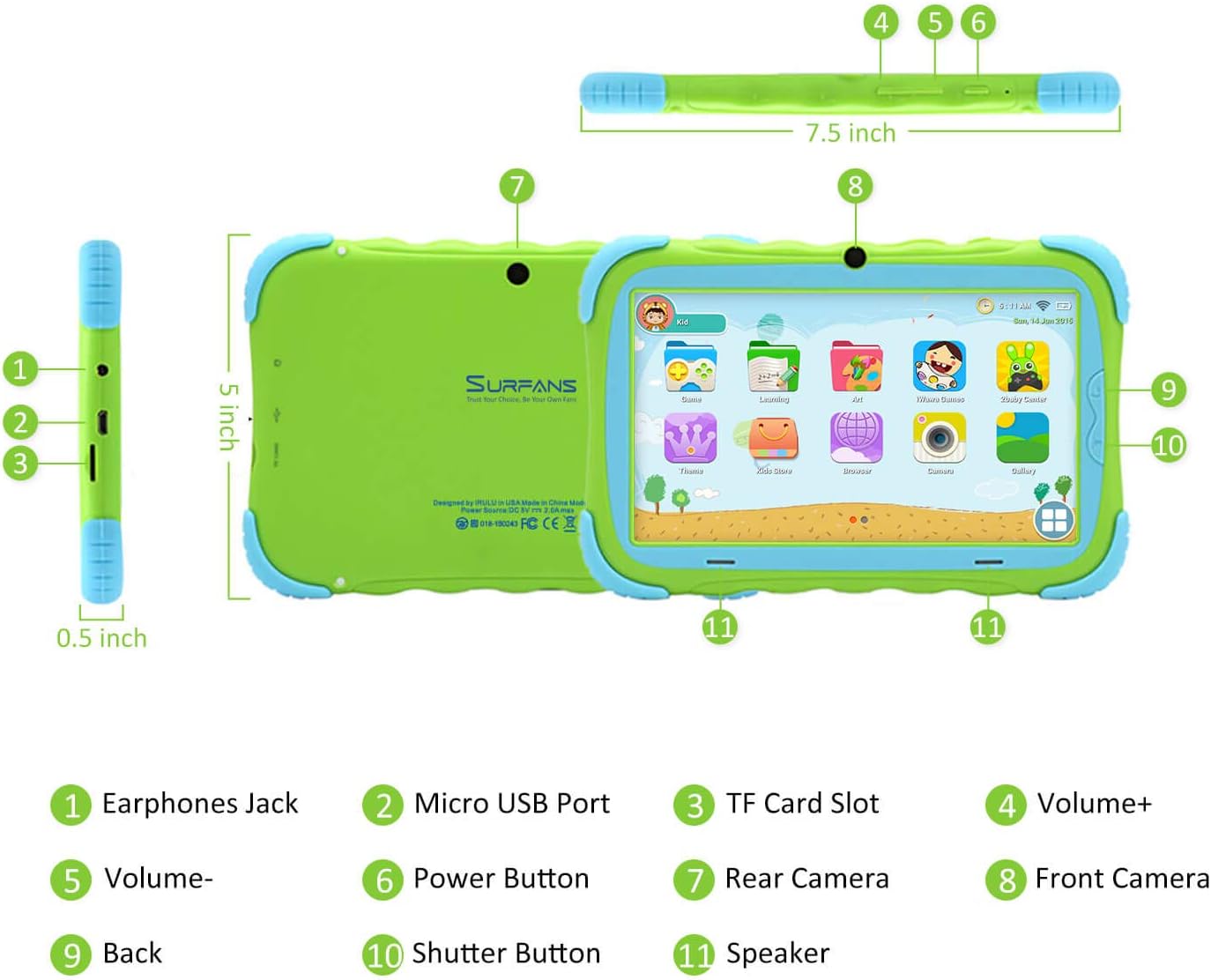
- 이어폰 잭: 헤드폰이나 외부 오디오 장치를 연결하는 데 사용합니다.
- 마이크로 USB 포트: 태블릿 충전 및 데이터 전송을 위해 컴퓨터에 연결하는 데 사용됩니다.
- TF 카드 슬롯 : For inserting a Micro SD card to expand storage capacity (up to 32GB).
- 볼륨+: Increases the tablet's audio volume.
- 음량-: Decreases the tablet's audio volume.
- 전원 버튼: Press and hold to turn the tablet on/off or restart. Press briefly to turn the screen on/off.
- 후방 카메라: The primary camera located on the back of the tablet.
- 전면 카메라: The camera located on the front, typically used for video calls or selfies.
- 뒤로가기 버튼: 이전 화면으로 돌아가거나 현재 애플리케이션을 종료합니다.
- 셔터 버튼: Used to capture photos or start/stop video recording in the camera application.
- 스피커: Provides audio output from the tablet.
3.2 주요 특징
- Kid-Proof Design: Comes with a durable, lightweight, and skin-friendly case designed to protect against drops and bumps.
- 7-inch IPS HD Eye Protection Display: Provides clear visuals while minimizing eye strain.
- 안드로이드 9.0 OS: Runs on the latest Google Android 9.0 Pie operating system for smooth performance.
- 쿼드 코어 프로세서: Ensures responsive performance for apps, games, and videos.
- 1GB RAM 및 16GB ROM: Sufficient memory for basic operations and storage, expandable up to 32GB via Micro SD card.
- 자녀 보호 모드: Allows parents to manage content, set time limits, and configure user settings for a safe digital environment.
- Pre-installed Kids Apps: Includes a variety of educational and entertaining apps, with access to the Google Play Store for more content.
- Wi-Fi 연결: Supports 802.11g for fast browsing, streaming, and video calls.
- 긴 배터리 수명: 3000mAh Li-ion Battery provides 3-5 hours of working time, or up to 8 hours of mixed use on a single charge.


4. 설정 가이드
Follow these steps to set up your Surfans Kids Tablet for the first time.
4.1 초기 충전
Before first use, fully charge the tablet. Connect the included USB cable to the Micro USB Port (2) on the tablet and plug the other end into a compatible USB power adapter (not included) or a computer USB port. The charging indicator will show the charging status.
4.2 전원 켜기/끄기
- 전원을 켜려면: 화면이 켜질 때까지 전원 버튼(6)을 길게 누릅니다.
- 전원을 끄려면: Press and hold the Power Button (6) until a power-off menu appears. Select "Power off" and confirm.
- 재시작하기 위해: Press and hold the Power Button (6) until the power-off menu appears. Select "Restart" and confirm.
- 화면 켜기/끄기: Briefly press the Power Button (6) to turn the screen on or off without powering down the tablet.
4.3 Wi-Fi 연결
To access online content and download apps, connect your tablet to a Wi-Fi network:
- 홈 화면에서 위쪽에서 아래로 스와이프하여 빠른 설정 패널을 엽니다.
- Wi-Fi 아이콘을 길게 눌러 Wi-Fi 설정으로 이동하세요.
- 와이파이가 꺼져 있으면 켜세요.
- 목록에서 원하는 Wi-Fi 네트워크를 선택하세요.
- 네트워크 암호를 입력하라는 메시지가 나타나면 암호를 입력한 다음 "연결"을 탭하세요.
4.4 Setting Up Parental Control
The Parental Control mode is a key feature for managing your child's tablet usage. This allows you to filter website content, set time limits, and control app access.

Specific steps for setting up parental controls will be available within the tablet's pre-installed Kids app or settings menu. Look for an icon or section labeled "Parental Control" or "Kids Mode" to configure user profiles, allowed applications, and usage schedules.
5. 태블릿 작동
This section covers basic operations and how to use the tablet's features.
5.1 기본 탐색
- Touch and Tap: To open apps, select items, or type.
- 강타: To scroll through screens, menus, or web 페이지.
- 핀치 투 줌: 이미지를 확대하거나 축소하려면 web 페이지.
- 홈 화면: 앱과 위젯에 접근할 수 있는 메인 화면입니다.
- 탐색 바: Located at the bottom of the screen, typically includes Back, Home, and Recent Apps buttons.
5.2 Using Kids Mode and Apps
The tablet comes with a dedicated Kids Mode interface, providing a safe and engaging environment for children. This mode typically features a simplified layout and access to pre-approved content.

- Accessing Kids Mode: Usually, there's a specific app icon or a setting to switch to Kids Mode.
- 사전 설치된 앱: Explore the various educational games, books, music, and art learning applications.
- 구글 플레이 스토어: For additional apps, exit Kids Mode (if applicable) and access the Google Play Store. Ensure parental supervision for downloads.


5.3 Media Playback and Camera
- Videos and Music: Use pre-installed media players or download others from the Play Store to enjoy videos and music.
- 카메라: Open the Camera app to use the Front (8) or Rear (7) cameras. Tap the Shutter Button (10) to take photos or record videos.
5.4 확장형 저장공간
To expand the tablet's storage, insert a Micro SD card (up to 32GB, not included) into the TF Card Slot (3). This allows for more space for photos, music, movies, and apps.
6. 유지관리
적절한 유지관리는 태블릿의 수명과 최적의 성능을 보장합니다.
- 청소: Use a soft, lint-free cloth to clean the screen and tablet body. Avoid abrasive cleaners or solvents.
- 배터리 관리 :
- 배터리를 자주 완전히 방전시키지 마세요.
- 태블릿을 극한 온도에 노출시키지 마세요.
- 충전에는 제공된 USB 케이블만 사용하세요.
- 소프트웨어 업데이트: 태블릿 설정에서 주기적으로 시스템 업데이트를 확인하여 최신 기능과 보안 패치를 사용하고 있는지 확인하십시오.
- 스토리지 관리: 불필요한 것을 정기적으로 정리하세요 files and uninstall unused apps to free up storage space and maintain performance.
7. 문제 해결
If you encounter issues with your tablet, refer to the following common problems and solutions.
| 문제 | 가능한 해결책 |
|---|---|
| 태블릿이 켜지지 않습니다. | Ensure the battery is charged. Connect the charger and wait a few minutes before attempting to power on again. If unresponsive, press and hold the Power Button for 10-15 seconds to force a restart. |
| Wi-Fi 연결 문제. | 설정에서 Wi-Fi가 활성화되어 있는지 확인하세요. Wi-Fi 공유기를 재시작하세요. 네트워크 연결을 해제하고 다시 연결하세요. Wi-Fi 신호 범위 내에 있는지 확인하세요. |
| 성능 저하 또는 앱 충돌 발생. | 사용하지 않는 앱을 닫으세요. 앱 캐시를 삭제하세요. 불필요한 파일을 삭제하여 저장 공간을 확보하세요. files or uninstalling unused apps. Restart the tablet. |
| 화면이 응답하지 않습니다. | Restart the tablet by holding the Power Button. Ensure the screen is clean and dry. |
| Cannot download apps from Google Play Store. | Check your Wi-Fi connection. Ensure sufficient storage space. Verify parental control settings are not blocking downloads. Clear cache and data for Google Play Store app. |
| 태블릿이 충전되지 않습니다. | Check the USB cable and charger for damage. Try a different USB port or power adapter. Ensure the Micro USB Port is clean and free of debris. |
If the problem persists after trying these solutions, please contact Surfans customer support for further assistance.
8. 사양
Detailed technical specifications for the Surfans Kids Tablet T57:
| 특징 | 세부 사항 |
|---|---|
| 모델명 | T57 |
| 운영 체제 | 안드로이드 9 파이 |
| 화면 크기 | 7 인치 |
| 화면 해상도 | 1024x600 IPS HD |
| 프로세서 | 1.5 GHz Quad-core Cortex-X7 (ARM) |
| 숫양 | 1GB |
| 내부 저장소(ROM) | 16GB |
| 확장 가능한 스토리지 | 32GB까지 마이크로 SD 카드 지원 |
| 무선형 | 802.11g Wi-Fi |
| 카메라 | Front Camera, Rear Camera (2 MP) |
| 배터리 | 3000mAh 리튬이온 배터리 |
| 평균 배터리 수명 | 3-5 hours (working time), 8 hours (mixed use) |
| 치수(길이x너비x높이) | 7.5 x 5 x 0.5 인치 |
| 품목 무게 | 1.22파운드 |
| 색상 | 녹색 |
9. 보증 및 지원
For warranty information, technical support, or any inquiries regarding your Surfans Kids Tablet T57, please refer to the contact details provided on the product packaging or the official Surfans website. Surfans is committed to providing fast response and technical assistance for any issues encountered during use.


