소개
Welcome to the world of Microsoft Flight Simulator 2020. This guide provides essential information for installing, operating, and troubleshooting your new flight simulation software. Microsoft Flight Simulator 2020 offers an unparalleled experience, allowing you to pilot a diverse range of aircraft, from light planes to wide-body jets, across a highly detailed and realistic global environment. Prepare to create your flight plans, experience dynamic day-night cycles, and navigate challenging weather conditions.
This edition is designed for PC Computers and is distributed via DVD-ROM.
시스템 요구 사항
Before installation, ensure your PC meets the necessary specifications for optimal performance.
- 운영 체제: 윈도우 10(64비트)
- 프로세서: Intel i5-4460 / AMD Ryzen 3 1200 or higher
- 그래픽 카드: NVIDIA GTX 770 / AMD Radeon RX 570 or higher
- VRAM: 2GB (XNUMX기가바이트)
- 숫양: 8GB (XNUMX기가바이트)
- 저장: 150GB의 여유 공간 (SSD 권장)
- 다이렉트X: 버전 11
- 인터넷 연결: Broadband internet connection required for installation and online features.
Note: Performance may vary based on system configuration and graphics settings.
설정 및 설치
The Standard Edition of Microsoft Flight Simulator 2020 is distributed across multiple DVD-ROMs. Follow these steps carefully for a successful installation.
- 시스템 준비:
- Ensure you have at least 150 GB of free disk space.
- Disable any antivirus software temporarily to prevent interference during installation.
- It is recommended to turn off autoplay for your DVD drive in Windows settings to avoid potential CRC errors during installation.
- Insert Disc 1: Insert the first DVD-ROM into your computer's DVD drive.
- 설치 시작:
- If the installer does not launch automatically, navigate to your DVD drive in File Explorer and double-click the
setup.exefile. - Follow the on-screen prompts to begin the installation process.
- If the installer does not launch automatically, navigate to your DVD drive in File Explorer and double-click the
- Disc Swapping: The installer will prompt you to insert subsequent DVD-ROMs as needed. Ensure discs are clean and free of scratches to prevent read errors.
- Product Key Activation: During or after the DVD installation, you will be prompted to enter your unique product key. This key is typically found inside the game packaging. An active Microsoft account is required for activation and ongoing use.
- Initial Download: After the DVD installation is complete and the product key is entered, the game will connect to the internet to download additional content and the latest updates. This download can be substantial (e.g., 70-100 GB or more) and requires a stable broadband internet connection.
- 게임 실행하기: Once all downloads and updates are complete, you can launch Microsoft Flight Simulator from your desktop shortcut or the Start Menu.

Image: The retail box for Microsoft Flight Simulator 2020 Standard Edition, showing the PC DVD logo and game title.
시뮬레이터 작동하기
Microsoft Flight Simulator offers a deep and immersive experience. Here are some key aspects of operating the simulator:
First Flight and Tutorials
It is highly recommended to complete the in-game tutorials, especially if you are new to flight simulation. These tutorials cover basic controls, navigation, and flight procedures.
Aircraft Selection
The Standard Edition includes a variety of aircraft. You can select your desired aircraft from the main menu before starting a flight.
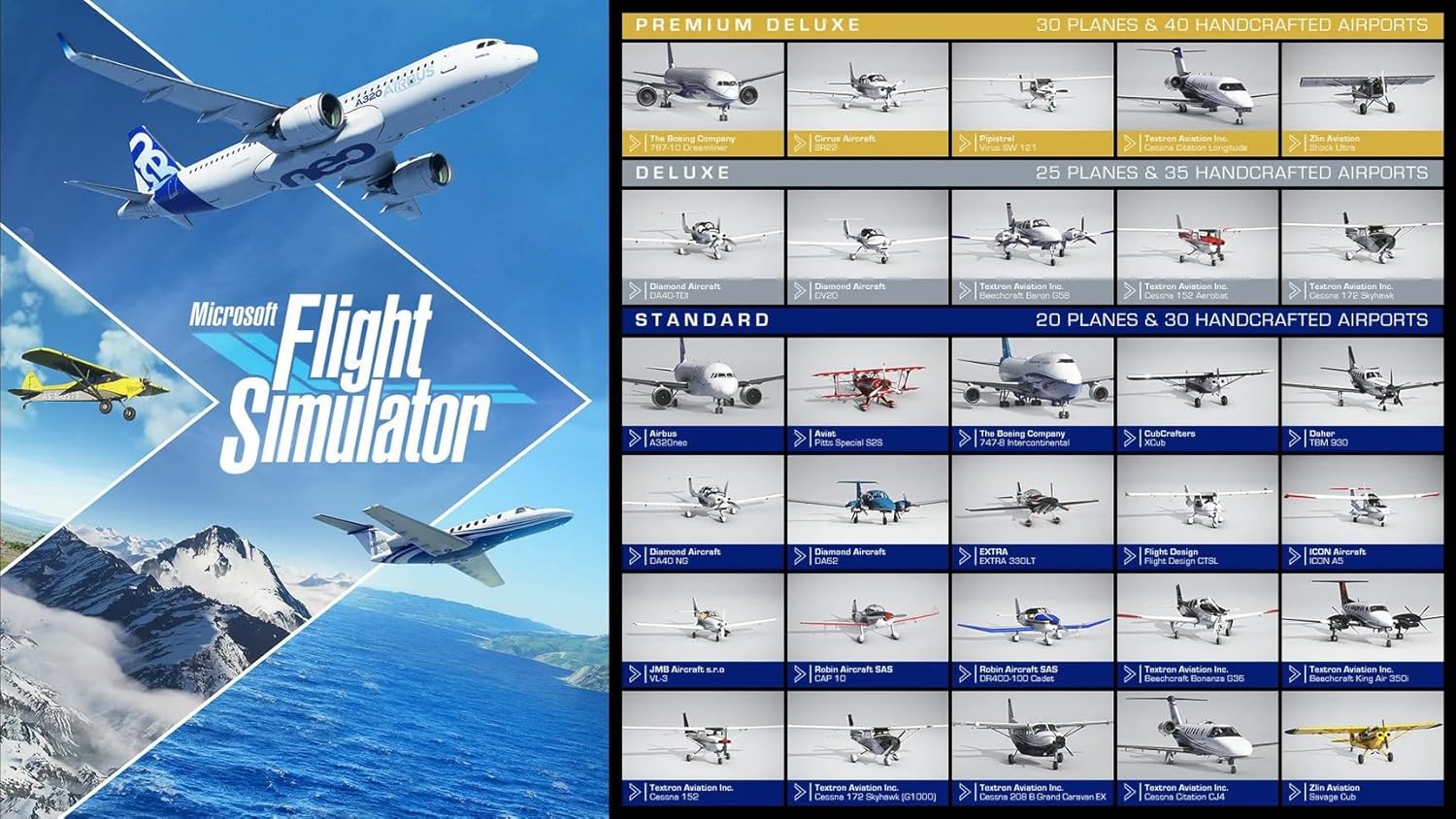
Image: A visual comparison chart detailing the number and types of aircraft and handcrafted airports included in the Standard, Deluxe, and Premium Deluxe editions of Microsoft Flight Simulator. The Standard edition includes 20 planes and 30 handcrafted airports.
World Map and Flight Planning
Use the World Map to select your departure and arrival airports, set your flight path, choose time of day, and adjust weather conditions. The simulator features a highly realistic world with over 2 million cities and 1.5 billion buildings.

이미지: 항공 사진 view from above a small propeller plane, showcasing the detailed ground textures and varied terrain, including agricultural fields, within the simulator's world.
Controls and Peripherals
The simulator supports various input devices, including keyboard, mouse, gamepads, joysticks, and flight sticks. You can customize control bindings within the game's options menu.

이미지: 클로즈업 view of an aircraft's cockpit dashboard, displaying various gauges, switches, and controls, highlighting the intricate detail of the in-game instruments.
Weather and Time
Experience dynamic weather conditions, including accurate wind speed and direction, temperature, humidity, rain, and lightning. You can also fly day or night with realistic lighting.

Image: A large commercial airliner, possibly a Boeing 787, soaring above a layer of clouds with snow-capped mountains visible in the distance, demonstrating the realistic atmospheric effects.
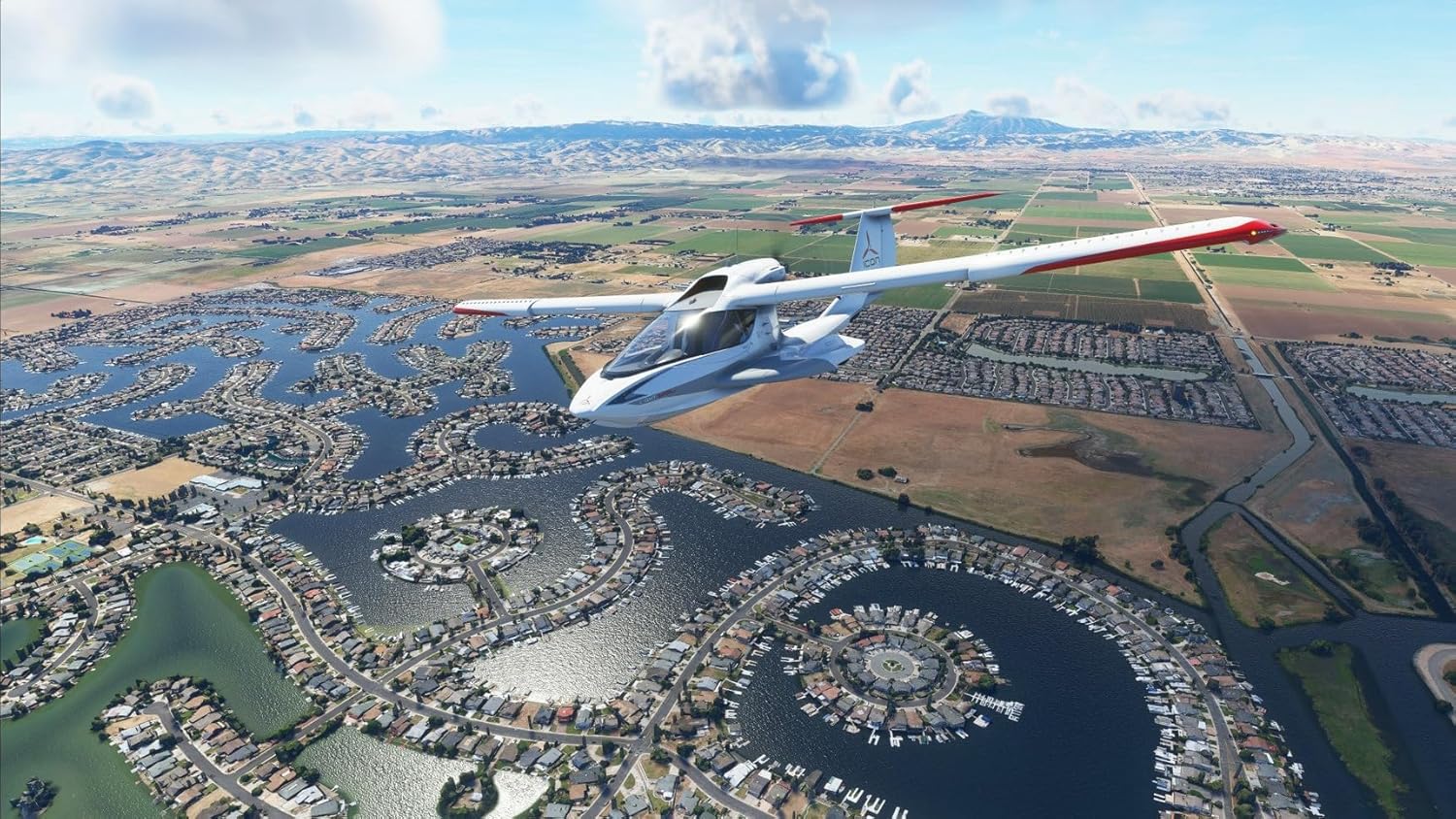
Image: A small private jet flying over a sprawling city at dusk, with city lights illuminating the landscape below, showcasing the realistic night lighting and vast urban environments.
유지
While Microsoft Flight Simulator 2020 is software, regular maintenance practices can ensure optimal performance and stability.
- 드라이버 업데이트 유지: Ensure your graphics card drivers and other system drivers are always up to date. Visit your hardware manufacturer's web최신 버전을 보려면 사이트를 방문하세요.
- 게임 업데이트: The simulator frequently receives updates. Ensure you have a stable internet connection to download these updates when prompted, as they often include performance improvements, bug fixes, and new content.
- 디스크 공간 관리: Periodically check your hard drive for sufficient free space. Large updates and add-ons can consume significant storage.
- 게임 검증 Files: If you encounter persistent issues, you may be able to verify the integrity of game files through the Microsoft Store or Xbox app (depending on your installation method).
문제 해결
Encountering issues during installation or gameplay can be frustrating. Here are some common problems and their potential solutions:
Installation Errors (e.g., "Transfer Error", "File Missing")
- Clean Discs: Ensure all DVD-ROMs are clean and free of smudges or scratches. Use a soft, lint-free cloth to gently wipe them.
- 바이러스 백신 비활성화: Temporarily disable your antivirus software during installation. Remember to re-enable it afterward.
- Disable Autoplay: Turn off the "Autoplay" feature for your DVD drive in Windows settings before starting the installation.
- Copy Discs to Hard Drive: As a last resort, you can try copying the contents of each DVD to a separate folder on your hard drive (e.g., "Disc1", "Disc2", etc.) and then running the setup from the copied Disc 1 folder. This can sometimes bypass read errors from the physical discs.
- Sufficient Disk Space: Verify you have ample free space (at least 150 GB) on your target installation drive.
"Code Already Used" or Activation Issues
- Microsoft 계정: Ensure you are logged into the correct Microsoft account that the game was initially activated with.
- 인터넷 연결: A stable internet connection is required for activation.
- 지원팀에 문의: If the issue persists, contact Microsoft Support directly. Provide your product key and proof of purchase.
Performance Issues (Low FPS, Stuttering)
- 드라이버 업데이트: 그래픽 카드 드라이버가 최신인지 확인하세요.
- 그래픽 설정 조정: Lower in-game graphics settings (e.g., resolution, texture quality, cloud quality, anti-aliasing).
- 백그라운드 애플리케이션 닫기: Close any unnecessary applications running in the background to free up system resources.
- 인터넷 속도: A slow internet connection can impact streaming world data, leading to stutters.
Game Crashes
- 시스템 요구 사항을 확인하십시오. Double-check that your PC meets or exceeds the minimum system requirements.
- 업데이트 확인: 게임이 완전히 업데이트되었는지 확인하세요.
- 과열: Monitor your CPU and GPU temperatures. Overheating can cause crashes. Ensure proper ventilation for your PC.
- 손상됨 Files: Consider verifying game files through the Microsoft Store or Xbox app.
명세서
| 특징 | 세부 사항 |
|---|---|
| 제품 제목 | Microsoft Flight Simulator 2020 - Standard Edition (PC DVD) |
| 상표 | 마이크로소프트 |
| 모델 번호 (ASIN) | B08FCK6WMQ |
| 품목 유형 | DVD-ROM (Physical Media) |
| Included Aircraft | 20 highly detailed aircraft |
| Included Airports | 30 handcrafted airports |
| World Data | Over 2 million cities, 1.5 billion buildings, real mountains, roads, trees, rivers, animals, traffic |
| 다이내믹 날씨 | Live real-time weather, including wind, temperature, humidity, rain, lightning |
| Day/Night Cycle | Full day and night cycle with realistic lighting |
| 출시일 | 10년 2020월 XNUMX일 |
| 원산지 | Germany (for physical media) |
보증 및 지원
For warranty information and technical support regarding Microsoft Flight Simulator 2020, please refer to the official Microsoft support channels.
- 공식 지원 Web대지: Visit the official Microsoft Flight Simulator support website for FAQs, forums, and troubleshooting guides.
- Microsoft 지원: For direct assistance with product activation, installation issues, or technical problems, contact Microsoft Support.
- 제품 키: Keep your product key and proof of purchase in a safe place, as they may be required for support inquiries.
Note: Issues related to physical media (damaged discs) should first be addressed with the retailer from whom the product was purchased.


