1. 서론
This manual provides comprehensive instructions for setting up, operating, and maintaining your Microsoft Surface Go 2 tablet. The Surface Go 2 is a versatile 10.5-inch touch-screen device, powered by an Intel Pentium processor, 8GB of RAM, and a 128GB SSD, running Windows 10. It is designed for portability and efficiency, suitable for various tasks from productivity to entertainment.
2. 구성 요소 및 포트
Familiarize yourself with the physical components and connection ports of your Surface Go 2.
2.1 디바이스 오버view
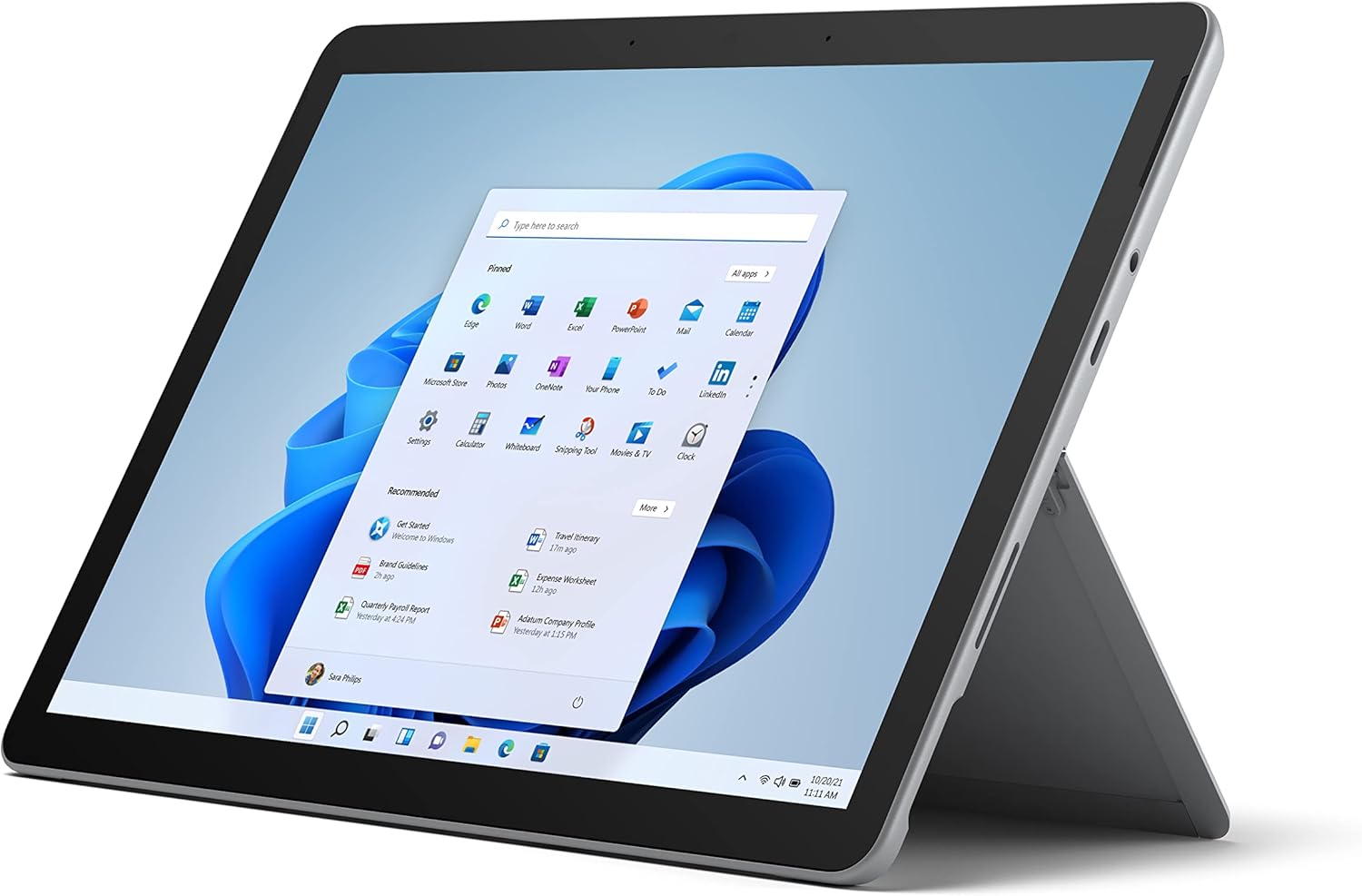
Figure 2.1: Microsoft Surface Go 2 tablet in landscape orientation, showcasing the Windows desktop interface.
2.2 Side Ports and Buttons
- USB 타입-C 포트: For data transfer, video output, and charging.
- 3.5mm 헤드폰 잭: 헤드폰이나 외부 오디오 장치를 연결하는 데 사용합니다.
- 표면 연결 포트: Magnetic port for charging and connecting to Surface Dock (sold separately).
- MicroSD 카드 리더기: microSD 카드로 저장 공간을 확장합니다.
- 볼륨 버튼: 오디오 볼륨을 조절하려면.
- 전원 버튼: 기기를 켜거나 끄거나 절전 모드로 전환합니다.

그림 2.2: 측면 프로file of the Surface Go 2, illustrating the various ports and buttons along its edge.
2.3 일체형 킥스탠드
The Surface Go 2 features an integrated kickstand on the back, allowing for multiple viewing angles. This enables comfortable use in various modes, such as tablet, laptop (with Type Cover), or studio mode.

Figure 2.3: The Surface Go 2 with its Type Cover keyboard attached and the kickstand deployed, demonstrating its laptop-like configuration.
3. 초기 설정
Follow these steps to set up your Surface Go 2 for the first time.
3.1 전원 켜기 및 기본 설정
- 기기 충전: Connect the included power adapter to the Surface Connect port on your device and plug it into a power outlet.
- 전원 켜기: Press and hold the power button located on the top edge of the device until the Microsoft logo appears on the screen.
- 화면의 지시를 따르세요: The device will guide you through selecting your region, language, and connecting to a Wi-Fi network.
- Microsoft Account Setup: Sign in with an existing Microsoft account or create a new one. This is essential for accessing Microsoft services and applications.
- 개인 정보 설정: Review and adjust your privacy settings as prompted.
- Windows Hello: Set up facial recognition for faster and more secure sign-in (optional).
4. 사용 설명서
The Surface Go 2 offers flexible interaction methods.
4.1 터치스크린 탐색
The 10.5-inch PixelSense display supports 10-point multi-touch. You can navigate Windows 10 using gestures similar to a smartphone or tablet:
- 수도꼭지: 항목을 선택하거나 애플리케이션을 엽니다.
- 강타: 콘텐츠를 스크롤하거나 화면 간에 이동합니다.
- 핀치 투 줌: 콘텐츠 크기를 확대하거나 축소하세요.
- 누르고 있기: Access context menus (right-click equivalent).
4.2 Using the Type Cover Keyboard (Sold Separately)
Attach the Type Cover keyboard to transform your Surface Go 2 into a laptop. The keyboard connects magnetically to the bottom edge of the tablet.
- 부착: Align the Type Cover with the magnetic connector at the bottom of the Surface Go 2 until it snaps into place.
- 타자: Use the physical keys for efficient text input.
- 트랙패드: The integrated trackpad allows for precise cursor control and multi-touch gestures.

Figure 4.1: The Surface Go 2 tablet separated from its Type Cover keyboard, illustrating the modular design.
4.3 Using the Surface Pen (Sold Separately)
The Surface Pen (sold separately) enhances creativity and productivity, allowing for natural writing and drawing directly on the screen.

Figure 4.2: The Surface Go 2 tablet displayed with a compatible Surface Pen, highlighting its digital inking capabilities.
5. 유지관리
Proper care ensures the longevity and performance of your Surface Go 2.
- 화면 청소: 부드럽고 털이 없는 천을 살짝 사용하세요.ampened with water or an approved screen cleaner. Avoid harsh chemicals.
- 장치 본체 청소: 부드럽고 마른 천으로 외부를 닦습니다.
- 소프트웨어 업데이트: 최적의 성능과 보안을 유지하려면 정기적으로 Windows 업데이트를 확인하고 설치하세요. 다음 링크로 이동하세요. 설정 > 업데이트 및 보안 > Windows 업데이트.
- 배터리 관리 : 배터리 수명을 최대한 늘리려면 극한 온도 변화를 피하고, 가능하면 배터리 충전량을 20%에서 80% 사이로 유지하십시오.
- 스토리지 관리: 주기적으로 일시적인 것을 지우세요 files and unnecessary data to free up storage space. Go to 설정 > 시스템 > 저장소.
6. 문제 해결
일반적인 문제와 해결책.
- 장치가 켜지지 않음: 기기가 충전되어 있는지 확인하십시오. 전원 어댑터를 연결하고 몇 분 정도 기다린 후 다시 전원을 켜보세요.
- 터치스크린이 반응하지 않음: Restart the device. If the issue persists, check for pending Windows updates or consider a system restore.
- Wi-Fi 연결 문제: Verify your Wi-Fi network is active. Restart your router and the Surface Go 2. Check Wi-Fi settings on the device.
- 느린 성능: Close unnecessary applications. Check for background processes consuming high resources (Task Manager). Ensure sufficient free storage space.
- 배터리가 빨리 소모됨: Adjust screen brightness, disable unnecessary background apps, and ensure all software is up to date.
7. 사양
| 특징 | 세부 사항 |
|---|---|
| 표시하다 | 10.5" PixelSense 10-Point Touch Display |
| 해결 | 1920 x 1280(216ppi) |
| 프로세서 | 1.6 GHz Intel Pentium 4425Y Dual-Core Processor |
| 숫양 | 8GB |
| 저장 | 128GB SSD |
| 제도법 | 통합 Intel HD Graphics 615 |
| 무선 전화 | Wi-Fi 5 (802.11ac) | Bluetooth 4.1 |
| 카메라 | 8MP Rear Camera | 5MP Front Camera |
| 포트 | USB Type-C, 3.5 mm Headphone Jack, Surface Connect, MicroSD Card Reader |
| 배터리 수명 | 최대 9시간(일반 사용 시) |
| 운영 체제 | 윈도우 10 |
| 무게 | 1.15파운드(대략) |
| 치수 | 6.8 x 9.64 x 0.32 인치 |
8. 보증 및 지원
This Microsoft Surface Go 2 is a renewed product. Renewed products are eligible for replacement or refund under the Amazon Renewed Guarantee if you are not satisfied with your purchase. For specific terms and conditions, please refer to the Amazon Renewed program details.
For further technical support or inquiries, please visit the official Microsoft Surface support web사이트를 방문하거나 고객 서비스에 문의하세요.


