1. 서론
This user manual provides detailed instructions for the IPEVO VZ-R HDMI/USB Dual Mode Document Camera. It covers product features, setup procedures, operational guidelines, maintenance tips, and troubleshooting information to help you effectively use your device for real-time projection, remote work, distance learning, web conferencing, video recording, and live demonstrations.
2. 제품 오버view
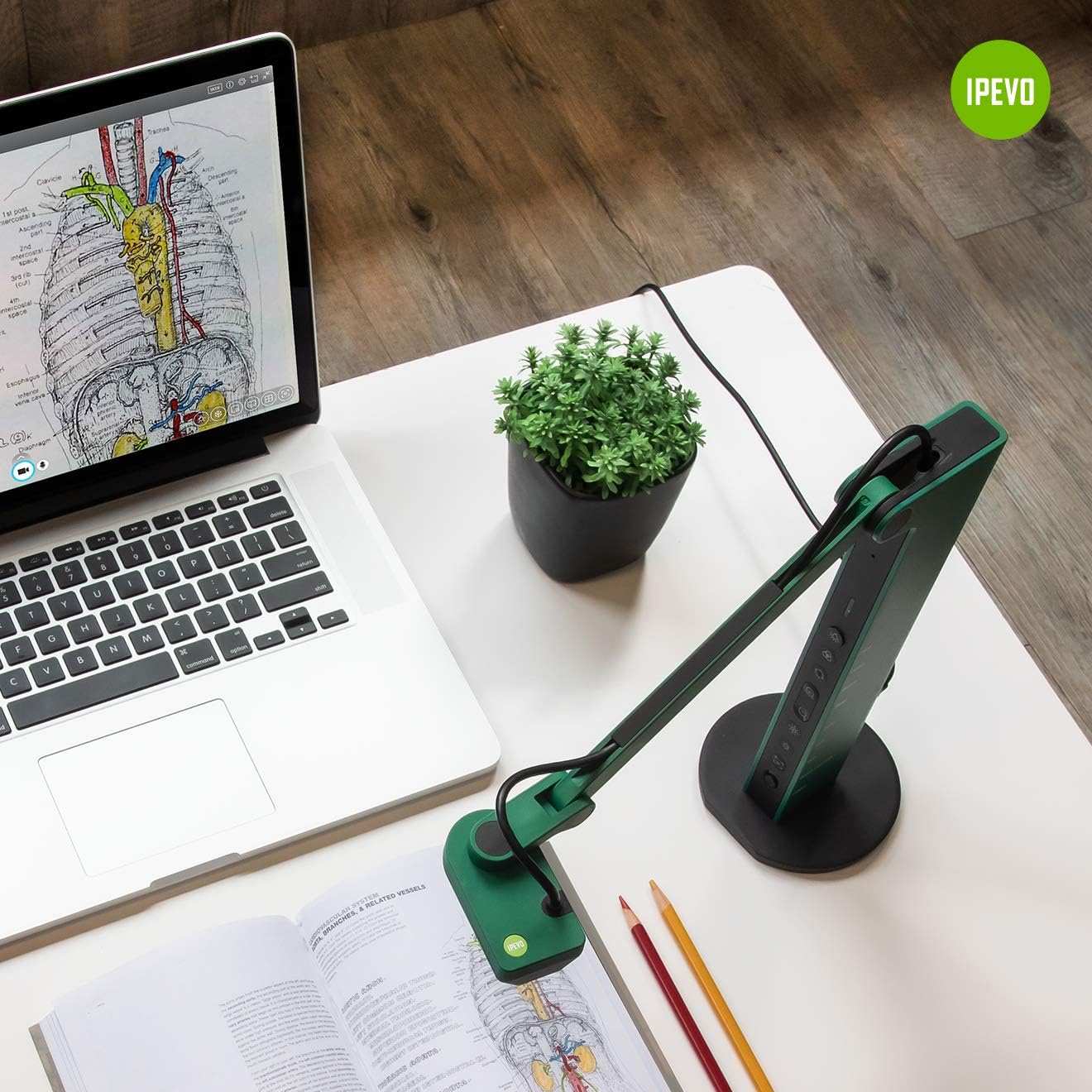
The IPEVO VZ-R is an 8-megapixel document camera designed for versatile visual communication. It offers both HDMI and USB connectivity, allowing direct connection to displays or computers. Its robust design and advanced imaging capabilities make it suitable for various educational and professional environments.
주요 특징:
- 듀얼 모드 연결: Seamlessly switch between HDMI for direct display output and USB for computer-based applications.
- 고해상도 이미징: Captures up to 3264 x 2448 pixels in USB mode and 1920 x 1080 pixels in HDMI mode, ensuring clear and detailed visuals.
- Large Capture Area: Maximum capture area of 10.6” x 18.9” (16:9) or 13.5” x 18.1” (4:3).
- 향상된 성능: Features a Sony CMOS image sensor and Ambarella SoC for fast focus, noise reduction, and accurate color reproduction.
- 통합 LED 조명: Provides additional illumination for optimal image quality in low-light conditions.
- Web캠 기능: Functions as a high-quality webcam, compatible with various third-party video conferencing software.
- 유연한 디자인: Swiveling head and multi-jointed stand allow for capturing objects at different heights, angles, and orientations.
- 내구성과 휴대성: Constructed with a glass fiber reinforced stand (GVX-5H) for increased durability and ease of transport.
- 직관적인 컨트롤: Tactile built-in buttons on the device body for instant image adjustments.

3. 패키지 내용
패키지에 모든 품목이 들어 있는지 확인하세요.
- Camera head and stand
- 베이스
- USB Type-C to Type-A cable (4.90ft/150cm)
- 드라이버
- 나사 x 4
메모: An HDMI cable and a wall power adapter are not included in the package and must be acquired separately if needed.
4. 장치 레이아웃
The IPEVO VZ-R features an intuitive button layout for easy control. Familiarize yourself with the functions of each button:

- 빛: Toggles the LED light on/off.
- 필터: Cycles through various image filters (e.g., grayscale, negative).
- 회전: 이미지를 시계 방향으로 90도 회전합니다.
- ZOOM + / ZOOM -: 디지털 줌 레벨을 조정합니다.
- EXP + / EXP -: Adjusts the exposure level (brightness).
- FOCUS / AF-LOCK: Initiates auto-focus or locks the current focus.
- 힘: 장치를 켜거나 끕니다.
5. 설정
5.1 물리적 조립
- Attach the camera head and stand assembly to the base using the provided screws and screwdriver. Ensure it is securely fastened.
- Position the VZ-R on a stable, flat surface.
5.2 Connecting to a Computer (USB Mode)
- Connect the USB Type-C end of the provided cable to the VZ-R.
- Connect the USB Type-A end of the cable to an available USB port on your computer (Mac, Windows PC, or Chromebook).
- The VZ-R will be recognized as a standard webcam. You may need to download and install the IPEVO Visualizer software from the official IPEVO website for full functionality and advanced controls.
5.3 Connecting to a Display (HDMI Mode)
- Connect an HDMI cable (not included) from the VZ-R's HDMI output port to the HDMI input port on your TV, monitor, or projector.
- Ensure the display device is set to the correct HDMI input source.
- The VZ-R will automatically project its live feed to the connected display.

5.4 장치 전원 공급
The VZ-R is powered via its USB connection. When connected to a computer, it draws power from the USB port. For HDMI-only operation, connect the USB cable to a USB wall adapter (not included) for power.
6. 사용 설명서
6.1 Using the IPEVO Visualizer Software
For advanced control and features when connected to a computer, download and install the IPEVO Visualizer software. This software allows you to:
- Adjust image settings (resolution, exposure, white balance).
- 실시간 이미지에 주석을 추가하세요.
- Record video and capture snapshots.
- Utilize various presentation tools.
6.2 Using On-Device Buttons
Refer to Section 4, "Device Layout," for the location and function of each button. These buttons allow for quick adjustments without software interaction, especially useful in HDMI mode.
6.3 카메라 암 조정
The VZ-R's multi-jointed stand allows for flexible positioning. Gently adjust the arm and camera head to capture your desired object or document. The swiveling head provides additional flexibility for different angles and orientations.
6.4 사용 방법 Web캠
When connected to a computer via USB, the VZ-R can function as a webcam. Select the VZ-R as your camera source in your preferred video conferencing application (e.g., Zoom, Google Meet, Microsoft Teams). Its flexible arm allows you to easily switch between showing your face and displaying physical documents or objects during a call.


7. 유지관리
IPEVO VZ-R의 수명 연장 및 최적 성능 유지를 위해 다음 유지 관리 지침을 따르십시오.
- 청소: Use a soft, dry cloth to clean the exterior of the device. For the camera lens, use a lens cleaning cloth and solution specifically designed for optics. Avoid abrasive cleaners or solvents.
- 저장: When not in use, store the VZ-R in a clean, dry place away from direct sunlight and extreme temperatures. The flexible arm can be folded for compact storage.
- 손질: 기기를 조심스럽게 다루십시오. 떨어뜨리거나 강한 충격을 주지 마십시오.

8. 문제 해결
If you encounter issues with your IPEVO VZ-R, refer to the following common problems and solutions:
- No Image Displayed (USB Mode):
- Ensure the USB cable is securely connected to both the VZ-R and your computer.
- Verify that the VZ-R is selected as the camera source in your software (e.g., IPEVO Visualizer, video conferencing app).
- 컴퓨터의 다른 USB 포트에 연결해 보십시오.
- 컴퓨터를 다시 시작하세요.
- No Image Displayed (HDMI Mode):
- Ensure the HDMI cable is securely connected to both the VZ-R and your display device.
- 디스플레이 장치가 올바른 HDMI 입력 소스로 설정되어 있는지 확인하십시오.
- Ensure the VZ-R is receiving power via its USB connection to a wall adapter.
- 다른 HDMI 케이블을 사용해 보세요.
- 이미지가 흐릿하거나 초점이 맞지 않습니다:
- 를 누르세요 FOCUS / AF-LOCK button to initiate auto-focus.
- Ensure the object is within the camera's optimal focal range.
- Check for any obstructions on the camera lens.
- 이미지가 너무 어둡거나 너무 밝습니다:
- Adjust the exposure using the EXP + / EXP - 버튼.
- Ensure the LED light is on if operating in a dimly lit environment.
- Check ambient lighting conditions.
- 깜박이는 이미지:
- Ensure all cables (USB, HDMI) are securely connected and not damaged.
- 다른 케이블을 사용해 보세요.
- 충분한 전력 공급을 확보하십시오.
9. 사양
| 특징 | 세부 사항 |
|---|---|
| 제품 치수 | 4.56 x 4.25 x 11.85 인치 |
| 품목 무게 | 2.2파운드 |
| 품목 모델 번호 | 5-898-4-01-00 |
| 비디오 캡처 해상도 | 2448p (USB Mode), 1080p (HDMI Mode) |
| 노출 제어 유형 | 수동 |
| 색상 | 녹색 |
| 줌 타입 | Digital (smooth zoom) |
| 첫 번째 가능한 날짜 | 14년 2020월 XNUMX일 |
| 제조업체 | IPEVO |
10. 보증 및 지원
For warranty information and technical support, please refer to the official IPEVO website or contact IPEVO customer service directly. You can typically find support resources, FAQs, and contact details at www.ipevo.com. For direct customer service inquiries, you may also reach out to cs@ipevo.com.
메모: 제공된 데이터에는 본 설명서에 삽입할 수 있는 공식 제품 영상이 없었습니다.


