1. 서론
This manual provides comprehensive instructions for the installation, operation, and maintenance of the Vaddio RoboSHOT IW Smart Glass PTZ Camera. Please read this manual thoroughly before using the product to ensure proper functionality and to prevent damage.
The RoboSHOT IW Smart Glass PTZ Camera is designed for professional video conferencing and surveillance applications, offering advanced PTZ capabilities with the unique feature of a smart glass panel for privacy and aesthetics.
2. 패키지 내용
패키지에 모든 품목이 들어 있는지 확인하세요.
- RoboSHOT IW Smart Glass PTZ Camera Unit
- 장착 하드웨어(나사, 앵커)
- 빠른 시작 가이드
- 이 사용 설명서
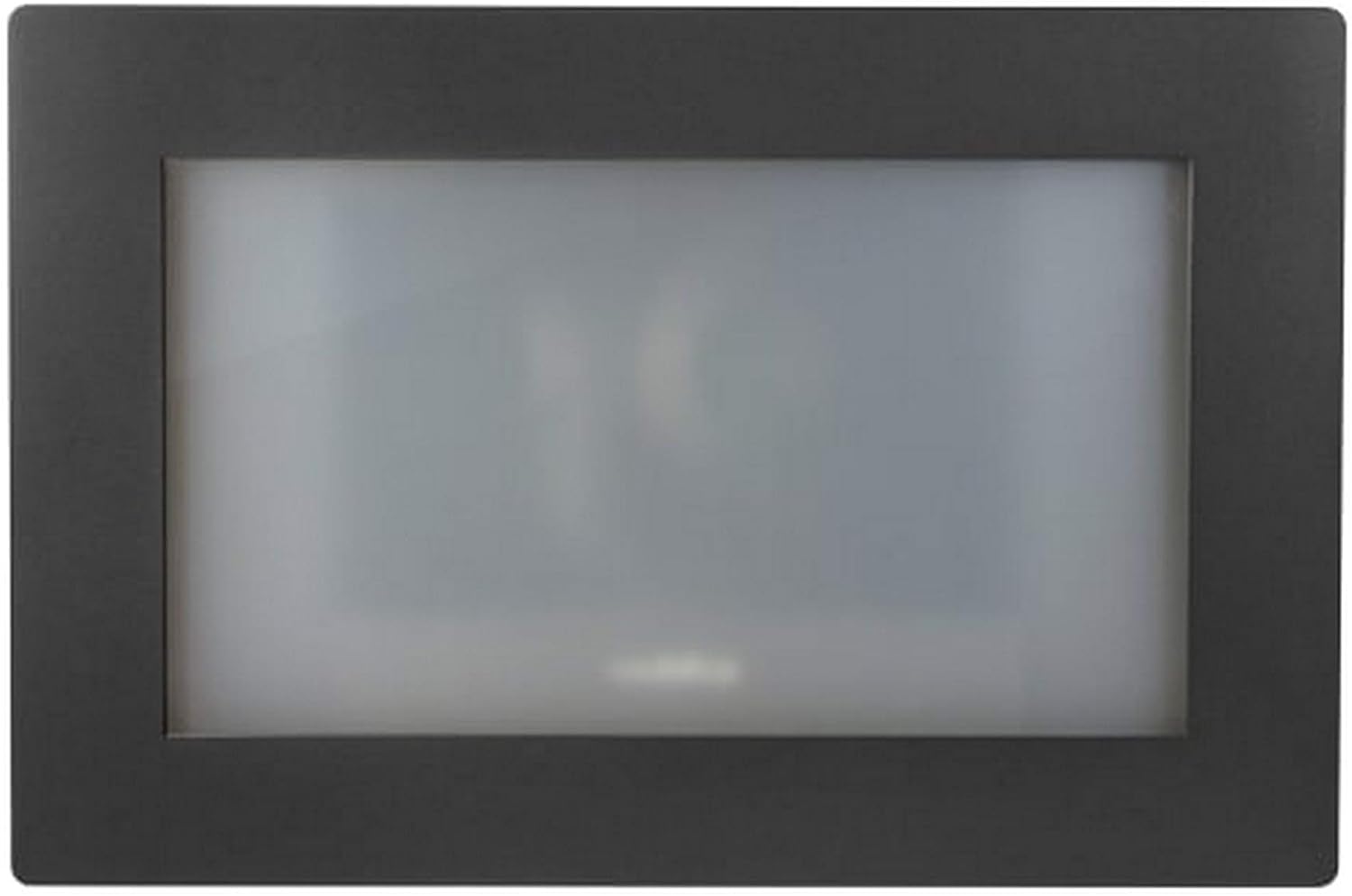
그림 1: 전면 view of the RoboSHOT IW Smart Glass PTZ Camera, showcasing its sleek black frame and the opaque smart glass panel.
3. 안전 정보
Always adhere to the following safety guidelines to ensure safe operation and prevent damage to the device or injury to personnel:
- 기기를 습기, 비 또는 극한 온도에 노출시키지 마십시오.
- 카메라 과열을 방지하기 위해 카메라 주변에 적절한 환기 시설을 설치하십시오.
- Only use power sources and cables specified by Vaddio.
- Do not attempt to disassemble, modify, or repair the device. Refer all servicing to qualified service personnel.
- 카메라를 강한 자기장에서 멀리 두세요.
4. 설정
4.1 카메라 장착
The RoboSHOT IW Smart Glass PTZ Camera is designed for indoor wall mounting. Select a location that provides the desired field of view and is structurally sound to support the camera's weight.
- Carefully unpack the camera and inspect for any shipping damage.
- Using the provided mounting template (if applicable), mark the drilling points on the wall.
- 표시된 위치에 예비 구멍을 뚫습니다.
- Secure the camera's mounting plate or the camera directly to the wall using the supplied screws and anchors. Ensure it is level and firmly attached.
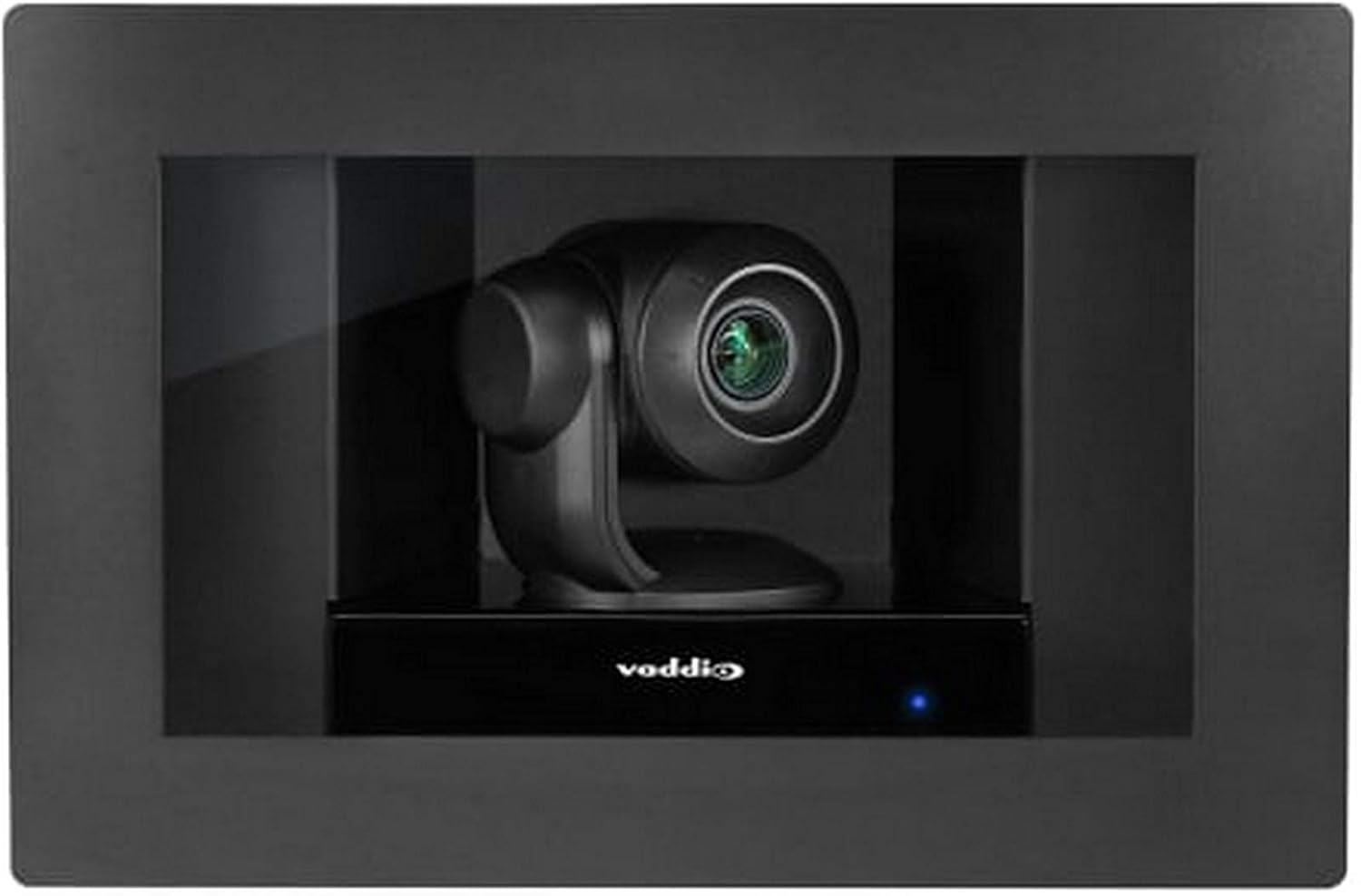
그림 2: 후면 view of the RoboSHOT IW Smart Glass PTZ Camera, illustrating the HDBaseT port and other potential connections.
4.2 카메라 연결
The camera utilizes HDBaseT for connectivity, allowing for flexible power and video transmission options.
- PoE+ Connection: For IP streaming and power, connect a standard Ethernet cable from a PoE+ enabled network switch or a Midspan Power Injector to the camera's HDBaseT port. This single cable provides both power and network data.
- HDBaseT Video Switch / OneLINK System: If using an HDBaseT video switch or a Vaddio OneLINK extension system for alternative video outputs (e.g., HD-SDI, HDMI, USB 3.0), connect the camera's HDBaseT port to the corresponding input on the switch or OneLINK receiver. Refer to the specific switch or OneLINK system's manual for detailed connection instructions.
- Ensure all cables are securely connected and routed to prevent strain or damage.
5. 사용 설명서
5.1 Initial Power-On and Smart Glass Activation
Once the camera receives power, it will initiate its startup sequence. The smart glass panel, which is opaque when off, will become transparent, revealing the PTZ camera lens.
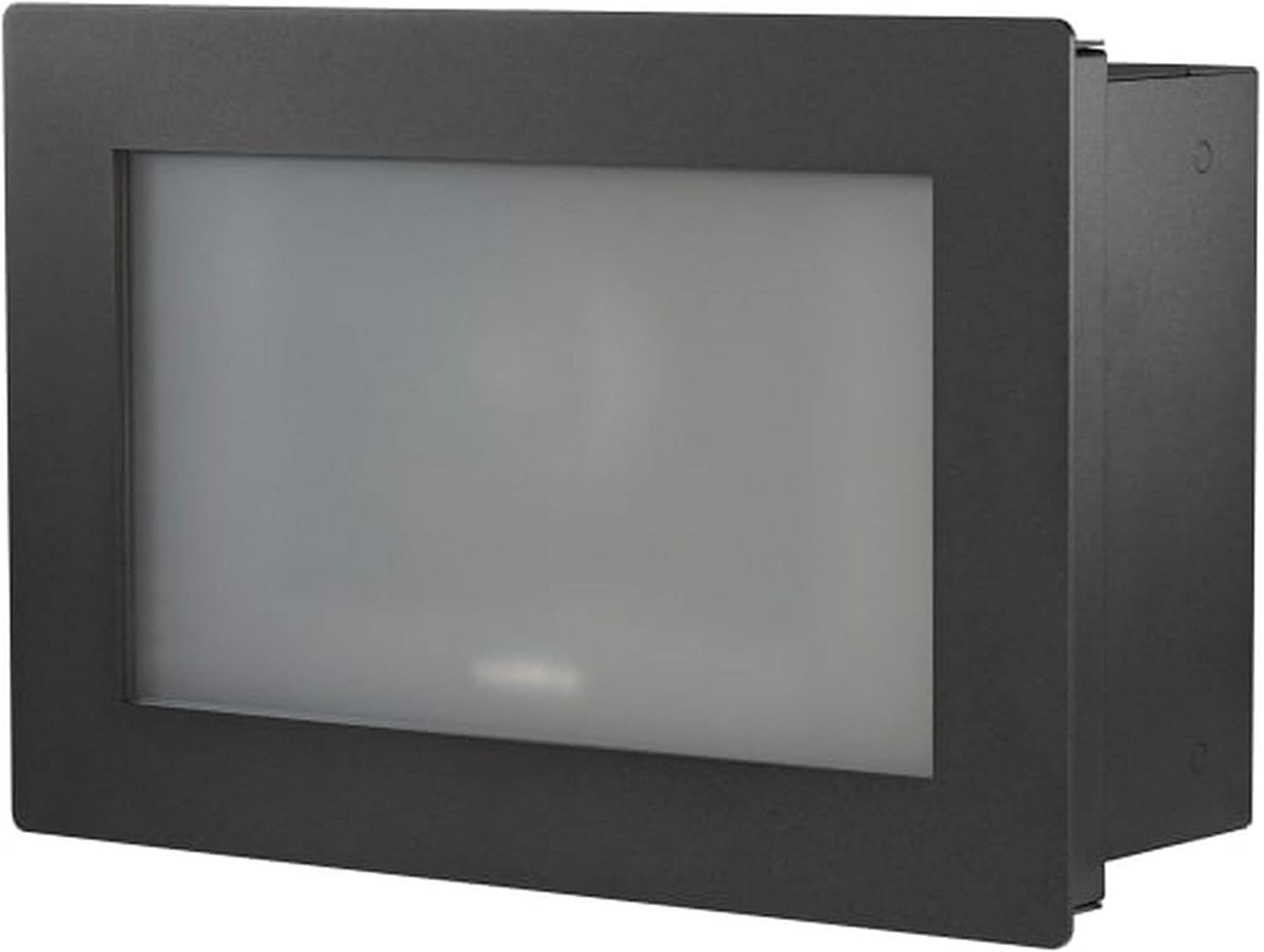
Figure 3: The RoboSHOT IW Smart Glass PTZ Camera with its smart glass panel activated, showcasing the integrated PTZ camera ready for operation.
5.2 카메라 제어
The camera supports control via Wi-Fi using a compatible controller (such as an Iris controller) or a remote control. It features full PTZ (Pan-Tilt-Zoom) functionality and optical zoom.
- 팬/틸트: Use the directional controls on your chosen controller or software interface to adjust the camera's horizontal (pan) and vertical (tilt) orientation to frame your desired view.
- 줌: Utilize the zoom controls to optically zoom in or out. The camera supports high-definition video capture at 1080p and 720p resolutions.
- Smart Glass Control: The smart glass panel can be toggled between opaque and transparent states, providing privacy when the camera is not actively in use. Refer to your control system's documentation for specific smart glass control commands.
5.3 비디오 스트리밍 및 녹화
For IP streaming, the camera can be configured via its web interface or compatible control software. It supports MPEG-4 video capture format.
- Access the camera's IP address through your network to reach its web 인터페이스.
- Log in to configure streaming parameters, including resolution, frame rates, and network settings.
- Integrate the camera with your preferred video management systems (VMS) or recording software for live monitoring and archival.
6. 유지관리
Regular maintenance helps ensure the longevity and optimal performance of your RoboSHOT IW Smart Glass PTZ Camera.
- 청소: Use a soft, dry, lint-free cloth to gently clean the exterior of the camera and the smart glass panel. Do not use abrasive cleaners, solvents, or harsh chemicals, as these can damage the finish or the smart glass.
- 펌웨어 업데이트: Periodically check the official Vaddio web사이트 (www.vaddio.com) for available firmware updates. Keeping the firmware up-to-date can provide performance enhancements, new features, and bug fixes. Follow the instructions provided with the firmware update carefully.
- 환경 조건: Ensure the camera continues to operate within its specified temperature and humidity ranges to prevent internal damage.
7. 문제 해결
| 문제 | 가능한 원인 | 해결책 |
|---|---|---|
| 전원이 안 들어옴 / 카메라가 켜지지 않음 | Loose power connection; PoE+ not active; faulty cable. | Check all cable connections. Verify PoE+ switch/injector is providing power. Try a different Ethernet cable. |
| 비디오 출력 없음 | Incorrect HDBaseT connection; network configuration issue (for IP streaming); display problem. | Ensure HDBaseT cable is correctly connected. Verify network settings and IP address. Test with a different display or input. |
| Camera Not Responding to Controls | Controller not paired; Wi-Fi interference; camera frozen. | Ensure controller is properly paired and within range. Reduce Wi-Fi interference. Power cycle the camera. |
| Smart Glass Not Clearing / Remaining Opaque | Power issue; control signal issue; internal fault. | Verify stable power supply. Check control commands. If problem persists, contact Vaddio support. |
| 비디오 품질이 좋지 않음 | Insufficient lighting; incorrect resolution settings; dirty lens. | Ensure adequate lighting. Adjust resolution settings. Clean the camera lens and smart glass. |
8. 사양
| 특징 | 세부 사항 |
|---|---|
| 모델 | RoboSHOT IW Smart Glass PTZ Camera |
| 연결 프로토콜 | Wi-Fi, Wired (HDBaseT) |
| 컨트롤러 유형 | Iris, Remote |
| 장착 유형 | 벽걸이형 |
| 비디오 캡처 해상도 | 1080p, 720p |
| 색상 | 검은색 |
| 무선 통신 기술 | 와이파이 |
| 폼 팩터 | 둥근 천장 |
| 재료 | 유리 |
| 품목 무게 | 0.96 온스(약 0.06파운드) |
| 저조도 기술 | 밤의 색깔 |
| 줌 타입 | 광학 줌 |
| 경고 유형 | 모션 전용 |
| 비디오 캡처 형식 | MPEG-4 |
| 포토 센서 기술 | CMOS |
| 국제 보호 등급 | IP54, IP67 |
| 전원 | AC/DC, PoE+ |
| 실내/실외 사용 | 실내 |
| 특징 | PTZ Technology, Smart Glass |
| 한국어: | 840077504601 |
9. 보증 및 지원
Vaddio products are designed for reliability and performance. For specific warranty terms and conditions applicable to your RoboSHOT IW Smart Glass PTZ Camera, please refer to the official Vaddio web사이트에 접속하거나 제품에 포함된 보증 카드를 확인하세요.
For technical assistance, troubleshooting, or service inquiries, please contact Vaddio Customer Support. When contacting support, please have your product model number (RoboSHOT IW Smart Glass PTZ Camera) and serial number readily available.
- Vaddio Official Web대지: www.vaddio.com
- 지원 연락처: Visit the Vaddio website's support section for regional phone numbers, email contacts, and online resources.


