1. 서론
The Cosmic Byte CB-GK-14 Sirius is a versatile mechanical keyboard designed for both wired and wireless use. Featuring Outemu Blue switches, per-key RGB backlighting, and multi-device Bluetooth connectivity, it offers a responsive and customizable typing and gaming experience. This manual provides detailed instructions for setup, operation, customization, and maintenance to ensure optimal performance.
2. 주요 특징
- 이중 연결: Supports both wired (USB) and Bluetooth modes for flexible usage across various devices.
- 안티 고스팅: Full N-key rollover in wired mode and 6-key anti-ghosting in Bluetooth mode ensure accurate input during intense sessions.
- Outemu Blue Switches: Provides a tactile and audible click feedback, ideal for typing and gaming.
- Per Key RGB Backlighting: Offers 18 pre-set backlight effects and 15 levels of brightness adjustment. Customize and store individual key backlighting.
- Long Key Life: Each key is rated for over 60 million operations, ensuring durability.
- 다중 기기 블루투스: Connects to up to three different Bluetooth devices simultaneously, allowing for easy switching.
- 폭넓은 호환성: Compatible with Windows, Android, Linux, and iOS operating systems.
- 통합 배터리: 1000mAh rechargeable lithium-ion battery for wireless operation with a range of up to 10 meters.
3. 설정 지침
3.1 유선 연결
- 키보드와 함께 제공된 USB 케이블을 찾으세요.
- USB 케이블의 한쪽 끝을 키보드의 USB 포트에 연결합니다.
- USB 케이블의 다른 쪽 끝을 컴퓨터의 사용 가능한 USB 포트에 연결합니다.
- 키보드가 자동으로 감지되어 바로 사용할 수 있습니다.
3.2 블루투스 연결
The keyboard supports up to three Bluetooth devices. Ensure the keyboard is charged before attempting Bluetooth pairing.
- 키보드 뒷면이나 측면에 있는 전원 스위치를 사용하여 키보드를 켜세요.
- 를 누르고 계세요 FN+Q, FN + 승, 또는 FN + 전자 keys for 3-5 seconds to enter Bluetooth pairing mode for the respective channel (Q, W, or E). The indicator light for the selected channel will flash rapidly.
- On your device (PC, mobile, tablet), enable Bluetooth and search for available devices.
- Select "CB-GK-14 Sirius" from the list of found devices.
- Follow any on-screen prompts to complete the pairing process. The indicator light will stop flashing once successfully paired.
- Repeat these steps for other devices using FN + 승 그리고 FN + 전자 for the other two Bluetooth channels.

이미지: 상단 view of the Cosmic Byte CB-GK-14 Sirius Mechanical Keyboard with RGB lighting active.
4. 사용 설명서
4.1 모드 간 전환
- 유선 모드 : Connect the USB cable. The keyboard will automatically switch to wired mode.
- 블루투스 모드 : Disconnect the USB cable. The keyboard will operate wirelessly. To switch between paired Bluetooth devices, press FN+Q, FN + 승, 또는 FN + 전자 briefly to select the desired channel.
4.2 멀티미디어 및 기능 키
The keyboard features dedicated multimedia keys and function key shortcuts. Refer to the keycaps for specific icons. Typically, these are accessed by pressing the FN key in combination with the F1-F12 keys or other designated keys.
- 볼륨 조절: Use the dedicated rotary dial on the right side of the keyboard to adjust volume. Press the dial to mute/unmute.
- 백라이트 강도: Use the dedicated rotary dial on the left side of the keyboard to adjust backlight brightness. Press the dial to cycle through backlight patterns.

이미지: 각도 view of the keyboard highlighting the RGB lighting and the control dials.
5. RGB 맞춤 설정
The CB-GK-14 Sirius offers extensive RGB backlighting options:
- 사전 설정 효과: Cycle through 18 different backlight effects using the dedicated backlight intensity dial (press to change patterns) or specific FN key combinations (refer to keyboard markings).
- 밝기 조정: Adjust the brightness of the backlighting using the dedicated backlight intensity dial (rotate). There are 15 levels of brightness.
- Custom Backlight Mode: The keyboard features an inbuilt flash memory to store your custom LED configurations. To customize individual key backlighting, refer to the specific instructions provided in the full product manual or Cosmic Byte's support resources.
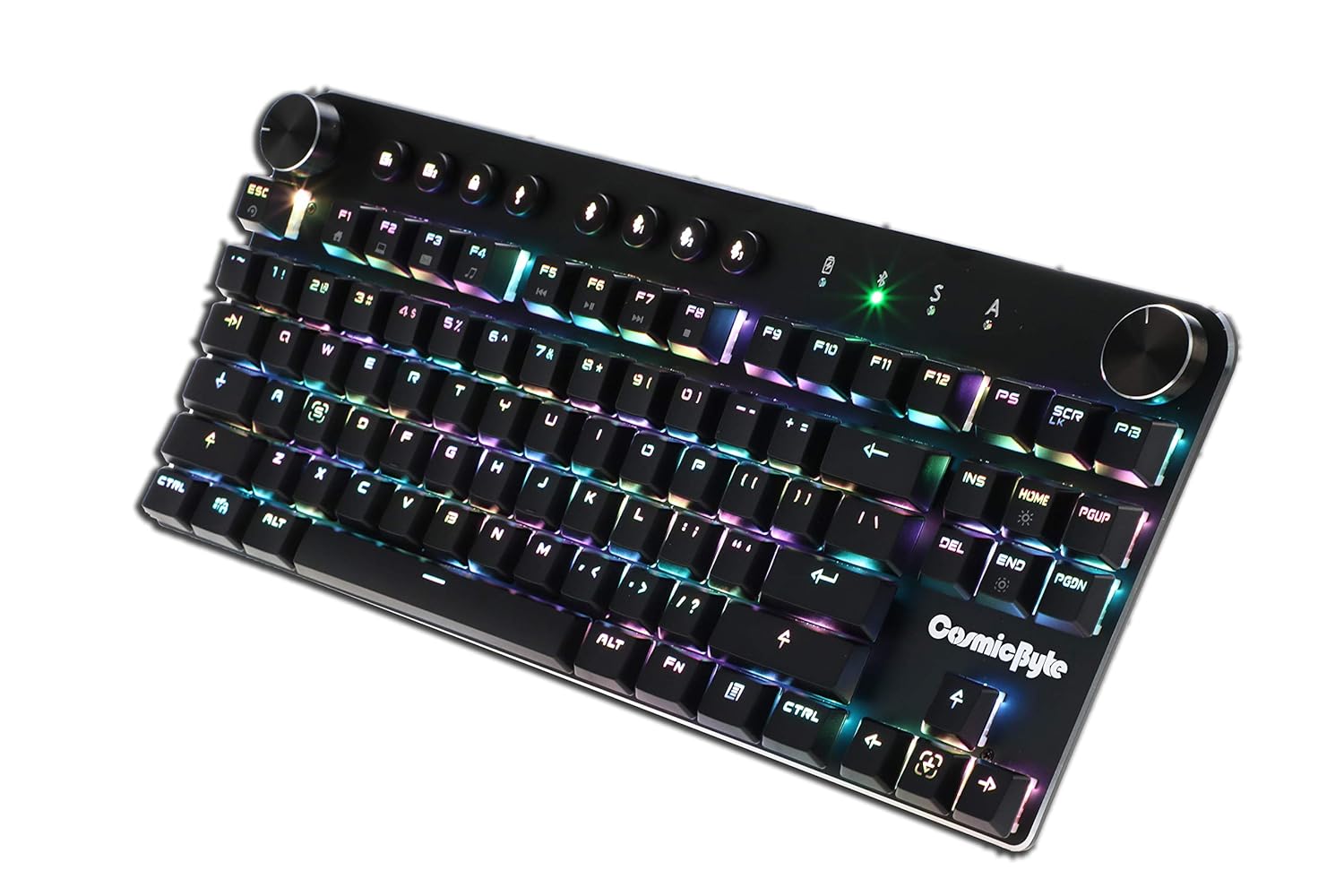
이미지: 클로즈업 각도 view 키보드 쇼c의asing the vibrant RGB lighting on the keys.
6. 유지관리
To ensure the longevity and optimal performance of your keyboard:
- 청소: 부드럽고 마른 천으로 키보드를 닦으세요. 더 깨끗하게 청소하려면 압축 공기를 사용하여 키캡 사이의 먼지와 이물질을 제거하세요. 강한 화학 물질이나 연마재는 사용하지 마세요.
- 배터리 관리 : For wireless use, charge the keyboard regularly. Avoid completely draining the battery frequently to prolong its lifespan.
- 저장: 키보드는 직사광선과 극한의 온도를 피해 시원하고 건조한 곳에 보관하세요.
7. 문제 해결
- 키보드가 응답하지 않음(유선):
- USB 케이블이 키보드와 컴퓨터에 모두 단단히 연결되어 있는지 확인하세요.
- 컴퓨터의 다른 USB 포트에 연결해 보십시오.
- 시스템 특정 문제를 배제하기 위해 다른 컴퓨터에서 키보드를 테스트하세요.
- 블루투스 연결 문제:
- 키보드가 블루투스 페어링 모드인지 확인하십시오(표시등이 깜빡임).
- 기기에서 블루투스가 활성화되어 있고 검색 가능한 상태인지 확인하세요.
- Remove any previous pairings of the keyboard from your device's Bluetooth settings and attempt to re-pair.
- 키보드 배터리가 충분히 충전되었는지 확인하세요.
- Keep the keyboard within the 10-meter Bluetooth range of your device.
- Backlight Not Working/Customization Issues:
- Check the brightness level using the dedicated dial.
- Ensure the keyboard is not in a mode where backlighting is disabled.
- For custom backlight issues, ensure the settings were saved correctly.
- 키가 등록되지 않음:
- 해당 키에 묻은 이물질을 제거하기 위해 깨끗하게 닦으세요.
- If using Bluetooth, ensure anti-ghosting limits (6-key) are not being exceeded for simultaneous presses.
8. 사양
| 특징 | 세부 사항 |
|---|---|
| 상표 | 우주 바이트 |
| 모델명 | Sirius Blue Switch |
| 연결 기술 | 무선(블루투스), 유선(USB) |
| 키보드 설명 | 게임 기계식 키보드 |
| 스위치 유형 | Outemu Blue Switches |
| 백라이트 | Per Key RGB with 18 effects, 15 brightness levels |
| 안티 고스팅 | All key (wired), 6-key (Bluetooth) |
| 배터리 | 1000mAh 충전식 리튬 이온 |
| 블루투스 범위 | 10 미터 |
| 호환 장치 | Laptop, PC, Mobiles, Tablets |
| 운영 체제 | Windows, Android, Linux, iOS |
| 품목 무게 | 800g |
| 제품 치수 | 34 x 14 x 50cm |
9. 보증 및 지원
9.1 보증 정보
The Cosmic Byte CB-GK-14 Sirius Mechanical Keyboard comes with a 1년 보증 against manufacturing defects. Please note that physical damage, water damage, and tampered products are not covered under this warranty.
9.2 고객 지원
For any warranty claims or technical assistance, please contact Cosmic Byte customer support. You can raise a ticket through their customer support portal or directly email them.
Video: This video illustrates the Cosmic Byte warranty claim process, detailing steps for submitting a claim and product replacement procedures. (Note: Actual video URL JSON으로 제공되지 않으므로 플레이스홀더를 사용합니다.)
When contacting support, be prepared to provide your purchase invoice, product images from all angles, and a short video demonstrating the issue, if applicable. This will help expedite the support process.


