소개
Thank you for choosing the AULA F2088 Mechanical Gaming Keyboard. This manual provides detailed instructions for setting up, operating, and maintaining your new keyboard to ensure optimal performance and longevity. The AULA F2088 is a full-size USB wired mechanical keyboard designed for gaming and general computer use, featuring a detachable ergonomic wrist rest, multimedia control knob, and customizable RGB backlighting.

Image: The AULA F2088 Mechanical Gaming Keyboard, showcasin전체 레이아웃과 생생한 RGB 백라이팅을 갖추고 있습니다.
설정
1. 키보드 연결
- Locate the USB cable attached to the AULA F2088 keyboard.
- Plug the USB-A connector into an available USB port on your computer (PC, laptop, or gaming console).
- The keyboard is plug-and-play and should be automatically recognized by your operating system without requiring additional driver installation.
2. Attaching the Ergonomic Wrist Rest
- The AULA F2088 comes with a magnetic ergonomic wrist rest.
- Align the wrist rest with the bottom edge of the keyboard. The magnets will snap it into place, providing comfortable support for extended use.

Image: The AULA F2088 keyboard with its magnetic wrist rest securely attached, designed for ergonomic comfort.
3. 키보드 기울기 조정
- Flip the keyboard over to reveal the underside.
- Locate the two kickstands at the top corners.
- Flip out the kickstands to elevate the keyboard to a more comfortable typing angle.
작동 지침
1. Backlight Modes and Customization
- The AULA F2088 features multiple RGB backlight modes.
- To cycle through different backlight effects, press the dedicated multimedia knob (often labeled with a light icon).
- To adjust brightness, rotate the multimedia knob.
- Some models may offer additional customization through dedicated software or key combinations (refer to specific product documentation if available).

Image: Close-up of the AULA F2088 keyboard's multimedia control area, highlighting the M1, M2, M3 buttons for programmable lighting and the central knob for light effects.
2. 멀티미디어 제어 노브
- The large knob on the top right of the keyboard serves multiple functions:
- 볼륨 조절: Rotate the knob left or right to decrease or increase system volume.
- 음소거/음소거 해제: 노브를 눌러 오디오를 음소거하거나 음소거 해제하세요.
- 백라이트 모드: As mentioned above, pressing the knob also cycles through backlight modes.

이미지: 상세 view of the AULA F2088's multi-function alloy knob, used for multimedia control and backlight adjustments.
3. 주요 특징
- 기계식 스위치: The F2088 uses mechanical switches (e.g., Black Switch variant) for tactile feedback and durability.
- 안티 고스팅: The keyboard supports full N-key rollover (anti-ghosting), ensuring every keypress is registered accurately, even during rapid simultaneous inputs.
- Double-Injection Keycaps: The keycaps are made with a double-injection process (PC+ABS) for enhanced durability, preventing fading and scratching, and resisting oil buildup.
- Satellite Switch Design: This design ensures more stable key rebound, preventing keys from getting stuck and providing a comfortable typing experience.

Image: Diagram illustrating the double-injection keycap construction of the AULA F2088, showing the translucent PC and Black ABS Resin layers.

이미지: 클로즈업 view of the AULA F2088's satellite switch design, which contributes to stable key rebound and overall durability.
4. 공식 제품 영상
영상: AULA MALL의 공식 제품 소개 영상asing the AULA F2088 Mechanical Gaming Keyboard, highlighting its detachable wrist rest and various features.
유지
1. 키보드 청소
- Due to the elevated design of the keycaps, the F2088 is relatively easy to clean.
- 압축 공기 캔을 사용하여 키 사이의 먼지와 이물질을 불어내십시오.
- For stubborn dirt, gently wipe the keycaps and keyboard surface with a soft, damp 천으로 닦아주세요. 과도한 습기는 피해주세요.
2. 키캡 및 스위치 교체
- The keyboard may come with a keycap puller and extra switches.
- To remove a keycap, use the keycap puller to gently grasp the keycap and pull upwards.
- To replace a switch (if applicable and if the keyboard is hot-swappable), use a switch puller to carefully remove the switch, then align and press the new switch into place.
문제 해결
- 키보드가 응답하지 않음: Ensure the USB cable is securely connected to both the keyboard and the computer. Try plugging it into a different USB port.
- 키가 등록되지 않음: If specific keys are not working, ensure no debris is lodged beneath them. If the issue persists, and you have spare switches, consider replacing the faulty switch (if the keyboard supports hot-swapping).
- 백라이트 문제: If backlighting is not working or is stuck, try cycling through the modes using the multimedia knob or refer to the manufacturer's website for specific reset procedures.
- Metallic/Tinny Sound from Spacebar/Backspace: Some users may notice a slightly metallic sound from larger keys. This is often characteristic of mechanical keyboards and can sometimes be mitigated with modifications like lubricating stabilizers, though this is an advanced procedure.
명세서
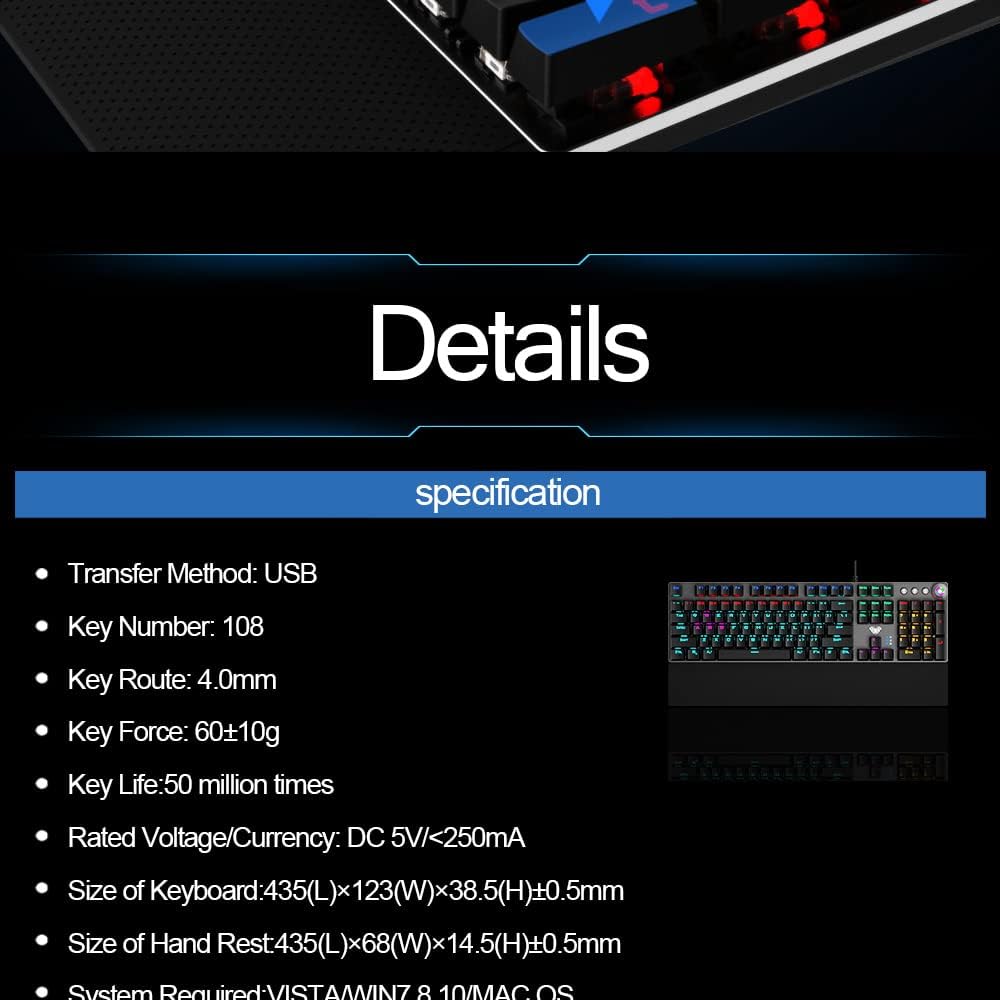
Image: A visual representation of the AULA F2088 keyboard's detailed specifications.
| 특징 | 세부 사항 |
|---|---|
| 품목 무게 | 2.25파운드 |
| 제조업체 | 아울라 |
| 품목 모델 번호 | F2088 |
| 연결 기술 | USB 유선 |
| 키보드 설명 | 노름 |
| 추천 용도 | 노름 |
| 제품 치수 | 17.13인치 길이 x 4.84인치 너비 x 1.5인치 높이 |
| 재료 | Acrylonitrile Butadiene Styrene, Metal, Plastic, Silicone |
| 스위치 유형 | 기계적 |
| 키보드 레이아웃 | 쿼티 |
| 키 번호 | 108 |
| 주요 경로 | 4.0mm |
| 키포스 | 60±10g |
| 키 라이프 | 50만번 |
| 정격 볼륨tag전자/현재 | DC 5V/<250mA |
보증 및 지원
보증 정보, 기술 지원 또는 추가 지원이 필요하시면 공식 AULA를 참조하십시오. web사이트를 방문하거나 고객 서비스에 직접 문의하세요. 보증 청구에 대비해 구매 증빙 자료로 구매 영수증을 보관하세요.


