1. 소개 및 이상view
The NEBULA Cosmos Max 4K UHD Projector D2150 delivers a true cinema experience with stunning 4K UHD resolution. Enjoy immersive 360° true 3D audio powered by Dolby Digital Plus and Sound Dimension. This projector features Android TV 9.0, providing access to over 5000 apps for endless entertainment. Advanced image technologies like HDR10 and HLG ensure sensational visuals, while automatic and manual keystone correction, along with 3-second autofocus, simplify setup. The Cosmos Max is designed for a premium home theater and entertainment experience.
2. 상자 안에 무엇이 들어있나요?
- NEBULA Cosmos Max Projector
- 원격 제어
- 빠른 시작 가이드
- 전원 어댑터
3. 제품 특징
- 진정한 영화 경험: Watch your favorite movies, sports events, games, and more in astonishing quality with Cosmos Max’s 4K UHD image.
- A New Dimension of Sound: With Dolby Digital Plus and Sound Dimension, Cosmos’s speakers have been optimized to deliver 360° of true 3D audio.
- Adjustable Image Size: Change the size of Cosmos Max’s image without ever having to move the projector courtesy of the built-in digital zoom. Max out your movies at 150 inches, or scale things down for a more intimate affair—all with a simple tap of the remote.
- Upscale Everything: Cosmos Max breathes new life into your old DVDs, videos, and even live TV broadcasts thanks to Hybrid Log Gamma (HLG). It automatically detects when you’re watching non-HDR content and upscales it in real-time so everything you watch looks sensational.
- 끝없는 엔터테인먼트: Whether you want to indulge in an ice-cream-fueled Prime Video binge or watch the big game via the ESPN app, Cosmos has you covered. Choose from over 5000 apps including Hulu, Disney+, HBO, and many more with Android TV. Note: For peak performance, please update to the latest firmware.
4. 설정 가이드
4.1 Initial Power On & Placement
Place the Nebula Cosmos Max projector on a stable, flat surface. Connect the power adapter to the projector and a power outlet. Press the power button on the device or remote to turn it on.
4.2 Keystone Correction & Focus Adjustment
The projector supports Auto (Vertical ±40°) and Manual (Horizontal ±40°) keystone correction. If the projected image is tilted, turn off auto keystone correction via "Settings > Projector Settings > Keystone Correction" and then adjust manually. To trigger autofocus, slightly move the device or press the "focus" button on the remote.

Image: Nebula Cosmos Max projecting a large, clear image onto a wall, demonstrating its adjustable image size feature.
4.3 Installing Apps (e.g., Netflix)
To install apps like Netflix, go to the Google Play Store. 검색 and install the "Nebula Manager" app. Once installed, open "Nebula Manager" and install Netflix through it. For better navigation within Netflix, it is recommended to install the "Nebula Connect" app on your phone (from Google Play Store or Apple App Store) and use its mouse mode.
Video: Official guide on how to install and use Netflix on the Nebula Cosmos Max projector.

Image: Screenshot of the Nebula Manager app interface on the projector screen, highlighting the Netflix icon for installation.
4.4 Connecting iOS Devices (iPhone, iPad, MacBook)
To connect your iOS device, install the "AirScreen" app from the Google Play Store on your projector. Ensure both your Nebula Cosmos Max and your iOS device are connected to the same Wi-Fi network.
Video: Official tutorial on how to screen mirror and cast content from an iPhone to the Nebula Cosmos Max projector.

Image: Screenshot of the AirScreen app interface on the projector screen, illustrating the steps to connect iOS devices for screen mirroring.
4.5 Playing Media from USB Flash Drive
To play movies or other media from a USB flash drive, install a file management app (e.g., File Explorer, File Manager) and a video player from the Google Play Store. Then, you can access and play content stored on your USB flash drive.

Image: Screenshot of a file management app on the projector screen, displaying content from a connected USB drive.
5. 사용 설명서
5.1 안드로이드 TV 탐색
Use the provided remote control to navigate the Android TV 9.0 interface. Access your favorite apps, search for content, and manage settings directly from the home screen.

Image: The Nebula Cosmos Max displaying the Android TV home screen, showing various streaming app icons and navigation options.
5.2 이미지 설정 조정
Access the image settings menu to customize your viewing experience. Options include HDR modes (Standard, Vivid, Sport, Movie, Game), brightness, contrast, color temperature, and more. Experiment with these settings to achieve your preferred picture quality.

Image: A close-up of a tiger's face, with a magnified inset demonstrating the fine detail and clarity of 4K Ultra HD resolution.
5.3 소리 설정 조정
The Cosmos Max features 360° true 3D audio with Dolby Digital Plus. You can adjust sound modes (Standard, Music, Movie, Sports), equalizer details, and advanced settings. The projector also supports DTS Virtual X and Dolby Atmos for enhanced audio. You can select output devices including internal speakers, Bluetooth, HDMI eARC, or S/PDIF.
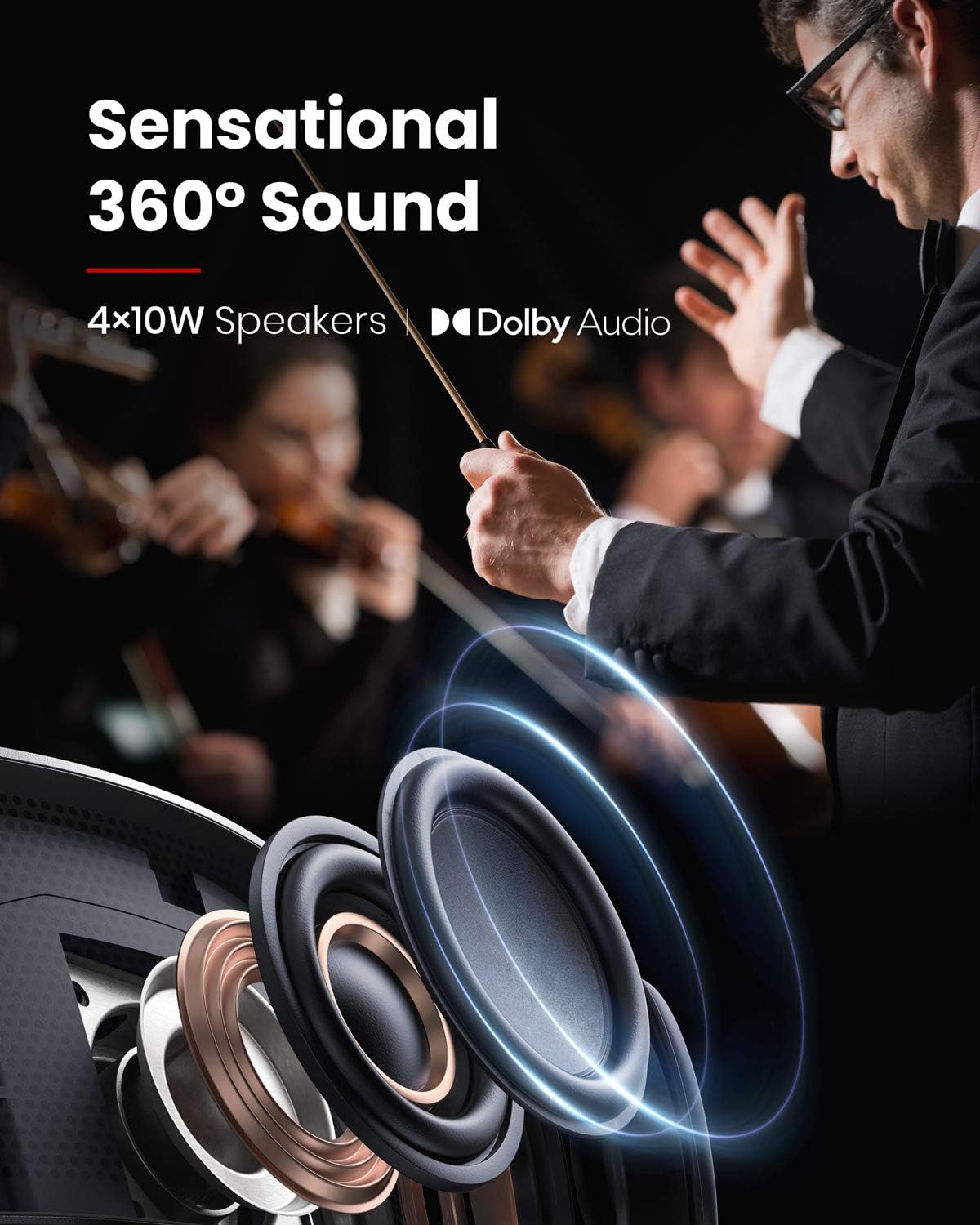
Image: A diagram highlighting the projector's 4x10W speakers and Dolby Audio branding, emphasizing its sound capabilities.
5.4 눈 보호 기능
The projector is equipped with an eye protection feature that automatically dims the light if an object (like a person or pet) gets too close to the lens, preventing direct exposure to the bright light.

Image: A close-up of the projector's lens, showing a hand interacting with the device to trigger autofocus, which is also linked to eye protection.
6. 연결성
The Nebula Cosmos Max offers a variety of connectivity options:
- HDMI : 2 ports (HDMI 1, HDMI 2/eARC, HDMI 3) for connecting devices like Blu-ray players, gaming consoles, or streaming sticks.
- USB-A: 2 ports (USB 1, USB-A) for playing media from USB flash drives or connecting USB accessories.
- 광학: 1 port (S/PDIF) for high-quality audio output to external sound systems.
- LAN : 유선 인터넷 연결용.
- AV 입력 : For connecting older audio/video equipment.
- SERVICE USB: 서비스 및 유지관리 목적.
- 와이파이: Dual Frequency 2.4/5GHz for wireless internet connectivity.
- 블루투스: BT4.2 for connecting external Bluetooth speakers or headphones.
7. 사양
| 특징 | 사양 |
|---|---|
| 디스플레이 기술 | 0.47DMD in 4K DLP |
| 해결 | 3840x2160(4K UHD) |
| 명도 | 1,500 ANSI 루멘 |
| LED 수명 | 30,000시간 |
| 투사율 | 1.2 |
| 초점 조정 | 3-second autofocus |
| 키스톤 보정 | Auto (vertical ±40°), Manual (horizontal ±40°) |
| 스피커 | 40와트 |
| 와이파이 | Dual Frequency 2.4/5GHz |
| 블루투스 | BT4.2 |
| OS | 안드로이드 TV 9.0 |
| 크롬캐스트 | 지원됨 |
| 앱스토어 | 구글 플레이 |
| 오디오 디코드 | Dolby support |
| 비디오 디코드 | HDR10 |
| 치수 | 13.78 x 9.84 x 3.94 인치 |
| 품목 무게 | 3.8파운드 |
8. 문제 해결
- Netflix Installation: If Netflix is not pre-installed, install "Nebula Manager" from Google Play Store and then install Netflix through it. Use "Nebula Connect" app on your phone for mouse mode navigation.
- iOS 기기 연결: Install "AirScreen" from Google Play Store on the projector and ensure both devices are on the same Wi-Fi network.
- USB 재생 : 설치하다 file management app (e.g., File Explorer) and a video player from Google Play Store to play content from a USB flash drive.
- Tilted Image: If the projected image is tilted, turn off auto keystone correction via "Settings > Projector Settings > Keystone Correction" and manually adjust vertical and horizontal keystone.
- Autofocus Not Triggering: Slightly move the device or press the "focus" button on the remote to trigger autofocus.
9. 유지관리
To ensure optimal performance and longevity of your Nebula Cosmos Max projector, follow these maintenance guidelines:
- 깨끗하게 유지하십시오: Regularly clean the projector lens with a soft, lint-free cloth. Avoid abrasive materials or harsh chemicals.
- 먼지 제어: Keep the projector in a clean, dust-free environment. Periodically clean the ventilation grilles to prevent dust buildup, which can affect cooling.
- 펌웨어 업데이트: Ensure the projector's firmware is up to date for peak performance and access to the latest features. Check for updates via the system settings.
- 적절한 환기: 통풍구를 막지 마십시오. 프로젝터의 과열을 방지하기 위해 적절한 공기 흐름을 확보하십시오.
- 저장: 장기간 사용하지 않을 경우 프로젝터를 서늘하고 건조한 곳에 보관하십시오. 가능하면 원래 포장이나 보호 케이스에 넣어 보관하는 것이 좋습니다.
10. 보증 및 지원
Your NEBULA Cosmos Max D2150 projector comes with a standard manufacturer's warranty. Please refer to the Quick Start Guide included in your package for specific warranty terms and conditions. For technical support or any inquiries, please visit the official NEBULA support web사이트를 방문하거나 고객 서비스에 문의하세요.

Image: The Top FAQ section from NEBULA, providing common questions and solutions, which can also serve as a support resource.


