1. 서론
This manual provides detailed instructions for the installation, operation, and maintenance of your Pantum BM2300AW Multifunction Printer. This device is designed to perform printing, scanning, and copying functions efficiently. Please read this manual thoroughly before using the printer to ensure proper operation and to prevent damage.
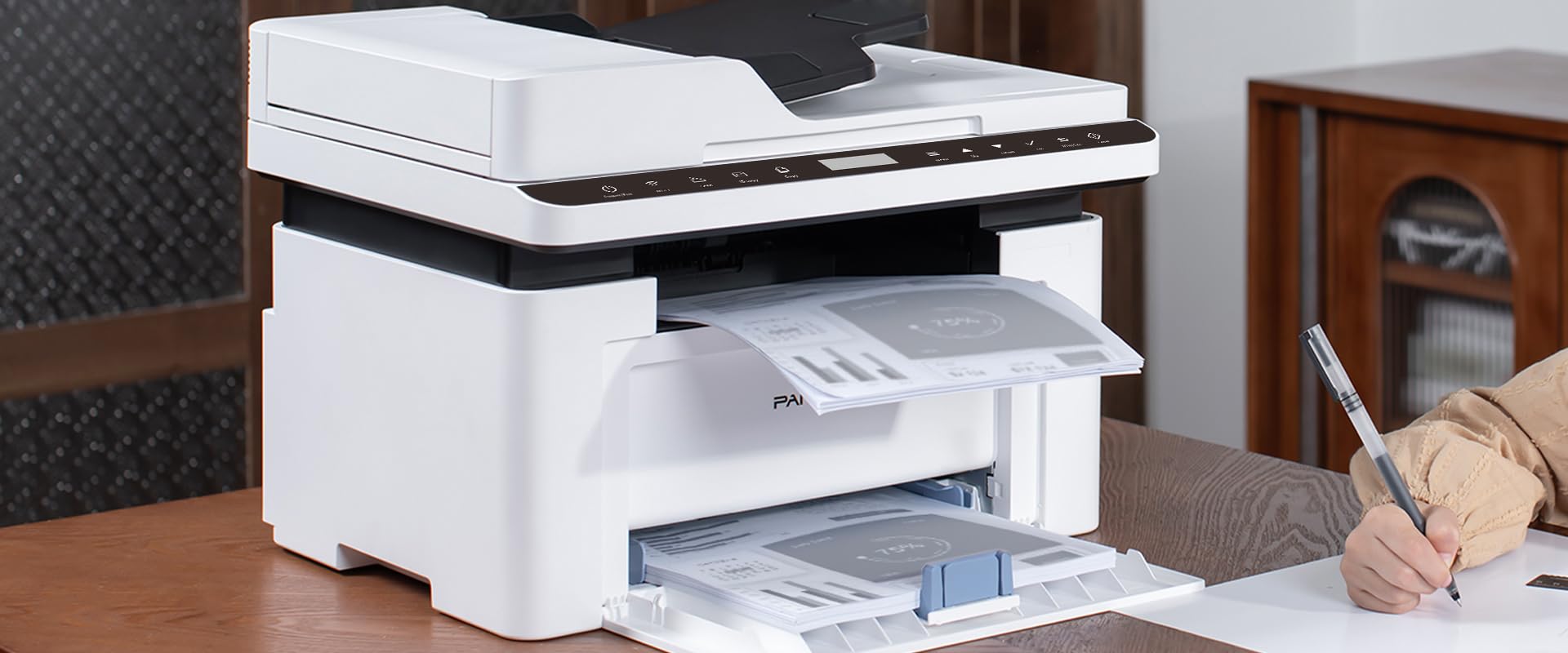
Image 1.1: The Pantum BM2300AW Multifunction Printer in use, showing paper in both the output and input trays. A user is seen writing nearby.
2. 설정
2.1 풀기
- 프린터의 포장을 조심스럽게 꺼냅니다.
- 프린터 외부와 내부의 모든 보호 테이프와 포장재를 제거하세요. 자세한 위치는 빠른 설치 가이드를 참조하세요.
- 프린터를 통풍이 잘 되는 안정적이고 평평한 표면에 놓으세요.
2.2 전원 연결
- 전원 코드를 프린터의 전원 입력 단자에 연결합니다.
- 전원 코드의 다른 쪽 끝을 접지된 전기 콘센트에 꽂습니다.
- 전원 버튼을 눌러 프린터를 켭니다.
2.3 토너 카트리지 설치
- 프린터의 앞면 덮개를 엽니다.
- 토너 카트리지를 수평으로 여러 번 부드럽게 흔들어 토너가 고르게 분산되도록 하십시오.
- 토너 카트리지를 프린터에 딸깍 소리가 날 때까지 삽입합니다.
- 앞면 덮개를 닫습니다.
2.4 용지 적재
- 용지함을 빼냅니다.
- 용지 가이드를 용지 크기에 맞게 조정하십시오.
- 용지를 용지함에 넣을 때 평평하고 최대 적재선 아래에 놓이도록 하세요.
- 용지함을 프린터에 다시 밀어 넣으세요.
2.5 Driver Installation and Network Connection
- USB 연결: Connect a USB cable from your computer to the printer's USB port. The operating system may automatically detect and install drivers. If not, proceed to step 3.
- 이더넷 연결: 네트워크 라우터 또는 스위치에서 프린터의 이더넷 포트로 이더넷 케이블을 연결하십시오.
- Visit the official Pantum web사이트 (www.pantum.com) to download the latest drivers and software for your BM2300AW model.
- 화면의 지시에 따라 드라이버 설치를 완료하세요.
3. 사용 설명서
3.1 제어판 이상view
The Pantum BM2300AW features a 3-inch display screen and various buttons for navigation and function selection. Familiarize yourself with the layout for easy operation.
- 전원 버튼: 프린터를 켜거나 끕니다.
- 메뉴/설정 버튼: Accesses printer settings and configuration options.
- 탐색 버튼: Used to scroll through menus on the display.
- 시작 버튼: 인쇄, 복사 또는 스캔 작업을 시작합니다.
- 취소 버튼 : 현재 작업을 중지합니다.
3.2 문서 인쇄
- 프린터의 전원이 켜져 있고 컴퓨터나 네트워크에 연결되어 있는지 확인하세요.
- 컴퓨터에서 인쇄하려는 문서를 엽니다.
- 선택하다 File > 인쇄.
- Choose the Pantum BM2300AW from the list of available printers.
- 필요에 따라 인쇄 설정(예: 사본 수, 용지 크기, 양면 인쇄)을 조정합니다.
- 딸깍 하는 소리 인쇄.
3.3 문서 복사
- 스캐너 유리에 문서를 앞면이 아래로 향하게 놓거나 자동 문서 공급기(ADF)에 앞면이 위로 향하게 놓습니다.
- 프린터 제어판에서 다음을 선택하십시오. 복사 기능.
- Use the navigation buttons to adjust settings such as number of copies, copy quality, or enlargement/reduction.
- 를 누르세요 시작 버튼을 눌러 복사를 시작합니다.
3.4 문서 스캔
- 문서를 스캐너 유리나 ADF에 놓으세요.
- On your computer, open the scanning software provided with your Pantum printer (or use a standard scanning application).
- Select the Pantum BM2300AW as your scanner.
- 해상도, 색상 모드, 저장 폴더 등의 스캔 설정을 선택하세요.
- 딸깍 하는 소리 주사 스캔 프로세스를 시작합니다.
4. 유지관리
4.1 토너 카트리지 교체
- When the printer indicates a low toner level, order a replacement cartridge.
- 프린터를 끄고 전원 코드를 뽑습니다.
- Open the front cover and carefully remove the old toner cartridge.
- Unpack the new toner cartridge and gently shake it.
- 새 카트리지를 프린터에 끼워서 제자리에 고정되도록 합니다.
- Close the front cover, plug in the power cord, and turn on the printer.
4.2 프린터 청소
- 프린터 외부를 부드러운 천으로 정기적으로 닦아주세요.amp, 보푸라기 없는 천.
- 스캐너 유리를 닦을 때는 유리 세정제를 천에 묻혀 사용하십시오 (유리에 직접 닦지 마십시오).
- Refer to the full user manual on the Pantum website for detailed internal cleaning procedures.
4.3 용지 걸림 해결
- If a paper jam occurs, the printer display will show an error message.
- 프린터를 끄고 플러그를 뽑으세요.
- Open the covers and trays as indicated by the error message or the printer's internal diagrams.
- Carefully pull out any jammed paper in the direction of the paper path. Avoid tearing the paper.
- 모든 덮개와 트레이를 닫고 프린터 전원 코드를 연결한 후 프린터 전원을 다시 켜십시오.
5. 문제 해결
This section addresses common issues you might encounter. For more complex problems, consult the full user manual or contact Pantum support.
5.1 프린터가 응답하지 않음
- 프린터 전원이 켜져 있고 전원 코드가 제대로 연결되어 있는지 확인하십시오.
- Check the USB or Ethernet cable connection between the printer and your computer/network.
- 컴퓨터에 올바른 프린터 드라이버가 설치되고 선택되었는지 확인하세요.
- 프린터와 컴퓨터를 다시 시작하세요.
5.2 인쇄 품질이 좋지 않음
- Check the toner level and replace the cartridge if it is low.
- 인쇄 작업에 적합한 용지를 사용하고 있는지 확인하세요.
- Clean the printer's internal components as per the maintenance section or full manual.
- Adjust print quality settings in your computer's print dialogue.
5.3 Paper Jams Occur Frequently
- Ensure paper is loaded correctly and the paper guides are adjusted snugly against the paper stack.
- 용지함에 용지를 너무 많이 넣지 마세요.
- 프린터 사양(무게, 종류)에 맞는 용지를 사용하십시오.
- 용지 경로 내부에 이물질이 있는지 확인하십시오.
6. 사양
| 특징 | 세부 사항 |
|---|---|
| 상표 | 판텀 |
| 모델 번호 | BM2300AW (Item No. S5627949) |
| 제품 크기(D x W x H) | 35 x 35 x 25 센티미터 |
| 품목 무게 | 10 킬로그램 |
| 연결 기술 | USB, 이더넷 |
| 인쇄 기술 | 컬러 레이저 |
| 최대 흑백 인쇄 속도 | 분당 30페이지 |
| 최대 컬러 인쇄 속도 | 분당 15페이지 |
| 최대 흑백 인쇄 해상도 | 600x600 dpi or higher |
| 최대 컬러 인쇄 해상도 | 4800 x 1200dpi |
| 양면 인쇄 | 예 |
| 최대 미디어 크기 | A3 |
| 최대 용지 공급 용량 | 100장 |
| 스캐너 유형 | 시트 공급 |
| 화면 크기 | 3 인치 |
| 전력 소비 | 50 와트 |
| 색상 깊이 | 36비트 |
7. 보증 정보
The Pantum BM2300AW Multifunction Printer comes with a limited warranty. For specific terms, conditions, and duration of your warranty, please refer to the warranty card included with your product or visit the official Pantum web사이트. 보증 청구를 위해 구매 증빙 자료를 보관하세요.
8. 고객 지원
For further assistance, technical support, driver downloads, or frequently asked questions, please visit the official Pantum support web대지:
You may also find contact information for your regional support center on the web대지.


