소개
This manual provides essential information for setting up, operating, maintaining, and troubleshooting your VAIO SX12 laptop. Please read this manual thoroughly to ensure proper use and to maximize the performance and longevity of your device.

그림 1: 전면 view of the VAIO SX12 laptop with the screen open.
설정
1. 포장 풀기 및 초기 검사
포장에서 모든 구성품을 조심스럽게 꺼내십시오. '구성품 목록'에 나열된 모든 품목이 있는지, 손상되지 않았는지 확인하십시오. 누락되거나 손상된 품목이 있는 경우 고객 지원 센터에 문의하십시오.
- VAIO SX12 Laptop
- AC 어댑터
- 청소용 천
2. AC 어댑터 연결하기
Connect the AC adapter to the power input port on the laptop and then plug the adapter into a wall outlet. The battery will begin charging automatically.
3. 초기 전원 켜기
Press the power button located on the top right of the keyboard. The laptop will boot up and guide you through the initial Windows 10 Pro setup process.
운영
1. 키보드 및 터치패드
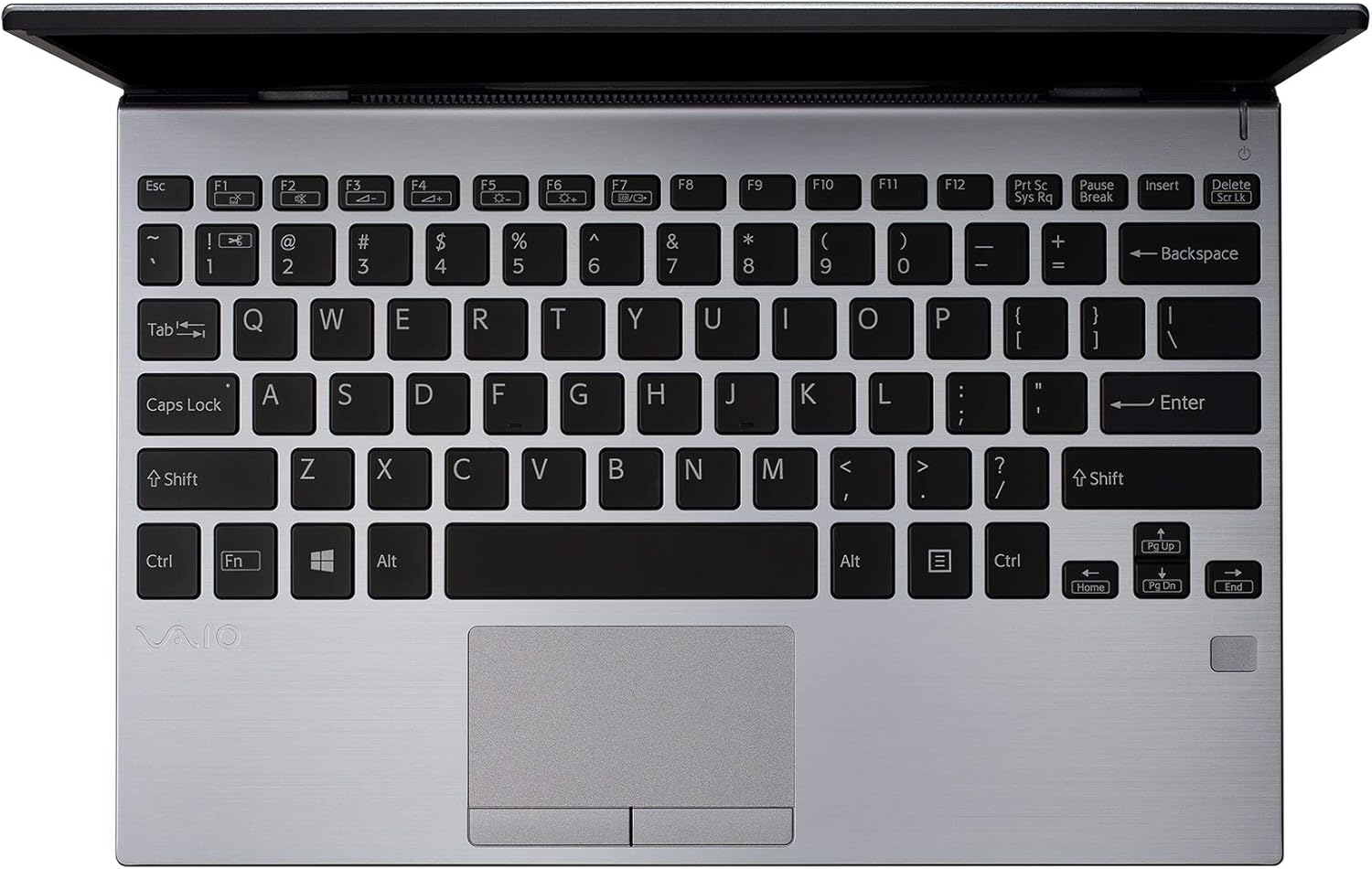
그림 2: 상향식 view of the VAIO SX12 keyboard and touchpad.
The VAIO SX12 features a full-sized keyboard and a precision touchpad. Familiarize yourself with the function keys (F1-F12) which control various system settings such as screen brightness, volume, and wireless connectivity.
- 기능 키: Use the 'Fn' key in combination with F1-F12 for secondary functions.
- 터치패드: Supports multi-touch gestures for scrolling, zooming, and navigating.
2. 주변기기 연결하기
The VAIO SX12 offers a variety of ports for connecting external devices.

그림 3: 왼쪽 view of the VAIO SX12, showing the power input, USB ports, HDMI, Ethernet, and VGA ports.

그림 4: 오른쪽 view of the VAIO SX12, showing the SD card slot, USB ports, and audio jack.
- USB 포트: 외장 드라이브, 키보드, 마우스 등의 USB 장치를 연결하세요.
- HDMI 포트 : 외부 디스플레이나 프로젝터에 연결합니다.
- VGA 포트: 오래된 외부 디스플레이나 프로젝터에 연결합니다.
- 이더넷 포트 : 유선 네트워크에 연결하세요.
- SD 카드 슬롯: 데이터 전송을 위해 SD 카드를 삽입하세요.
- 오디오 잭 : 헤드폰 또는 외부 스피커를 연결합니다.
유지
1. 노트북 청소
- Use the provided cleaning cloth or a soft, lint-free cloth to wipe the screen and exterior surfaces.
- 강한 화학 물질, 연마 세척제 또는 용제를 사용하지 마십시오.
- 청소하기 전에 노트북의 전원이 꺼져 있고 플러그가 뽑혀 있는지 확인하세요.
2. 배터리 관리
- 배터리 수명을 연장하려면 배터리를 자주 완전히 방전하지 마세요.
- 장시간 사용하지 않을 경우 노트북을 서늘하고 건조한 곳에 보관하세요.
- The battery is internal and not user-replaceable. Contact authorized service for battery replacement.
3. 소프트웨어 업데이트
최적의 성능과 보안을 유지하려면 운영 체제 및 드라이버 업데이트를 정기적으로 확인하고 설치하십시오.
문제 해결
1. 노트북 전원이 켜지지 않습니다
- AC 어댑터가 노트북과 작동하는 전원 콘센트에 모두 단단히 연결되어 있는지 확인하세요.
- 다른 장치를 연결하여 전원 콘센트가 작동하는지 확인하세요.
- 배터리가 완전히 방전된 경우, 전원을 켜기 전에 최소 30분 동안 충전하세요.
2. 디스플레이 문제
- If the screen is blank, try adjusting the brightness using the function keys.
- 외부 모니터가 연결된 경우 디스플레이 출력이 올바르게 구성되었는지 확인하십시오(예: 복제, 확장).
- 노트북을 다시 시작합니다.
3. Peripheral Not Recognized
- 주변기기가 올바른 포트에 제대로 연결되었는지 확인하십시오.
- Try connecting the peripheral to a different port or another computer to rule out device malfunction.
- Windows의 장치 관리자에서 드라이버 문제를 확인하십시오.
명세서
| 특징 | 사양 |
|---|---|
| 모델명 | VAIO SX12 |
| 품목 모델 번호 | VJS121C11L |
| 프로세서 | Intel Core i5-8265U (3.9 GHz max) |
| 숫양 | 8GB LPDDR3 |
| 하드 드라이브 | 512GB PCIe SSD |
| 운영 체제 | 윈도우 10 프로 |
| 화면 크기 | 12.5 인치 |
| 화면 해상도 | 1920 x 1080픽셀(풀 HD) |
| 그래픽 카드 | 통합 인텔 그래픽 |
| 무선 연결 | 802.11a/b/g/n/ac, 블루투스 |
| USB 3.0 포트 | 4 |
| 품목 무게 | 1.97파운드 |
| 제품 치수 | 11.3 x 8 x 0.62 인치 |
| 색상 | 은 |
| 배터리 | 1개의 리튬 이온 배터리(포함) |
보증 및 지원
For warranty information and technical support, please refer to the documentation included with your product or visit the official VAIO support web사이트. 보증 청구를 위해 구매 증빙 자료로 구매 영수증을 보관하세요.


