소개
The Ruko F11PRO is a high-performance 4K UHD camera drone designed for both beginners and experienced pilots. It features GPS auto return, a powerful brushless motor, and extended flight time, ensuring a stable and enjoyable flying experience. This manual provides essential information for safe operation and optimal performance of your Ruko F11PRO drone.
상자 안에 무엇이 들어있나요?
Verify all components are present before proceeding with setup:
- 1 x Ruko F11 Pro Drone
- 2 x 11.1V 2500mAH Battery (1 in the drone)
- 1 x 운반용 쉘 케이스
- 송신기(리모컨) 1개
- 1 x 드라이버
- 충전 케이블 2개 (충전기는 포함되지 않음)
- 4 x 추가 프로펠러 블레이드
- 1 x 사용자 설명서

This image displays the Ruko F11PRO drone, its remote controller, two batteries, a carrying case, charging cables, a screwdriver, and extra propeller blades, all included in the package.
명세서
| 특징 | 세부 사항 |
|---|---|
| 상표 | 루코 |
| 모델명 | F11PRO |
| 연령대 | 성인 |
| 색상 | 검은색 |
| 비디오 캡처 해상도 | 2160P, 4K, 30fps |
| 효과적인 스틸 해상도 | 8.3 MP |
| 연결 기술 | 와이파이 |
| 기술 수준 | 초보자 |
| 품목 무게 | 1.15파운드(18.34온스) |
| 배터리 용량 | 2500밀리amp 시간 |
| 비디오 캡처 형식 | MP4 |
| 원격 제어 기술 | 원격 제어 |
| 제어 유형 | Wi-Fi 제어 |
| 미디어 유형 | 마이크로SD |
| 최대 범위 | 500 미터 |
| 재료 | 알류미늄 |
| 배터리 셀 구성 | 리튬 |
| 제품 치수 | 6.9인치 길이 x 4.1인치 너비 x 3.15인치 높이 |
| 출시일 | 1년 2019월 XNUMX일 |
설치 가이드
1. 드론 펼치기
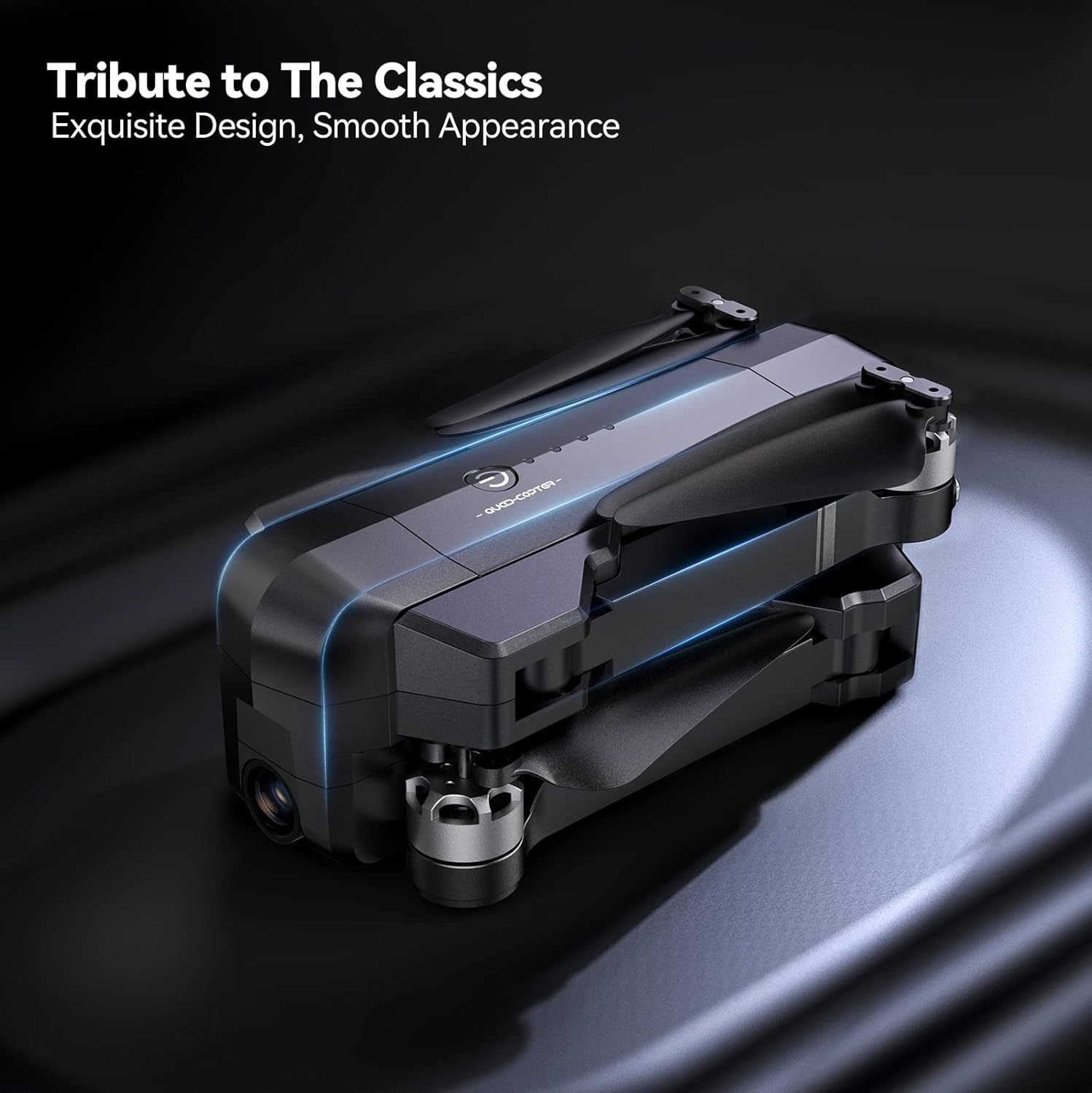
Gently unfold the drone arms until they click into place. Ensure all propellers are free from obstruction and securely attached.

The drone is shown with its arms extended and propellers in position, indicating it is ready for pre-flight checks.
2. 배터리 설치 및 충전
Insert the charged 11.1V 2500mAh battery into the drone's battery compartment. Connect the charging cable to the battery and a suitable USB power source (charger not included). A full charge provides up to 30 minutes of flight time per battery.

클로즈업 view of the drone's battery, showing its design and power indicator lights.

The drone battery connected to a charging cable, illustrating the charging process.
3. 리모컨 설정
Install your smartphone onto the remote controller's phone holder. Connect the remote controller to your smartphone using the provided cable.

The remote controller with a smartphone mounted, ready for app-controlled flight.
4. 앱 설치 및 연결
Download the official Ruko Pro app from your device's app store. Power on the drone and the remote controller. Connect your smartphone to the drone's Wi-Fi network (usually named "Ruko-F11PRO-XXXX"). Open the Ruko Pro app to establish connection and view 라이브 피드.

A smartphone screen displaying the Ruko Pro app interface, showing flight data and controls.
5. GPS 보정
For stable flight and GPS features like Auto Return Home, proper GPS calibration is crucial. Follow the on-screen instructions in the Ruko Pro app to calibrate the drone's compass and GPS before each flight. This typically involves rotating the drone horizontally and vertically.

An illustration showing the drone being rotated for GPS calibration, a critical step for accurate positioning.
작동 지침
이륙 및 착륙
Place the drone on a flat, open surface. Press the one-key takeoff button on the remote controller or within the app. The drone will automatically ascend to a safe height. To land, press the one-key landing button, and the drone will descend and land automatically.
비행 제어
Use the joysticks on the remote controller to maneuver the drone:
- 왼쪽 조이스틱: 고도(위/아래)와 요(좌/우 회전)를 제어합니다.
- 오른쪽 조이스틱: 앞/뒤, 좌우 이동을 제어합니다.

자세한 view of the remote controller, highlighting the joysticks and control buttons.
지능형 비행 모드
The Ruko F11PRO offers several intelligent flight modes for enhanced creativity and ease of use:
- 나를 따라와요: The drone automatically follows the remote controller or a designated subject.
- Fly Around (Circle Fly): The drone orbits a specified point of interest.
- 관심 지점: The drone flies around a chosen point, keeping it centered in the camera.
- Hand Gesture Shots: 특정 손동작을 수행하여 사진 또는 비디오 촬영을 시작하세요.

Visual representations of the drone executing various intelligent flight modes, including following a subject, flying along a set path, and circling a point of interest.
카메라 작동
The 4K UHD camera captures stunning photos and 2.9K/30fps videos. The camera features a 90° adjustable tilt and a 120° FOV lens for wide-angle shots.
- 사진/비디오 캡처: 리모컨의 전용 버튼이나 앱 인터페이스를 사용하여 사진을 촬영하거나 비디오 녹화를 시작/중지하세요.
- 카메라 각도 조정: Adjust the camera's tilt using the scroll wheel on the remote controller.

This image highlights the drone's 4K camera capabilities, including its adjustable angle and wide field of view.
안전 및 규정
FAA Compliance and Remote ID
The Ruko F11PRO drone features an integrated Remote ID module, fully compliant with FAA regulations. No additional Remote ID module is required. Ensure you are aware of and comply with all local aviation regulations before flying.

A visual representation of the drone's internal Remote ID module, indicating its FAA compliance.
비행 환경
Always choose an open area free of magnetic or radio interference, buildings, and other obstructions (maintain a distance greater than 32 feet). Avoid flying in strong winds (the drone can resist up to Level 6 wind).
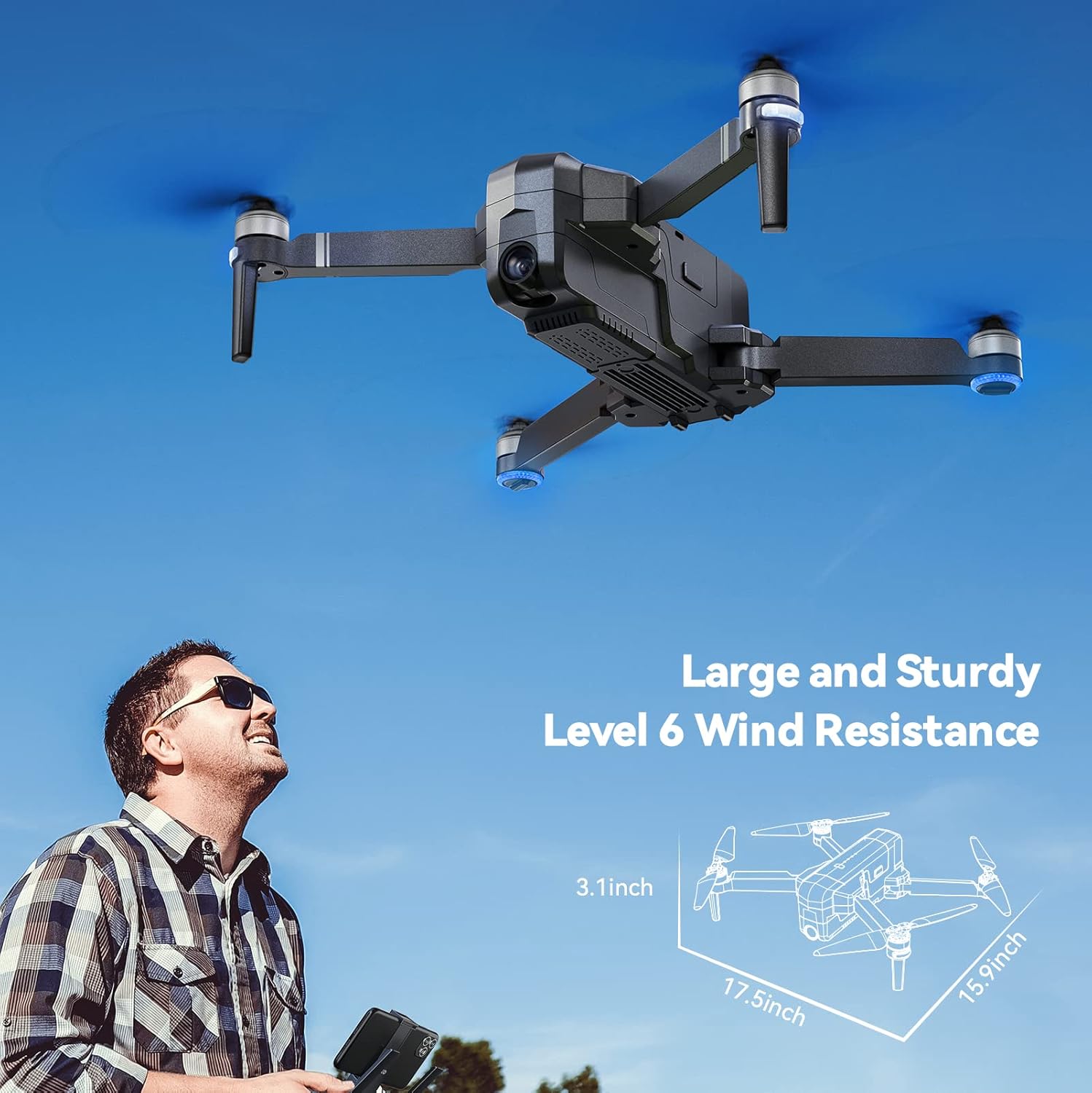
The drone is depicted flying outdoors, emphasizing its ability to withstand Level 6 winds due to its brushless motor.
초보자 모드
The default Beginner Mode automatically sets up geofences, limiting flight distance and height to prevent loss. Once familiar with flight skills, you can disable Beginner Mode for extended range.

An illustration showing the drone's flight path restricted by a virtual geofence, a feature of Beginner Mode.
유지
프로펠러 관리
Regularly inspect propellers for any damage (cracks, bends, chips). Replace damaged propellers immediately using the provided screwdriver and extra blades.
청소
Use a soft, dry cloth to clean the drone body and camera lens. Avoid using liquid cleaners or solvents.
배터리 저장
Store batteries in a cool, dry place away from direct sunlight and extreme temperatures. For long-term storage, charge batteries to approximately 50-60% capacity.
문제 해결
드론 전원이 켜지지 않음
- 배터리가 완전히 충전되었고 올바르게 삽입되었는지 확인하세요.
- 전원 버튼을 몇 초간 길게 누르세요.
앱에 연결할 수 없습니다
- Verify the drone and remote controller are powered on.
- Check that your phone is connected to the drone's Wi-Fi network.
- 앱을 다시 시작하고 다시 시도하세요.
GPS Signal Weak or Lost
- 높은 건물이나 강한 자기 간섭이 없는 열린 공간에서 비행하세요.
- Perform GPS calibration as described in the Setup Guide.
- If signal is lost during flight, the drone will auto-return to home (RTH) if GPS was locked at takeoff.

The drone is shown returning to its takeoff point, illustrating the GPS Auto Return Home feature activated by low power or signal loss.
보증 및 지원
Ruko offers a 30-day return or exchange policy and a 90-day free warranty for the F11PRO drone.
For any questions regarding product operation, troubleshooting, or warranty claims, please contact Ruko Customer Service:
- 핸드폰: +1 (888) 892-0155 (Mon-Fri: 8 AM to 2 AM (next day) PST, Sat-Sun: 8 AM to 5 PM (PST))
- 이메일: service@rukotoy.com
This image provides contact details for Ruko customer support, including phone number and email address, along with operating hours.
공식 제품 영상
현재 판매자로부터 제공되는 공식 제품 영상이 없어 본 설명서에 포함할 수 없습니다. 자세한 내용은 본문에 기재된 설명과 그림을 참조하십시오.


