소개
This manual provides instructions for the setup, operation, and maintenance of your Cimetech 2.4GHz Wireless Ergonomic Optical Mouse. This device offers reliable wireless connectivity, ease of use, and a comfortable design for various computing tasks.
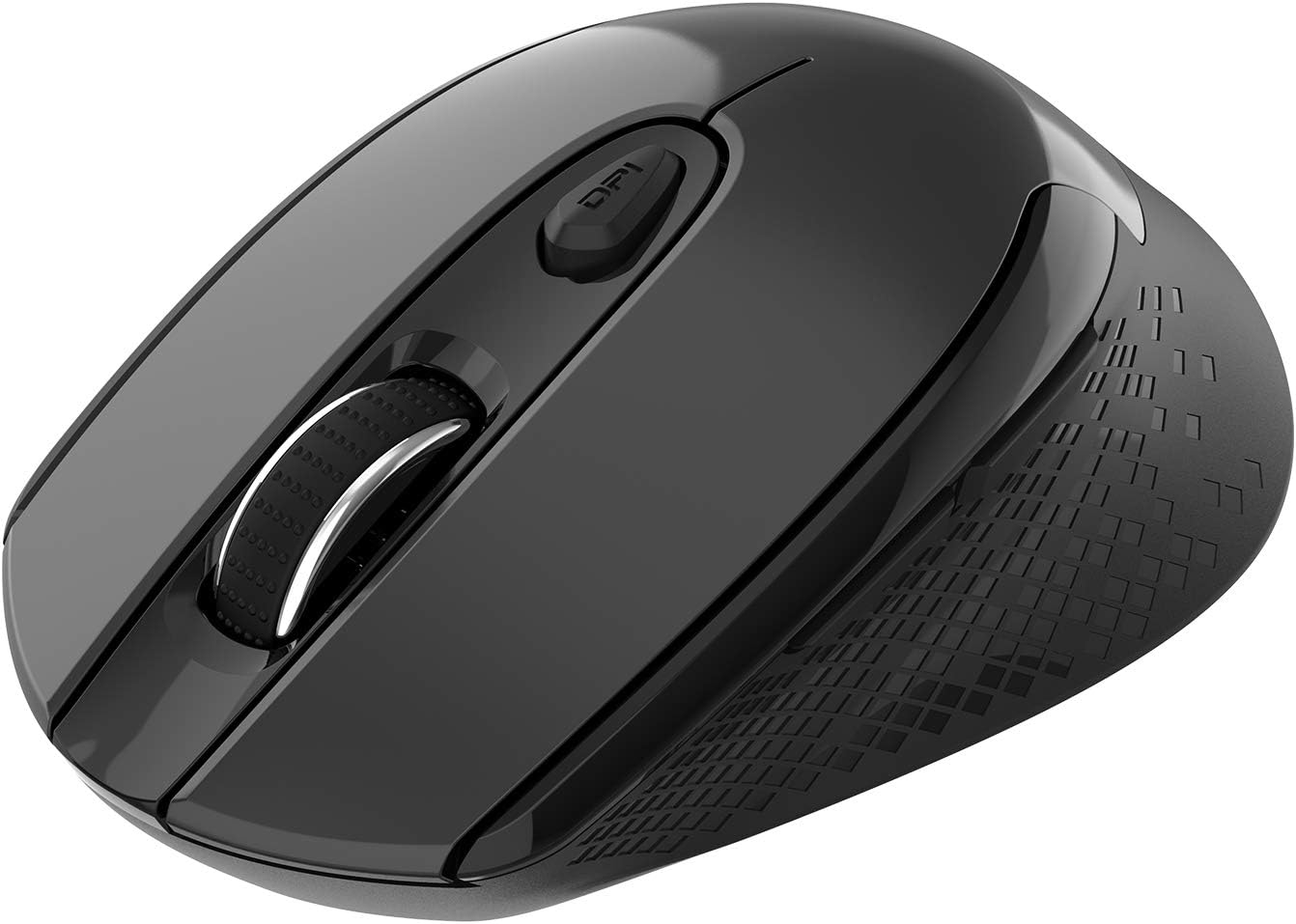
이미지: 위에서 아래로 view of the Cimetech Wireless Ergonomic Optical Mouse.

Image: The mouse connected via 2.4G wireless technology, showing the USB receiver plugged into a laptop.
패키지 내용
패키지에 모든 품목이 들어 있는지 확인하세요.
- 1 x Cimetech Cordless Mouse
- 1 x USB Receiver (stored in the battery compartment of the mouse)
- 1 x 사용자 설명서
설정
1. 배터리 설치
- 마우스 밑면에서 배터리 덮개를 찾으세요.
- 덮개를 살살 밀거나 들어 올려서 수납공간을 여세요.
- 극성(+/-)을 확인하여 AA 배터리 1개(별도 구매)를 배터리 칸에 넣으십시오.
- 배터리 덮개를 다시 장착하세요.
2. USB 수신기 연결
- Open the battery compartment cover and carefully remove the USB receiver.
- Plug the USB receiver into an available USB port on your computer (laptop, desktop, Mac, or PC).
- The mouse should automatically connect to your device. No additional drivers are typically required.

Image: Visual guide for installing the AA battery and connecting the USB receiver.
작동 지침
버튼 기능
The Cimetech Wireless Mouse features 6 buttons for enhanced functionality:
- 왼쪽 클릭 버튼: 표준 기본 클릭 기능.
- 오른쪽 클릭 버튼: 표준 보조 클릭 기능.
- 스크롤 휠: 세로 스크롤용입니다. 마우스 가운데 버튼을 누르면 해당 기능이 실행됩니다.
- DPI 전환 버튼: 마우스 감도(DPI)를 조정합니다.
- 앞으로 버튼: 앞으로 이동합니다 web 브라우저 또는 file 탐험가.
- 뒤로 버튼: 뒤로 탐색합니다 web 브라우저 또는 file 탐험가.

Image: Labeled diagram showing the location of the Left Click, Right Click, Scroll Wheel, DPI Switch, Forward, and Backward buttons, along with mouse dimensions.
DPI 조정
The mouse offers three adjustable DPI (Dots Per Inch) levels to control cursor speed and sensitivity. To change the DPI setting:
- 를 누르세요 DPI 버튼 once: DPI is set to 800.
- 를 누르세요 DPI 버튼 a second time: DPI is set to 1200 (default setting).
- 를 누르세요 DPI 버튼 a third time: DPI is set to 1600.
The mouse retains the last selected DPI setting even after being turned off and on.
Intelligent Power-Saving Modes
The mouse is designed with three power-saving stages to conserve battery life:
- Stage 1 (Standby): Enters after 3 seconds of inactivity. Move the mouse to wake it up.
- Stage 2 (Auto Shut-off): Enters after 60 seconds of inactivity. Move the mouse to wake it up.
- Stage 3 (Deep Sleep): Enters after 15 minutes of inactivity. Move the mouse to wake it up.
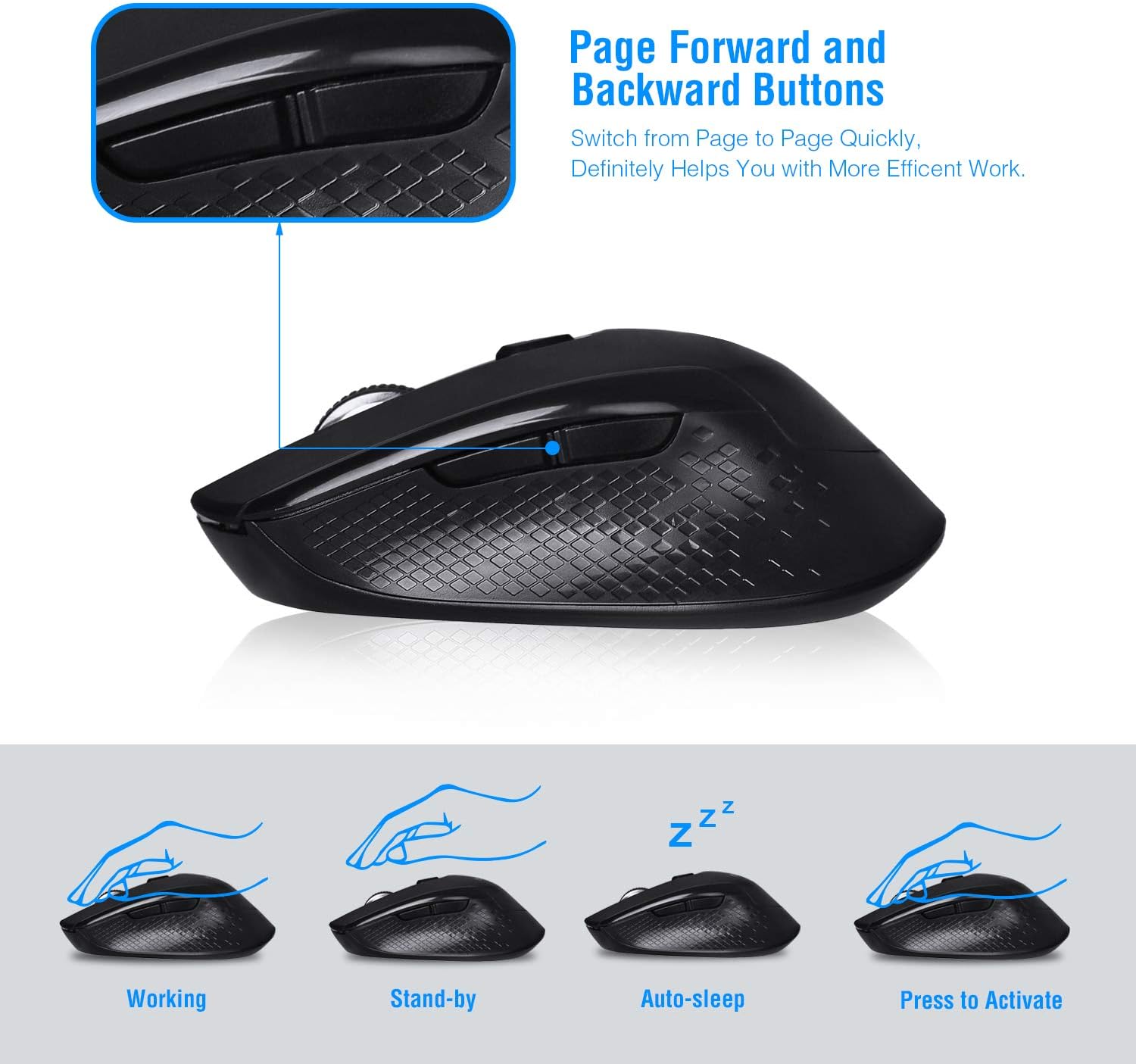
Image: Visual representation of the mouse's working, standby, auto-sleep, and activation states.
유지
- 부드럽고 마른 천으로 마우스를 닦아 마우스를 깨끗하게 유지하세요.
- 쥐를 극한 온도, 직사광선 또는 액체에 노출시키지 마십시오.
- 장기간 사용하지 않을 경우 누액 방지를 위해 배터리를 분리하는 것이 좋습니다.
- Store the USB receiver inside the mouse's battery compartment when traveling to prevent loss.
문제 해결
| 문제 | 해결책 |
|---|---|
| 마우스가 응답하지 않음 |
|
| Cursor movement is erratic or imprecise |
|
| 앞으로/뒤로 버튼이 작동하지 않습니다 |
|
명세서
| 모델 번호 | CQ-TM004 |
| DPI 레벨 | 800 / 1200(기본값) / 1600 |
| 폴링 속도 | 125Hz |
| 작동 범위 | 최대 50피트(약 15미터) |
| 연결성 | 2.4GHz Wireless via USB Receiver |
| 배터리 유형 | AA 배터리 1개(포함되지 않음) |
| 호환성 | Windows 2000/ME/XP/7/8/10, VISTA, Mac OS |
| 제품 치수 | 4.13 x 2.64 x 0.1인치(10.5 x 6.7 x 0.25cm) |
| 품목 무게 | 2.82 온스(80그램) |
호환성
The Cimetech Wireless Mouse is compatible with a wide range of operating systems, including:
- 윈도우 2000
- 윈도우 ME
- 윈도우 XP
- 윈도우 비스타
- 윈도우 7
- 윈도우 8
- 윈도우 10
- 맥 OS
It is suitable for use with desktops, laptops, PCs, and MacBooks.
보증 및 지원
Specific warranty information is not provided in this manual. For warranty details, technical support, or further assistance, please refer to the official Cimetech web사이트를 방문하거나 고객 서비스에 직접 문의하세요.
You can often find support resources, FAQs, and contact information on the manufacturer's product support page.


