소개
The Logitech K400 Plus Wireless Touch Keyboard is designed for comfortable control of your entertainment from a distance. Featuring a full-size keyboard layout and a large, integrated touchpad, it offers seamless navigation for your PC-connected TV, media center, or other compatible devices. This manual provides essential information for setting up, operating, and maintaining your keyboard.
설정
1. 배터리 설치
The Logitech K400 Plus requires two AAA batteries (included). To install them:
- 키보드 아랫부분에서 배터리 덮개를 찾으세요.
- 덮개를 밀어 엽니다.
- AAA 배터리 2개를 올바른 극성(+/-)에 맞춰 삽입합니다.
- 배터리 덮개를 단단히 닫으세요.
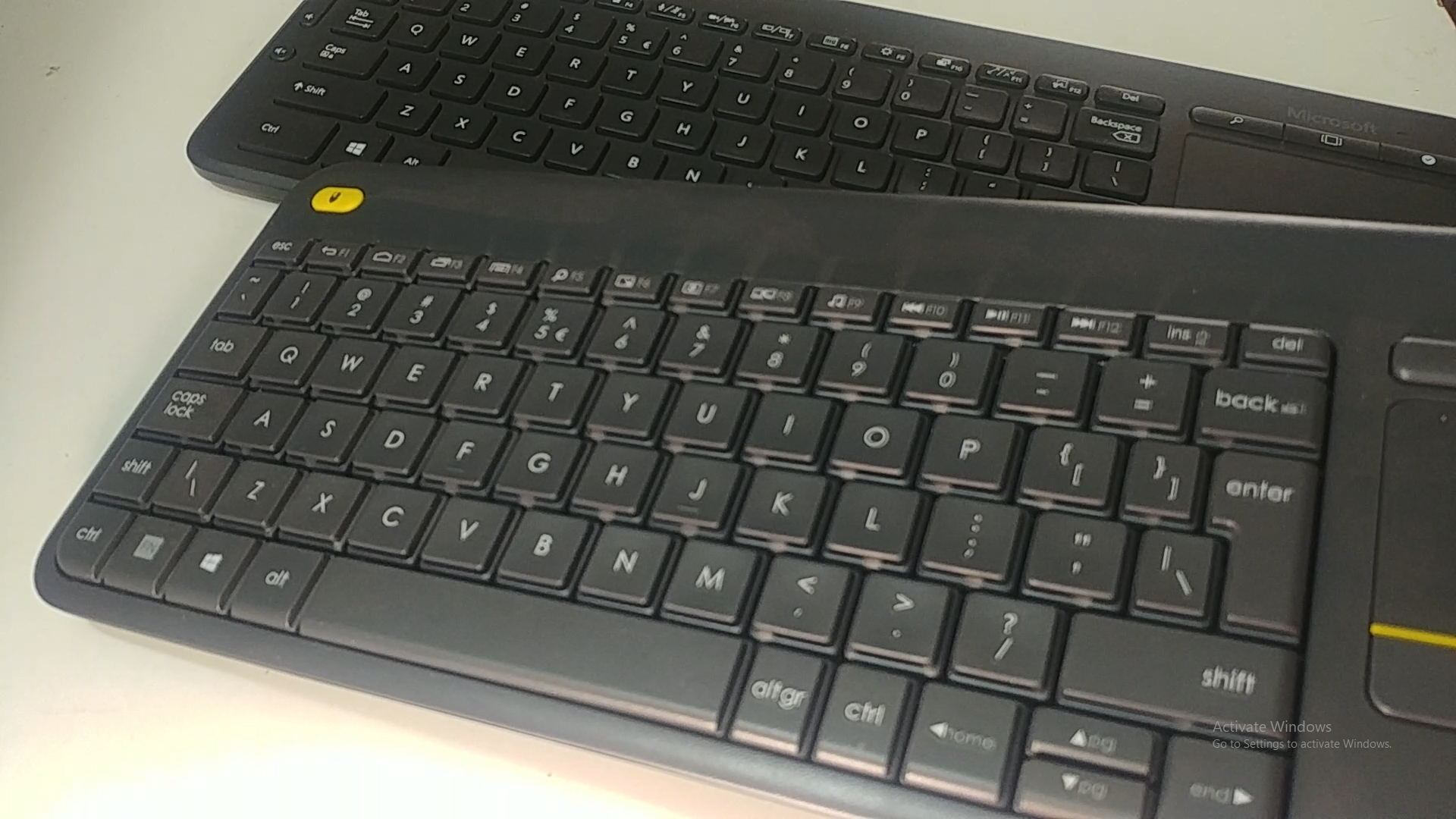
Image: Underside of the Logitech K400 Plus keyboard with the battery compartment open, showing two AAA batteries.
2. Connecting the Keyboard (USB Unifying Receiver)
The K400 Plus connects wirelessly via a small USB Unifying receiver. This receiver is typically stored inside the battery compartment for safekeeping.
- Open the battery compartment cover and remove the USB Unifying receiver.
- Plug the USB Unifying receiver into an available USB port on your PC, smart TV, or other compatible device.
- Turn on the keyboard using the On/Off switch located on the top right edge of the keyboard. A green indicator light will appear.
- Your keyboard should automatically connect. If not, refer to the troubleshooting section or visit the Logitech support website for the Unifying software.

Image: The Logitech K400 Plus Wireless Touch Keyboard, showing its compact design with integrated touchpad.
작동 지침
키보드 레이아웃
The K400 Plus features a standard QWERTY layout with additional function keys and an integrated touchpad.
이미지: 자세한 view of the Logitech K400 Plus keyboard keys, highlighting the QWERTY layout.
터치패드 사용
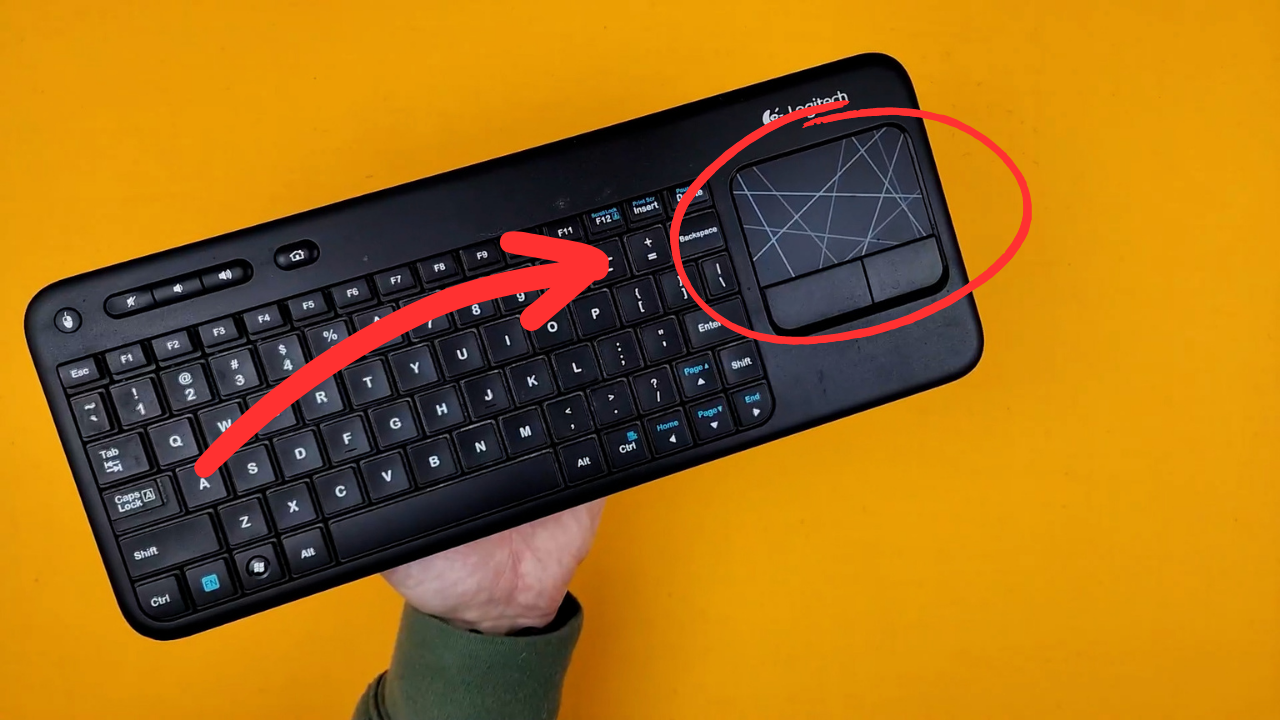
The large 3.5-inch touchpad allows for intuitive navigation. It supports multi-touch gestures for enhanced control.
- 단일 손가락 탭: 왼쪽 클릭.
- 두 손가락 탭: 마우스 오른쪽 버튼으로 클릭.
- 두 손가락 스크롤: 세로 또는 가로로 스크롤하세요.
- 확대/축소하려면 핀치하세요: 확대 또는 축소 (앱에서 지원하는 경우).
- Dedicated left and right-click buttons are located below the touchpad for traditional mouse button functionality.
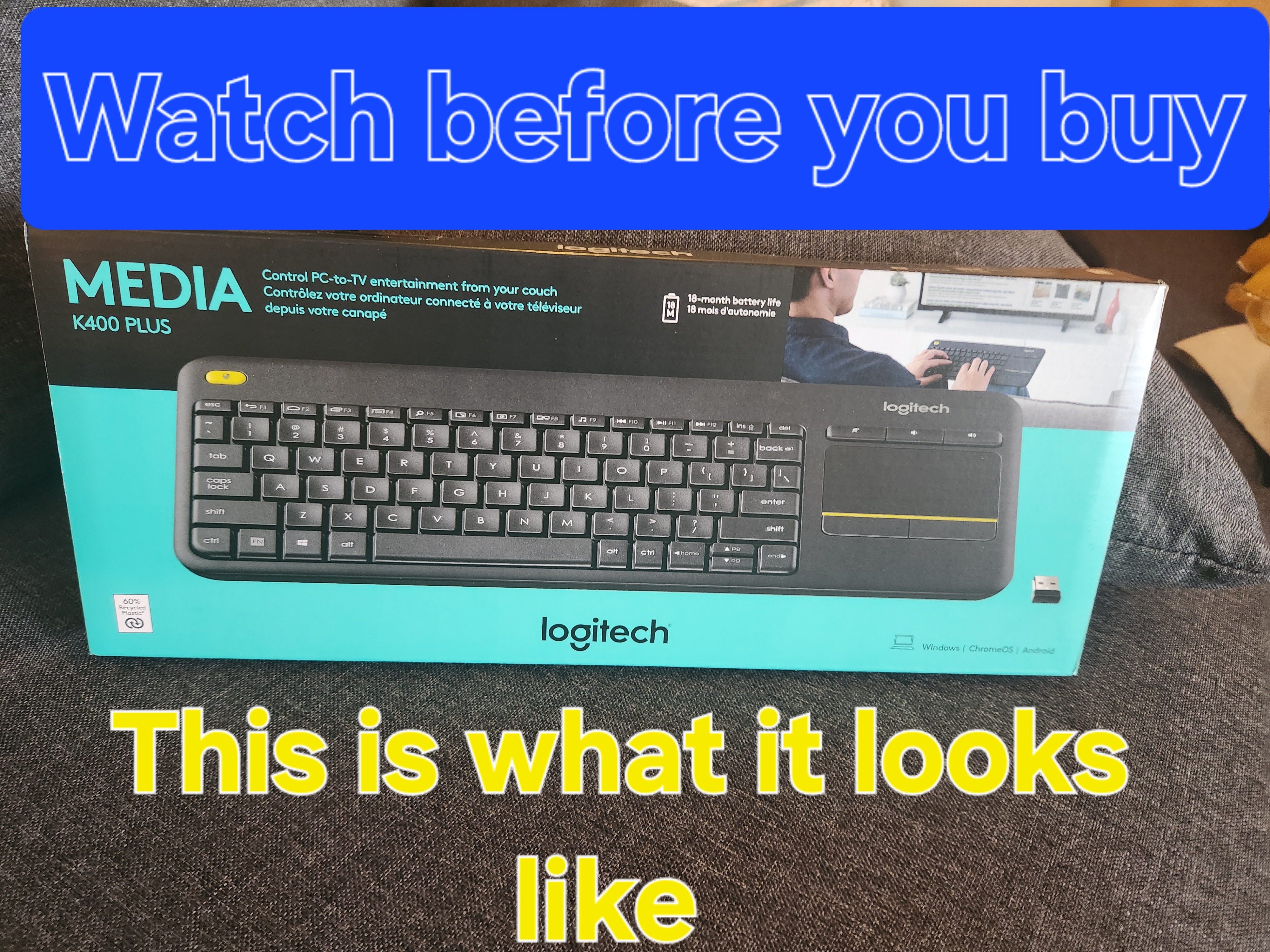
Image: A hand demonstrating the use of the integrated touchpad on the Logitech K400 Plus.
멀티미디어 및 기능 키
The top row of keys includes dedicated multimedia controls and function keys (F1-F12) with secondary actions. To activate the secondary actions (indicated by blue icons), press and hold the Fn key (located near the left Ctrl key) while pressing the desired function key.
- 볼륨 컨트롤: Dedicated buttons for mute, volume down, and volume up are located above the touchpad.
- 홈 버튼: Access your device's home screen or browser home page.
- Page Up/Down, End: 문서 탐색 및 web 페이지.
- Left Mouse Button (top left): An additional left-click button is located on the top left corner of the keyboard for convenient two-hand operation.
유지
청소
키보드를 청소하려면:
- 전원 스위치를 사용하여 키보드를 끄세요.
- 부드럽고 털이 없는 천을 살짝 사용하세요.amp물 또는 순한 세척액으로 세척하십시오.
- Avoid excessive moisture and do not immerse the keyboard in liquid.
- For stubborn dirt between keys, use compressed air.
배터리 교체
When the battery indicator light (usually located near the On/Off switch) turns red or the keyboard becomes unresponsive, it's time to replace the batteries. Follow the "Battery Installation" steps in the Setup section to replace the two AAA batteries.
문제 해결
키보드가 응답하지 않음
- 전원 확인: Ensure the keyboard is turned on and the battery indicator light is green. Replace batteries if necessary.
- 수신기 확인: Make sure the USB Unifying receiver is securely plugged into a working USB port on your device. Try a different USB port.
- 거리: Ensure the keyboard is within the operating range (up to 10 meters or 33 feet) of the USB receiver.
- 간섭: Move the keyboard and receiver away from other wireless devices or large metal objects that might cause interference.
- 수리하다: If issues persist, you may need to re-pair the keyboard with the Unifying receiver using the Logitech Unifying software, available for download from the official Logitech support web대지.
Touchpad Not Working Correctly
- 깨끗한 표면: 터치패드 표면이 깨끗하고 이물질이 없는지 확인하십시오.
- 드라이버 업데이트: Check your device's operating system for updated drivers for the Logitech Unifying receiver or touchpad.
- 설정: Verify touchpad settings in your device's control panel or system preferences.
명세서
| 상표 | 로지텍 |
| 모델 번호 | 920-009280 |
| 연결 기술 | 무선(USB Unifying 수신기를 통한 2.4GHz) |
| 무선 범위 | 최대 10미터(33피트) |
| 배터리 | 2 x AAA 배터리(포함) |
| 배터리 수명 | 최대 18개월 (사용량에 따라 다를 수 있음) |
| 통합 터치패드 | 3.5-inch multi-touch touchpad |
| 호환 장치 | PC (Windows 7, 8, 10 or later), Android TV, Chrome OS |
| 치수(길이 x 너비 x 높이) | 약 13.9 x 5.5 x 0.9mm(354 x 139.9 x 23.5인치) |
| 무게 | Approximately 13.76 oz (390 g) with batteries |
보증 및 지원
Logitech provides a limited hardware warranty for this product. For detailed warranty information, technical support, and driver downloads, please visit the official Logitech support web대지:
You can also find FAQs and community forums for additional assistance.