1. 서론
This manual provides detailed instructions for the setup, operation, maintenance, and troubleshooting of your MUNBYN Shipping Label Printer RealWriter 941. Please read this manual thoroughly before using the printer to ensure optimal performance and longevity.

Image: The MUNBYN Shipping Label Printer RealWriter 941, a compact white and black thermal printer, shown actively printing a shipping label.
2. 설정
2.1. 상자 안에 무엇이 들어있나요?
모든 구성품이 포장에 들어 있는지 확인하세요.
- 열전사 프린터
- 전원 어댑터
- 전원 케이블
- USB 케이블
- Labels (for initial testing)

이미지: 오버헤드 view of the MUNBYN printer box contents, including the printer, power adapter, power cable, USB cable, and a roll of labels.
2.2. 물리적 연결
- 전원 어댑터를 프린터에 연결한 다음 전원 콘센트에 꽂으세요.
- Connect the USB cable from the printer to your computer (Windows or macOS).
2.3. 드라이버 설치
The MUNBYN RealWriter 941 is a USB-only thermal printer compatible with Windows and macOS operating systems. Drivers are required for proper functionality.
- For Windows and macOS, download the latest drivers from the official MUNBYN website or use the provided installation CD/USB if included.
- 화면의 지시에 따라 드라이버 설치를 완료하세요.
- For Chromebook users, install the Munbyn Printer Extension from the Chrome Web 가게.

Image: A screenshot showing the Munbyn Printer Extension page in the Chrome Web Store, indicating compatibility with Chromebooks.
2.4. 로딩 레이블
The printer supports thermal labels from 1.57" to 4.3" wide. It features automatic label identification.
- 프린터 전원이 켜져 있는지 확인하세요.
- 프린터의 상단 덮개를 엽니다.
- Insert the stack of thermal labels into the rear feed slot, ensuring the print side is facing up.
- Adjust the label guides to fit snugly against the edges of the labels.
- 상단 덮개를 닫으세요. 프린터가 자동으로 라벨 크기를 감지하고 보정합니다.

Image: The MUNBYN printer shown printing various label types and sizes, including shipping labels, circular labels, and small rectangular labels, demonstrating its versatility.
3. 사용 설명서
3.1. 라벨 인쇄
Once the printer is set up and labels are loaded, you can print from any application that supports printing.
- Open the document or label you wish to print (e.g., a shipping label PDF).
- 애플리케이션 메뉴에서 '인쇄'를 선택하세요.
- Choose the MUNBYN RealWriter 941 as your printer.
- Ensure the paper size settings in your print dialogue match the labels loaded in the printer (e.g., 4x6 inches).
- '인쇄'를 클릭하세요.

Image: The MUNBYN printer connected to a laptop, demonstrating a label being printed from the computer screen to the printer.
3.2. 호환성
The MUNBYN thermal label printer is designed for broad compatibility with various shipping and selling platforms, including:
- 에시
- 쇼피파이
- 이베이
- 아마존
- 포쉬마크
- Ship Station
- 간편 배송
- 싯포
- 오르도로
- 엔디시아 대즐
- Shipwire
- Shipworks
- Stockx
- Xps Ship

Image: The MUNBYN printer surrounded by logos of various e-commerce and shipping platforms, illustrating its wide compatibility.
3.3. Using the MUNBYN Print App
For convenient printing from mobile devices (iPhone/Mac OS/Android), download the 'MUNBYN Print' app.
- Scan the QR code below with your smartphone or tablet.
- 앱을 다운로드하고 설치하세요.
- Follow the in-app instructions to connect to your printer and print.

Image: A smartphone screen displaying a QR code for downloading the 'MUNBYN Print' app, compatible with Android 7 / iOS 11 and newer versions.
4. 유지관리
4.1. 프린트 헤드 청소
Regular cleaning of the print head ensures clear and consistent print quality. Use a cotton swab lightly damp이소프로필 알코올로 소독함.
- 프린터를 끄고 전원 케이블을 뽑으세요.
- 상단 덮개를 열어 프린트 헤드에 접근하세요.
- Gently wipe the print head surface with the alcohol-dampened cotton swab.
- 프린트 헤드가 완전히 마를 때까지 기다린 후 덮개를 닫고 전원을 다시 연결하십시오.
4.2. 라벨 보관
감열 라벨은 직사광선과 열원을 피해 서늘하고 건조한 곳에 보관하여 감열 코팅의 조기 변색이나 손상을 방지하십시오.
5. 문제 해결
If you encounter issues with your MUNBYN printer, refer to the following common problems and solutions. For a comprehensive guide, please consult the official Troubleshooting Guide PDF available for download.
- 프린터가 응답하지 않습니다: Ensure the power cable and USB cable are securely connected. Check if the printer's power indicator light is on. Restart both the printer and your computer.
- 라벨이 제대로 부착되지 않음: Verify that labels are loaded correctly and the label guides are adjusted to the label width. Ensure there are no obstructions in the paper path.
- Poor print quality (faded, smudged, or incomplete prints): Clean the print head as described in the Maintenance section. Ensure you are using high-quality thermal labels. Check print settings in your software to ensure resolution and darkness are appropriate.
- Printer beeps continuously: This may indicate an error or an empty label roll. Check the label supply and clear any paper jams.
- 운전자 문제: Reinstall the printer drivers from the official MUNBYN web사이트를 확인하세요. 운영 체제가 최신 버전인지 확인하십시오.
추가 지원이 필요하면 다음을 참조하세요. 문제 해결 가이드(PDF).
6. 사양
Detailed technical specifications for the MUNBYN Shipping Label Printer RealWriter 941 (Model ITPP941):
| 특징 | 사양 |
|---|---|
| 모델명 | 피941 |
| 품목 모델 번호 | ITPP941 |
| 인쇄 기술 | 열의 |
| 해결 | 203 x 203 DPI (203 Dots Per Inch) |
| 최대 인쇄 속도 흑백 | 150mm/s (72 ppm) |
| 최대 미디어 크기 | 4 x 6 인치 |
| 인쇄 폭 | 1.57인치에서 4.3인치까지 |
| 연결 기술 | USB |
| 호환 장치 | PC, Laptops, Windows, Mac, Chromebook |
| 전력 소비 | 60 와트 |
| 품목 무게 | 3.08파운드(1.4킬로그램) |
| 제품 치수 | 3.8인치 깊이 x 7.8인치 너비 x 4.3인치 높이(1.61 x 2.99 x 1.54인치) |
| 메모리 저장 용량 | 4메가바이트 |
| 한국어: | 613310860730 |
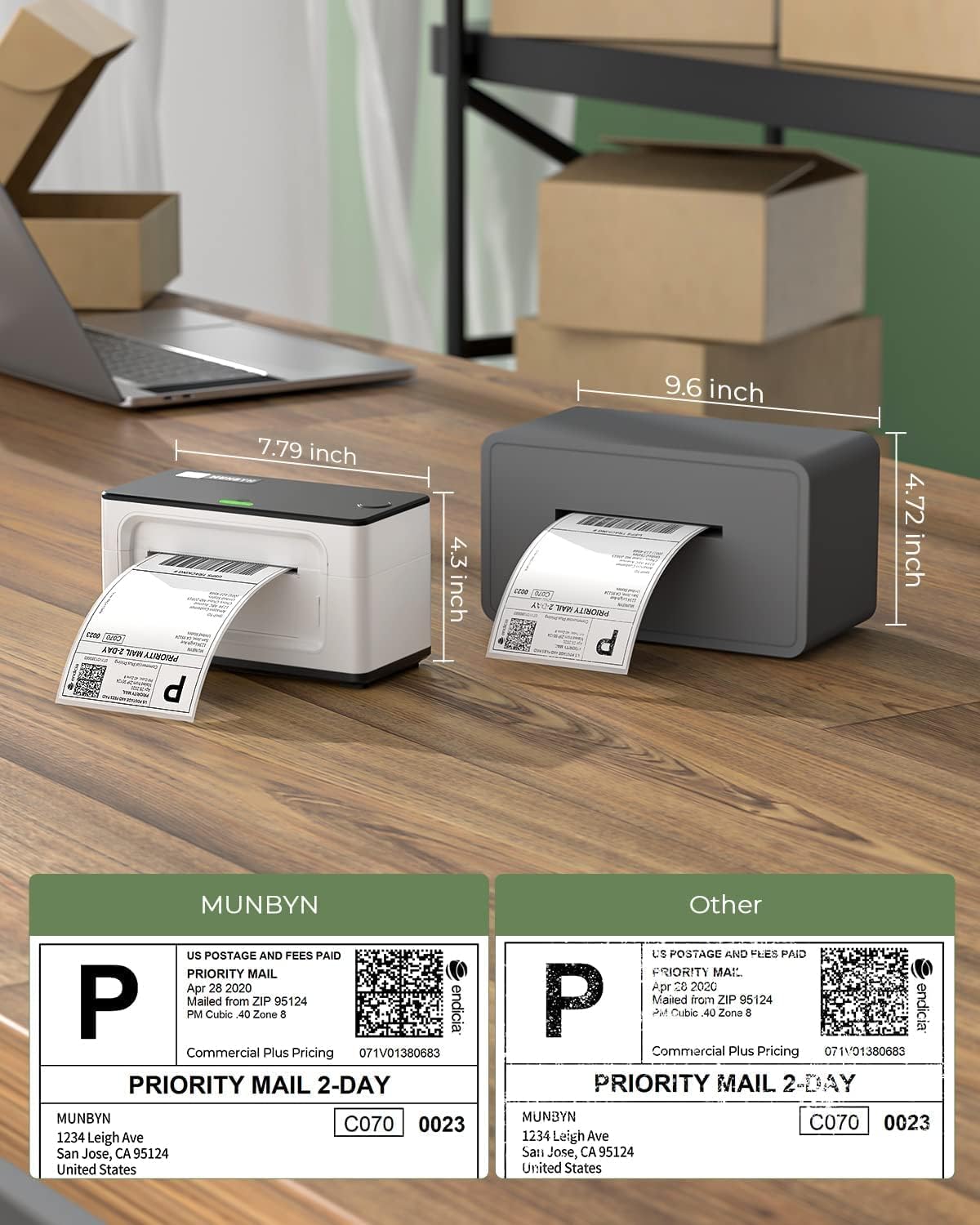
Image: A visual comparison of the MUNBYN printer's dimensions (7.79 inches length, 4.5 inches height) against another printer model.

Image: A comparison table showing different MUNBYN printer models (941U, 941BP, 941AP) with their connectivity, compatible devices, resolution, and max print speed.
7. 보증 및 지원
7.1. 보증 정보
MUNBYN provides perpetual customer support and product protection for any product issues. The manufacturer's warranty period is two years from the date of purchase.
7.2. 고객 지원
For any questions or assistance, please contact MUNBYN customer support:
- 핸드폰: +1 628 229 3612 (Monday through Friday, EST 9:00-24:00, excluding public holidays)
- 이메일: support@munbyn.com
- 라이브 채팅: Available on the official MUNBYN web대지.
- Remote Desktop Operations Support: Available as needed.
고객 지원팀에 문의하실 때는 주문 번호를 알려주시기 바랍니다.

Image: A graphic illustrating the various customer support options offered by MUNBYN, including phone call, teaching video, live chat, and remote desktop support.


