소개
This manual provides essential instructions for setting up, operating, maintaining, and troubleshooting your Microsoft Surface Pro 2017. The Surface Pro 2017 is a versatile 2-in-1 device designed to function as both a powerful laptop and a portable tablet, offering a seamless computing experience.
기기를 올바르게 사용하고 수명을 극대화하려면 이 설명서를 자세히 읽어 주십시오. 나중에 참조할 수 있도록 이 설명서를 보관하십시오.
상자 안에 무엇이 들어있나요?
Upon unboxing your Microsoft Surface Pro 2017, verify that all components are present:
- Microsoft Surface Pro 2017 device
- AC 전원 어댑터
Note: Additional accessories such as the Surface Pen, Type Cover, or Surface Dial are sold separately and may not be included with your device.
설정
1. 초기 전원 켜기 및 충전
- 전원 어댑터 연결: Plug the AC power adapter into a wall outlet and then connect the magnetic charging connector to the charging port on your Surface Pro. The LED indicator on the connector will illuminate when charging.
- 전원 켜기: Press and hold the power button located on the top edge of the device for a few seconds until the Microsoft logo appears on the screen.
2. 윈도우 설치
Follow the on-screen prompts to complete the initial Windows setup. This process typically includes:
- 지역 및 언어 선택.
- Wi-Fi 네트워크에 연결 중입니다.
- 라이선스 계약에 동의합니다.
- Microsoft 계정 생성 또는 로그인.
- Setting up security features like Windows Hello (facial recognition) or a PIN.
3. Wi-Fi에 연결하기
- During Windows setup, you will be prompted to connect to a network. Select your desired Wi-Fi network from the list and enter the password if required.
- If you need to connect later, go to 시작 > 설정 > 네트워크 및 인터넷 > 와이파이. Turn Wi-Fi on, select your network, and click 연결하다.
작동 지침
Basic Device Orientation and Controls
The Surface Pro 2017 features a 12.3-inch PixelSense display with multi-touch support. Key physical controls include:
- 전원 버튼: Located on the top edge, used to turn the device on/off, sleep, or wake.
- 볼륨 버튼: 측면에 위치하며, 오디오 볼륨을 조절하는 데 사용됩니다.
- 킥스탠드: Integrated on the back, allows for multiple view각도를 나타냅니다.
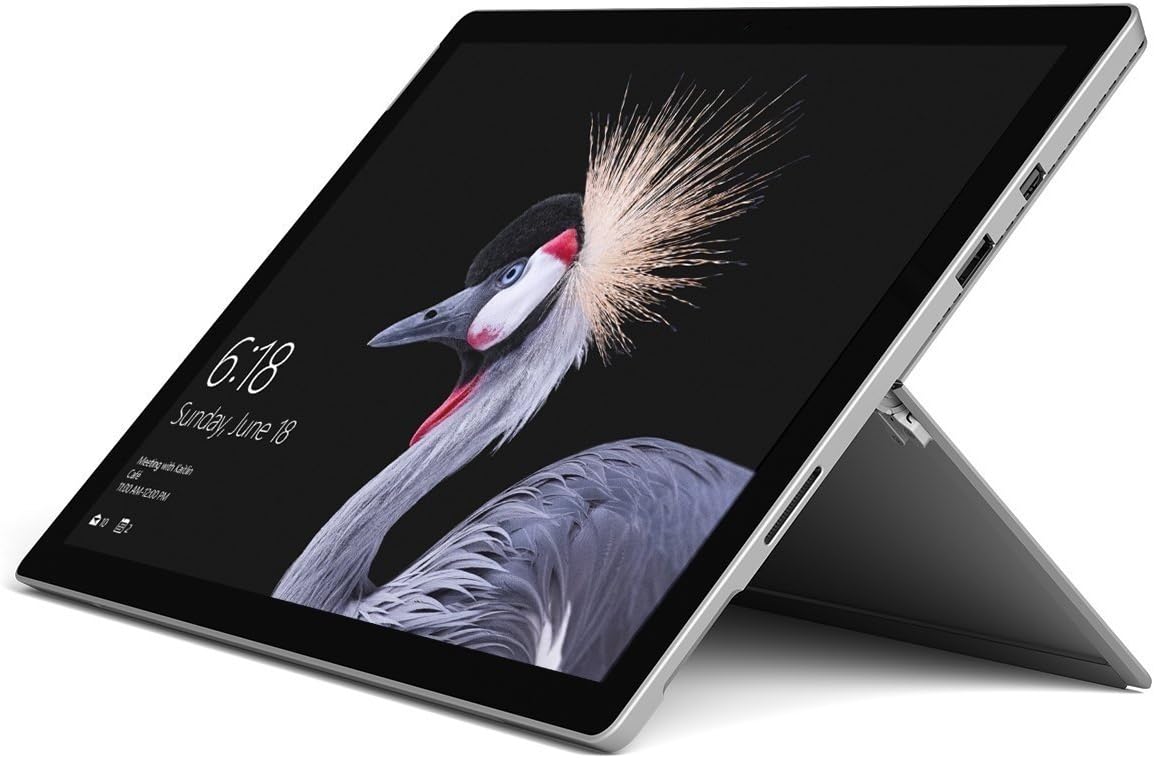
Image: Microsoft Surface Pro 2017 in laptop mode with its kickstand extended, showcasing the device's display.
킥스탠드 사용
The integrated kickstand allows you to position your Surface Pro at various angles for comfortable viewing, typing, or drawing. Gently pull the kickstand out from the back of the device until it reaches your desired angle.
전원 관리
- 수면 모드 : Briefly press the power button to put the Surface Pro into sleep mode. Press it again to wake the device.
- 종료: 이동하다 시작 > 힘 > 종료하다.
- 다시 시작: 이동하다 시작 > 힘 > 다시 시작.
주변 장치 연결
The Surface Pro 2017 includes various ports for connecting external devices:
- USB 3.0 포트 : For connecting USB drives, keyboards, mice, and other compatible accessories.
- 미니 디스플레이포트: 외부 모니터나 프로젝터에 연결합니다.
- microSD 카드 리더기: 저장공간 확장이나 전송을 위해 file메모리 카드에서.
- 표면 연결 포트: For power and connecting to Surface Dock accessories.
- 3.5mm 헤드폰 잭 : 오디오 출력용.
블루투스: To connect Bluetooth devices (e.g., headphones, mice), go to 시작 > 설정 > 장치 > Bluetooth 및 기타 장치. Ensure Bluetooth is turned on, then select "Add Bluetooth or other device" and follow the pairing instructions.

이미지: 사이드 프로file of the Microsoft Surface Pro 2017, highlighting the various ports available for connectivity.
유지
Cleaning Your Surface Pro
- 화면: 부드럽고 털이 없는 천을 살짝 사용하세요.ampened with water or an approved screen cleaner. Avoid harsh chemicals or abrasive materials.
- 몸: Wipe the exterior with a soft, dry cloth. Do not allow liquids to enter openings.
- 포트: Keep ports free of dust and debris. Use compressed air carefully if needed, holding the can upright.
배터리 관리
- 극한의 온도는 배터리 수명을 단축시킬 수 있으므로 피하세요.
- 배터리 상태를 최적화하려면 배터리를 완전히 방전하거나 장시간 100% 충전 상태로 유지하지 마세요.
- Use only the official Microsoft AC power adapter or a compatible charger.
소프트웨어 업데이트
Regularly update your Windows operating system and device drivers to ensure optimal performance, security, and compatibility. Go to 시작 > 설정 > 업데이트 및 보안 > 윈도우 업데이트 업데이트를 확인하고 설치합니다.
문제 해결
이 섹션에서는 Surface Pro 2017 사용 중 발생할 수 있는 일반적인 문제에 대해 설명합니다.
기기가 켜지지 않습니다
- 기기가 충전되어 있는지 확인하십시오. 전원 어댑터를 연결하고 몇 분 정도 기다린 후 전원을 켜십시오.
- Perform a two-button shutdown: Press and hold the volume-up button and the power button simultaneously for at least 15 seconds, then release both. Wait 10 seconds, then press the power button again to turn on the Surface.
Screen Not Responding to Touch
- 장치를 다시 시작합니다.
- 화면이 깨끗하고 이물질이 없는지 확인하세요.
- Check for available Windows updates, as driver updates can resolve touch issues.
Wi-Fi 연결 문제
- Wi-Fi가 활성화되어 있는지 확인하십시오. 설정 > 네트워크 및 인터넷 > 와이파이.
- Restart your Surface Pro and your Wi-Fi router.
- 네트워크를 잊고 다시 연결하세요: 이동 설정 > 네트워크 및 인터넷 > 와이파이, click on your network, then 잊다. Reconnect and enter the password.
명세서
| 특징 | 사양 |
|---|---|
| 모델명 | 서피스 프로 2017 |
| 품목 모델 번호 | 7Y30 |
| 화면 크기 | 12.3 인치 |
| 화면 해상도 | 2736 x 1824 픽셀 |
| 프로세서 | Intel Core m3-7Y30 (1 GHz Intel_Mobile_CPU) |
| 숫양 | 4GB DDR4 SDRAM |
| 저장 | 128GB SSD |
| 그래픽 카드 | Integrated (Intel) |
| 운영 체제 | 윈도우 |
| 무선형 | 802.11abg |
| 품목 무게 | 1.89파운드 |
| 제품 치수 | 11.5 x 7.9 x 0.3 인치 |
| 색상 | 은 |
보증 및 지원
For detailed warranty information, please refer to the warranty card included with your purchase or visit the official Microsoft support web사이트. 보증 약관은 지역 및 소매업체에 따라 다를 수 있습니다.
For technical support, driver downloads, and additional resources, please visit the official Microsoft Support web대지: support.microsoft.com/surface