1. 서론
The Eizo ColorEdge CS2731 is a 27-inch IPS LCD monitor designed for creative professionals who demand exceptional color accuracy and image quality. This manual provides detailed instructions for setting up, operating, and maintaining your monitor to ensure optimal performance.

그림 1.1: 전면 view of the Eizo ColorEdge CS2731 Monitor, showcasin세련된 디자인과 뛰어난 디스플레이 기능을 갖추고 있습니다.
2. 주요 특징
- 27-inch Wide Gamut LCD: Features a 2560x1440 resolution IPS panel for fine detail and wide view각도를 나타냅니다.
- 99% Adobe RGB Color Space: Ensures accurate reproduction of a wide range of colors, crucial for professional photo and video editing.
- Hardware Calibration Support: Compatible with free calibration software (ColorNavigator 7) for precise color management.
- 다양한 입력: Includes USB Type-C, DisplayPort, HDMI, and DVI-D for broad connectivity.
- 5년 제조업체 보증: Provides long-term assurance of product quality and reliability.
3. 설정
3.1 포장 풀기 및 조립
Carefully remove the monitor and its components from the packaging. Assemble the stand according to the included quick setup guide, ensuring all connections are secure before placing the monitor on a stable surface.
3.2 모니터 연결
Connect the monitor to your computer using one of the available input ports. The ColorEdge CS2731 supports USB Type-C, DisplayPort, HDMI, and DVI-D connections. For optimal performance and color depth, DisplayPort or USB Type-C are recommended.

Figure 3.1: USB Type-C connection allows for video, USB signal, and power delivery (up to 60W) with a single cable.
Ensure the power cable is securely connected to the monitor and a power outlet. The monitor supports 240 Volts input.
3.3 물리적 조정
The monitor stand allows for various adjustments to enhance your viewing comfort and efficiency:
- 높이 조정: Adjust the monitor's height to your eye level.
- 기울기 조정: 화면을 앞뒤로 기울여 눈부심을 줄이고 시야를 개선하세요. view잉 각도.
- 피벗 기능: 세로 모드로 전환하려면 화면을 90도 회전하세요. viewing, ideal for editing long documents or images.

그림 3.2: 인체공학적 모니터 높이 조절 view주고받음.


Figure 3.3: Monitor tilt adjustments (+5° to -35°).
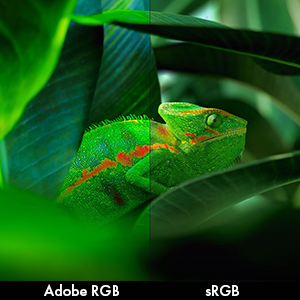
Figure 3.4: Monitor pivot function for portrait orientation.
4. 모니터 작동하기
4.1 전원 켜기/끄기
Press the power button located on the front bezel to turn the monitor on or off. The power indicator light will illuminate when the monitor is active.
4.2 Color Management and Calibration
The Eizo ColorEdge CS2731 is designed for precise color reproduction. It features a wide color gamut covering 99% of the Adobe RGB color space, ensuring accurate and vibrant colors.

Figure 4.1: Illustration of the monitor's 99% Adobe RGB color gamut coverage, ideal for creative work.
The monitor also includes a Digital Uniformity Equalizer (DUE) to ensure consistent brightness and chromaticity across the entire screen, minimizing variations that can affect color accuracy.

Figure 4.2: The Digital Uniformity Equalizer corrects tone deviations for consistent display across the screen.
For hardware calibration, use Eizo's ColorNavigator 7 software. This software, combined with an optional calibration sensor, simplifies the calibration process and ensures predictable, accurate results across all units.

Figure 4.3: ColorNavigator 7 software facilitates precise hardware calibration for various creative workflows.
비디오 4.1: 오버view of the ColorEdge CS Series Monitors, highlighting their features for creative professionals, including color reproduction, image quality, and ease of use. This video demonstrates the wide color gamut, digital uniformity equalizer, and hardware calibration capabilities.
5. 유지관리
5.1 모니터 청소
모니터 화면을 청소하려면 부드럽고 보풀이 없는 천으로 부드럽게 닦으세요. 잘 지워지지 않는 얼룩은 가볍게 닦아주세요.amp천에 물이나 화면 세척액을 묻혀 닦아주세요. 강한 화학 물질이나 연마재는 사용하지 마세요.
5.2 일반 관리
Keep the monitor in a well-ventilated area, away from direct sunlight and excessive heat or moisture. Avoid placing heavy objects on the monitor or its cables. When moving the monitor, ensure it is powered off and disconnected from all cables.
6. 문제 해결
6.1 전원 없음
- 전원 케이블이 모니터와 전원 콘센트에 모두 제대로 연결되어 있는지 확인하세요.
- 다른 기기를 콘센트에 꽂아 전원 콘센트가 제대로 작동하는지 확인하십시오.
6.2 화면에 이미지가 없습니다
- Verify that the video cable (USB-C, DisplayPort, HDMI, or DVI-D) is securely connected to both the monitor and your computer.
- Ensure the correct input source is selected on the monitor's OSD (On-Screen Display) menu.
- Check your computer's display settings to ensure it is configured to output to the monitor.
6.3 색상 부정확성
- Perform a hardware calibration using Eizo ColorNavigator 7 software and a compatible sensor.
- 그래픽 카드 드라이버가 최신인지 확인하세요.
- Check the monitor's color mode settings in the OSD menu.
For further assistance, please refer to the comprehensive troubleshooting guide available on the Eizo support web대지.
7. 사양

Figure 7.1: Key dimensions of the Eizo ColorEdge CS2731 Monitor.
| 기인하다 | 값 |
|---|---|
| 화면 크기 | 27 인치 |
| 해결 | 2560 x 1440(QHD 와이드 1440p) |
| 종횡비 | 1.78시 1분 |
| 이미지 밝기 | 350칸델라/m2 |
| 화면 표면 설명 | 매트 |
| 입력 | USB Type-C, DisplayPort, HDMI, DVI-D |
| 총 USB 포트 | 3 |
| 권tage | 240 볼트 |
| 품목 무게 | 22.2파운드 |
| 품목 모델 번호 | CS2731-BK |
| 첫 번째 이용 가능 날짜 | 8년 2019월 XNUMX일 |
Note: Some regional models may have specific voltage requirements or warranty limitations. Refer to your product's specific documentation.

Figure 7.2: Specific warranty and input voltage information for models intended for the Japanese market.
8. 보증 및 지원
The Eizo ColorEdge CS2731 monitor comes with a 5년 제조사 보증. 본 보증은 정상적인 사용 중에 발생하는 재료 및 제조상의 결함을 보장합니다.
For warranty claims, technical support, or additional product information, please visit the official Eizo support web해당 웹사이트를 방문하거나 고객 서비스 센터에 문의하세요. 더 많은 정보와 자료는 다음에서 찾아보실 수 있습니다. Eizo Store on Amazon.
Please note that the warranty may be region-specific. For example, some models may have a warranty valid only in Japan, as indicated in certain product images.


