1. 서론
This manual provides detailed instructions for the installation, setup, and operation of your MOES WiFi Smart Wall Touch Light Switch. Please read this manual thoroughly before installation and use to ensure proper function and safety.

Figure 1: MOES WiFi Smart Wall Touch Light Switch (1 Gang, Black)
2. 안전 정보
- 전기 설치: Installation should only be performed by a qualified electrician or a person with a thorough understanding of electrical wiring.
- 전원 차단: Always disconnect power at the circuit breaker before installing, removing, or servicing the switch. Failure to do so may result in serious injury or death.
- 중성선 필요: This smart switch requires a neutral wire in your switch box to operate correctly. If you do not have a neutral wire, this switch is not compatible.
- Wi-Fi 네트워크 : Requires a 2.4GHz Wi-Fi network connection. It is not compatible with 5GHz Wi-Fi networks.
- 호환성: Only compatible with 1 gang switch boxes. Not compatible with standard US 2/3/4 gang switch plates. This switch is not designed for 3-way switch configurations or as a dimmer switch.
- 실내에서만 사용 가능: 이 장치는 건조한 실내 환경에서 사용하도록 설계되었습니다.
- 운영 볼륨tage: 전기 시스템이 지정된 전압 범위 내에서 작동하는지 확인하십시오.tage 범위(240볼트).

Figure 2: Key compatibility and wiring considerations.
3. 패키지 내용
- MOES WiFi Smart Wall Touch Light Switch (1 Gang)
- 사용자 설명서
- 장착 나사
4. 제품 특징
- 터치 컨트롤: Features a toughened glass surface for touch operation.
- 음성 제어: Compatible with Amazon Alexa (Amazon Echo/Dot/Tap) and Google Assistant for hands-free operation.
- Wi-Fi 원격 제어: Control the wall switch wirelessly from anywhere using the 'Smart Life' app on your smartphone via Wi-Fi or 4G network. No separate hub is required.
- 타이밍 기능: Schedule lights and appliances to turn on/off automatically at specific times.

Figure 3: Smart Switch in a home environment.
5. 사양
| 사양 | 값 |
|---|---|
| 작동 모드 | 자동, 꺼짐, 스마트 스위치 |
| 현재 평가 | 10 Amps |
| 운영 볼륨tage | 240 볼트 |
| 연락처 유형 | 일반적으로 오픈 |
| 커넥터 유형 | 무선 전화 |
| 단말기 | 나사 |
| 품목 치수(L x W x H) | 4.7 x 2.9 x 1.5 인치 |
| 회로 유형 | 1방향 |
| 액추에이터 유형 | 만지다 |
| 접촉 재료 | 놋쇠 |
| 국제 보호 등급 | IPX4 |
| 위치 수 | 3 |
| 컨트롤러 유형 | Amazon Alexa, Google Assistant |
| 제어 방법 | 원격 |
| 연결 프로토콜 | Wi-Fi(2.4GHz만 해당) |
| 왓tage | 1000 와트 |
| 품목 무게 | 7.4 온스 |

Figure 4: Product dimensions and wiring terminals.
6. 설치 가이드
시작하기 전에:
- 회로 차단기의 전원이 꺼져 있는지 확인하세요.
- Confirm your switch box has a neutral wire. This is essential for the smart switch to function.
- Wi-Fi 네트워크가 2.4GHz인지 확인하세요.
- This switch is for 1-gang setups only and is not a dimmer or 3-way switch.
배선 단계:
- 교체할 전등 스위치의 회로 차단기에서 전원을 끄십시오.
- 기존 벽면판과 스위치를 제거합니다.
- Identify the wires: Live (usually black), Neutral (usually white), and Load (to the light fixture). A Ground wire (usually green or bare copper) may also be present.
- 벽면 콘센트에서 나온 전선을 MOES 스마트 스위치의 해당 단자에 연결하세요.
- N: Connect the Neutral wire (usually white).
- L: Connect the Live wire (incoming power, usually black).
- L1 : Connect the Load wire (to the light fixture). For 1-gang switches, only L1 is typically used.
- 지면: If present, connect the ground wire to the switch's ground terminal (if available) or safely cap it.
- 제공된 나사를 사용하여 스위치를 벽면 박스에 고정하십시오.
- 유리 패널을 부착하세요.
- 회로 차단기에서 전원을 복구하세요.
After installation, the indicator lights on the switch should blink quickly, indicating it is ready for Wi-Fi connection in Default Normal Mode.

Figure 5: Replacing a traditional switch with the smart touch switch.
7. 앱 설정 및 페어링
To control your smart switch via smartphone, download the 'Smart Life' app from the App Store (iOS) or Google Play (Android).
- 다운로드 및 등록: Install the 'Smart Life' app and register an account.
- 장치 추가: Open the app, tap '+' or 'Add Device', and select 'Light Switch' or 'Electrical Switch'.
- 표시기 상태 확인: Ensure the indicator light on your switch is blinking quickly. If not, you may need to reset the device.
- Wi-Fi에 연결: Follow the in-app instructions to connect the switch to your 2.4GHz Wi-Fi network. Enter your Wi-Fi password when prompted.
- 장치 이름 변경: Once connected, you can rename the switch for easier identification (e.g., "Living Room Light").
장치 재설정:
If the indicator lights are not blinking quickly, or if you need to reset the switch for any reason:
- Press and hold any button on the switch for approximately 20 seconds until the indicator light blinks quickly. This puts the device into Default Normal Mode for Wi-Fi connection.
- If the indicator light blinks very slowly after holding for 20 seconds, it is in AP (Access Point) mode. This is an alternative pairing mode if Default Normal Mode fails.
Video 1: Demonstrates how to reset or unlock the device by pressing and holding a button for 20 seconds, showing the indicator light changes for different pairing modes.
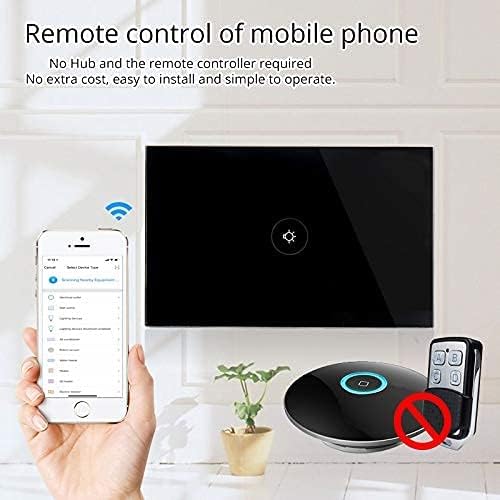
그림 6: 모바일 애플리케이션을 통한 원격 제어.
8. 운영
Once installed and paired with the 'Smart Life' app, you can operate your switch in several ways:
- Manual Touch: Simply touch the glass panel to turn the connected light or appliance on or off.
- 앱 제어: Use the 'Smart Life' app on your smartphone to remotely turn the switch on or off from anywhere with an internet connection.
9. 음성 제어 통합
The MOES Smart Switch is compatible with Amazon Alexa and Google Assistant for convenient voice control.
- Link 'Smart Life' Account: In your Amazon Alexa or Google Home app, search for the 'Smart Life' skill/action and enable it.
- 로그인: Log in with your 'Smart Life' account credentials.
- 장치 검색: 연결이 완료되면 Alexa 또는 Google Assistant에게 "기기 검색"을 요청하거나 각 앱에서 수동으로 기기 검색을 시작하세요.
- 음성 명령: You can now use voice commands such as "Alexa, turn on [device name]" or "Hey Google, turn off [device name]". Use the names you assigned in the 'Smart Life' app.

그림 7: Alexa 및 Google Home을 이용한 음성 제어.
10. 타이밍 기능
The 'Smart Life' app allows you to set schedules and timers for your smart switch, automating your lighting or appliances.
- 일정 만들기: In the 'Smart Life' app, navigate to the device settings and select 'Schedule' or 'Timer'.
- Set On/Off Times: Configure specific times for the switch to turn on or off. You can set daily, weekly, or custom schedules.
- Sunrise/Sunset Automation: Some app versions allow for automation based on local sunrise and sunset times.

Figure 8: Setting schedules via the Smart Life app.
11. 문제 해결
| 문제 | 가능한 원인 | 해결책 |
|---|---|---|
| 스위치가 터치에 반응하지 않습니다. | No power, incorrect wiring, or device locked. | Check circuit breaker. Verify wiring (Live, Neutral, Load). Perform a device reset (hold button for 20 seconds). |
| Wi-Fi에 연결할 수 없습니다. | Incorrect Wi-Fi band (5GHz), weak signal, incorrect password, or device not in pairing mode. | Ensure your router is broadcasting a 2.4GHz signal. Move closer to the router. Double-check Wi-Fi password. Reset the switch to enter pairing mode (blinking indicator). Try AP mode if normal mode fails. |
| 음성 제어가 작동하지 않습니다. | 'Smart Life' skill not enabled, incorrect device name, or no internet connection. | Ensure the 'Smart Life' skill is enabled and linked in your Alexa/Google Home app. Verify device names match. Check internet connectivity. |
| Switch goes offline frequently. | Weak Wi-Fi signal, network congestion, or router issues. | Improve Wi-Fi signal strength (e.g., Wi-Fi extender). Reduce network congestion. Restart your router. |
12. 유지관리
- 청소: 유리 패널을 부드럽고 마른 천으로 살살 닦아주세요. 연마성 세척제나 용제는 사용하지 마세요.
- 펌웨어 업데이트: Periodically check the 'Smart Life' app for available firmware updates to ensure optimal performance and security.
13. 보증 및 지원
For warranty information or technical support, please refer to the documentation provided with your purchase or contact MOES customer service directly. Contact details can typically be found on the MOES official website or within the 'Smart Life' app's support section.
비디오 2: 끝view of MOES smart home products and their integration, demonstrating various smart life features like color temperature control, music sync lighting, and smart automation based on environmental sensors.


