1. 설정
1.1 모니터 풀기
모든 구성품을 포장에서 조심스럽게 꺼내세요. 아래 나열된 모든 품목이 있는지 확인하세요.
- BenQ EX3501R Monitor
- 모니터 스탠드(베이스 및 넥)
- 전원 어댑터
- 전원 코드
- HDMI 케이블
- DisplayPort 케이블
- USB-C 케이블
- 사용 설명서 (본 문서)
1.2 스탠드 조립
모니터에 스탠드를 부착하려면 다음 단계를 따르세요.
- 긁힘을 방지하려면 부드럽고 깨끗한 천 위에 모니터를 뒤집어서 놓으세요.
- 스탠드 넥을 모니터 뒷면에 부착하세요. 제자리에 딸깍 소리가 나도록 단단히 고정하세요.
- Connect the stand base to the neck, tightening any screws as indicated in the quick start guide.

그림 1: 전면 view of the BenQ EX3501R monitor with its stand.
1.3 연결 케이블
Connect the necessary cables to the monitor and your computer. The monitor supports various input options:
- 힘: 전원 어댑터를 모니터에 연결한 다음 전원 콘센트에 연결하세요.
- 비디오 입력 : Use either the HDMI, DisplayPort, or USB-C cable to connect your computer to the monitor.
- USB-C : The USB-C port supports video, data transfer, and power delivery, allowing for a single-cable connection with compatible devices.
- USB 3.0 포트: Utilize the integrated USB 3.0 ports for connecting peripherals.
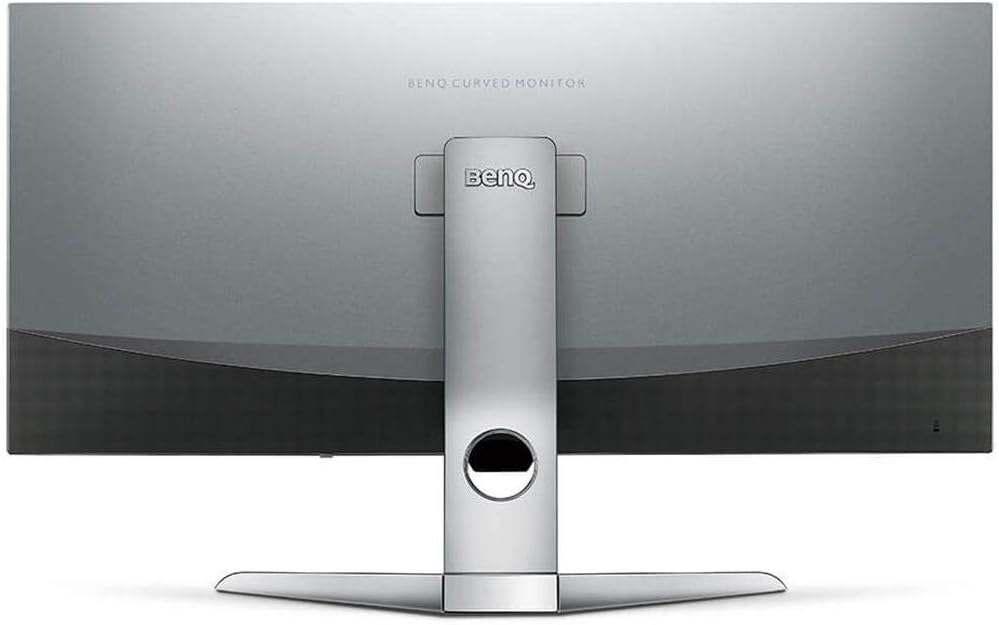
그림 2: 후면 view of the monitor displaying the connectivity ports.
2. 모니터 작동하기
2.1 전원 켜기/끄기
Press the power button, usually located on the bottom right side of the monitor, to turn it on or off. The power indicator light will illuminate when the monitor is active.
2.2 화면 디스플레이(OSD) 탐색
Use the joystick or buttons located on the monitor's underside to navigate the On-Screen Display (OSD) menu. This menu allows you to adjust various settings such as brightness, contrast, color modes, and input sources.
2.3 Display Features and Eye-Care Technology
The BenQ EX3501R incorporates several technologies designed to enhance viewing experience and reduce eye strain:
- 밝기 인텔리전스 플러스(BI+): This patented technology automatically senses ambient lighting conditions and adjusts the screen's brightness and color temperature to provide optimal viewing comfort and protect your eyes during extended use.
- 로우 블루 라이트: Filters out harmful blue light emissions to reduce eye fatigue. Multiple levels of blue light reduction are available.
- ZeroFlicker™: Eliminates screen flickering at all brightness levels, further reducing eye strain and discomfort.
- HDR(하이 다이내믹 레인지): Offers enhanced brightness and contrast, bringing greater detail and vibrancy to HDR video content.
비디오 1: 오버view of BenQ's Eye-Care technology, including Low Blue Light, ZeroFlicker, and Brightness Intelligence Plus, demonstrating how these features work to reduce eye strain and adjust screen settings automatically based on ambient light.
2.4 해상도 및 주사율
The monitor features a QHD (3440x1440) resolution and a 100Hz refresh rate, providing a smooth and detailed visual experience. The 21:9 ultrawide aspect ratio offers ample screen space for multitasking, such as viewing multiple documents side-by-side without needing a second monitor.
2.5 AMD FreeSync
For a fluid gaming experience, the monitor supports AMD FreeSync technology, which synchronizes the monitor's refresh rate with your graphics card's frame rate to eliminate screen tearing and stuttering.
3. 유지관리
3.1 모니터 청소
To maintain optimal performance and appearance, regularly clean your monitor:
- 화면: Gently wipe the screen with a soft, lint-free cloth. For stubborn smudges, use a monitor-specific cleaning solution applied to the cloth, not directly to the screen.
- 외부: Use a soft, dry cloth to wipe dust and debris from the monitor casing와 스탠드.
연마성 세척제, 왁스 또는 용제는 모니터 표면을 손상시킬 수 있으므로 사용을 피하십시오.
3.2 일반적인 관리 요령
- 모니터의 통풍구를 막지 마십시오.
- 직사광선이 닿는 곳이나 열원 근처에 모니터를 두지 마십시오.
- 물리적인 손상을 방지하기 위해 모니터를 조심스럽게 다루십시오.
4. 문제 해결
If you encounter issues with your BenQ EX3501R monitor, refer to the following common troubleshooting steps:
4.1 No Display or Black Screen
- 전원 케이블이 모니터와 전원 콘센트에 단단히 연결되어 있는지 확인하세요.
- 비디오 케이블(HDMI, DisplayPort 또는 USB-C)이 모니터와 컴퓨터에 단단히 연결되어 있는지 확인하세요.
- 모니터의 OSD 메뉴에서 올바른 입력 소스가 선택되었는지 확인하세요.
- 컴퓨터를 다시 시작하세요.
4.2 Flickering or Unstable Image
- Ensure the ZeroFlicker™ feature is enabled in the OSD menu.
- Check for loose video cable connections.
- 그래픽 카드 드라이버를 최신 버전으로 업데이트하세요.
- If using AMD FreeSync, ensure it is properly configured in your graphics card settings.
4.3 Color or Brightness Issues
- OSD 메뉴를 통해 밝기, 대비, 색상 설정을 조정하세요.
- Enable or disable Brightness Intelligence Plus (B.I.+) to see if it resolves the issue.
- OSD 메뉴를 통해 공장 초기화를 수행하십시오.
5. 사양
Key technical specifications for the BenQ EX3501R monitor:
| 특징 | 사양 |
|---|---|
| 화면 크기 | 35 인치 |
| 최대 화면 해상도 | 3440 x 1440 Pixels (QHD Ultrawide) |
| 종횡비 | 21시 9분 |
| 새로 고침 빈도 | 100Hz |
| 곡률 | 1800R |
| 패널 유형 | VA(수직 정렬) |
| 연결성 | USB-C, HDMI, DisplayPort |
| 특별 기능 | AMD FreeSync, Brightness Intelligence Plus, Low Blue Light, ZeroFlicker |
| 품목 무게 | 21.3파운드 |
| 제품 치수 | 6.88 x 3.47 x 12.93 인치 |
6. 보증 및 지원
6.1 제품 보증
The BenQ EX3501R monitor typically comes with a 3-year manufacturer's warranty. Please refer to the warranty card included in your product packaging for specific terms and conditions, or visit the official BenQ web자세한 보증 정보는 사이트를 참조하십시오.
6.2 고객 지원
For further assistance, technical support, or warranty claims, please contact BenQ customer service. You can find contact information and support resources on the official BenQ web대지: www.benq.com/en-us/support.html


