1. 제품 오버view
The TP-Link Archer CR1900 is an all-in-one cable modem and Wi-Fi router designed to provide high-speed internet access and robust wireless connectivity. It supports DOCSIS 3.0 technology with 24x8 channel bonding, enabling download speeds up to 1000 Mbps. The device features AC1900 Wi-Fi speeds, combining 2.4GHz (up to 600 Mbps) and 5GHz (up to 1300 Mbps) bands for seamless streaming and gaming. A 1 GHz dual-core processor ensures smooth Wi-Fi connections even with multiple devices connected. This modem router is certified for major cable internet providers such as XFINITY from Comcast and Spectrum, offering reliable coverage for up to 2,500 square feet.
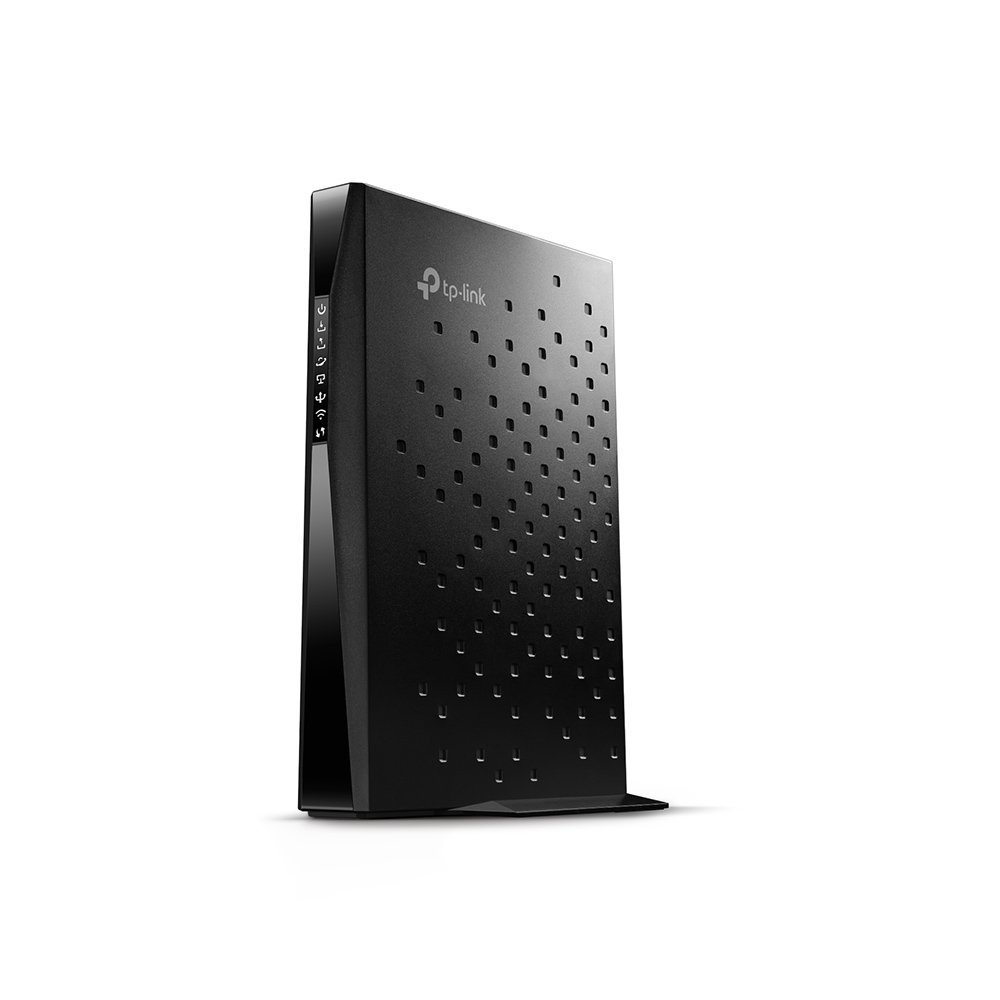
이미지 1: 앞면 view of the TP-Link Archer CR1900 Cable Modem Router.

이미지 2: 후면 view of the TP-Link Archer CR1900, showing the coaxial, Ethernet, and power ports.
2. 설정 및 설치
Setting up your Archer CR1900 is designed to be straightforward. Follow these general steps for installation:
- 동축 케이블을 연결합니다. Connect one end of a coaxial cable to the cable wall outlet and the other end to the 'Cable' port on the back of your Archer CR1900.
- 전원 연결: Plug the power adapter into the 'Power' port on the modem router and then into a standard electrical outlet. Wait for the device to power on and the indicator lights to stabilize.
- Connect to a Computer/Router:
- For a single computer: Connect an Ethernet cable from one of the LAN ports on the Archer CR1900 to the Ethernet port on your computer.
- For a separate Wi-Fi router: Connect an Ethernet cable from one of the LAN ports on the Archer CR1900 to the WAN/Internet port on your Wi-Fi router.
- 인터넷 서비스 제공업체(ISP)를 통해 활성화하세요: The Archer CR1900 requires activation with your cable internet provider. This can typically be done through a hassle-free online activation process or by calling your ISP's customer support. Provide them with the modem's MAC address, usually found on a sticker on the device.
- Configure Wi-Fi (if using as a router): Once activated, you can manage your Wi-Fi settings using the TP-Link Tether app on your mobile device. The app allows for easy configuration of network names (SSIDs) and passwords.
비디오 1: 공식 제품이 출시되었습니다.view video from the seller, demonstrating the features and setup of a similar cable modem router. This video provides a visual guide to the device's capabilities and initial connection steps.
3. 사용 설명서
The Archer CR1900 is designed for optimal performance and ease of use:
- 고속 연결: Enjoy Wi-Fi speeds up to 1900 Mbps, with 600 Mbps on the 2.4 GHz band and 1300 Mbps on the 5 GHz band. This dual-band capability allows for efficient traffic distribution, ensuring smooth performance for all your devices.
- DOCSIS 3.0 Channel Bonding: The 24 downstream and 8 upstream channels provide robust and fast internet, supporting download speeds up to 1000 Mbps, ideal for 4K streaming and online gaming.
- 강력한 프로세서: The integrated 1 GHz dual-core processor manages multiple connections simultaneously, preventing slowdowns when many devices are active on the network.
- Extended Wi-Fi Range: Three internal antennas combined with high-powered amplifiers enhance signal strength and reduce interference, providing reliable Wi-Fi coverage across up to 2,500 square feet.
- 테더 앱 관리: Use the TP-Link Tether app to easily manage your network from your smartphone. This includes setting up parental controls, guest networks, and monitoring connected devices.
4. 유지관리
To ensure the longevity and optimal performance of your Archer CR1900, consider the following maintenance tips:
- 놓기: Position the modem router in a central location, away from obstructions and other electronic devices that may cause interference. Ensure it has adequate ventilation to prevent overheating.
- 정기 재부팅: Periodically reboot your modem router (unplug from power for 30 seconds, then plug back in) to clear its memory and refresh network connections. This can resolve minor performance issues.
- 펌웨어 업데이트: TP-Link를 확인하세요 website or the Tether app for available firmware updates. Keeping your device's firmware up-to-date ensures you have the latest features, security patches, and performance improvements.
- 청결: Keep the device clean and free from dust buildup, especially around ventilation areas, to maintain proper airflow.
5. 문제 해결
If you encounter issues with your Archer CR1900, try the following troubleshooting steps:
- 인터넷에 연결되지 않음:
- Verify all cables (coaxial, Ethernet, power) are securely connected.
- Check the indicator lights on the modem router. Refer to the user manual for light status definitions.
- Reboot the modem router and any connected devices.
- Contact your Internet Service Provider (ISP) to confirm service status and modem activation.
- 느린 Wi-Fi 속도:
- Ensure your device is connected to the appropriate Wi-Fi band (5GHz for faster speeds, 2.4GHz for wider coverage).
- Reduce interference by moving the modem router away from other electronics or large metal objects.
- 네트워크에서 활성화된 장치 수 또는 대역폭을 많이 사용하는 활동 수를 제한하십시오.
- 펌웨어 업데이트를 확인하십시오.
- 간헐적인 연결:
- 느슨한 케이블 연결을 확인하십시오.
- Monitor for environmental interference.
- Perform a factory reset (refer to the full manual for instructions, as this will erase all custom settings).
6. 사양
| 특징 | 세부 사항 |
|---|---|
| 상표 | 티피링크 |
| 모델명 | Archer CR1900 (Cable Modem Router(AC1900 Gateway)) |
| 무선형 | 802.11ac |
| 주파수 대역 클래스 | 듀얼 밴드(2.4GHz 및 5GHz) |
| Wi-Fi 속도 | 최대 1900Mbps(2.4GHz: 600Mbps, 5GHz: 1300Mbps) |
| DOCSIS 표준 | DOCSIS 3.0(24x8 채널 본딩) |
| 최대 다운로드 속도 | 최대 1000Mbps |
| 프로세서 | 1GHz 듀얼 코어 |
| 안테나 유형 | 3x Internal Antennas |
| 적용 범위 | 최대 2,500제곱피트 |
| 연결 기술 | 와이파이 |
| 호환 장치 | 개인용 컴퓨터 |
| 운영 체제 호환성 | Windows 8/7/Vista/XP; Mac OS; Linux |
| 품목 무게 | 3.7파운드 |
| 제품 치수 | 9 x 6.3 x 1.5 인치 |
| 색상 | 검은색 |
7. 보증 및 지원
The TP-Link Archer CR1900 comes with a 2년 보증기술 지원이나 문의 사항이 있으시면 TP-Link에서 도움을 받으실 수 있습니다. 무료 24시간 기술 지원. You can also find additional resources and manage your device through the TP-Link Tether app or by visiting the official TP-Link support web대지.


