1. 이상view
The DualShock 4 Wireless Controller for PlayStation 4 is designed to provide an intuitive and precise gaming experience. This manual provides essential information for setting up, operating, maintaining, and troubleshooting your controller.

그림 1: 전면 view of the Gold DualShock 4 Wireless Controller.
2. 제품 특징
- 정밀 제어: Enhanced analog sticks and trigger buttons offer precise control for various game genres.
- 공유 버튼: Easily share gameplay videos and screenshots directly from your system.
- Innovative Touch Pad: Adds a new layer of interactivity to games.
- 일체형 라이트 바: Provides visual cues and enhances immersion by changing colors based on in-game events.
- 내장 스피커: Offers additional audio cues directly from the controller.
- 3.5mm 오디오 잭: Allows for private audio and communication with teammates using a compatible headset.
- 효율적인 충전: Can be recharged by plugging into your PlayStation 4 system or any standard micro USB charger.

Figure 2: Key features of the DualShock 4 controller.
3. 설정
3.1 초기 페어링
- Connect the DualShock 4 controller to your PlayStation 4 system using a micro USB cable.
- 컨트롤러 중앙에 있는 플레이스테이션 버튼(PS 버튼)을 누르세요.
- The controller will automatically pair with your system. Once paired, you can disconnect the USB cable for wireless use.
3.2 컨트롤러 충전
컨트롤러를 충전하려면:
- Connect the controller to your PlayStation 4 system using a micro USB cable. The controller can charge even when the system is in standby mode.
- Alternatively, connect the controller to any standard charger with a micro USB port.

Figure 3: Charging the DualShock 4 controller via micro USB.
4. 사용 설명서
4.1 기본 컨트롤
Familiarize yourself with the controller's buttons and analog sticks for optimal gameplay. The layout is designed for intuitive use.
4.2 공유 버튼 사용하기
를 누르세요 공유하다 button to access sharing options. You can upload gameplay videos and screenshots to social media or live stream your gameplay without interrupting your session.
4.3 오디오 기능
The built-in speaker provides dynamic sound effects. For private listening or voice chat, connect a compatible headset to the 3.5mm audio jack on the controller.
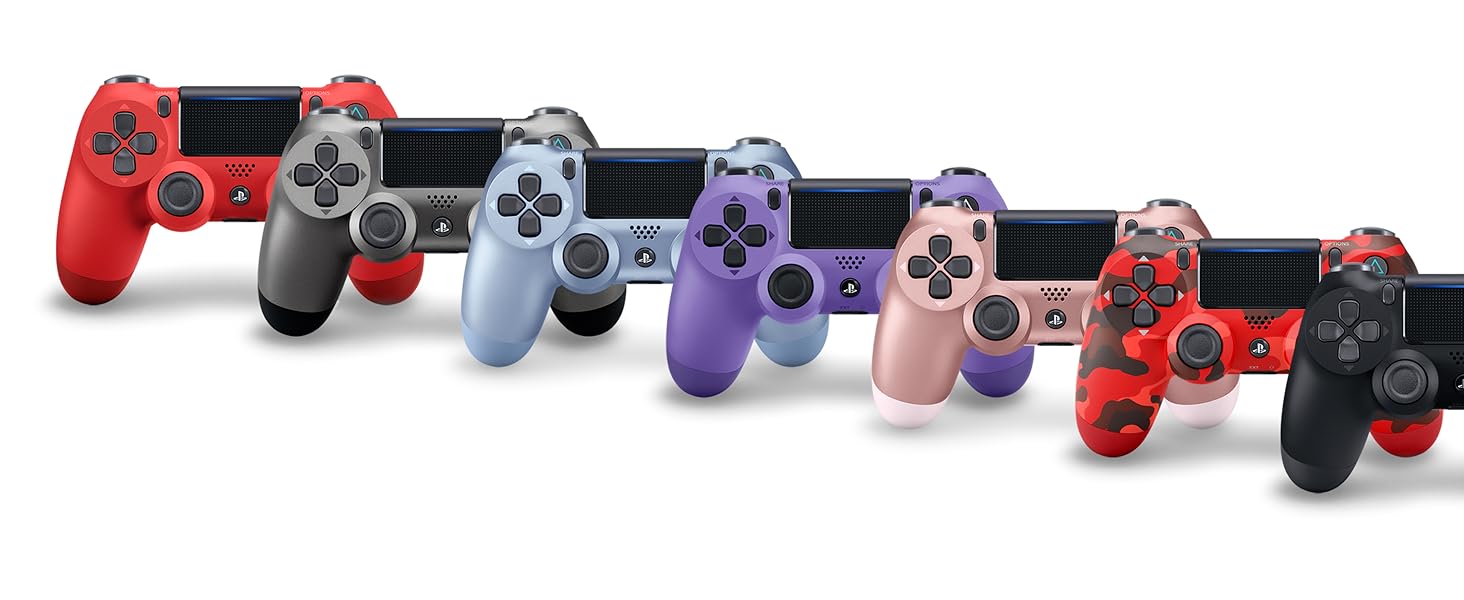
Figure 4: Connecting a headset to the controller.
5. 유지관리
- 부드럽고 마른 천으로 닦아 컨트롤러를 깨끗하게 유지하세요.
- 컨트롤러를 극한의 온도, 습도 또는 직사광선에 노출시키지 마세요.
- 컨트롤러를 분해하거나 개조하려고 하지 마십시오. 보증이 무효화되고 손상이 발생할 수 있습니다.
6. 문제 해결
6.1 컨트롤러가 연결되지 않음
- 컨트롤러가 충전되어 있는지 확인하세요.
- Connect the controller to the PS4 system with a USB cable and press the PS button to re-establish connection.
- If issues persist, try resetting the controller by pressing the small button on the back of the controller with a thin object (like a paperclip).
6.2 충전 문제
- Verify the micro USB cable is securely connected to both the controller and the charging source (PS4 or wall adapter).
- Try a different micro USB cable or charging port.
6.3 Button or Analog Stick Malfunction
- 컨트롤러의 버튼과 스틱 주변에 이물질이 없는지 확인하십시오.
- If the issue is persistent, consult PlayStation support.
7. 사양
| 특징 | 세부 사항 |
|---|---|
| 모델 번호 | 3001818 |
| 치수 | 10 x 2 x 3 인치 |
| 품목 무게 | 12 온스 |
| 연결성 | 무선(블루투스), 마이크로 USB |
| 오디오 출력 | 내장 스피커, 3.5mm 헤드셋 잭 |
| 배터리 | Rechargeable (2 AAA batteries required, included) - Note: Product description states "2 AAA batteries required. (included)", but DualShock 4 controllers typically have a built-in rechargeable Li-ion battery. Please verify actual battery type. |
| 제조업체 | 소니 컴퓨터 엔터테인먼트 |
| 출시일 | 1년 2017월 XNUMX일 |
8. 보증 및 지원
For detailed warranty information and technical support, please refer to the official PlayStation website or the user manual provided as a PDF in the product description section where you purchased the item. You can also visit the 플레이스테이션 스토어 추가 자료가 필요합니다.


