1. 서론
This manual provides essential information for the safe and efficient use of your Brother DCP-L8410CDW Color Laser Multifunction Printer. This 3-in-1 device is designed for professional environments, offering printing, copying, and scanning functionalities. It features an intuitive touchscreen, Wi-Fi, and Ethernet connectivity, making it suitable for various work settings.
주요 특징은 다음과 같습니다.
- Print, copy, and scan capabilities
- High-quality color laser printing (up to 2400 dpi)
- 자동 양면 인쇄
- Flexible paper handling with a maximum capacity of 300 sheets
- Integrated Wi-Fi and Gigabit Ethernet for versatile connectivity

이미지 1.1: 앞면 view of the Brother DCP-L8410CDW printer.
2. 설정
Follow these steps to set up your Brother DCP-L8410CDW printer:
- 짐 풀기: 프린터를 포장에서 조심스럽게 꺼내십시오. 기기의 외부와 내부에 있는 모든 보호 테이프와 포장재를 제거했는지 확인하십시오.
- 토너 카트리지를 설치하세요: Open the front cover and install the toner cartridges into their respective slots. Refer to the labels for correct color placement.
- 용지 로드: Open the paper tray and adjust the paper guides to fit your paper size (e.g., A4). Load paper into the tray and close it securely.
- 전원 연결: 전원 코드를 프린터에 연결한 다음 접지된 전기 콘센트에 연결하세요.
- 네트워크/컴퓨터에 연결:
- 무선(Wi-Fi): On the printer's touchscreen, navigate to Network settings and follow the prompts to connect to your Wi-Fi network.
- 유선(이더넷): 프린터의 LAN 포트에서 네트워크 라우터 또는 스위치로 이더넷 케이블을 연결하십시오.
- USB: Connect a USB 2.0 cable from the printer to your computer.
- 드라이버 설치: (제공된 경우) 설치 CD를 컴퓨터에 넣거나 Brother 공식 지원 웹사이트에서 최신 드라이버 및 소프트웨어를 다운로드하십시오. web사이트. 화면의 지시에 따라 설치를 완료하세요.

이미지 2.1: 측면 view of the Brother DCP-L8410CDW, showing the paper tray.
3. 사용 설명서
The Brother DCP-L8410CDW features an intuitive touchscreen for easy operation.
3.1. 인쇄
- 프린터 전원이 켜져 있고 네트워크 또는 컴퓨터에 연결되어 있는지 확인하십시오.
- 컴퓨터나 모바일 기기에서 인쇄하려는 문서나 이미지를 엽니다.
- Select the 'Print' option from your application.
- Choose the Brother DCP-L8410CDW from the list of available printers.
- Adjust print settings (e.g., number of copies, color/mono, duplex) as needed.
- '인쇄'를 클릭하세요.
3.2. 복사
- Place your document face down on the scanner glass or face up in the Automatic Document Feeder (ADF).
- On the printer's touchscreen, select the 'Copy' function.
- Adjust settings such as number of copies, color/mono, and enlargement/reduction.
- 복사를 시작하려면 '시작'을 누르세요.
3.3. 스캐닝
- Place your document face down on the scanner glass or face up in the ADF.
- On the printer's touchscreen, select the 'Scan' function.
- Choose your desired scan destination (e.g., Scan to PC, Scan to USB, Scan to Email).
- 스캔 설정(예: 해상도)을 조정합니다. file type) if necessary.
- '시작'을 눌러 스캔을 시작하세요.

Image 3.1: The intuitive touchscreen control panel of the DCP-L8410CDW.

Image 3.2: Using the Automatic Document Feeder for scanning or copying, and the USB port for direct printing/scanning.
4. 유지관리
정기적인 유지보수는 최적의 성능을 보장하고 프린터의 수명을 연장시켜 줍니다.
4.1. 토너 카트리지 교체
- When a 'Low Toner' or 'Replace Toner' message appears on the display, order new genuine Brother toner cartridges.
- 프린터의 앞면 덮개를 엽니다.
- 기존 토너 카트리지와 드럼 유닛 어셈블리를 제거하십시오.
- 토너 카트리지를 드럼 유닛에서 분리하십시오.
- 새 토너 카트리지를 포장에서 꺼내 드럼 유닛에 딸깍 소리가 나면서 제자리에 고정될 때까지 장착하십시오.
- Insert the new toner and drum unit assembly back into the printer.
- 앞면 덮개를 닫습니다.
4.2. 프린터 청소
- 외부: 프린터 외부를 부드럽고 보풀 없는 천으로 닦으십시오. 연마성 세척제를 사용하지 마십시오.
- 스캐너 유리: 스캐너 유리를 부드럽고 마른 천으로 닦으십시오. 잘 지워지지 않는 얼룩은 유리 세정제를 소량 천에 묻혀 닦아내십시오 (유리에 직접 묻히지 마십시오).
- 코로나 와이어: Periodically clean the corona wire inside the drum unit to prevent print quality issues. Refer to the printer's internal instructions or the full user guide for detailed steps.
5. 문제 해결
이 섹션에서는 프린터에서 발생할 수 있는 일반적인 문제에 대해 설명합니다.
5.1. 용지 걸림
If a 'Paper Jam' message appears:
- 프린터를 끄고 전원 코드를 뽑습니다.
- Open the rear cover or other access points as indicated on the display or in the full user guide.
- Carefully pull out any jammed paper in the direction of the paper path. Avoid tearing the paper.
- Check all paper trays and internal areas for small pieces of torn paper.
- 모든 덮개를 닫고 전원 코드를 꽂은 후 프린터를 켜십시오.
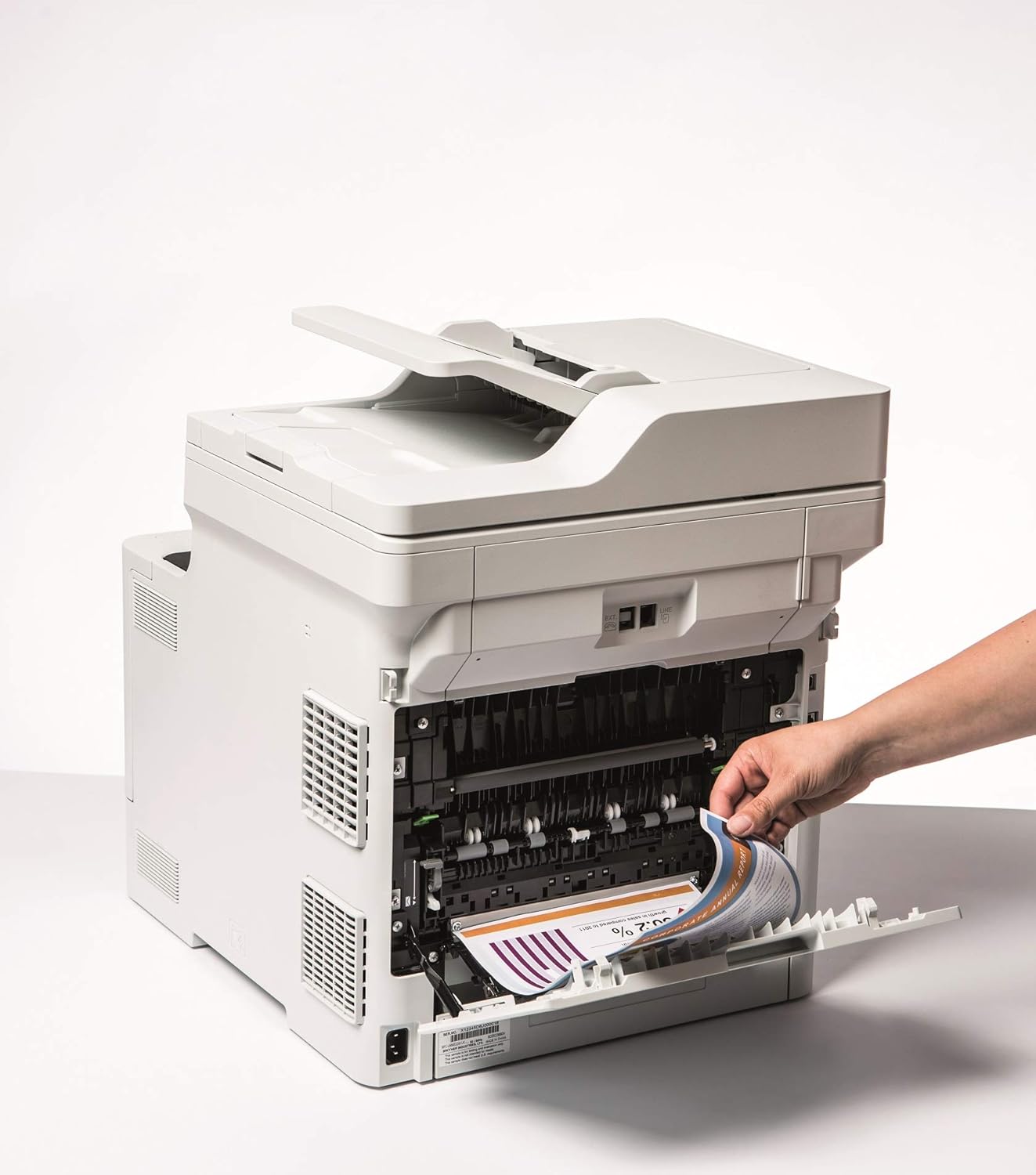
Image 5.1: Clearing a paper jam from the rear of the printer.
5.2. 인쇄 품질 문제
- 바랜 인쇄물: Toner cartridge may be low. Replace if necessary.
- 줄무늬 또는 반점: Clean the corona wire or check for foreign objects on the drum unit.
- 잘못된 색상: Ensure genuine Brother toner cartridges are used and perform a color calibration from the printer's menu.
5.3. 연결 문제
- Wi-Fi Disconnected: Check network settings on the printer and ensure your router is functioning correctly. Restart both devices if needed.
- Cannot Print from PC: Verify that the printer drivers are correctly installed and updated. Check cable connections for wired setups.
6. 사양
| 특징 | 사양 |
|---|---|
| 모델명 | DCP-L8410CDW |
| 제품 크기(DxWxH) | 43.5피트 x 53.9폭 x 52.6높이 cm |
| 최대 미디어 크기 | A4 |
| 최대 용지 적재 용량 | 300장 |
| 최대 복사 속도(흑백) | 분당 31페이지 |
| 최대 컬러 인쇄 해상도 | 61 dpcm |
| 최대 흑백 인쇄 해상도 | 2400dpi |
| 양면 인쇄 | 예 |
| 연결 기술 | Ethernet, USB 2.0, Wireless LAN (Wi-Fi) |
| 인쇄 기술 | 원자 램프 |
| 프린터 출력 | 색상 |
| 최대 인쇄 속도(컬러) | 분당 31페이지 |
| 품목 무게 | 27.6 킬로그램 |
| 전력 소비 | 500 와트 |
| 스캐너 유형 | 플랫베드 |
7. 보증 정보
This Brother DCP-L8410CDW printer comes with a 한정 보증. For detailed information regarding the terms, conditions, and duration of your warranty, please refer to the warranty card included with your product or visit the official Brother web사이트. 보증 청구를 위해 구매 증빙 자료를 보관하세요.
8. 고객 지원
For further assistance, including driver downloads, FAQs, and contact information for technical support, please visit the official Brother support web대지:
You can also find additional resources and troubleshooting guides specific to your model on the support page.


