1. 서론
This manual provides essential information for the installation, operation, and maintenance of your Western Digital 1TB 3.5" SATA HDD (Model WD10EZEX). This internal hard drive is designed for desktop PC and Mac systems, offering reliable storage and performance for various applications.

그림 1: 상단 view of the Western Digital 1TB 3.5" SATA Hard Drive.
2. 안전 정보
Observe the following safety guidelines to prevent damage to the drive or personal injury:
- 회로 기판이나 커넥터를 만지지 않으려면 항상 하드 드라이브의 가장자리를 잡으세요.
- Ensure proper grounding to prevent electrostatic discharge (ESD) when handling the drive. Use an anti-static wrist strap.
- Disconnect power from your computer before installing or removing the hard drive.
- 드라이브가 극한의 온도, 습도 또는 직사광선에 노출되지 않도록 하십시오.
- 드라이브를 떨어뜨리거나 물리적 충격을 가하지 마십시오.
3. 패키지 내용
귀하의 패키지에는 다음 품목이 포함되어야 합니다.
- Western Digital 1TB 3.5" SATA HDD (Model WD10EZEX)
Note: SATA data cables, power cables, and mounting screws are typically sold separately and are not included with this OEM drive.
4. 설정
4.1. 설치 전 체크리스트
- A desktop computer with an available 3.5-inch drive bay.
- A SATA data cable.
- An available SATA power connector from your power supply.
- Mounting screws (typically M3 or 6-32 UNC).
- 십자 드라이버입니다.
- 정전기 방지 손목 스트랩(권장).
4.2. 물리적 설치
- 전원 끄기 : Shut down your computer and disconnect the power cord from the wall outlet.
- 열린 사건: 컴퓨터 케이스의 측면 패널을 제거하여 내부 부품에 접근하십시오.
- 드라이브 베이 찾기: Identify an available 3.5-inch drive bay. Some cases may require a drive caddy.
- 마운트 드라이브: Slide the hard drive into the drive bay or caddy. Secure it with mounting screws on both sides.
- 케이블 연결:
- Connect one end of the SATA data cable to the smaller port on the hard drive and the other end to an available SATA port on your motherboard.
- 파워서플라이에서 나오는 SATA 전원 케이블을 하드 드라이브의 큰 포트에 연결하십시오.
- 사건 종결: Replace the computer case side panel(s) and reconnect the power cord.

그림 2: 하단 view 하드 드라이브의 SATA 데이터 및 전원 커넥터를 보여줍니다.
4.3. Initial Software Setup (Windows/macOS)
After physical installation, the drive needs to be initialized and formatted by your operating system:
- 전원 켜기: 컴퓨터를 켜세요.
- 디스크 관리(Windows)에 액세스하세요. Right-click on the Start button, select "Disk Management".
- 디스크 초기화: Locate your new WD10EZEX drive (it may appear as "Unallocated Space"). Right-click on it and select "Initialize Disk". Choose MBR (Master Boot Record) for drives up to 2TB or GPT (GUID Partition Table) for drives larger than 2TB (though this 1TB drive can use either, GPT is more modern).
- 새로운 단순 볼륨 만들기: Right-click on the unallocated space, select "New Simple Volume". Follow the wizard to assign a drive letter and format the drive (NTFS for Windows).
- macOS의 경우: Open "Disk Utility", select the new drive, and use the "Erase" function to format it (e.g., APFS or Mac OS Extended).
For migrating an existing operating system to this new drive, Western Digital offers Acronis True Image Edition software for free download. This software enables you to copy all your data, including the operating system, to the new drive without reinstalling.
5. 하드 드라이브 작동
Once installed and formatted, your WD10EZEX drive will function as a standard storage device. You can use it for:
- Storing documents, photos, videos, and other personal files.
- Installing applications and games.
- Creating backups of your primary drive.
The 7200 RPM rotational speed and SATA 6Gb/s interface ensure efficient data transfer and responsive performance for everyday computing tasks.
6. 유지관리
To ensure the longevity and optimal performance of your hard drive, consider the following maintenance tips:
- 정기 백업: Periodically back up important data to another storage device or cloud service.
- Disk Defragmentation (HDD only): For Windows users, run Disk Defragmenter occasionally to optimize file arrangement. SSDs do not require defragmentation.
- 건강 모니터링: Use disk utility software (e.g., CrystalDiskInfo, WD Drive Utilities) to monitor the drive's S.M.A.R.T. (Self-Monitoring, Analysis and Reporting Technology) status for early detection of potential issues.
- 시원함을 유지하세요: 컴퓨터 케이스 내부의 공기 흐름이 원활하도록 하여 과열을 방지하십시오.
- 물리적 충격을 피하십시오: Hard drives are mechanical devices; avoid moving the computer while it is operating or subjecting it to sudden impacts.
7. 문제 해결
7.1. 드라이브가 감지되지 않음
- 모든 SATA 데이터 및 전원 케이블 연결이 안전한지 확인하세요.
- 드라이브가 베이에 제대로 장착되었는지 확인하세요.
- Check your computer's BIOS/UEFI settings to ensure the SATA port is enabled and the drive is recognized.
- Ensure the drive has been initialized and formatted in Disk Management (Windows) or Disk Utility (macOS).
7.2. 느린 성능
- Ensure your SATA data cable is connected to a SATA 6Gb/s port on your motherboard for optimal speed.
- 디스크 리소스를 소모하는 백그라운드 프로세스를 확인합니다.
- Run disk defragmentation (Windows) if the drive is heavily fragmented.
- Verify the drive's health using S.M.A.R.T. monitoring tools.
7.3. 이상한 소음
- Clicking, grinding, or repetitive noises can indicate a failing drive. Back up your data immediately and consider replacing the drive.
- A slight hum or whirring sound is normal for mechanical hard drives.
8. 사양
| 특징 | 설명 |
|---|---|
| 모델 번호 | WD10EZEX |
| 용량 | 1테라바이트 |
| 인터페이스 | SATA 6Gb/초 |
| 폼 팩터 | 3.5 인치 |
| 회전 속도 | 7200 RPM |
| 은닉처 | 64메가바이트 |
| 치수(길이x너비x높이) | 5.69 x 3.92 x 0.89 인치 |
| 품목 무게 | 15.9 온스 |
| 하드웨어 플랫폼 | PC |
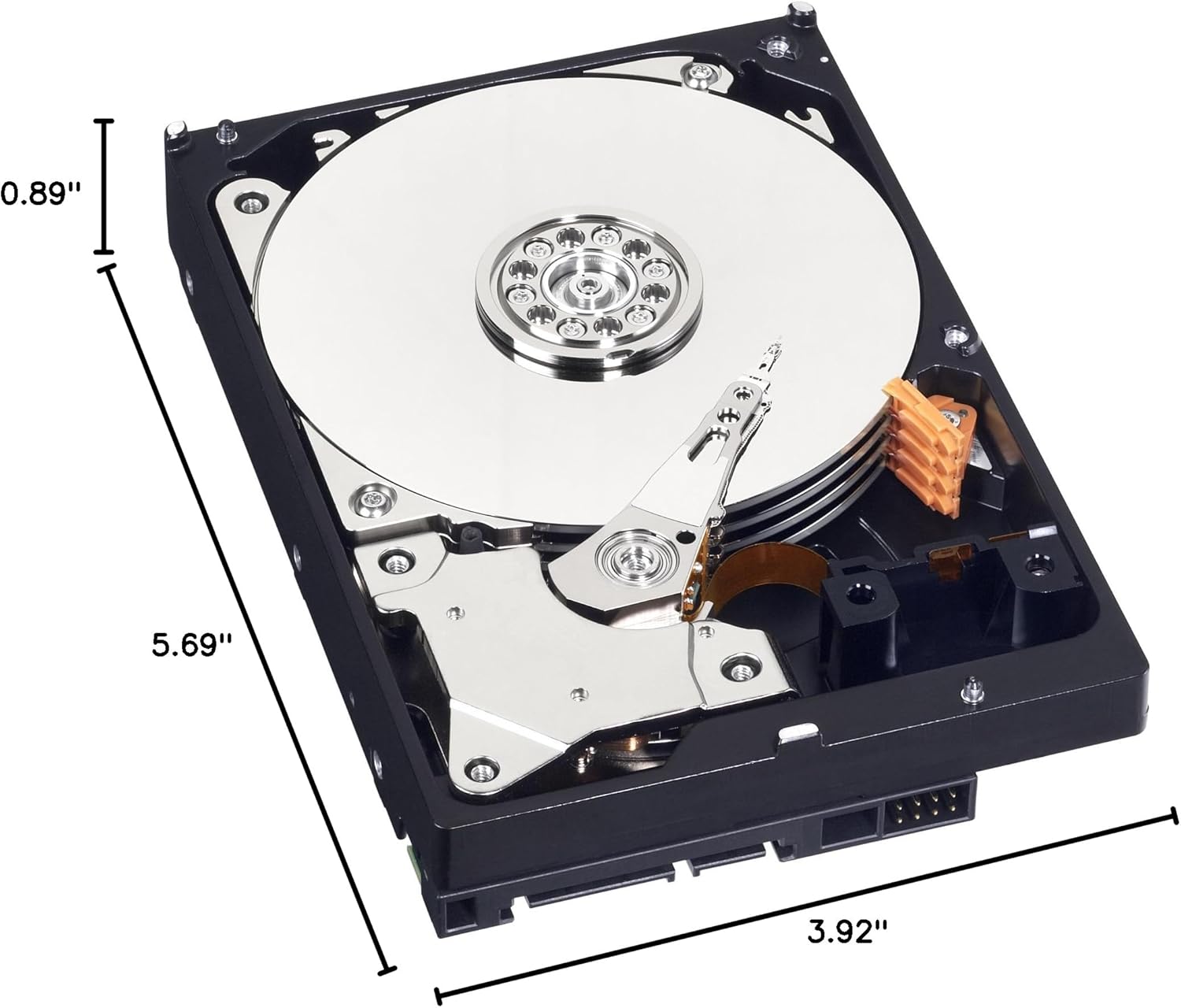
Figure 3: Dimensions of the Western Digital 1TB 3.5" SATA Hard Drive.
9. 보증 및 지원
For warranty information and technical support, please refer to the official Western Digital web해당 사이트를 방문하거나 고객 서비스에 문의하세요. 보증 청구를 위해 구매 증빙 자료를 보관하세요.