소개
This manual provides detailed instructions for the UGREEN USB External Sound Card Audio Adapter, Model 40520. This device converts a USB port into a 3.5mm audio jack, allowing you to connect headphones, headsets with microphones, or speakers to your computer or gaming console. It supports 24bit/192kHz audio output for high-quality sound.
제품 특징
- USB to 3.5mm Audio Adapter: Connects 3.5mm audio devices to a USB port.
- 고음질 사운드: Supports 24bit/192kHz audio for clear sound.
- 플러그 앤 플레이: 대부분의 운영 체제에서는 드라이버가 필요하지 않습니다.
- 폭넓은 호환성: Works with Windows, macOS, Linux, PS4, PS5, PC, and Laptops.
- 컴팩트한 디자인: 가볍고 휴대성이 좋습니다.
설정 및 설치
The UGREEN USB External Sound Card is designed for simple plug-and-play operation. Follow these steps to set up your device:
1. 어댑터 연결
- 포트 식별: Locate an available USB port on your computer, laptop, or gaming console (PS4/PS5).
- 어댑터 연결: Insert the USB connector of the UGREEN sound card into the identified USB port.
- 오디오 장치 연결: Plug your 3.5mm headset (with combined audio/mic jack), headphones, or speakers into the 3.5mm port on the UGREEN adapter.

Image: UGREEN USB External Sound Card connected to a laptop, demonstrating its use for voice chatting with headphones.

Image: Diagram illustrating the range of application, showing compatibility with Windows, macOS, Linux, PC, Laptop, Raspberry Pi 4, PS5/PS4, and various audio devices like earphones, headphones, speakers, and microphones (TS, TRS, TRRS compatibility).
2. System Configuration (if needed)
In most cases, your operating system will automatically detect the UGREEN sound card and set it as the default audio device. If not, manual configuration may be required:
Windows의 경우:
- Right-click on the sound icon in the taskbar (usually in the bottom-right corner).
- Select "Sound Settings" or "Playback devices" / "Recording devices".
- In the Playback tab, select "C-Media USB Headset" or a similar entry for the UGREEN adapter as your default output device.
- In the Recording tab, select "C-Media USB Headset" or a similar entry for the UGREEN adapter as your default input device.
- Adjust the volume levels as needed within the system settings and any applications you are using.
Mac의 경우:
- Go to "System Preferences".
- Click on "Sound".
- In the "Output" tab, select "C-Media USB Headset" or a similar entry for the UGREEN adapter.
- In the "Input" tab, select "C-Media USB Headset" or a similar entry for the UGREEN adapter.
- Adjust the output and input volume sliders as desired.
Linux의 경우:
The adapter is generally plug-and-play on Linux. If manual configuration is needed, access your system's sound settings (e.g., PulseAudio Volume Control, ALSA mixer) and select the UGREEN USB Audio Device as your preferred input and output.
PS4/PS5용:
Connect the adapter to an available USB port on your console. Navigate to the console's sound settings to ensure the USB Headset is selected for audio input and output. Note: For PS5/PS4, the output sound for Left and Right channels may be reversed as the sound sampling rate of this audio adapter (192K/24BIT) is higher than their compatibility (48K/16BIT).
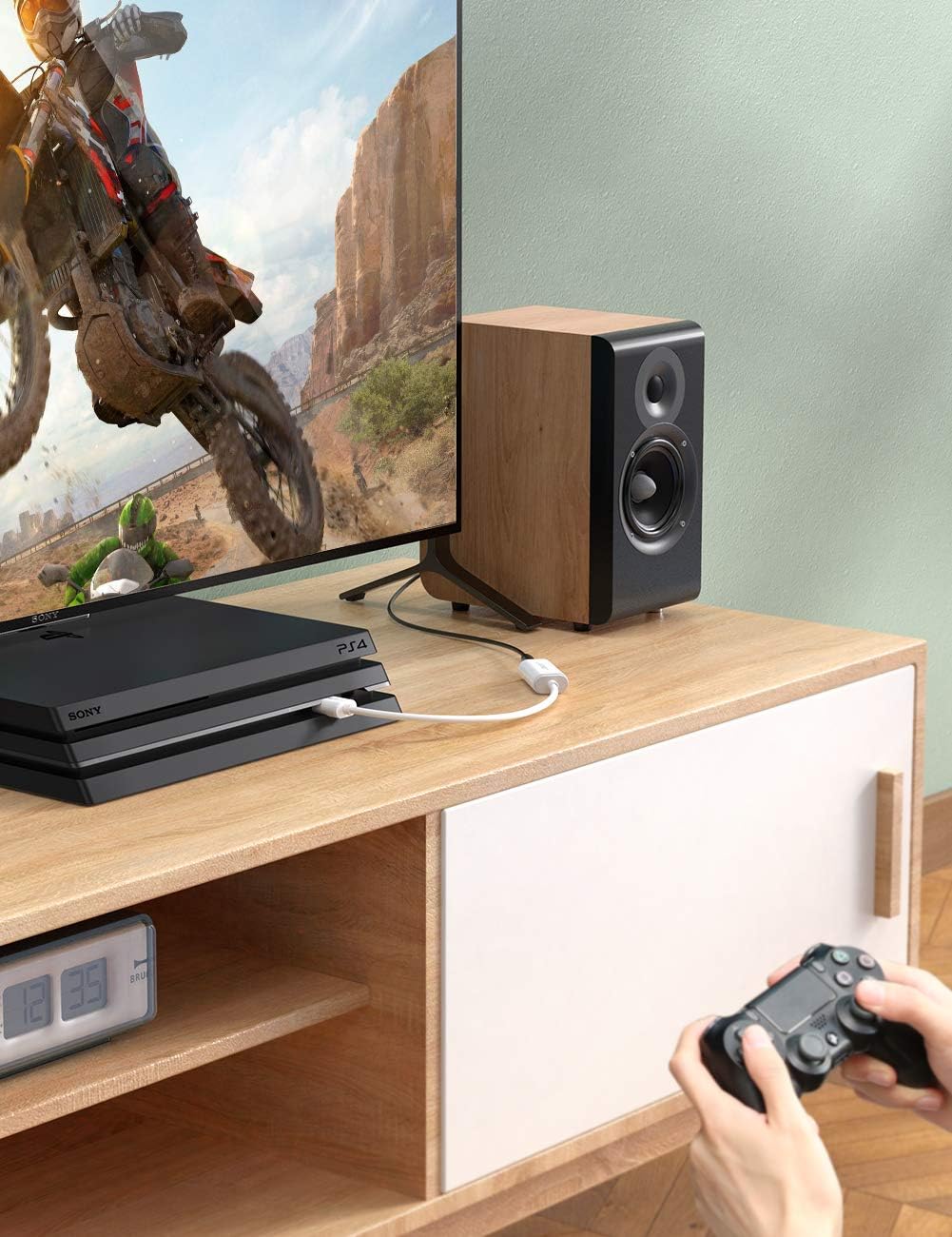
Image: UGREEN USB External Sound Card connected to a PS4 console, demonstrating its use for gaming audio.
작동 지침
Once the UGREEN USB External Sound Card is connected and configured, it functions as your primary audio input and output device.
- 오디오 재생: Any audio played from your connected device (PC, Mac, PS4/PS5) will be routed through the 3.5mm port of the adapter to your connected headphones or speakers.
- 마이크 입력: If using a headset with a microphone, your voice will be captured through the adapter and sent to your connected device for communication or recording.
- 볼륨 조절: Adjust volume using your operating system's sound controls or the volume controls on your connected audio device (if available).
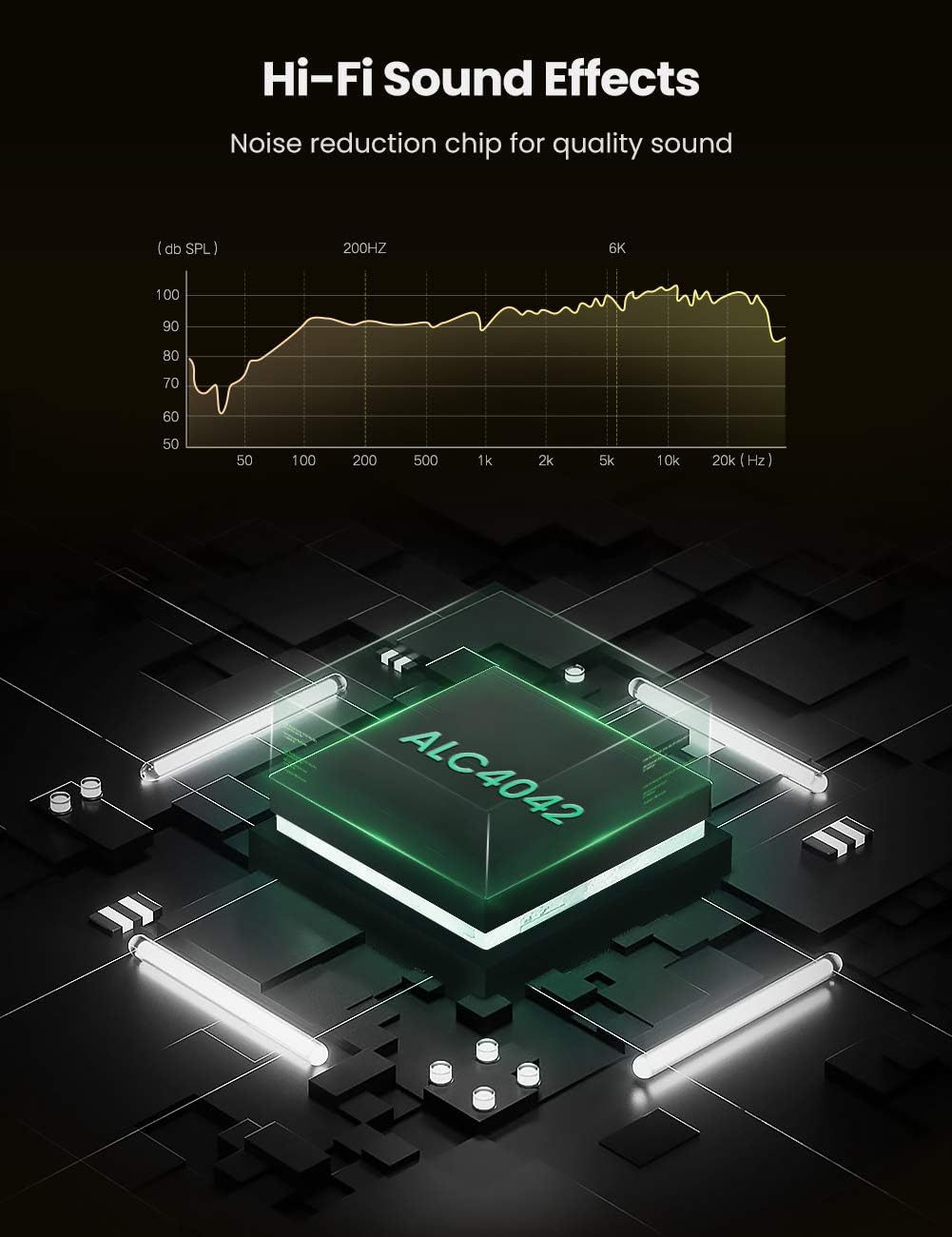
Image: Diagram highlighting the internal ALC4042 chip, responsible for noise reduction and high-fidelity sound effects, with a frequency response graph.
유지
To ensure the longevity and optimal performance of your UGREEN USB External Sound Card, follow these simple maintenance guidelines:
- 청소: 어댑터를 닦을 때는 부드럽고 마른 천을 사용하십시오. 액체 세척제나 연마성 재질은 사용하지 마십시오.
- 저장: 사용하지 않을 때는 어댑터를 서늘하고 건조한 곳에 보관하세요.
- 손질: Avoid bending or twisting the cable excessively. Do not pull the adapter out by the cable; always grasp the USB connector.
- 환경 조건: Keep the adapter away from extreme temperatures, direct sunlight, and high humidity.

Image: UGREEN USB External Sound Card connected to a laptop, demonstrating its user-friendly, compact design that does not obstruct adjacent ports.
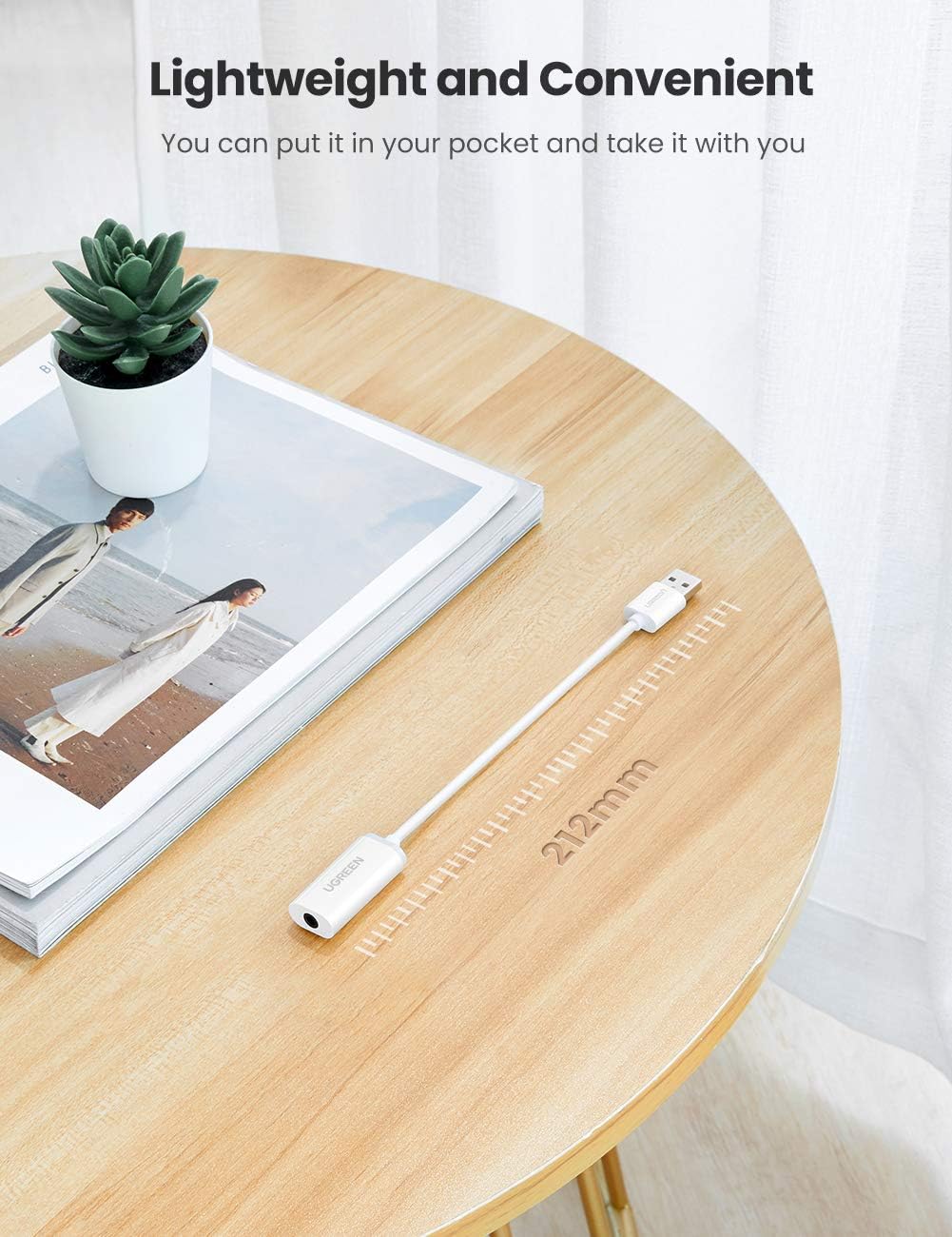
Image: UGREEN USB External Sound Card displayed on a table, illustrating its lightweight and convenient design with a total length of 212mm, making it easily portable.
문제 해결
If you encounter issues with your UGREEN USB External Sound Card, refer to the following common problems and solutions:
사운드 출력 없음:
- 연결 확인: Ensure the USB adapter is firmly plugged into a working USB port and your audio device is securely connected to the 3.5mm jack.
- 시스템 설정: Verify that the UGREEN USB Audio Device is selected as the default playback device in your operating system's sound settings (refer to "Setup and Installation" section).
- 볼륨 레벨: Confirm that system volume and application volume are not muted or set too low.
- 다른 장치로 테스트: Try connecting the adapter to a different USB port or another computer/device to rule out port or system-specific issues.
마이크가 작동하지 않음:
- 헤드셋 유형: This adapter is designed for headsets with a single 3.5mm TRRS (4-pole) combo jack. It will not work with headsets that have separate 3.5mm jacks for headphone and microphone.
- 시스템 설정: Ensure the UGREEN USB Audio Device is selected as the default recording device in your operating system's sound settings.
- 마이크 음소거: Check if the microphone is muted in your system settings or within the application you are using.
- Headset Functionality: Test your headset's microphone directly with another device if possible, to confirm it is working correctly.
잡음이 심하거나 음질이 좋지 않음:
- 간섭: Try moving the adapter away from other electronic devices that might cause electromagnetic interference.
- USB 포트: Connect the adapter directly to a USB port on your computer rather than through a USB hub, if possible, to ensure stable power and data transfer.
- 케이블 품질: Ensure your 3.5mm audio cable is not damaged and is fully inserted.
- PS4/PS5 Note: As mentioned in the setup, for PS4/PS5, the higher sampling rate of the adapter might cause reversed left/right channels. This is a known compatibility characteristic.
호환성 참고 사항:
- PS3: The USB interface on PS3 does not carry an audio signal, so this USB audio adapter is not compatible with PS3.
- 헤드셋 유형: Only compatible with headsets featuring a single 3.5mm TRRS (4-pole) jack.
명세서
| 특징 | 세부 사항 |
|---|---|
| 모델 번호 | 40520 |
| 상표 | 유그린 |
| 하드웨어 인터페이스 | USB 2.0 |
| 오디오 출력 모드 | 스테레오 재생 |
| 호환 장치 | Personal Computer, Laptop, Gaming Console (PS4, PS5) |
| 지원 플랫폼 | Windows 10, Mac OS X, Linux, PlayStation 4, PlayStation 5 |
| 오디오 Samp링율 | 최대 24비트/192kHz |
| 품목 무게 | 0.67온스(약 19그램) |
| 패키지 크기 | 5.51 x 3.46 x 0.55 인치 |
보증 및 지원
UGREEN 제품에는 일반적으로 제조사 표준 보증이 제공됩니다. 보증 기간 및 보장 범위 등 구체적인 보증 내용은 제품에 동봉된 보증 카드를 참조하거나 UGREEN 공식 웹사이트를 방문하십시오. web대지.
For technical support, troubleshooting assistance, or any product-related inquiries, please contact UGREEN customer service through their official website or the retailer where the product was purchased. Keep your purchase receipt and product model number (40520) handy when contacting support.
UGREEN 공식 Web대지: www.ugreen.com


