소개
This manual provides detailed instructions for the setup, operation, and maintenance of your Hyperkin Knight Premium Controller. Designed for use with PlayStation 3 (PS3), PC, and Mac systems, this controller offers a versatile gaming experience with its ergonomic design and responsive controls. Please read this manual thoroughly before using the product to ensure optimal performance and longevity.
제품 특징
- 듀얼 아날로그 조이스틱: Two wide-spectrum analog joysticks for precise control.
- Pressure-Sensitive D-Pad: An eight-way directional pad with pressure sensitivity.
- 압력 감지 버튼: Four shoulder buttons and four face buttons with pressure sensitivity for nuanced input.
- 영향력있는 반응: Integrated force feedback for immersive gaming experiences.
- 홈 버튼: Dedicated button for system menu access.
- 긴 케이블: A 6-foot (1.8 meter) cable for flexible positioning.
- 다중 플랫폼 호환성: Compatible with all PS3 models, as well as PC and Mac via USB.
패키지 내용
- Hyperkin Knight Premium Controller (White)
- Integrated USB Cable (6 ft.)
설치 지침
PlayStation 3(PS3)에 연결
- Ensure your PS3 console is powered off or in standby mode.
- Locate an available USB port on your PS3 console.
- Plug the USB connector of the Hyperkin Knight Controller into the USB port on your PS3.
- Power on your PS3 console. The controller should be automatically recognized and assigned a player number.
- If the controller does not respond, try a different USB port or restart the console.
PC/Mac에 연결하기
- Locate an available USB port on your PC or Mac computer.
- Plug the USB connector of the Hyperkin Knight Controller into the USB port.
- 사용하시는 운영체제(Windows, macOS)가 필요한 드라이버를 자동으로 감지하고 설치합니다. 이 과정은 다소 시간이 걸릴 수 있습니다.
- Once installed, the controller will be ready for use with compatible games and applications. You may need to configure controller settings within individual games or system preferences.
- 메모: Functionality may vary depending on the operating system and specific game titles.
작동 지침
The Hyperkin Knight Premium Controller features a standard layout for intuitive gameplay.
컨트롤러 레이아웃

이미지: 상단 view of the Hyperkin Knight Premium Controller, showing the D-pad, analog sticks, face buttons, and central buttons.
- D-패드(방향 패드): 왼쪽에 위치하며 방향 입력에 사용됩니다.
- 왼쪽 아날로그 스틱: Below the D-Pad, for precise movement and camera control.
- 오른쪽 아날로그 스틱: On the right side, typically for camera control or aiming.
- Face Buttons (Triangle, Circle, Cross, Square): On the right, used for actions within games.
- 어깨 버튼(L1, L2, R1, R2): Located on the top edge of the controller, used for various in-game functions.
- 선택 버튼: Typically used for menu access or specific game functions.
- 시작 버튼: 일반적으로 게임을 일시 정지하거나 선택 사항을 확인하는 데 사용됩니다.
- 홈 버튼: Central button to access the PS3 XMB (CrossMediaBar) or system menus on PC/Mac.
힘 피드백
The controller features force feedback (rumble) functionality, which provides tactile sensations during gameplay, enhancing immersion. This feature is automatically enabled when supported by the game and system. If you wish to disable it, check your game's or system's controller settings.
유지
- 청소: 부드럽고 마른 천을 사용하여 컨트롤러를 닦으세요. 잘 지워지지 않는 오염의 경우, 가볍게 두드리세요.amp천에 물을 묻혀 닦으세요. 강한 화학 물질이나 연마성 세제는 사용하지 마세요.
- 저장: Store the controller in a cool, dry place away from direct sunlight and extreme temperatures. Avoid wrapping the cable too tightly to prevent damage.
- 케이블 관리: Do not pull the controller by its cable. Always grasp the USB connector when plugging or unplugging.
문제 해결
컨트롤러가 응답하지 않음
- 연결 확인: Ensure the USB cable is securely plugged into both the controller and the console/computer.
- 다른 USB 포트를 시도해 보세요. Connect the controller to another USB port on your system.
- 시스템 재시작: Power cycle your PS3, PC, or Mac.
- Driver Check (PC/Mac): On PC, check Device Manager to see if the controller is recognized and if there are any driver issues. On Mac, check System Information > USB.
Incorrect Button Mapping or Limited Functionality
- 게임 설정: Many games allow for custom controller mapping. Check the in-game settings for controller configuration.
- System Settings (PC/Mac): For PC, some games or emulators may require specific controller configurations or third-party software. For Mac, check System Preferences > Game Controllers (if available) or specific application settings.
- PS3 호환성: While compatible with all PS3 models, some older games or specific PS3 system software versions might have unique controller handling. Ensure your PS3 system software is up to date.
Force Feedback Not Working
- 게임 지원 : Verify that the game you are playing supports force feedback.
- 게임 내 설정: Check the game's options menu to ensure force feedback (rumble) is enabled.
- 시스템 설정: On PC, ensure rumble is enabled in your controller settings.
명세서
| 모델 번호 | M07213-WH |
| 호환성 | PlayStation 3, PC, Mac (via USB) |
| 케이블 길이 | 6피트(약 1.8미터) |
| 입력 유형 | Pressure-sensitive buttons and D-pad, dual analog joysticks |
| 피드백 | Force Feedback (Rumble) |
| 치수 | 2.99 x 7.99 x 7.01인치(약 7.6 x 20.3 x 17.8cm) |
| 무게 | 12.5 온스(약 354그램) |
| 제조업체 | 하이퍼킨 주식회사 |
보증 및 지원
보증 정보 및 기술 지원에 대해서는 Hyperkin 공식 웹사이트를 참조하십시오. web사이트를 방문하거나 고객 서비스에 직접 문의하세요. 보증 청구에 대비해 구매 증빙 자료로 구매 영수증을 보관하세요.
제조업체: 하이퍼킨 주식회사
Web대지: www.hyperkin.com (공식 홈페이지를 방문해주세요. web(최신 지원 정보는 해당 사이트를 참조하십시오.)
제품 끝view 이미지
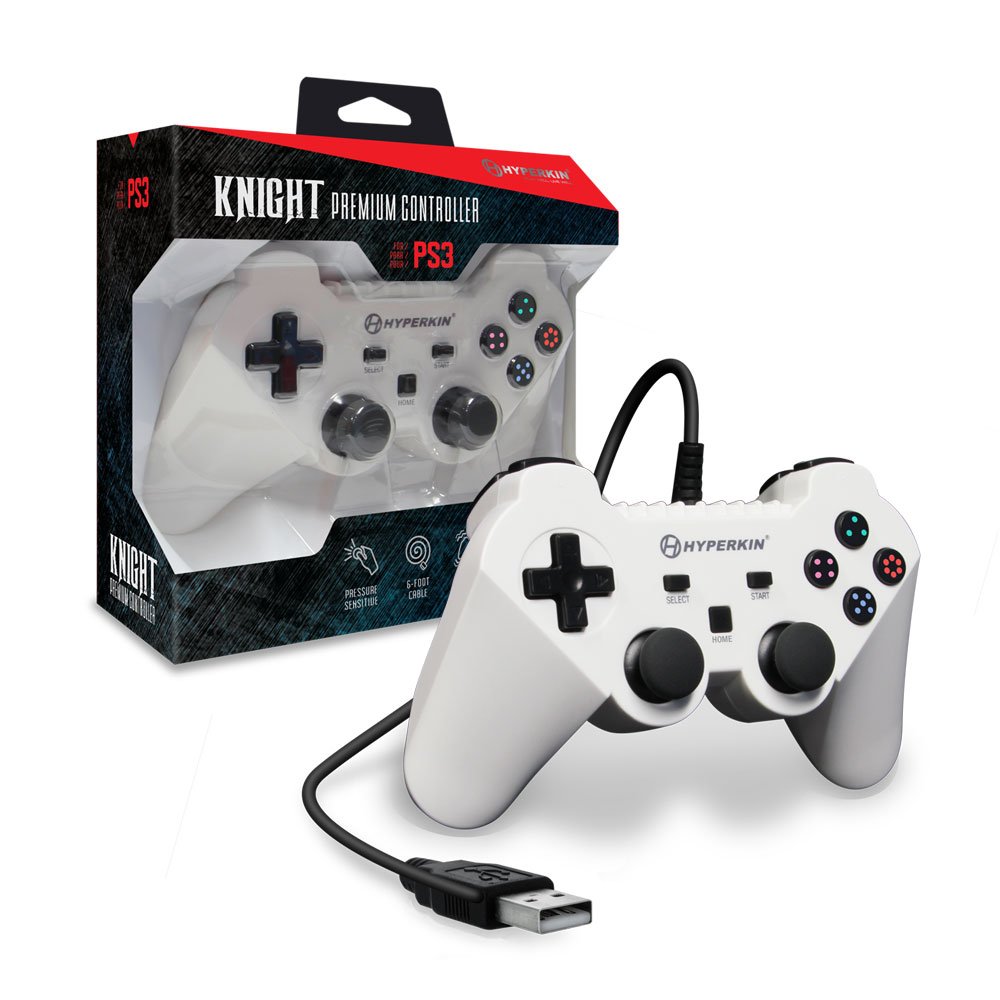
Image: The Hyperkin Knight Premium Controller displayed alongside its retail packaging, highlighting the product's design and branding.

이미지: 클로즈업 view of the Hyperkin Knight Premium Controller's retail box, showcasing 주요 특징 및 디자인 요소.

이미지: 각도가 있는 view of the Hyperkin Knight Premium Controller, emphasizing its ergonomic shape and button placement.


