1. 소개 및 이상view
This manual provides detailed instructions for the setup, operation, and maintenance of your Xprinter XP-Q200 80mm Thermal Printer. The XP-Q200 is a high-speed thermal receipt printer designed for various operating systems including Windows, Android, and iOS. It offers versatile connectivity options such as USB, Bluetooth, and Ethernet, making it suitable for a wide range of business environments.

그림 1.1: 전면 view of the Xprinter XP-Q200 Thermal Printer.
2. 안전 정보
Please read the following safety precautions carefully before using the printer to ensure safe and proper operation:
- Do not touch the thermal print head immediately after printing, as it may be hot.
- Use only the power adapter supplied with the printer. Using an incorrect adapter may damage the printer or cause fire.
- Do not disassemble or modify the printer. Refer all servicing to qualified personnel.
- 프린터를 물, 습기, 직사광선으로부터 멀리 두세요.
- 프린터를 안정적이고 평평한 표면에 놓으세요.
3. 패키지 내용
프린터 패키지에 아래 나열된 모든 항목이 포함되어 있는지 확인하십시오.
- Xprinter XP-Q200 Thermal Printer Unit
- 전원 어댑터
- USB 케이블
- Thermal Paper Roll (initial)
- 사용자 설명서
4. 제품 특징
The Xprinter XP-Q200 offers a range of features designed for efficient and reliable thermal printing:
- 고속 인쇄: Achieves print speeds of up to 260mm/sec with an integrated auto cutter.
- 다중 인터페이스: Equipped with USB, Bluetooth, and Ethernet connectivity for flexible integration.
- 광범위한 호환성: Supports Windows, Linux, and Android operating systems.
- Logo and Barcode Support: Allows for downloading and printing of store logos (BMP file format) and various barcode types on thermal paper.
- 용지 취급: Designed to handle thermal paper rolls up to 80x80mm.
- International Language Support: Supports a variety of international languages and scripts.
- 오류 알람: Features print job tips and error alarm functions for operational awareness.
- Black Mark Detection: Includes a black mark detection function for specific printing applications.
- Missing Orders Function: Incorporates a feature to help avoid "missing orders."
- 모니터링 기능: Supports Ethernet and Serial port monitoring functions.
- NV Logo Storage: Provides 256K Bytes of NV Logo download storage.
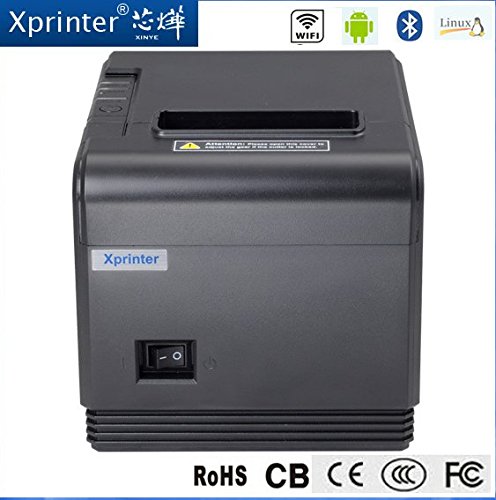
그림 4.1: 전면 view highlighting connectivity options.
5. 설정
5.1 물리적 설정
- Unpack the printer and remove all protective packaging materials.
- Place the printer on a stable, flat surface near a power outlet and your host device.
- 전원 어댑터를 프린터의 전원 포트에 연결한 다음 벽면 콘센트에 꽂으세요.
5.2 감열지 넣기
- Press the cover open button (usually located on the side or front) to open the printer's top cover.
- Insert the thermal paper roll into the paper compartment with the printing side facing the thermal print head. Ensure the roll unwinds from the bottom.
- 커터 너머로 소량의 종이를 빼냅니다.
- Close the top cover firmly until it clicks into place. The printer will automatically feed the paper to the correct position.
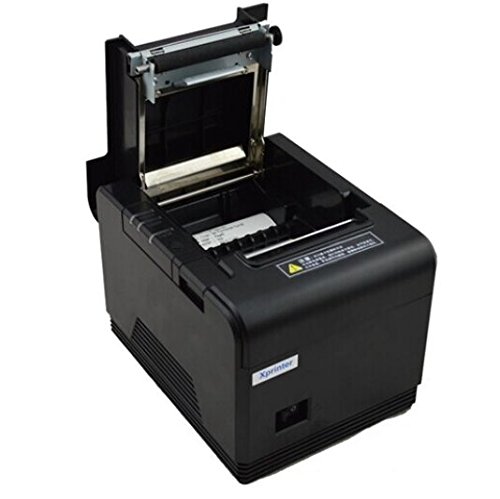
Figure 5.1: Loading thermal paper into the printer.
5.3 장치에 연결하기
The XP-Q200 supports USB, Bluetooth, and Ethernet connections.

그림 5.2: 후면 view of the printer with connectivity ports.
5.3.1 USB 연결
- Connect one end of the USB cable to the printer's USB port and the other end to your computer's USB port.
- The computer should detect the printer automatically.
5.3.2 Bluetooth Connection (for Android/iOS)
- 프린터 전원이 켜져 있는지 확인하세요.
- On your Android or iOS device, go to Bluetooth settings and enable Bluetooth.
- 검색 available devices. The printer should appear as "XP-Q200" or similar.
- Select the printer to pair. The default PIN is usually "0000" or "1234".
- Once paired, you can select the printer from your application's print settings.
5.3.3 이더넷 연결
- 프린터의 이더넷 포트와 네트워크 라우터 또는 스위치를 이더넷 케이블로 연결하십시오.
- The printer will obtain an IP address automatically via DHCP. For static IP configuration, refer to the advanced settings utility provided with the printer drivers.
5.4 드라이버 설치
For Windows and Linux systems, you will need to install the appropriate printer drivers. Drivers are typically available on the Xprinter official website or on a CD included with the printer. Follow the on-screen instructions during installation.
6. 사용 설명서
6.1 기본 인쇄
Once the printer is connected and drivers are installed (if applicable), you can send print jobs from your application. Ensure the printer is powered on and has paper loaded.
- From your application (e.g., POS software, web browser), select the print option.
- Choose "Xprinter XP-Q200" from the list of available printers.
- Adjust any print settings as needed (e.g., paper size, copies).
- "인쇄"를 클릭하여 인쇄 작업을 프린터로 보내십시오.
6.2 Logo and Barcode Printing
The XP-Q200 supports custom logo and barcode printing. Refer to the printer's utility software (usually provided with drivers) for instructions on how to upload logos (BMP format) to the printer's NV memory and configure barcode printing settings.
7. 유지관리
7.1 프린터 청소
정기적으로 청소하면 인쇄 품질을 유지하고 프린터의 수명을 연장하는 데 도움이 됩니다.
- 프린트 헤드: 면봉을 이용하여 가볍게 닦아주세요.ampened with isopropyl alcohol to gently wipe the thermal print head. Allow it to dry completely before closing the cover. Clean the print head regularly, especially if print quality degrades.
- 플래튼 롤러: Clean the rubber platen roller with a soft cloth damp이소프로필 알코올로 소독함.
- 외부: 프린터 외부를 부드럽고 마른 천으로 닦으십시오. 연마성 세척제나 용제를 사용하지 마십시오.
7.2 용지 걸림 해결
용지 걸림이 발생하는 경우:
- 프린터를 끕니다.
- 상단 덮개를 엽니다.
- Carefully remove any jammed paper. Ensure no small pieces of paper remain inside.
- Close the top cover firmly.
- Turn the printer back on.
8. 문제 해결
This section addresses common issues you might encounter with your XP-Q200 printer.
| 문제 | 가능한 원인 | 해결책 |
|---|---|---|
| 프린터 전원이 켜지지 않습니다 | Power cable loose; Power outlet faulty; Power adapter faulty | Check power connections; Try a different outlet; Contact support if adapter is faulty. |
| 출력 없음 | No paper; Paper loaded incorrectly; Printer offline; Driver issue | Load paper correctly; Check printer status; Reinstall drivers. |
| 인쇄 품질이 좋지 않음 | Print head dirty; Low quality paper; Print head worn out | Clean print head; Use recommended thermal paper; Contact support for service. |
| 종이 걸림 | 용지가 잘못 적재되었습니다. 내부에 이물질이 있습니다. | Refer to Section 7.2 for clearing jams. |
| Bluetooth/Ethernet connection fails | Incorrect pairing; Network issue; IP address conflict | Re-pair device; Check network cables/settings; Verify IP address. |
9. 사양
| 특징 | 사양 |
|---|---|
| 모델명 | XP-Q200 |
| 인쇄 기술 | 열의 |
| 인쇄 속도 | 260mm/초 |
| 프린터 출력 | 단색화 |
| 연결 기술 | 블루투스, USB, 이더넷 |
| 시트 크기 | Thermal (80mm) |
| 양면 인쇄 | 예 |
| 색상 | 검은색 |
| 컨트롤러 유형 | iOS, 안드로이드 |
| 포함된 구성 요소 | 종이 |
| 특징 | USB |
| 스캐너 유형 | 가지고 다닐 수 있는 |


