1. 이상view
The MoKo Bluetooth Wireless Keyboard is designed to enhance your Microsoft Surface Pro experience, offering a comfortable typing solution with advanced features. This keyboard provides a seamless wireless connection, a practical trackpad, and customizable 7-color backlighting, making it suitable for various environments and tasks.

Image: MoKo Bluetooth Wireless Keyboard attached to a Microsoft Surface Pro tablet, showcasin세련된 디자인과 통합성을 자랑합니다.
2. 패키지 내용
다음 품목이 패키지에 포함되어 있는지 확인하세요.
- MoKo Bluetooth Wireless Keyboard
- USB 충전 케이블
- 사용 설명서 (본 문서)

Image: A USB Type-C charging cable, included for recharging the keyboard's internal battery.
3. 호환성
This keyboard is designed for specific Microsoft Surface Pro models. Please verify your device model before use.
- Microsoft Surface Pro 7 Plus (2021)
- Microsoft Surface Pro 7 (2019)
- 마이크로소프트 서피스 프로 6
- Microsoft Surface Pro 5 (Pro 2017)
- 마이크로소프트 서피스 프로 4
- 마이크로소프트 서피스 프로 3
Note: This keyboard is NOT compatible with Surface Go (2018) or Surface Go 2.
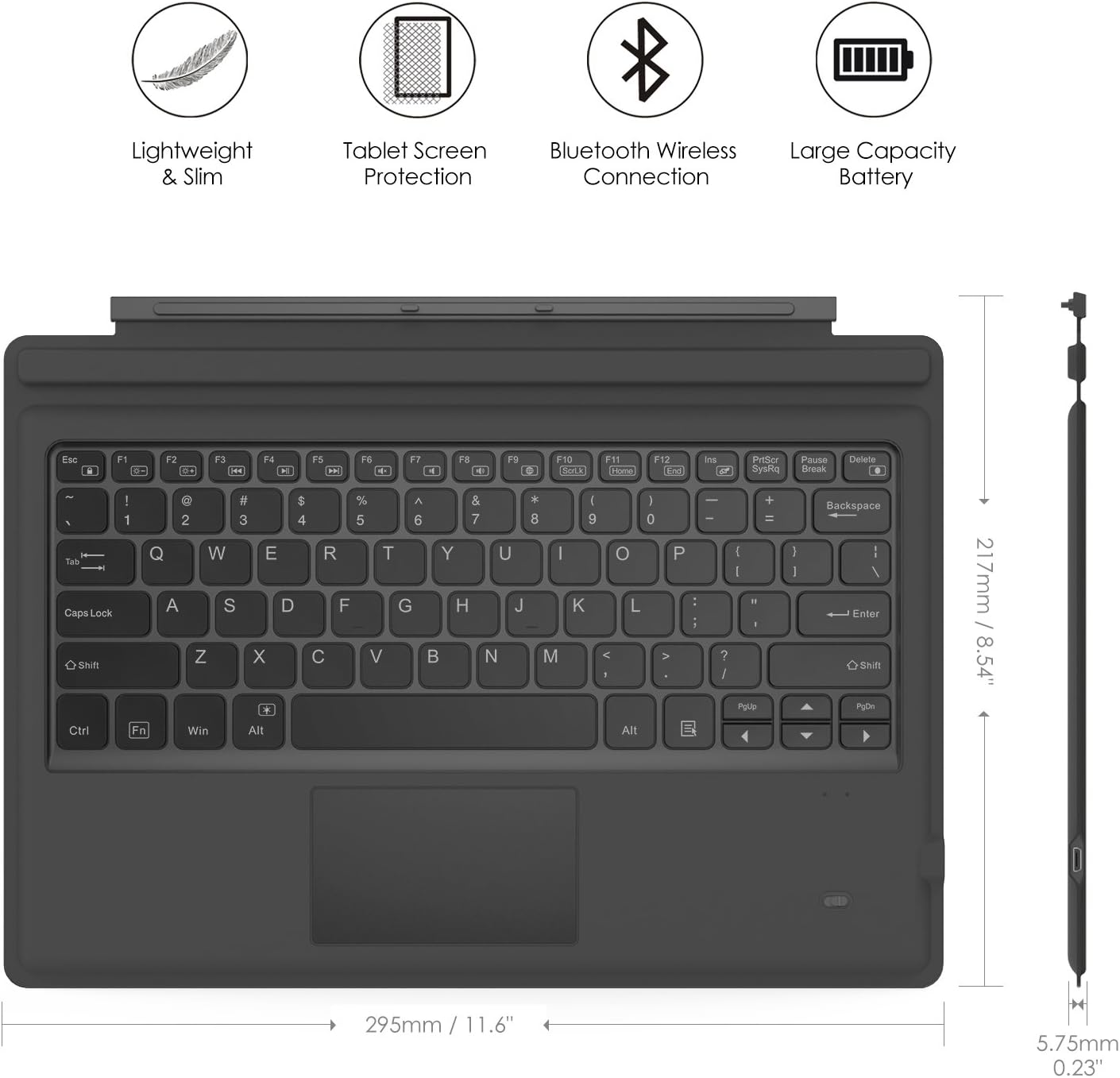
Image: A visual guide indicating compatible Microsoft Surface Pro models (Pro 7 Plus, Pro 7, Pro 6, Pro 5, Pro 4, Pro 3, Pro LTE) and incompatible models (Surface Go, Surface Go 2).
4. 설정
4.1. 키보드 충전
Before initial use, fully charge the keyboard. Connect the provided USB charging cable to the keyboard's charging port and a USB power source. The charging indicator light will show the charging status.
- Battery Capacity: 750mAh (rechargeable lithium battery)
- 충전 시간: 약 2-3시간
- Working Time (backlight off): Up to 180 hours
- Working Time (backlight on): Up to 5 hours
- 대기 시간: 최대 180일

Image: An illustration depicting the keyboard's battery and charging specifications, including charge time and standby duration.
4.2. 블루투스 페어링
Follow these steps to pair your keyboard with your Microsoft Surface Pro:
- 전원 스위치를 'ON' 위치로 밀어 키보드를 켜십시오. 표시등이 깜빡입니다.
- 를 누르세요 에프앤씨 keys simultaneously to activate Bluetooth pairing mode. The Bluetooth indicator light will start blinking rapidly.
- On your Microsoft Surface Pro, go to 설정 > 장치 > Bluetooth 및 기타 장치.
- Ensure Bluetooth is enabled and select Bluetooth 또는 기타 장치 추가.
- 선택하다 블루투스 옵션에서.
- Select the keyboard (usually named "Bluetooth Keyboard" or similar) from the list of available devices.
- Follow any on-screen prompts to complete the pairing process. Once paired, the Bluetooth indicator light on the keyboard will stop blinking.

Image: A diagram illustrating the Bluetooth wireless connection process, showing the keyboard both attached and detached from the tablet, with a note on connection distance.
5. 사용 설명서
5.1. 백라이트 제어
The keyboard features a 7-color LED backlight with adjustable brightness levels.
- To turn the backlight ON/OFF: Press the 전구 열쇠.
- 백라이트 색상을 변경하려면 다음을 누르세요. Alt + Light Bulb key. Cycle through 7 different colors.
- 백라이트 밝기를 조절하려면: 누르세요 Fn + Alt keys. This will cycle through different brightness modes.

Image: Instructions on how to change the backlight color by pressing Alt + Light Bulb key.

Image: Instructions on how to adjust backlight brightness by pressing Fn + Alt keys.
5.2. Using the Trackpad
The integrated trackpad provides precise cursor control, similar to a mouse. It supports multi-touch gestures for enhanced navigation.
- To activate/deactivate the trackpad: Press Fn + Trackpad icon 열쇠.
- Left Click: Press the left side of the trackpad or tap once.
- Right Click: Press the right side of the trackpad or tap with two fingers.
- Scrolling: Use two fingers to scroll up or down.

Image: An illustration highlighting the responsive trackpad with left and right click areas, and the scissor switch mechanism of the keys for comfortable typing.
5.3. Dual-Angle Adjustment
The keyboard features a magnetic attachment stripe that allows for two different typing angles, providing ergonomic comfort for various uses.
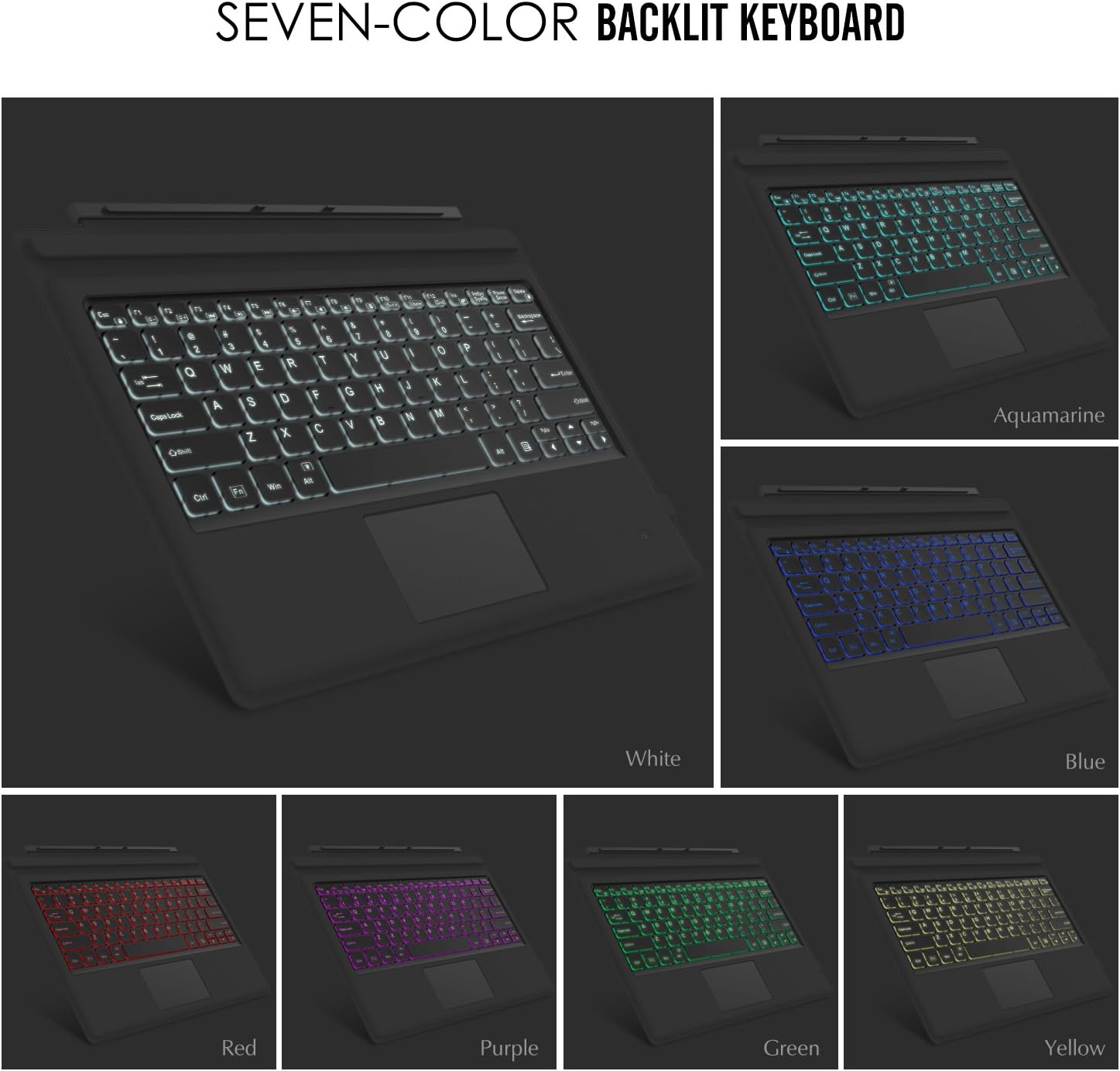
Image: A visual representation of the keyboard's dual-angle adjustment, showing two distinct positions for typing comfort.
6. 유지관리
- 키보드를 액체나 극한 온도에 노출시키지 마십시오.
- Clean the keyboard with a soft, damp 옷감. 가혹한 화학 물질을 피하십시오.
- 키보드를 분해하려고 시도하지 마십시오. 분해할 경우 보증이 무효화될 수 있습니다.
- 장기간 사용하지 않을 때는 건조한 곳에 보관하세요.
7. 문제 해결
7.1. 키보드가 블루투스로 연결되지 않음
- 키보드가 완전히 충전되었는지 확인하세요.
- Make sure the keyboard's power switch is ON.
- Verify that Bluetooth is enabled on your Surface Pro.
- Re-enter pairing mode on the keyboard (Fn + C) and attempt to pair again from your Surface Pro's Bluetooth settings.
- If previously paired, try 'forgetting' the device on your Surface Pro and then re-pairing.
7.2. 백라이트가 작동하지 않음
- 키보드가 충분히 충전되었는지 확인하세요.
- Press the Light Bulb key to toggle the backlight.
- Adjust brightness using Fn + Alt keys.
7.3. 트랙패드가 작동하지 않음
- Ensure the trackpad is activated by pressing Fn + Trackpad icon key.
- 트랙패드 표면의 먼지나 이물질을 제거하십시오.
- Restart the keyboard and your Surface Pro.
8. 사양
| 특징 | 세부 사항 |
|---|---|
| 상표 | 모코 |
| 모델 번호 | LYSB01AJOX7LU-ELECTRNCS |
| 색상 | 회색 |
| 연결 기술 | 블루투스 |
| 키보드 설명 | Ergonomic, QWERTY US International |
| 특별 기능 | Wireless, Magnetic, Backlit (7 Colors), Trackpad |
| 전원 | Battery (Rechargeable Lithium) |
| 배터리 용량 | 750mAh |
| 배터리 용량tage | 3 볼트 |
| 제품 치수 | 29.49 x 21.69 x 0.58cm(11.6 x 8.54 x 0.23인치) |
| 제품 무게 | 500g |
| 호환 장치 | Microsoft Surface Pro 7 Plus (2021) / Pro 7 (2019) / Pro 6 / Surface Pro 5 (Pro 2017) / Pro 4 / Pro 3 |
| 운영 체제 | 윈도우 |

Image: A diagram illustrating the precise dimensions of the MoKo Bluetooth Wireless Keyboard.
9. 보증 및 지원
For warranty information and technical support, please refer to the product packaging or contact MoKo customer service directly. Keep your purchase receipt for warranty claims.


