소개
This manual provides instructions for the setup, operation, maintenance, and troubleshooting of your Logitech Wireless Mouse M171. The M171 is designed for reliable wireless connectivity and ease of use across various operating systems.

이미지 1: 상단 view of the Logitech Wireless Mouse M171, showcasing its red top surface and black base.
패키지 내용
제품 패키지에 모든 품목이 들어 있는지 확인하세요.
- 로지텍 무선 마우스 M171
- USB 수신기
- AA 배터리 1개(사전 설치 또는 별도 포함)
- 사용자 문서
설정
Follow these steps to set up your Logitech Wireless Mouse M171:
- 배터리 삽입: If the AA battery is not pre-installed, open the battery compartment cover on the underside of the mouse. Insert the provided AA battery, ensuring correct polarity (+/-). Close the cover securely.
- USB 수신기 연결: Locate the USB receiver, typically stored inside the battery compartment or included separately. Plug the USB receiver into an available USB port on your computer (laptop or PC).
- 전원 켜기: Slide the power switch on the underside of the mouse to the "ON" position. The mouse is now ready for use. No software installation or pairing is required for basic functionality.
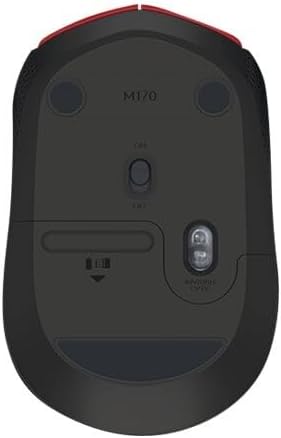
Image 2: Underside of the Logitech M171 mouse, illustrating the battery compartment and the power switch.
작동 지침
The Logitech M171 mouse offers straightforward operation:
- 기본 기능: Use the left button for primary clicks, the right button for secondary clicks (context menus), and the scroll wheel for vertical scrolling.
- 양손잡이 디자인: The symmetrical shape of the M171 is suitable for both right-handed and left-handed users. Button functions can be reassigned through your operating system's mouse settings if desired.
- 무선 범위: The mouse operates using a 2.4 GHz wireless connection, providing a range of up to 10 meters (33 feet) from the USB receiver. Actual range may vary based on environmental factors.
- 호환성: The M171 is compatible with Windows, Mac, and Chrome OS.
유지
- 배터리 교체: The mouse operates on a single AA battery, with an approximate battery life of 12 months. When the mouse performance degrades or stops responding, replace the AA battery. Open the battery compartment on the underside, remove the old battery, and insert a new AA battery with correct polarity.
- 청소: To clean the mouse, use a soft, dry cloth. Avoid using harsh chemicals or abrasive materials. For the optical sensor, use a cotton swab lightly dampened with isopropyl alcohol if necessary, ensuring no liquid enters the mouse interior.
- 절전: To conserve battery life, slide the power switch on the underside of the mouse to the "OFF" position when not in use for extended periods.
문제 해결
If you encounter issues with your Logitech Wireless Mouse M171, try the following solutions:
- 마우스가 응답하지 않음:
- 마우스의 전원이 켜져 있는지 확인하세요.
- 배터리를 확인하세요. 필요하면 교체하세요.
- USB 수신기가 컴퓨터의 정상 작동하는 USB 포트에 제대로 꽂혀 있는지 확인하세요. 다른 USB 포트에 연결해 보세요.
- Move the mouse closer to the USB receiver to rule out range issues or interference.
- 컴퓨터를 다시 시작하세요.
- 불규칙한 커서 움직임:
- 마우스 밑면의 광학 센서를 청소하세요.
- 마우스를 적절한 표면에서 사용하고 있는지 확인하세요. 반사율이 높거나 투명한 표면은 피하세요.
- 다른 기기(예: Wi-Fi 라우터, 무선 전화기)로 인한 무선 간섭이 있는지 확인하십시오.
- 버튼이나 스크롤 휠이 작동하지 않음:
- 배터리 수준을 확인하고 낮으면 교체하세요.
- 버튼이나 스크롤 휠에 이물질이 끼어 있지 않은지 확인하십시오.
- 다른 컴퓨터에서 마우스를 테스트하여 문제가 마우스에 있는지, 아니면 컴퓨터 설정에 있는지 확인하세요.
명세서
| 특징 | 세부 사항 |
|---|---|
| 상표 | 로지텍 |
| 모델 번호 | M171 (910-004641) |
| 연결 기술 | 무선(2.4GHz) |
| 무선형 | 802.11a |
| 운영 체제 호환성 | 윈도우, 맥, 크롬 OS |
| 전원 | AA 배터리 1개 |
| 평균 배터리 수명 | 12개월 |
| 품목 무게 | 2.48 온스(70.3그램) |
| 제품 크기(LxWxH) | 3.85 x 2.42 x 1.39인치(9.78 x 6.15 x 3.53cm) |
| 색상 | 빨간색 |
| 특징 | Wireless, Ambidextrous Design |
보증 및 지원
로지텍 무선 마우스 M171는 다음과 같은 특징을 가지고 있습니다. 2년 제조사 보증. For product support, warranty claims, or additional assistance, please visit the official Logitech support website or contact their customer service. Refer to the user documentation included in your package for specific contact details and warranty terms.
자세한 정보와 지원 리소스는 다음에서 찾을 수 있습니다. Logitech 지원 Web대지.


