소개
This manual provides detailed instructions for setting up, operating, and maintaining your Logitech M275 Wireless USB Mouse. Please read this guide thoroughly to ensure optimal performance and longevity of your device. The Logitech M275 mouse is designed for comfortable use with its contoured shape and offers reliable wireless connectivity.

이미지: 위에서 아래로 view of the Logitech M275 Wireless Mouse, showcasing its black finish and central scroll wheel.
설정
Follow these steps to set up your Logitech M275 Wireless USB Mouse:
- 배터리 설치:
- 마우스 밑면에서 배터리 칸을 찾으세요.
- 배터리 덮개를 엽니다.
- Insert one AA battery, ensuring correct polarity (+/-). The mouse includes one AA battery.
- 배터리 덮개를 단단히 닫으세요.
이미지: 하단 view of the Logitech M275 Wireless Mouse, showing the ON/OFF switch, battery compartment, and optical sensor.
- USB 수신기를 연결합니다:
- Locate the tiny USB Nano Receiver, typically stored inside the battery compartment or packaged separately.
- USB 나노 수신기를 컴퓨터의 사용 가능한 USB 포트에 꽂습니다.
- 컴퓨터는 필요한 드라이버를 자동으로 감지하고 설치해야 합니다.

Image: Close-up of the Logitech Nano Receiver plugged into a laptop's USB port, indicating successful connection.
- 마우스 전원 켜기:
- 마우스 아랫면에 있는 전원 스위치를 '켜짐' 위치로 밀어주세요.
- 이제 마우스를 사용할 준비가 되었습니다.

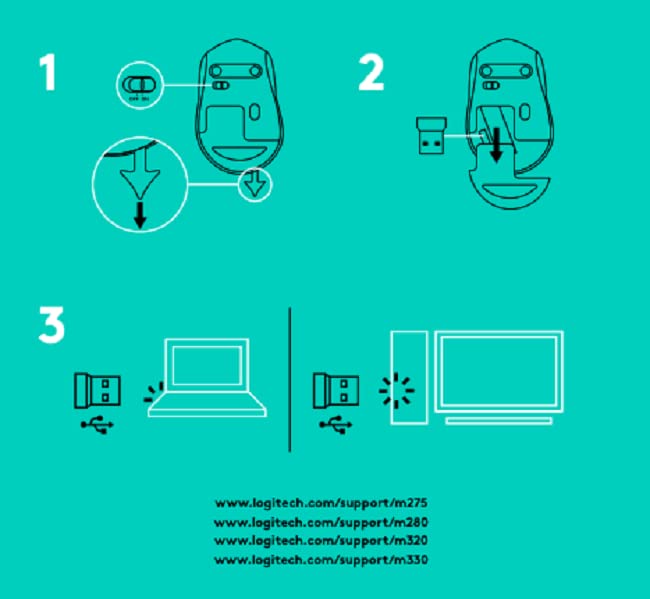
Image: A diagram showing the three steps for setting up the mouse: 1) Insert battery, 2) Insert receiver into mouse for storage, 3) Plug receiver into computer's USB port.
작동 지침
The Logitech M275 Wireless USB Mouse offers intuitive control for your computer:
- 기본 기능:
- 좌 클릭: 항목 선택, 링크 열기 등을 위한 기본 버튼입니다.
- 마우스 오른쪽 버튼으로 클릭: 상황에 맞는 메뉴와 추가 옵션을 위한 보조 버튼입니다.
- 스크롤 휠: 문서를 탐색하려면 위아래로 스크롤하세요. web 페이지를 넘길 수 있습니다. 스크롤 휠은 클릭 가능한 가운데 버튼 역할도 합니다.
- 고급 광학 센서: The mouse utilizes a Logitech Advanced Optical Sensor for smooth and precise cursor control on various surfaces.
- 배터리 수명 표시기: A small LED light on the mouse indicates battery status. It typically glows green briefly when powered on if the battery is good. A red light indicates that the battery is low and needs replacement. The mouse is designed for an 18-month battery life, which may vary based on usage.

이미지: 상단 view of the Logitech M275 Wireless Mouse, highlighting its ergonomic design and indicating an 18-month battery life.
유지
적절한 유지 관리는 마우스의 수명과 성능을 보장합니다.
- 배터리 교체: When the battery indicator light turns red, replace the AA battery. Follow the steps outlined in the 'Install the Battery' section under Setup.
- 마우스 청소:
- 청소하기 전에 마우스를 끄세요.
- 부드럽고 털이 없는 천을 살짝 사용하세요.amp물이나 순한 세척 용액으로 마우스 표면을 닦으세요.
- 가혹한 화학물질이나 연마재의 사용은 피하세요.
- 액체가 마우스의 내부 구성품에 들어가지 않도록 주의하세요.
문제 해결
If you encounter issues with your Logitech M275 mouse, refer to the following common solutions:
- No Cursor Movement or Intermittent Connection:
- 마우스가 켜져 있는지 확인하세요.
- Check the battery. Replace it if the indicator light is red or if the mouse is unresponsive.
- Ensure the USB Nano Receiver is securely plugged into a working USB port on your computer. Try a different USB port.
- 범위 문제를 배제하려면 마우스를 USB 수신기에 더 가까이 옮기세요.
- Avoid using the mouse on highly reflective or transparent surfaces. A mouse pad is recommended for optimal tracking.
- Lagging or Unresponsive Cursor:
- Interference from other wireless devices can affect performance. Try moving other wireless devices away from the mouse and receiver.
- 컴퓨터 운영 체제가 최신 버전인지 확인하십시오.
- Mouse Not Detected by Computer:
- 컴퓨터를 다시 시작하세요.
- Try plugging the USB Nano Receiver into a different USB port.
- If you have other Logitech devices, ensure the M275 receiver is the correct one for this mouse, as it is not a Unifying receiver.
명세서
| 특징 | 세부 사항 |
|---|---|
| 상표 | 로지텍 |
| 모델 번호 | M275 |
| 연결 기술 | USB 무선 |
| 움직임 감지 기술 | 광학 |
| 색상 | 검은색 |
| 전원 | Battery Powered (1 AA battery) |
| 평균 배터리 수명 | 18개월 |
| 하드웨어 플랫폼 | PC |
| 운영 체제 호환성 | Linux, Windows 7, Windows XP |
| 품목 무게 | 100g |
| 제품 치수 | 21 x 7.6 x 15.2cm |
| 포함된 구성 요소 | Wireless Mouse, Nano Receiver, 1 AA battery, User Documentation |
보증 및 지원
- 보증: The Logitech M275 Wireless USB Mouse comes with a 1-year warranty. Please retain your proof of purchase for warranty claims.
- 고객 지원: For technical assistance or warranty inquiries, please contact Logitech Customer Care.
- 로지텍 인도 고객 지원:
- 무료 전화번호: 1800 572 4730
- Opening Time: 9:00 AM to 6:00 PM (Monday to Friday)
- Note: Weekends & National Holidays closed.


