소개
This manual provides comprehensive instructions for the setup, operation, and maintenance of your Sharon 4 in 1 Bluetooth Multitouch Keyboard. Designed for versatility, this keyboard integrates a touchpad, making it an ideal accessory for various devices including Android, iOS/Mac OS X, Windows 8 & 10, and Smart TVs.
The keyboard features a durable aluminum housing, a long-lasting battery, and special function keys to enhance your productivity and entertainment experience. Please read this manual carefully to ensure proper use and to maximize the functionality of your device.
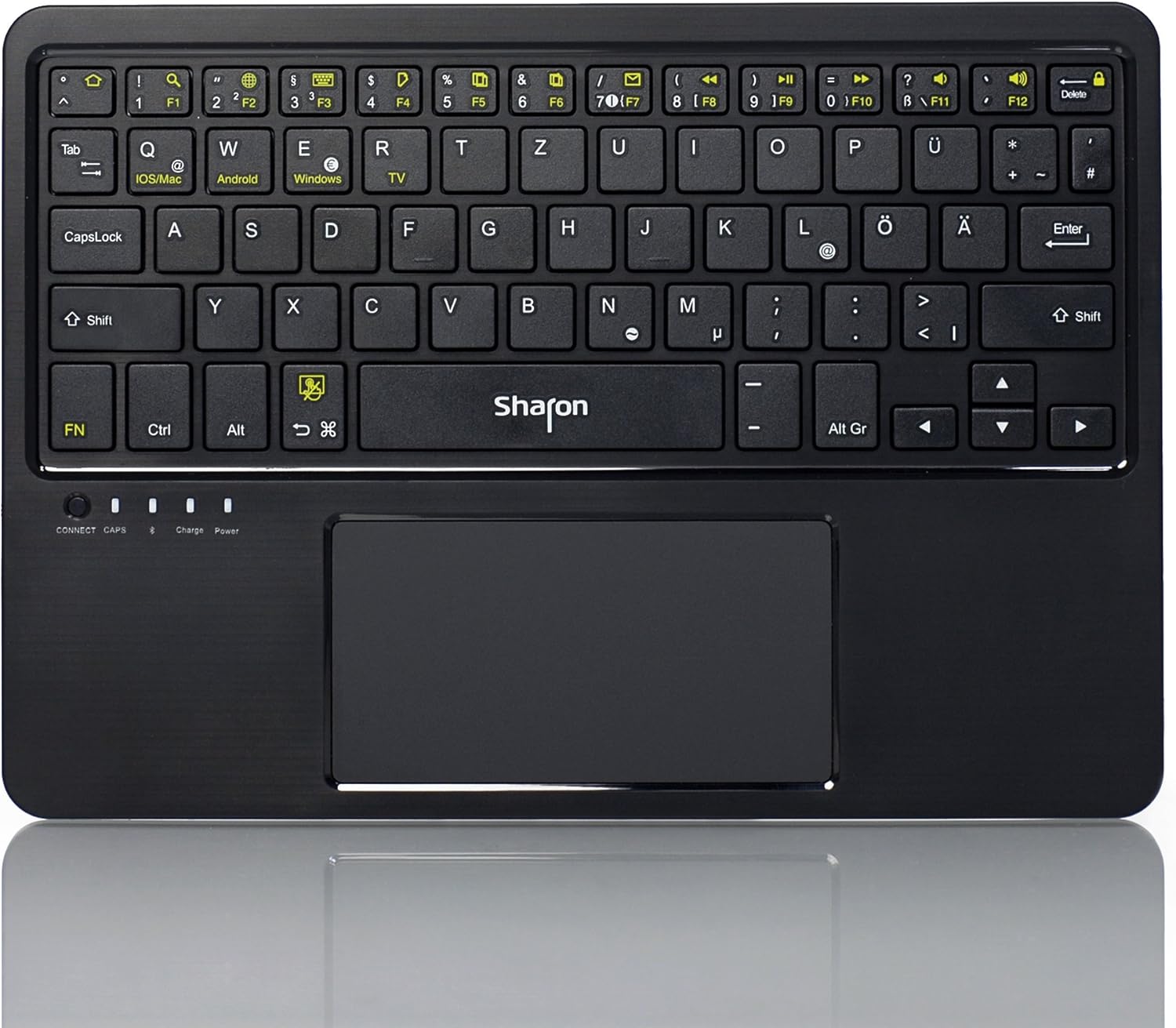
이미지: 상단 view of the Sharon 4 in 1 Bluetooth Multitouch Keyboard, highlighting its QWERTZ layout and integrated multitouch touchpad.
패키지 내용
시작하기 전에 패키지에 모든 품목이 들어 있는지 확인하세요.
- Sharon 4 in 1 Bluetooth Multitouch Keyboard (QWERTZ layout)
- USB 충전 케이블
- 플라스틱 스탠드
- High-quality Protective Bag
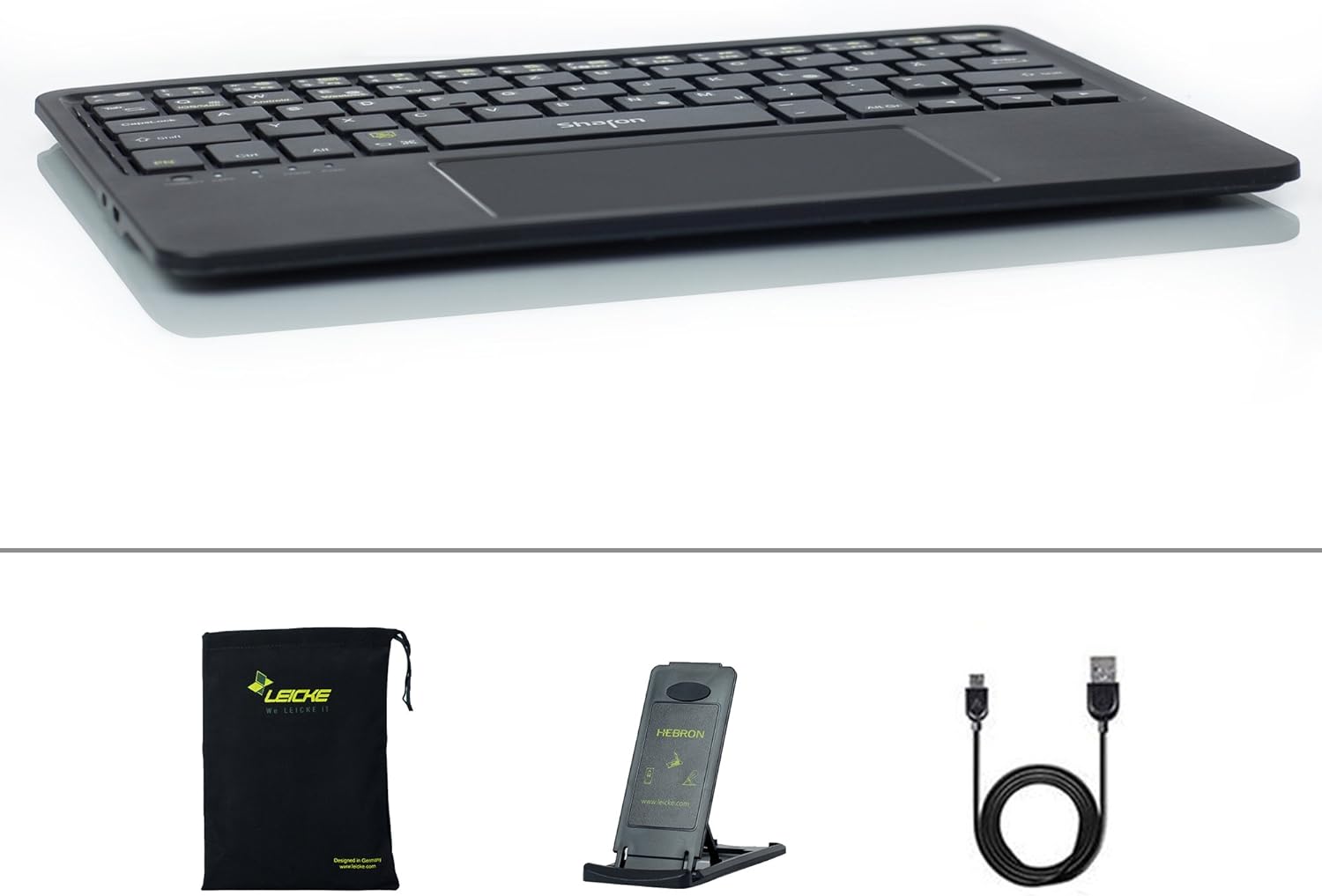
Image: The Sharon keyboard package contents, including the keyboard, USB charging cable, foldable stand, and protective carrying bag.
설정
1. 키보드 충전
The keyboard comes with a built-in rechargeable Lithium Polymer battery. For optimal performance, fully charge the keyboard before first use.
- Connect the supplied USB charging cable to the charging port on the keyboard.
- Plug the other end of the USB cable into any standard USB port on a computer, laptop, or a USB wall charger.
- The charging indicator light on the keyboard will illuminate during charging and turn off when fully charged. A full charge provides up to 45 hours of continuous use or 60 days of standby time.
2. 블루투스 페어링
The Sharon keyboard uses Bluetooth 3.0 for wireless connectivity, offering a range of up to 10 meters.
- Ensure the keyboard is charged and powered on. The power switch is typically located on the side or back of the keyboard.
- Press the "CONNECT" button on the keyboard. The Bluetooth indicator light will start blinking, indicating that the keyboard is in pairing mode.
- On your device (smartphone, tablet, computer, or Smart TV), navigate to the Bluetooth settings.
- Bluetooth를 활성화하고 사용 가능한 장치를 검색합니다.
- Select "Sharon Keyboard" or a similar name from the list of found devices.
- If prompted, enter the pairing code displayed on your device's screen using the Sharon keyboard, then press Enter.
- Once paired, the Bluetooth indicator light on the keyboard will stop blinking and remain solid, or turn off, depending on the model. Your keyboard is now ready for use.
3. 스탠드 사용법
The included plastic stand allows you to position your tablet or smartphone at various angles for comfortable view입력과 타이핑.
- Unfold the stand to its desired position. It supports 5 different angles.
- Place your device securely in the stand's groove.
- For transport, the keyboard and stand can be stored together in the provided protective bag.
작동 지침
1. 호환성
The Sharon keyboard is designed for broad compatibility across multiple operating systems:
- iOS: Apple iPad, iPhone 4, 5, 6, 6 Plus
- OS X: Mac Pro, iMac, MacBook, MacBook Pro series with OS X
- 기계적 인조 인간: Devices such as Samsung, Sony Xperia, Huawei, ASUS, Nexus
- 윈도우: Tablets and smartphones with Windows 7, 8, 8.1, 10 (Bluetooth required)
- 스마트 TV: Compatible with Smart TVs that support Bluetooth keyboards

Image: The Sharon keyboard shown in use with a large monitor, a tablet, and a smartphone, illustrating its versatile compatibility across different device types.
2. Switching Layouts / Operating Systems
To optimize keyboard functionality for different operating systems, you can switch between layouts using the dedicated function keys:
- 누르다 Fn + Q for iOS/Mac OS X layout.
- 누르다 Fn + W for Android layout.
- 누르다 Fn + E Windows 레이아웃용입니다.
- 누르다 Fn + R for Smart TV layout.

이미지: 상세 view of the keyboard's top row, highlighting the function keys (F1-F12) and the dedicated keys for switching between iOS/Mac, Android, Windows, and TV operating system layouts.
3. Touchpad Usage and Gestures
The integrated multitouch touchpad allows for intuitive navigation and control, similar to a laptop's trackpad. It supports various gestures:
- 단일 손가락 탭: Left click / Select.
- 두 손가락 탭: 마우스 오른쪽 버튼을 클릭하세요.
- 두 손가락 스크롤: Drag two fingers up or down to scroll vertically.
- 확대/축소하려면 핀치하세요: Pinch in or out with two fingers to zoom in or out.
- Swipe Left/Right with Two Fingers: Page forward/backward.
- Three Finger Swipe Up/Down: 페이지 위로/페이지 아래로.
- 세 손가락으로 왼쪽/오른쪽으로 스와이프: Move selection.
To activate/deactivate the touchpad, press Fn + 스페이스바.

Image: Visual guide demonstrating common multitouch gestures for the integrated touchpad, such as single-finger tap for left click, two-finger tap for right click, and pinch gestures for zooming.
4. 특수 기능 키
The top row of the keyboard features special function keys (F1-F12) that provide quick access to common commands. These keys often require pressing the Fn 키를 동시에 누르세요.
| 키 조합 | 기능 |
|---|---|
| FN + F1 | 홈 버튼 |
| FN + F2 | 검색 |
| FN + F3 | Select Language / Change Input Method |
| FN + F4 | Show/Hide On-screen Keyboard |
| FN + F5 | 복사 |
| FN + F6 | 자르다 |
| FN + F7 | 반죽 |
| FN + F8 | Open Standard E-Mail Program |
| FN + F9 | 음악 재생 제어 |
| FN + F10 | 볼륨 낮추기 |
| FN + F11 | 볼륨을 높이다 |
| FN + F12 | 화면 잠금/해제 |
5. 전원 관리
The keyboard features an intelligent standby mode to conserve battery life. After 15 minutes of inactivity, the keyboard will automatically enter sleep mode. To wake it up, simply press any key. The keyboard is designed for long battery life, offering up to 60 days in standby mode and 45 hours of continuous working time on a single charge.
유지
To ensure the longevity and optimal performance of your Sharon keyboard, follow these simple maintenance guidelines:
- 청소: 부드럽고 마른 보풀 없는 천으로 키보드 표면을 닦으세요. 잘 지워지지 않는 얼룩은 살짝 두드려 닦아내세요.amp천에 물이나 순하고 연마성이 없는 세제를 묻혀 닦아주세요. 과도한 습기는 피하세요.
- 저장: When not in use, store the keyboard in the provided protective bag to prevent dust accumulation and scratches.
- 배터리 관리 : Avoid fully discharging the battery frequently. Recharge the keyboard when the low battery indicator appears. If storing for an extended period, charge the battery to about 50% to prevent deep discharge.
- 극단을 피하세요: 키보드를 극한의 온도, 직사광선 또는 높은 습도에 노출시키지 마세요.
- 조심스럽게 다루십시오: The keyboard has a bending-resistant aluminum housing, but avoid dropping it or applying excessive force.
문제 해결
If you encounter issues with your Sharon keyboard, please refer to the following common solutions:
| 문제 | 가능한 원인 | 해결책 |
|---|---|---|
| 키보드가 켜지지 않습니다. | 배터리가 소진되었습니다. | Charge the keyboard using the supplied USB cable. |
| Cannot pair the keyboard via Bluetooth. | 키보드가 페어링 모드가 아닙니다. 기기의 블루투스가 꺼져 있습니다. 기기가 너무 멀리 떨어져 있습니다. | Ensure keyboard is charged and powered on. Press the "CONNECT" button. Verify Bluetooth is enabled on your device and that the keyboard is within 10m range. Try restarting both devices. |
| 키보드 연결이 자주 끊깁니다. | 배터리 부족; 간섭 발생; 기기와의 거리가 너무 멀다. | Recharge the keyboard. Move closer to your device. Avoid strong electromagnetic interference. |
| Keys are not responding correctly. | Incorrect OS layout selected; software glitch. | Ensure the correct OS layout is selected (Fn + Q/W/E/R). Restart the keyboard and your device. |
| 터치패드가 작동하지 않습니다. | Touchpad deactivated; software glitch. | Press Fn + Spacebar to ensure the touchpad is activated. Restart the keyboard and your device. |
명세서
| 특징 | 세부 사항 |
|---|---|
| 상표 | 라이케 |
| 모델 번호 | SI54235 |
| 제품 치수 | 24.4 x 17.1 x 0.6cm |
| 품목 무게 | 267g |
| 연결 유형 | 블루투스 3.0 |
| 무선 범위 | 최대 10미터 |
| 배터리 유형 | 1개의 리튬 폴리머 배터리(포함) |
| 배터리 수명(연속 사용) | 최대 45시간 |
| 배터리 수명(대기) | 최대 60일 |
| 재료 | 알류미늄 |
| 키보드 레이아웃 | 독일식 쿼츠 |
| 운영 체제 호환성 | iOS, OS X, Android, Windows (7, 8, 8.1, 10), Smart TVs (with Bluetooth) |
| 포함된 구성 요소 | Keyboard, USB Cable, Stand, Protective Bag |
보증 및 지원
제공된 제품 정보에는 제품 보증 및 고객 지원 관련 정보가 포함되어 있지 않습니다. 제품 포장 또는 제조업체 공식 웹사이트를 참조하십시오. website for details on warranty coverage and how to contact customer support for your LEICKE Sharon 4 in 1 Bluetooth Multitouch Keyboard.


