소개
This manual provides instructions for setting up, operating, and maintaining your Mercury MW3030R Dual Band Wireless Router. Please read this manual carefully before use to ensure proper installation and optimal performance.
안전 정보
- 기기를 물이나 과도한 습기에 노출시키지 마세요.
- 장치를 직접 분해하거나 수리하려고 하지 마십시오.
- 기기와 함께 제공된 전원 어댑터만 사용하세요.
- 과열을 방지하려면 라우터 주변의 적절한 환기를 확보하세요.
패키지 내용
패키지에 다음 품목이 포함되어 있는지 확인하십시오.
- Mercury MW3030R Wireless Router
- 전원 어댑터
- 이더넷 케이블
- Quick Installation Guide (this manual serves as a detailed guide)
제품 끝view
라우터의 구성 요소와 표시기에 대해 알아보세요.
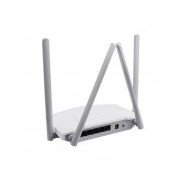
그림 1: 뒤쪽 view of the Mercury MW3030R router. This image displays the four external antennas, the WAN port (typically blue), multiple LAN ports (typically yellow), and the power input jack. The reset button and WPS button are also usually located on the rear panel.
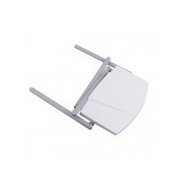
그림 2: 위에서 아래로 view of the Mercury MW3030R router with its antennas folded. This perspective highlights the router's sleek, white casing and its overall compact form factor, suitable for various placements.
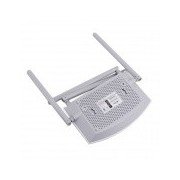
그림 3: 맨 아래 view of the Mercury MW3030R router. This image shows the ventilation holes designed for heat dissipation and the product label, which typically contains important information such as the default Wi-Fi name (SSID), password, and web management address.
LED 표시등:
- 전원 LED: 라우터의 전원 상태를 나타냅니다.
- 인터넷 LED: 인터넷 연결 상태를 나타냅니다.
- WLAN LED: 무선 활동을 나타냅니다.
- LAN LED: Indicate connection status for each LAN port.
설정
1. 하드웨어 연결
- 전원 켜기: Connect the power adapter to the router's power port and plug it into a wall outlet. Wait for the Power LED to become stable.
- 인터넷(WAN)에 연결: Connect one end of an Ethernet cable to your modem's LAN port and the other end to the router's WAN port (usually distinctively colored, e.g., blue).
- 장치 연결(LAN): For wired connections, connect your computer or other devices to the router's LAN ports (usually yellow) using Ethernet cables.
- 안테나 : Adjust the four antennas for optimal signal coverage.
2. 초기 구성 (Web 상호 작용)
- 라우터에 연결: Connect your computer to the router either via an Ethernet cable to a LAN port or wirelessly using the default Wi-Fi SSID and password printed on the router's label (refer to Figure 3).
- 입장 Web 브라우저: 열기 web browser (e.g., Chrome, Firefox) and type the default access address (e.g., http://192.168.1.1 or http://tplinkwifi.net)을 주소창에 입력하고 Enter를 누르세요.
- 로그인: 기본 사용자 이름과 비밀번호를 입력하세요(일반적으로 관리자 (두 가지 모두에 대해 또는 라우터 라벨에 지정된 대로)
- 빠른 설정 실행: Follow the on-screen instructions of the Quick Setup Wizard to configure your internet connection type (e.g., PPPoE, Dynamic IP, Static IP) and wireless settings (SSID, password).
- 기본 비밀번호 변경: 보안을 위해 라우터의 기본 로그인 비밀번호를 변경하는 것이 좋습니다. web 관리 인터페이스.
작동 지침
Wi-Fi에 연결
- On your wireless device (smartphone, laptop), search for available Wi-Fi networks.
- Select your router's Wi-Fi network name (SSID) that you configured during setup.
- Enter the Wi-Fi password you set.
- 이제 귀하의 기기가 인터넷에 연결되었습니다.
듀얼 밴드 작동
The MW3030R supports both 2.4GHz and 5.0GHz wireless bands. The 2.4GHz band offers wider coverage, while the 5.0GHz band provides faster speeds with less interference over shorter distances. You can connect your devices to either band based on your needs.
게스트 네트워크
라우터에 접근하세요 web interface to enable and configure a separate guest network. This allows guests to access the internet without accessing your main network resources.
유지
- 펌웨어 업데이트: 정기적으로 제조업체를 확인하세요 web펌웨어 업데이트 사이트입니다. 펌웨어를 업데이트하면 성능을 향상시키고, 새로운 기능을 추가하고, 보안 취약점을 해결할 수 있습니다.
- 라우터 재시작: 네트워크 문제가 발생하면 전원 어댑터를 뽑고 10초간 기다린 후 다시 연결하여 라우터를 다시 시작해 보세요.
- 청소: Keep the router clean and free from dust. Use a soft, dry cloth. Do not use liquid cleaners.
- 놓기: 라우터를 장애물이나 간섭을 일으킬 수 있는 기기(예: 전자레인지, 무선 전화기)에서 멀리 떨어진 중앙 위치에 설치하십시오.
문제 해결
인터넷 접속 불가
- Check if the Internet LED on the router is lit or blinking correctly.
- 모뎀의 이더넷 케이블이 라우터의 WAN 포트에 안전하게 연결되어 있는지 확인하세요.
- 모뎀과 라우터를 다시 시작하세요.
- 라우터의 인터넷 연결 설정을 확인하세요. web 인터페이스.
느린 무선 속도
- Ensure your device is connected to the 5.0GHz band if it supports it, for faster speeds.
- Move closer to the router or adjust antenna positions.
- 다른 전자 장치의 간섭을 확인하십시오.
- Reduce the number of devices connected to the network or bandwidth-intensive activities.
라우터에 액세스할 수 없습니다 Web 인터페이스
- 장치가 라우터(유선 또는 무선)에 연결되어 있는지 확인하세요.
- Verify the IP address you are typing in the browser is correct (e.g., http://192.168.1.1).
- 브라우저 캐시를 지우거나 다른 브라우저를 사용해 보세요.
- If you forgot the login password, you may need to perform a factory reset (Warning: This will erase all your settings).
명세서
| 특징 | 설명 |
|---|---|
| 모델 | MW3030R |
| 무선 표준 | IEEE 802.11ac/n/g/b/a |
| 빈도 | 2.4GHz 및 5.0GHz (듀얼 밴드) |
| 무선 속도 | Up to 600Mbps (combined) |
| 안테나 | 4개의 외부 안테나 |
| 인터페이스 | 1x WAN Port, Multiple LAN Ports (typically 3 or 4) |
| 전원 공급 장치 | External Power Adapter (provided) |
보증 및 지원
The Mercury MW3030R router comes with a standard manufacturer's warranty. For detailed warranty information, technical support, or service inquiries, please refer to the official Mercury web사이트를 방문하거나 고객 지원팀에 문의하세요. 보증 청구를 위해 구매 영수증을 보관하세요.


